

Installing DDR5 memory looks trivial, push the sticks in, done, but the details are where builds go sideways. Seat the modules in the wrong slots and you’ll run single-channel at half the bandwidth. Skip enabling the memory profile in BIOS and your $200 6000MT/s kit runs at a sleepy 4800MT/s default. Forget that DDR5 sticks are keyed differently from DDR4 and you’ll fight a module that won’t click. This walkthrough gets DDR5 in correctly the first time, seated, in the right channels, and running at its rated speed.
What you’ll need
Not much. Your DDR5 kit, your motherboard manual, and clean hands. A well-lit workspace helps, and an anti-static habit, touch the bare metal case first, doesn’t hurt. You won’t need tools for the RAM itself since modules install by hand. Before you start, pull up your motherboard’s QVL (qualified vendor list) if you want to confirm your specific kit is validated for the board. If you’re still shopping, our guides to the best DDR5 RAM of 2026 and the best DDR5 for gaming cover kits that play nicely with current platforms.

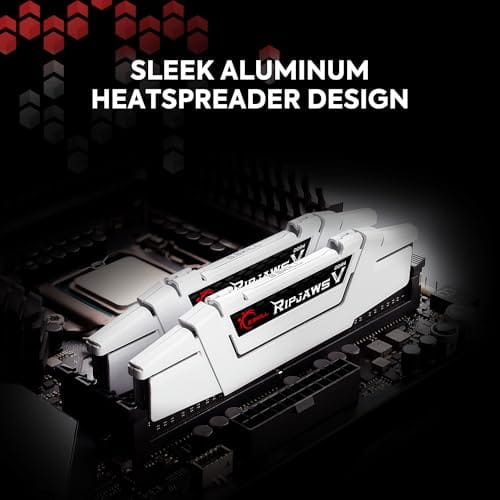
A quick note on compatibility, and an honest one. The reference kit shown below is a G.SKILL RipjawsV DDR4 32GB (2x16GB) 3600MT/s set at $219.99 with a 4.1-star rating. It’s DDR4, not DDR5, so it will not fit a DDR5 board; DDR5 uses a different notch and pinout entirely. We’re including it only as a familiar example of what a dual-channel 2x16GB kit looks like, and to make the point clearly: buy a DDR5-labeled kit for a DDR5 build. Don’t order this exact part for an AM5 or LGA1851 system.

Pros
- DDR4-3600 XMP at 1.35V is the Ryzen AM4 sweet spot, aligning FCLK 1:1 at 1800MHz for best latency.
- Matched 2x16GB kit is factory-tested as a pair, reducing dual-channel instability compared to mixing sticks.
- Compatible with both Intel XMP and AMD DOCP/A-XMP BIOS profiles without manual sub-timing adjustments.
- Ships with JEDEC SPD fallback so the system always boots safe at default clocks before XMP is enabled.
Cons
- CL18 primary latency is mid-range; DDR4-3600 CL16 kits exist for buyers prioritizing tighter timings.
- No ECC support, so workstation or Threadripper ECC builds need a different kit entirely.
The G.SKILL RipjawsV F4-3600C18D-32GVK is a mid-range DDR4 desktop kit targeting Intel and AMD mainstream platform builders who want 32GB capacity at DDR4-3600 without overpaying for CL14 or CL16 enthusiast kits. It ships as a matched 2x16GB dual-channel pair in the standard 288-pin U-DIMM form factor.
The defining spec here is the XMP profile: DDR4-3600 at CL18-22-22-42, 1.35V. On AMD AM4 Ryzen systems, 3600MHz is the well-documented sweet spot for achieving a 1:1 FCLK ratio at 1800MHz, which keeps infinity fabric latency in check and translates to measurable gains in lightly-threaded workloads and gaming frame times compared to DDR4-3200 or lower.
CL18 is a genuine trade-off at this speed. Competing DDR4-3600 kits with CL16 or CL14 exist and offer lower absolute latency, though they typically carry a price premium. Owners report stable XMP operation across a wide range of B450, X570, and Z490/Z590 boards, but reaching rated speed on some budget AM4 boards may require manual sub-timing adjustments or AGESA microcode updates.
Buy this if you are building or upgrading an AM4 Ryzen or Intel LGA1700 desktop and want reliable 32GB DDR4-3600 dual-channel performance without tuning. Skip this if you need CL16 or tighter for competitive latency, or if your board has a limited QVL and you have not verified compatibility via G.SKILL's configurator tool first.
Platform Support: This kit uses 288-pin DDR4 U-DIMM and is compatible with Intel LGA1700 (Z690/Z790) and AMD AM4 (B450/X470/B550/X570) platforms. AM5 uses DDR5 exclusively, so this kit is not compatible with Ryzen 7000/9000 series builds on AM5 boards.
XMP and DOCP Activation: Rated speed of DDR4-3600 CL18-22-22-42 at 1.35V requires enabling XMP (Intel) or DOCP/A-XMP (AMD) in BIOS. Default JEDEC SPD boots at DDR4-2133 or DDR4-2400. On AM4, DDR4-3600 aligns FCLK at 1800MHz for a 1:1 ratio, which is the recommended operating point for Ryzen 3000 and 5000 series CPUs.
Slot Population and Mixing: Install both sticks in the recommended dual-channel slots per your motherboard manual, typically A2 and B2 in a 4-slot board. G.SKILL explicitly warns against mixing this kit with other modules; doing so voids the matched-pair guarantee and risks instability at XMP speeds.
Cooler Clearance: Exact heatspreader height is not specified in the source data, but RipjawsV modules are noted for a lower profile than Trident Z or RGB variants, reducing conflicts with wide tower coolers. Verify clearance if using a low-clearance cooler on a tight ITX board.
Step 1: Power down and ground yourself
Shut the PC down fully, flip the power supply switch to off, and unplug the wall cable. Press the case power button once to drain residual charge from the capacitors. This isn’t optional theater; live standby power on a modern board can be enough to cause problems while you’re handling components. Give it a few seconds.
Now ground yourself. Touch a bare metal part of the case chassis to equalize static charge before you pick up the memory. If you’ve got an anti-static wrist strap, use it. DDR5 modules carry an onboard power management IC that’s more sensitive than old DDR4 sticks, so a stray zap is worth avoiding. Handle the modules by their edges, never the gold contacts.
Step 2: Find the correct slots for dual channel
Here’s the step people get wrong. On a four-slot board running two sticks, you do not fill the two slots nearest the CPU. You populate slots 2 and 4, usually labeled A2 and B2, to run dual channel. The manual spells out the exact pair, and it matters, because the wrong pair either drops you to single channel or refuses to post. Always check the manual for your specific board.
Why slots 2 and 4? It’s an electrical layout thing tied to signal integrity on DDR5’s high speeds. Boards are wired so the second and fourth slots give the cleanest signal path for a two-stick config. If you’re installing four sticks, all slots fill and the order is moot. For the far more common 2x16GB or 2x32GB kit, get the pair right and you unlock the full bandwidth the memory’s rated for.
Step 3: Open the clips and check the notch orientation
Push down the retention clips at the ends of your target slots. Some boards use clips on both ends, many modern ones use a single moving clip with a fixed top, so just open whatever moves. Then look at the module’s bottom edge. There’s an off-center notch, and it only lines up with the slot one way. DDR5’s notch sits in a different position than DDR4’s, which is the physical reason you can’t cross-install the two.
Line the notch up before applying any pressure. If it doesn’t match, you’ve either got the stick backwards or, worse, the wrong memory type for the board. Never force it. A DDR4 stick physically won’t seat in a DDR5 slot, and trying hard enough to make it “fit” damages pins. Orientation first, force never.
Step 4: Seat the modules firmly
With the notch aligned, set the module flat into the slot and press down evenly on both ends. DDR5 takes more force than people expect, so use firm, steady pressure with your thumbs on the top corners. You’ll feel it drop in, and the retention clip will swing up and snap into the notch on the module’s end. That click is your confirmation.
Check both ends. If one clip is seated and the other isn’t quite closed, the stick is cocked at an angle and won’t make full contact, which reads as no-boot or missing capacity. Press again until both clips lock. A properly seated module sits perfectly level in the slot. Repeat for the second stick in its correct channel slot, then double-check both are flush.
Step 5: Boot and enable the memory profile in BIOS
Reconnect power and boot straight into the BIOS by tapping Delete or F2. First confirm the board sees the full capacity, a 2x16GB kit should read 32GB. If it shows half, one stick isn’t seated or you’re in the wrong slots, so power down and recheck. If the capacity’s right, you’re most of the way there.
Now the crucial part: your RAM is almost certainly running at the JEDEC default, not its rated speed. Find the memory profile setting, EXPO on AMD boards, XMP on Intel, and enable the profile matching your kit’s advertised speed. Save and exit. The system reboots and your DDR5 now runs at its full rated MT/s and timings. Skipping this is why so many builders unknowingly run slow memory for months.
Verify the change stuck. Boot into Windows, open Task Manager, click Performance, and select Memory; the speed reads there in MT/s. If it matches your kit’s rating, you’re done. Some boards apply the profile but then fail to post at the first attempt and roll back to the default, so if the speed looks low, re-enter the BIOS and confirm the profile is still enabled. On the first EXPO or XMP boot, expect another round of memory training, so give it that black-screen minute before assuming something’s wrong.
Troubleshooting common issues
The PC won’t post after installing RAM
First-boot memory training on DDR5 can take 30 to 60 seconds of a black screen, sometimes with the board cycling power a couple times. That’s normal on the first boot with a new kit, so wait a full minute before panicking. If it still won’t post, reseat both sticks and confirm they’re in the manual’s specified slots. Try a single stick in the primary slot to isolate a bad module.
Only half my RAM capacity shows up
This almost always means one module isn’t fully seated or you’ve populated the wrong slot pair. Power down, open the case, and press each stick until both end clips lock. If both are seated and it still reads half, move the pair to the manual’s recommended dual-channel slots. A rare cause is a genuinely faulty stick, which you confirm by booting each module alone.
System is unstable after enabling EXPO or XMP
High-speed profiles push the memory controller, and not every CPU sample handles the fastest kits at stock voltage. If you get crashes or failed boots after enabling the profile, try the next speed tier down, or bump the SoC voltage slightly within safe limits per your board’s guidance. Updating to the newest BIOS often improves memory compatibility and stability with fast DDR5 kits.
Before and after: what to expect
Before enabling the profile, your fancy DDR5 idles at the JEDEC baseline, often 4800MT/s, regardless of what the box promised. After flipping on EXPO or XMP, it runs at its rated speed, 6000MT/s and beyond on AM5, with the tighter timings you paid for. On Ryzen chips especially, that memory speed feeds the Infinity Fabric and shows up as real gaming frame-rate gains. The difference between “installed” and “installed correctly” is that one BIOS toggle.
You’ll also feel it outside games. Faster memory helps with heavy multitasking, browser-tab sprawl, and content work that shuffles large files in and out of RAM. The jump from baseline to rated speed won’t transform a slow CPU, but it’s free performance you already bought, so leaving it off is pure waste. Run a quick stability pass afterward, an hour of a memory stress utility or just a few hours of normal use, to confirm the profile is solid before you trust it with important work.
Variations and advanced setups
Running four DIMMs of DDR5 is harder on the memory controller than two, so a four-stick config often won’t hit the same peak speed as a matched 2-stick kit. If you want maximum frequency, two sticks is the cleaner path. Overclockers can go further by manually tuning primary timings and voltages past the EXPO profile, but that’s a rabbit hole. Our guide to the best DDR5 for overclocking covers kits with the headroom for it.
Common questions
Which slots do I use for two DDR5 sticks?
On a four-slot board, use the second and fourth slots from the CPU, usually labeled A2 and B2, for dual channel. The manual confirms the exact pair. Filling the two slots closest to the CPU is the common mistake and can leave you in single channel or unable to post.
Can I put DDR5 in a DDR4 motherboard?
No. DDR4 and DDR5 use different notch positions and pinouts, so a DDR5 stick physically won’t seat in a DDR4 slot and vice versa. The memory type is tied to the CPU and board platform. Confirm whether your motherboard is DDR4 or DDR5 before buying, and match the kit to it exactly.
Why is my DDR5 running slower than advertised?
Because memory defaults to the JEDEC baseline speed until you enable its performance profile in BIOS. Turn on EXPO for AMD or XMP for Intel, select the profile matching your kit’s rating, and save. The RAM then runs at its full rated MT/s and timings. Most “slow RAM” complaints trace back to this one skipped step.
How much force should DDR5 take to install?
More than you’d think, but always with the notch aligned first. Press firmly and evenly on both top corners until the module drops in and the clips snap closed. If it resists with the notch lined up correctly, stop and recheck orientation. Never force a stick whose notch doesn’t match, that means wrong type or wrong direction.
Do I need to update my BIOS for DDR5?
Often it helps. Motherboard makers ship BIOS updates that improve memory compatibility and stability, especially for faster kits released after the board launched. If your system won’t post with a new kit or an EXPO profile crashes, flashing the current BIOS is one of the most effective fixes. Update it before spending hours tweaking timings by hand.

































Write Your Review
No reviews yet. Be the first to share your experience!