

A blue screen tied to RAM usually shows up as random crashes, memory-management stop codes, app corruption, or reboots that happen under load but don’t point clearly at one program. Annoying. Worse, it can look like a bad motherboard, CPU, or Windows install even when the fix is a loose DIMM, unstable XMP or EXPO profile, or a kit that doesn’t play nicely with your platform. If you’re comparing replacement memory, our RAM for gaming and editing guide and budget RAM picks are useful after you’ve confirmed the old kit is the real problem.
The trick is to change one thing at a time and watch. Most RAM blue screens trace back to a short list of causes, and you can usually rule them out with settings and swaps before spending a cent. Work in order, keep notes, and don’t reinstall Windows as your first move. That rarely fixes a hardware or profile problem, and it costs you an afternoon.
First check the obvious (the 30-second check)
Before you blame the RAM itself, shut the PC down, switch the power supply off, and reseat each memory stick. A DIMM can look seated while one latch is still slightly high, especially on boards with a fixed latch on one side. Press evenly until the latch clicks, then check that the modules are in the motherboard’s recommended slots. For two sticks, that’s often A2 and B2, but use the board manual if you’re not sure.
While you’re in there, look for the easy physical stuff. Dust packed into a slot, a bent case cable pressing on a DIMM, or a graphics card sagging into memory clearance can all cause trouble. Confirm the sticks are the right generation for the board. A DDR4 stick won’t seat in a DDR5 slot, and a half-seated module can boot once then crash under load. Two minutes of looking beats an hour of guessing.
Next, undo the easy instability triggers. Enter BIOS, load optimized defaults, and disable XMP or EXPO for one boot. If the crashes stop at default JEDEC speed, the memory may be fine but the profile may be too aggressive for the CPU memory controller or motherboard firmware. Don’t skip BIOS updates either. Many DDR5 stability problems are improved through firmware.
Also note when the blue screen happens. Crashes during a game, shader compilation, video export, or browser tab overload often point to memory under sustained pressure. Crashes during cold boot can point toward training problems, especially on DDR5 boards that renegotiate settings after power loss. If the PC only fails after sleep, Windows power behavior, chipset drivers, and fast startup join the suspect list. Pattern first, panic later.
Cause #1: The memory profile is unstable
XMP and EXPO profiles are factory-defined overclocking settings. They’re convenient, but they still push beyond the slow default memory speeds that every board uses for first boot. A DDR4 kit like the G.SKILL Ripjaws V 32GB lists 3600MT/s, CL18-22-22-42, and 1.35V, while the Corsair Vengeance DDR5 kit lists up to 5200MHz with CL40 and AMD EXPO plus Intel XMP 3.0 support. Those numbers matter because the board, CPU, and DIMM all have to agree.
Read that as three parts of one contract. The DIMM can be perfect, but if the CPU memory controller or board firmware can’t hold the profile, you’ll still crash. That’s why a stable kit on one system can be unstable on another. The profile is a target, not a promise.
If the blue screen started after enabling XMP, changing slots, adding another kit, or updating BIOS, turn the profile off and run the PC at defaults for a day. Then re-enable the profile and, if needed, drop one speed step or loosen timings slightly. We’ve seen owner reports where 3600MT/s DDR4 was stable only after a tiny voltage adjustment, and DDR5 often behaves better after a BIOS update. Small settings. Big difference.
DDR5 deserves extra patience here. Early boards and higher-speed kits sometimes need firmware maturity to run their rated profile cleanly, and memory training on first boot after a change can take longer than people expect. Don’t panic if the first post after enabling EXPO is slow. If it fails repeatedly, though, back off one speed grade and confirm stability before chasing the maximum number on the box. A stable 4800MT/s beats a crashing 6000MT/s every day.

Pros
- DDR4-3600 XMP at 1.35V is the Ryzen AM4 sweet spot, aligning FCLK 1:1 at 1800MHz for best latency.
- Matched 2x16GB kit is factory-tested as a pair, reducing dual-channel instability compared to mixing sticks.
- Compatible with both Intel XMP and AMD DOCP/A-XMP BIOS profiles without manual sub-timing adjustments.
- Ships with JEDEC SPD fallback so the system always boots safe at default clocks before XMP is enabled.
Cons
- CL18 primary latency is mid-range; DDR4-3600 CL16 kits exist for buyers prioritizing tighter timings.
- No ECC support, so workstation or Threadripper ECC builds need a different kit entirely.
The G.SKILL RipjawsV F4-3600C18D-32GVK is a mid-range DDR4 desktop kit targeting Intel and AMD mainstream platform builders who want 32GB capacity at DDR4-3600 without overpaying for CL14 or CL16 enthusiast kits. It ships as a matched 2x16GB dual-channel pair in the standard 288-pin U-DIMM form factor.
The defining spec here is the XMP profile: DDR4-3600 at CL18-22-22-42, 1.35V. On AMD AM4 Ryzen systems, 3600MHz is the well-documented sweet spot for achieving a 1:1 FCLK ratio at 1800MHz, which keeps infinity fabric latency in check and translates to measurable gains in lightly-threaded workloads and gaming frame times compared to DDR4-3200 or lower.
CL18 is a genuine trade-off at this speed. Competing DDR4-3600 kits with CL16 or CL14 exist and offer lower absolute latency, though they typically carry a price premium. Owners report stable XMP operation across a wide range of B450, X570, and Z490/Z590 boards, but reaching rated speed on some budget AM4 boards may require manual sub-timing adjustments or AGESA microcode updates.
Buy this if you are building or upgrading an AM4 Ryzen or Intel LGA1700 desktop and want reliable 32GB DDR4-3600 dual-channel performance without tuning. Skip this if you need CL16 or tighter for competitive latency, or if your board has a limited QVL and you have not verified compatibility via G.SKILL's configurator tool first.
Platform Support: This kit uses 288-pin DDR4 U-DIMM and is compatible with Intel LGA1700 (Z690/Z790) and AMD AM4 (B450/X470/B550/X570) platforms. AM5 uses DDR5 exclusively, so this kit is not compatible with Ryzen 7000/9000 series builds on AM5 boards.
XMP and DOCP Activation: Rated speed of DDR4-3600 CL18-22-22-42 at 1.35V requires enabling XMP (Intel) or DOCP/A-XMP (AMD) in BIOS. Default JEDEC SPD boots at DDR4-2133 or DDR4-2400. On AM4, DDR4-3600 aligns FCLK at 1800MHz for a 1:1 ratio, which is the recommended operating point for Ryzen 3000 and 5000 series CPUs.
Slot Population and Mixing: Install both sticks in the recommended dual-channel slots per your motherboard manual, typically A2 and B2 in a 4-slot board. G.SKILL explicitly warns against mixing this kit with other modules; doing so voids the matched-pair guarantee and risks instability at XMP speeds.
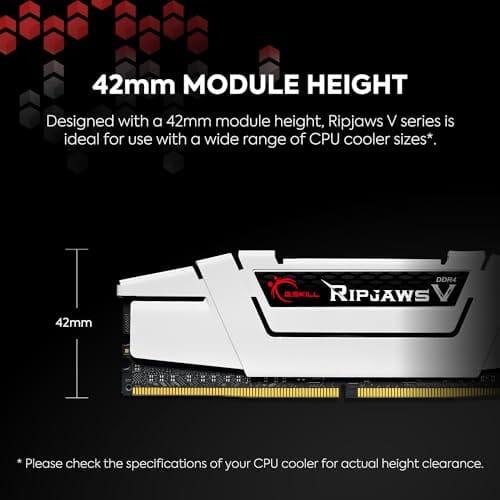
Cooler Clearance: Exact heatspreader height is not specified in the source data, but RipjawsV modules are noted for a lower profile than Trident Z or RGB variants, reducing conflicts with wide tower coolers. Verify clearance if using a low-clearance cooler on a tight ITX board.
Cause #2: A stick or slot is failing
A failing DIMM can create different blue screens each time because memory corruption doesn’t always hit the same file, driver, or process. One crash might mention memory management. Another might mention a page fault. Another might happen during a game install. That’s why chasing stop-code wording alone can waste time. You need to isolate the hardware path.
Software checks help point the way before you open the case again. Windows Memory Diagnostic runs at boot and catches obvious faults, and longer memory verification passes can reveal intermittent errors that a quick check misses. A clean pass isn’t a guarantee, and a failed pass isn’t always the stick itself, since an unstable profile can also throw errors. Treat these results as evidence, then confirm with the one-stick swap.
Run the system with one stick at a time in the recommended single-DIMM slot. If stick A crashes but stick B doesn’t, you have a likely bad module. If both sticks crash in one slot but behave in another, the motherboard slot or CPU socket contact may be involved. Also inspect the CPU cooler pressure on some platforms; uneven pressure can affect memory channels. It sounds odd, but memory traces live close to the CPU socket.
Give each configuration enough time to prove itself. One clean boot doesn’t mean the problem is gone. Open a few large apps, copy a big folder, launch a game, and watch for event-log errors. If the PC crashes within 10 minutes on one module and runs for two hours on the other, you’ve learned something useful. If both modules fail only at the rated profile, you’re probably dealing with settings rather than a dead stick.
Cause #3: Mixed kits or wrong-generation memory
Mixing RAM kits is one of the fastest ways to create random instability. Even two kits with the same advertised capacity and speed can use different memory ICs, subtimings, or programmed profiles. DDR4 and DDR5 are also physically and electrically different, so you can’t swap them between platforms. The G.SKILL Ripjaws V kit in this batch is DDR4 U-DIMM memory, while the Corsair Vengeance kit is DDR5 memory. They’re for different motherboard generations.
Even matched-looking kits can disagree at the chip level, which is why buying one kit rated for your total capacity is the safer move. Two separate 16GB kits are not the same as one 32GB kit, even if the boxes look identical.
If you added memory recently, remove the new kit and return to the original pair. If that fixes the crashes, buy a matched kit at the total capacity you need rather than mixing. For current DDR5 platforms, a 2x16GB kit is usually easier to stabilize than four sticks, especially at higher speeds. If you’re building around a specific CPU, our RAM for 9800X3D guide covers matching capacity and speed more directly.
Four-stick setups are a common hidden cause. Filling all four slots increases the load on the CPU memory controller, and many boards can’t hold the same high speed with four modules that they manage with two. If you added two more sticks and crashes appeared, try running the rated profile at a lower speed, or drop back to two sticks. Capacity and speed pull against each other on packed boards.

Pros
- AMD EXPO profile activates 5200MHz CL40-40-40-77 with a single BIOS toggle on Ryzen 7000 boards.
- Low 35mm module height clears virtually any AM5 or LGA1700 tower cooler without physical conflict.
- 1.25V operating voltage sits within DDR5 spec, reducing thermal stress on integrated PMIC under sustained load.
- Aluminum heatspreader aids passive heat dissipation in open-air cases without requiring active cooling.
Cons
- 16GB total capacity is increasingly marginal for content creation workflows and modern open-world titles running texture packs.
- 5200MHz CL40 offers modest latency compared to DDR5-6000 CL30 kits that hit the Ryzen 7000 FCLK 1:1 ratio sweet spot.
The CORSAIR Vengeance DDR5 16GB 2x8GB is a mid-range DDR5 kit targeting AMD Ryzen 7000 series and Intel 12th-generation-or-newer desktop builds. It ships with both AMD EXPO and Intel XMP 3.0 profiles, making it broadly compatible across AM5 and LGA1700 or LGA1851 platforms without manual timing configuration.
The standout feature is dual-profile support at a frequency that loads with a single BIOS toggle. At 5200MHz CL40-40-40-77 and 1.25V, it sits within DDR5 JEDEC specification territory, and onboard voltage regulation on the module itself reduces dependency on motherboard power delivery for the memory rail, which matters on budget AM5 boards with fewer VRM phases dedicated to DRAM.
The honest trade-off at this tier is frequency positioning. Ryzen 7000 performs best at DDR5-6000 with CL30 timings, where FCLK and memory controller run at a clean 1:1 ratio. This kit at 5200MHz places it below that threshold, meaning buyers on AM5 leave some CPU bandwidth on the table. The 16GB total capacity is also worth scrutinizing for any workload beyond gaming or light productivity.
Buy this if you are building a budget-to-mid AM5 or Intel DDR5 system and need reliable plug-and-play EXPO or XMP activation without manual overclocking. Skip this if your platform is AM5 and you plan to run a Ryzen 7000 CPU near its performance ceiling, where DDR5-6000 CL30 kits deliver measurably better throughput and latency at comparable pricing.
Platform Requirements: DDR5 requires AMD 600-series or newer motherboards paired with Ryzen 7000 series or newer CPUs, or Intel 600-series or 700-series boards with 12th-generation Core or newer. DDR5 is not backward compatible with DDR4 slots. Verify your motherboard QVL lists this kit before purchasing.
EXPO and XMP Activation: The rated 5200MHz speed requires enabling AMD EXPO or Intel XMP 3.0 in BIOS. Without activation, the kit defaults to DDR5-4800 JEDEC. On Ryzen 7000, DDR5-6000 is the accepted 1:1 FCLK sweet spot; this kit at 5200MHz runs below that threshold, which carries a small but measurable bandwidth and latency penalty versus a tuned DDR5-6000 kit.
Physical Clearance: Module height is 35mm, which clears nearly all air coolers without conflict. The 1.25V operating voltage and onboard PMIC mean power comes from the module itself rather than solely from the motherboard, reducing stress on budget boards with lighter DRAM power stages.
Capacity and Channel Config: The 2x8GB configuration fills two slots in dual-channel. CORSAIR explicitly advises against mixing kits, so expansion to 32GB requires replacing both modules with a validated 2x16GB kit rather than adding a second 2x8GB pair.
Preventive maintenance
Keep BIOS current, avoid mixing unrelated kits, and document your stable settings before experimenting. If you tune memory manually, change one value at a time and write down the previous setting. Dust isn’t usually the direct cause of RAM blue screens, but heavy dust and heat can make an already marginal system less stable, so clean the case filters and maintain airflow. Also avoid moving a tower while it’s powered on; a heavy CPU cooler or poorly latched DIMM doesn’t need much help to shift.
If you transport the PC, lay it on its side before checking memory again. Tall air coolers and heavy graphics cards can flex during a move, and that can slightly disturb board contacts. It’s rare, but it happens often enough that reseating memory after shipping or a dorm move is worth doing. Don’t keep retrying Windows repairs while the hardware remains physically questionable.
When it’s not fixable: what to replace
Replace the RAM if one stick fails alone at default settings, crashes across multiple slots, or produces errors after reseating and BIOS resets. The G.SKILL Ripjaws V 32GB DDR4 kit is relevant for older DDR4 desktop systems that support 3600MT/s memory, and the Corsair Vengeance DDR5 16GB kit fits newer DDR5 boards that use EXPO or XMP 3.0 profiles. Don’t buy either until you’ve confirmed your motherboard memory generation. DDR4 won’t fit DDR5, and DDR5 won’t fit DDR4.
When you do replace, buy a single matched kit at your target capacity instead of adding one stick to survivors. A 2x16GB DDR4 kit like the Ripjaws V gives a clean dual-channel pair for an older build, while a DDR5 kit like the Vengeance suits a current board. Keep the receipt and packaging in case the new kit needs a return, and note the working profile once it’s stable so a future BIOS update doesn’t erase your progress.
Tools and parts needed
You don’t need many tools for RAM troubleshooting. A Phillips screwdriver may be needed to open the side panel, a small flashlight helps confirm the latch position, and your motherboard manual tells you the correct slots. For software checks, Windows Memory Diagnostic can catch obvious faults, while longer memory verification tools can reveal intermittent errors. The parts side is simple: a matched replacement kit that fits your platform, not a random single stick added to an old pair.
Keep a USB installer or recovery drive nearby if crashes have already damaged Windows. Once memory is stable, you may still need to repair the file system, reinstall a driver, or roll back a broken update. Don’t do that work while the PC is still crashing. You’ll chase the same corruption twice, and nobody needs that on a weeknight.
A few more questions
Can bad RAM damage Windows?
Bad or unstable RAM can corrupt files if crashes happen during writes, updates, or installs. It doesn’t always destroy Windows, but it can make repairs messy. Once the hardware is stable, run system file checks and reinstall affected programs if needed.
Should I clear CMOS after RAM crashes?
Yes, clearing CMOS can help if the PC won’t boot after a bad memory setting. It returns the board to defaults, which removes unstable profiles. You’ll need to reapply fan curves and boot settings afterward.
Is blue screen from RAM always a bad stick?
No. It can be a loose module, wrong slot, unstable profile, old BIOS, mixed kits, CPU memory-controller limits, or a motherboard slot issue. Start with defaults and one stick at a time before buying parts.


































Write Your Review
No reviews yet. Be the first to share your experience!