

Choosing a mini PC for a home server is mostly about sizing the box for the jobs it’ll run all week, not chasing a gaming-style spec sheet. A good home server can host files, backups, Plex or Jellyfin, Home Assistant, light Docker stacks, and a few local services without sounding like a hair dryer under your desk. If you want product-style comparisons after this walkthrough, start with our mini PC home server guide and budget prebuilt home server picks.
What you’ll need
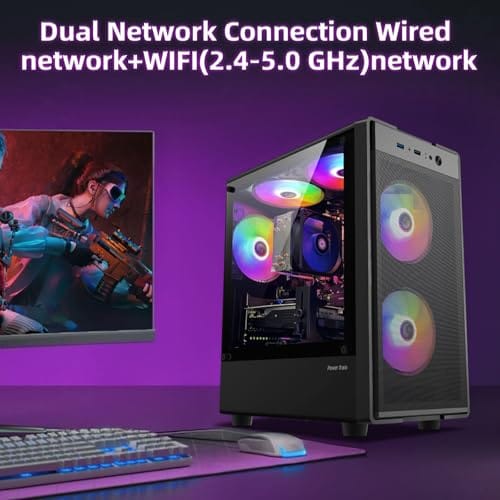
You’ll need a clear workload list, your internet and LAN speed, a rough storage plan, and the physical space where the machine will live. A mini PC is useful because it saves power and space, but it isn’t magic. The supplied product in this batch, the abytespark Intel Core i7 prebuilt gaming/business desktop, is a $499.99 tower-style PC with a 4.4 rating. It can be relevant as a larger prebuilt alternative, but it isn’t a mini PC, so don’t treat it as the exact form-factor answer.
Also gather the boring numbers: how many terabytes you need now, how much data grows each month, how many users will connect, and where backups will live. If the server sits in a bedroom, noise matters more than peak CPU scores. If it sits in a closet, heat and dust matter more. The right answer changes with the room.
Step 1: List the services before the hardware
Write down the actual jobs the server must handle. File sharing, automatic PC backups, media streaming, ad blocking, a Minecraft server, security-camera recording, and virtualization all stress different parts of the machine. A file server may care more about drive bays and networking. A media box may care about video decode support. A virtualization host wants RAM and CPU threads.
Rank those jobs by how much they’d hurt if they went down. Backups and photo storage usually sit at the top, because losing them is painful. A game server or media automation stack can wait. When you know which services are critical, you can spend on reliability where it counts and accept cheaper tradeoffs on the fun extras. That ranking also tells you where to point your backup budget first.
Don’t buy from vibes. If you’ll run two Docker containers and network storage, a modest mini PC is fine. If you’ll transcode several 4K streams while running virtual machines, you’ll want stronger cooling, more RAM, and maybe a larger chassis. Simple list first. Specs second.
Split the list into must-run and nice-to-run services. Must-run services are things like backups, file shares, password vault sync, or smart-home control. Nice-to-run services might be a game server, local AI experiment, or media automation stack. If the nice-to-run list triples the hardware budget, keep it separate. You can always add a second box later.
Step 2: Pick the CPU and power target
For a home server, idle power matters because the machine may run 24/7. A mini PC with a laptop-class Intel or AMD chip can sit at low idle draw while still feeling quick for web dashboards and file transfers. A desktop tower with an Intel Core i7, like the abytespark listing, may offer more raw headroom but usually takes more space and may draw more power depending on its parts.
Do the yearly math on power. A machine that idles at 15 watts costs far less to run around the clock than one that idles at 60 watts, and over a year that gap adds up on the electric bill. For a server that mostly waits for requests, low idle draw often matters more than peak speed, because peak only happens in short bursts.
If you need hardware video transcoding, check the specific CPU generation and integrated graphics support. If you need virtual machines, prioritize core count and memory ceiling. If you need only backups and Home Assistant, you don’t need a monster. You’ll save money twice: at checkout and every month on electricity.
Cooling design matters as much as the chip label. Two mini PCs can use similar CPUs but behave differently because one has a better heatsink, larger fan, or less restrictive venting. Look for owner reports about 24/7 use, not just short benchmark bursts. A home server should be steady at 3 a.m. while nobody is watching it.
Pros
- 512GB SSD bot drive avoids the HDD bottleneck common in budget prebuilts
- RX 590 8GB VRAM buffer handles 1080p textures better than 4GB budget cards
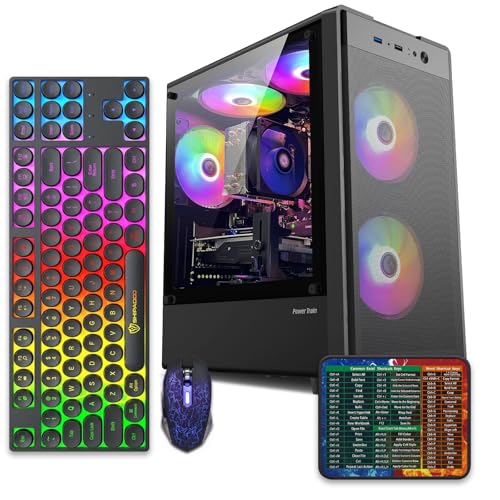
- Complete bundle with RGB peripherals means no extra spend to start using
- Genuine Windows 11 Home 64-bit preinstalled, no activation hassle out of box
Cons
- Limited owner feedback at time of writing, verify seller reputation before purchase
- Core i7-4770 is Haswell era LGA150, no upgrade path and weak IPC versus modern CPUs
- Windows 11 on 4th-gen Intel is unsupported by Microsoft and may miss feature updates
- No CD/DVD-ROM support and RAM/GPU generation limits future workload headroom
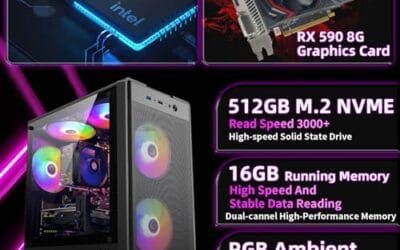
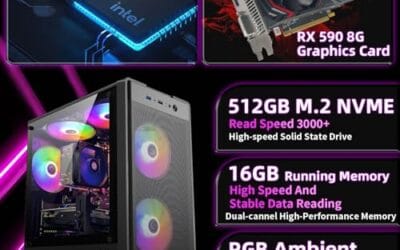
This is an entry-tier prebuilt tower built around an Intel Core i7-4770 Haswell CPU, 16GB RAM, a 512GB SSD, and an AMD Radeon RX 590 8GB GDDR5 GPU. It targets budget buyers who need a working office and light gaming PC with peripherals bundled, not enthusiasts chasing current-gen performance.
The defining feature is the RX 590 8GB paired with a 512GB SSD, an uncommon combo at this price band. Cards in this class typically handle 1080p esports titles at 60+ FPS on medium to high, matching the vendor claim for CS:GO, League of Legends, Apex, and Overwatch. Newer AA titles will need lowered settings.
Trade-offs are significant. The i7-4770 launched in 2013, so IPC, single-thread performance, and platform features like NVMe bot, PCIe Gen4, and modern USB are limited. Windows 11 runs here but sits outside Microsoft's official supported CPU list. There is no realistic CPU or socket upgrade path on LGA1150.
Buy this if you need a plug-and-play 1080p esports and office tower with keyboard, mouse, and RGB included at a low outlay. Skip this if you want current-gen platform support, sustained AA 1440p gaming, or a build with a meaningful upgrade runway.
GPU class: The AMD Radeon RX 590 8GB GDDR5 is a Polaris-refresh card roughly equivalent to a GTX 1060 6GB tier. Expect 1080p 60+ FPS in esports titles like CS:GO, Overwatch, Apex, League, and Fortnite on medium settings, matching the listing's claims.
AAA and modern titles: The vendor lists GTA V, Warzone, Hogwarts Legacy, and The Division 2. Realistically, these run at 1080p low to medium with FSR upscaling where suported.Ray tracing is unsupported on RX 590. No DLSS, no frame gen, no AV1 encode.
CPU bottleneck: The Core i7-4770 quad-core with 8threads at up to 3.9GHz will bottleneck the RX 590 in CPU-heavy titles like Warzone and Escape from Tarkov. Expect frame time inconsistency in large team fights even when average FPS looks aceptable.
Storage and RAM fit: 512GB SSD holds Windows plus 3 to 5 modern game installs before space pressure. 16GB DR3-era RAM is adequate for current esports but leaves no headroom for heavy streaming, browser tabs, and OBS NVENC alongside a game session.
Step 3: Size memory and storage correctly
RAM is where many home servers quietly hit limits. For basic file sharing and a few containers, 8GB can work, but 16GB is a much safer starting point. If you’re running several services, ZFS, or virtual machines, 32GB becomes more attractive. Check whether the mini PC has upgradeable SO-DIMM slots or soldered memory. Soldered RAM can be fine, but you need to buy enough on day one.
Buy a little more memory than today’s list demands. Home servers grow. You add a container here, a monitoring dashboard there, and suddenly the box that idled at 6GB now wants 12GB. If the mini PC uses SO-DIMM slots, a future bump is cheap and easy. If it’s soldered, that comfortable headroom has to be bought up front, because you can’t add it later without replacing the whole unit.
Storage depends on your data plan. An internal NVMe drive is great for the operating system and containers, but bulk media and backups often belong on external drives, a DAS box, or a NAS-style enclosure. If the mini PC has only one M.2 slot, plan how you’ll back up that boot drive. Don’t run your only family-photo copy from a single tiny SSD. Please don’t.
For home-server storage, separate speed from resilience. A fast NVMe boot drive makes Docker updates and dashboards snappy, but it doesn’t protect data. If photos, tax documents, or project files live there, use a second copy and a versioned backup. RAID can help uptime, but it doesn’t replace a backup. Delete a file on RAID and it’s deleted very efficiently.
Step 4: Check networking and ports
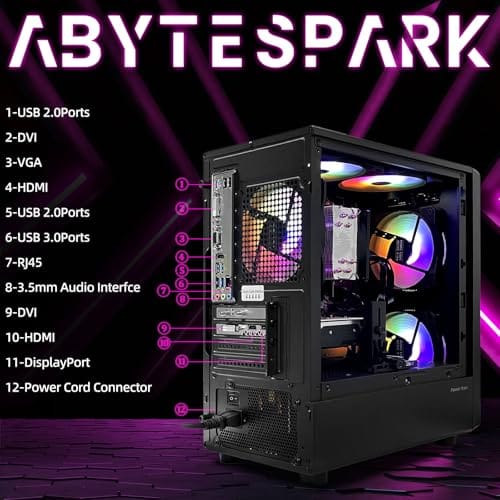
Gigabit Ethernet is the baseline. For large file transfers, 2.5GbE is a meaningful upgrade if your switch and main PC support it. Wi-Fi is fine for setup, but a server should usually be wired. Look at USB port count too, especially if you’ll attach external drives, a UPS data cable, or Zigbee and Z-Wave dongles for smart-home gear.
Check the USB standard, not just the count. Two USB 2.0 ports and two USB 3.2 ports are not the same for external drives, and a slow port can cap backup speed even on a fast SSD. If you plan to run several USB drives, a mini PC with only a couple of ports may force you into a powered hub anyway. Plan the port budget the same way you plan storage.
HDMI is useful for first setup, but you may run the server headless afterward. Front USB ports are convenient if the box lives on a shelf. Rear ports keep cables tidy. Tiny details affect whether you’ll hate maintaining the thing six months later.
Step 5: Choose the operating system and backup plan
Windows can work for simple sharing, but Linux, TrueNAS, Unraid, and Proxmox are common because they’re built around server-style management. Proxmox is strong for virtual machines and containers. TrueNAS fits storage-first builds. Unraid is friendly for mixed-drive media servers. Pick the software before final hardware purchase so you know driver and storage needs.
Match the operating system to your comfort level too. A polished web dashboard like Unraid or a friendly NAS OS can save hours if you’re new to Linux. A bare Debian install with Docker is lean and flexible, but it assumes you’re happy in a terminal. There’s no single right answer. There’s the one you’ll actually maintain six months from now without dreading it.
Then plan backups before you copy data. A home server is not a backup if it’s the only place the files exist. Use another drive, another machine, or cloud storage for important files. If you’re leaning larger than mini PCs, our prebuilt PC home server guide explains when a bigger box makes sense.
Security belongs in this step too. Change default passwords, keep management dashboards off the open internet unless you really understand the exposure, and use VPN access for remote administration. Automatic updates are helpful for many home setups, but snapshot or back up configs first. You want maintenance, not surprise breakage before a weekend trip.
Troubleshooting common issues
The server feels slow over the network
Check the wired link speed first. A bad cable or old switch can drop a 2.5GbE port to 100Mbps. Also confirm the destination drive isn’t the bottleneck, since a slow external HDD can make a fast mini PC look weak.
The mini PC runs hot
Move it out of closed cabinets, clean intake vents, and check BIOS fan settings. Small systems rely on tiny cooling paths. A few inches of open air can matter.
USB drives randomly disconnect
Use powered enclosures for multiple drives and disable aggressive USB sleep settings. If data matters, avoid cheap hubs. Direct connections are safer.
Containers break after reboot
Use static IPs or DHCP reservations, persistent storage paths, and documented compose files. If you can’t rebuild the service from notes, the setup isn’t finished yet.
Before / after expected outcomes
Before choosing hardware, you should know the services, RAM target, storage layout, network speed, operating system, and backup path. After setup, the server should boot unattended, reconnect after power loss, expose only the services you intended, and stay quiet enough for its room. That’s the win.
Variations / advanced setups
Advanced builds can add a UPS, 2.5GbE or 10GbE networking, Proxmox clusters, external disk shelves, or separate SSD pools for containers. Just keep the mission clear. If the build needs six drives and expansion cards, it may no longer be a mini PC project.
A small UPS is one of the highest-value add-ons for a 24/7 server. It rides out brief outages, prevents abrupt shutdowns during storms, and can signal the server to shut down cleanly on prolonged power loss. That protects both the file system and your data far more than another CPU core would.
Common questions
Is a mini PC enough for Plex?
Yes, if the CPU and integrated graphics support the media formats you use. Direct play is easy for many systems. Multiple 4K transcodes need more careful hardware selection.
How much RAM should a home server have?
Start with 16GB for a flexible small server. Use 32GB if you’ll run virtual machines, ZFS, or several heavier services. More RAM is useful only if your workload can use it.
Should I use Wi-Fi for a home server?
Use Ethernet if you can. Wi-Fi can work for light tasks, but wired networking is faster, steadier, and easier to troubleshoot.
Is the abytespark Intel Core i7 desktop a mini PC?
The supplied title describes it as a prebuilt gaming/business office tower computer, not a mini PC. It may be a usable home server alternative at $499.99, but it’s not the compact form-factor target.



























Write Your Review
No reviews yet. Be the first to share your experience!