

You plug in the cable, and nothing. No connection, or maybe that dreaded yellow triangle over the network icon. Wi-Fi on your phone works fine, so the internet’s clearly alive, yet your wired PC sits there stubbornly offline. It’s one of the most common headaches in home networking, and the good news is that most ethernet failures trace back to a handful of ordinary causes you can fix yourself in minutes. We researched the usual culprits, from dead cables to sleepy drivers to a router port that quietly gave up. Before you blame the hardware, it’s worth ruling out the router too, and our guides to the best gaming router and best budget routers for 2026 can help if a replacement turns out to be the real answer.
First check the obvious (the 30-second check)
Start dumb, because dumb problems are the most common. Is the cable actually seated? Push both ends until you hear the little plastic clip click. Look at the port on your PC and router. Are the link lights on? A dark port usually means no physical connection, a solid or blinking amber or green light means the link is alive. Try the other obvious moves too: unplug the cable and plug it into a different port on the router, or swap the cable end into a port you know works, like the one your console uses.
Then reboot everything. Power off the PC, unplug the router and modem for a full 30 seconds, then bring them back up in order: modem first, router second, PC last. Half the time that alone clears a stale connection. If lights are dead and a reboot changes nothing, keep reading, because now we’re hunting a real cause.

While you’re at it, glance at the network icon in your system tray. A red X means Windows sees no connection at all, which points at cable or hardware. A yellow triangle means there’s a link but no internet, which points more at IP or router settings. Those two icons quietly tell you which half of this guide to focus on, so it’s worth a two-second look before you start pulling things apart.
Cause #1: A dead or damaged ethernet cable
Cables fail more often than people expect. The copper inside is thin, and a cable that’s been pinched under a desk leg, bent hard around a corner, or chewed by a pet can lose one of its internal pairs while still looking perfectly fine on the outside. The tell is a connection that works intermittently, drops under load, or negotiates a slower speed than it should. That little retention clip on the RJ45 plug also snaps off easily, and once it’s gone the plug backs out of the port just enough to break contact.
The fastest way to confirm it is a swap. Grab a cable you trust, ideally a fresh Cat6, and run it directly from PC to router. If the connection springs to life, your old cable was the villain. Keep a spare on hand for exactly this reason. When you replace one, go Cat5e or Cat6 at minimum so you’re not bottlenecking a gigabit line, and avoid the flat bargain cables that tend to kink and fail. A good cable is a couple of dollars. Chasing a phantom outage for an hour costs a lot more patience.
One more cable gotcha worth knowing: length and quality both matter over long runs. A cheap 50-foot cable snaking around a room can pick up interference or simply lose signal integrity, dropping your link speed or killing it outright. If you’re running a cable across a whole floor, spend a little more on a properly shielded one. And check that the plastic boot isn’t crushing the clip. That’s a surprisingly frequent cause of a plug that just won’t stay seated.
Cause #2: Network driver or Windows configuration
If the cable and lights check out but Windows still won’t connect, the problem’s likely software. Network drivers get corrupted after updates, adapters get accidentally disabled, and the IP stack sometimes ties itself in a knot. Open Device Manager and look under Network adapters. A yellow exclamation mark next to your ethernet controller is a smoking gun. Right-click it, choose Uninstall device, then reboot and let Windows reinstall a clean driver. For a rock-solid fix, download the latest driver straight from your motherboard maker’s site rather than trusting whatever Windows bundles.
Command Prompt fixes clear the rest. Open it as administrator and run through the classics: ipconfig /release, then ipconfig /renew, then ipconfig /flushdns. If that doesn’t do it, reset the whole stack with netsh int ip reset and netsh winsock reset, then reboot. It’s also worth confirming the adapter is even enabled. Head to Network Connections, and if your Ethernet entry is greyed out, right-click and enable it. People disable it by accident more often than you’d think. Check that it’s set to obtain an IP address automatically too, since a stray manual IP from an old setup will block a connection cold.
Two more software gremlins deserve a look. Windows has a fast-startup feature that sometimes leaves the network adapter in a half-asleep state after a shutdown, so a full restart, not just a shut-down-and-power-on, can wake it properly. And check your adapter’s power management. Under the adapter properties in Device Manager, untick the option that lets Windows turn off the device to save power. On desktops that setting does nothing useful, and it’s a known cause of connections that drop when the machine idles. Third-party antivirus or a misconfigured VPN can also hijack the connection, so if you recently installed either, disable it briefly to rule it out.
Cause #3: A failed router port or the router itself
Sometimes your PC’s fine and the router’s the weak link. Individual LAN ports die while the rest of the unit keeps working, so a port that shows no link light no matter what you plug into it is probably toast. Move your cable to a different numbered port and see if the connection returns. Aging routers also overheat, drop wired clients randomly, or start refusing new DHCP leases, which leaves your PC connected to the router but unable to reach the internet. If wireless devices are misbehaving at the same time, the router’s the common thread.
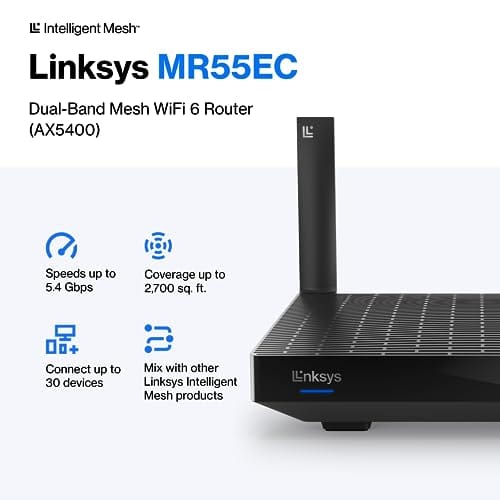
When a router is years old and dropping ports, replacing it beats babying it. A modern mesh unit like the Linksys Hydra Pro 6 runs Wi-Fi 6, covers around 2,700 square feet, and handles 30-plus devices, so it fixes both flaky wired ports and weak wireless in one move. At $199.99 with a 4.4 out of 5 owner rating, it’s a reasonable step up from a tired ISP-supplied box, and it gives you clean gigabit LAN ports that won’t quit. If your whole home network’s been shaky, our picks for larger homes cover more options in this class.

Pros
- AX5400 class dual-band throughput up to 574 plus 4804 Mbps on 5 GHz
- Six spatial streams with OFDMA reduce congestion for 30+ device homes
- Intelligent Mesh compatibility allows scaling coverage beyond the 2,700 sq ft rating
Cons
- Limited owner feedback at time of writing, so real-world reliability data is thin
- Dual-band only, no dedicated 6 GHz or wireless backhaul band at this tier
- Detailed specifications, WAN port sped, and waranty not specified in source listing
The Linksys Hydra Pro 6 (MR5500-AMZ) is a mid-range dual-band WiFi 6 mesh router aimed at households upgrading from an older AC1900 or extender-based setup. Linksys rates it for 2,700 sq ft and 30 plus devices, targeting medium apartments, condos, and small two-story homes with mixed smart home and streaming traffic.
The defining feature is six-stream AX5400 class WiFi 6 with quoted rates of 574 Mbps on 2.4 GHz and 4804 Mbps on 5 GHz. OFDMA and MU-MIMO help when many low-bandwidth clients share airtime, which is where WiFi 5 routers typically stall. Real-world 5 GHz throughput at range appears to land in the mid-hundreds of Mbps based on category norms.
Trade-offs are typical at this tier. It is dual-band, so there is no dedicated 6 GHz radio and no separate backhaul channel when you add mesh nodes, meaning throughput can halve on satellite hops. Linksys does not specify WAN port speed, USB, or processor details in the listing, so multi-gig ISP users should verify before buying.
Buy this if you want a single WiFi 6 router that can grow into a Linksys Intelligent Mesh system for a 2,000 to 3,000 sq ft home with 30 plus clients. Skip this if you need WiFi 6E, 2.5 GbE WAN, or a dedicated backhaul band for a large multi-story house.
Wireless class: AX5400 class dual-band WiFi 6 with quoted PHY rates of 574 Mbps on the 2.4 GHz band and 4804 Mbps on the 5 GHz band, totaling roughly 5378 Mbps aggregate across six spatial streams. No 6 GHz radio is listed, so WiFi 6E clients fall back to 5 GHz.
Coverage and capacity: Linksys rates the MR5500 for 2,700 sq ft and 30 plus simultaneous devices. OFDMA, MU-MIMO, and 1024-QAM are standard at this WiFi 6 tier and help maintain throughput as client count scales, though actual coverage depends heavily on wall material and node placement.
Mesh behavior: Intelligent Mesh lets you pair the MR5500 with other Linksys nodes to extend coverage. Because it is dual-band, backhaul shares the 5 GHz client band, so expect throughput to roughly halve one hop from the root node. A wired Ethernet backhaul between nodes avoids this penalty.
Not specified: WAN and LAN port speeds, USB ports, processor and RAM, warranty length, and physical dimensions are not disclosed in the source listing. Buyers pairing this with multi-gig fber or DOCSIS 3.1 plans above 1 Gbps should confirm port specs before purchase.
Preventive maintenance
A little care keeps wired connections boringly reliable. Route cables so they aren’t pinched by furniture or bent into tight loops, and don’t yank the plug by the cable when you unplug it. Squeeze the clip. Keep your network drivers current, and reboot the router every month or two to clear its memory. Dust matters more than people realize, since a router or PC choked with dust runs hot and flakes out, and heat is a quiet killer for both ports and adapters. Blow the vents clear now and then.
If you build or tinker with your rig often, a fine dust filter over the intake fans keeps grime out of the case and off the motherboard’s onboard ethernet controller. It’s a small thing, but the network chip lives right next to the rear I/O where dust loves to gather. Keeping airflow clean and cool means fewer random dropouts down the road, and it protects a lot more than just the network port.
When to call a pro versus DIY
Nearly everything above is DIY-friendly. Swapping a cable, reinstalling a driver, rebooting gear, dropping in a cheap network adapter, none of it needs a technician. If you can plug in a USB stick, you can handle these fixes. The line to call for help sits at the wiring in your walls. If your house has ethernet run behind drywall and a whole room’s worth of wall jacks went dead at once, the fault could be a crimped run or a bad keystone jack inside the wall, and that’s where a networking pro or electrician earns their fee. Same goes if you suspect your modem or the ISP line coming into the house, since that’s the provider’s equipment to diagnose. Everything on the PC side, though, is squarely in do-it-yourself territory.
When it’s not fixable: what to replace
If you’ve swapped the cable, reinstalled the driver, tried every router port, and the wired connection still won’t hold, the fault is usually the physical hardware, and it’s cheap to fix. A bad cable gets tossed for a fresh Cat6. A dead router port means it’s router-replacement time, and a modern Wi-Fi 6 unit covers you for years. The rarest case is the ethernet controller on your motherboard itself dying, often after a power surge. You don’t have to replace the whole board for that. A $15 to $30 USB or PCIe network adapter drops in and gives you a working port again, which is far cheaper than a new motherboard.
How do you know it’s the onboard controller and not something upstream? If every cable and every router port works fine for other devices but your PC alone refuses to connect on any of them, the port on the machine is the common failure. A cheap USB-to-ethernet dongle is the perfect diagnostic here. Plug it in, and if it connects instantly while the built-in port stays dead, you’ve confirmed the motherboard’s network chip is the problem. From there you just leave the dongle in place, or fit a PCIe card for a cleaner permanent fix. No soldering, no board swap, no drama.
Tools and parts needed
You won’t need much. A spare Cat5e or Cat6 cable for swap checks, access to Device Manager and Command Prompt, and maybe a can of compressed air for dusty ports. If a diagnosis points to failed hardware, a replacement router or a cheap add-in network adapter finishes the job. That’s genuinely the whole kit for 90 percent of ethernet problems.
Common questions
Why does my ethernet say connected but there’s no internet?
That means your PC reaches the router fine but the router can’t reach the wider internet, or your PC didn’t get a valid IP address. Reboot the modem and router in order, then run ipconfig /release and ipconfig /renew. If wireless devices are also offline, the issue’s upstream at the router or your ISP, not your PC.
How do I know if it’s the cable or the port?
Swap one variable at a time. Move the same cable to a different router port. If it works, the original port’s dead. If it still fails, try a known-good cable in the original port instead. Whichever change restores the connection tells you exactly which part failed.
Can a Windows update break my ethernet?
It happens. Updates occasionally swap in a generic or buggy network driver that doesn’t play nice with your adapter. If your wired connection died right after an update, uninstall the adapter in Device Manager and reinstall the proper driver from your motherboard maker’s website. That usually sorts it out.


































Write Your Review
No reviews yet. Be the first to share your experience!