

A macro turns a string of keystrokes into a single button press, and once you set a few up, you wonder how you worked without them. Maybe you want one key to paste a canned reply, launch a build script, or fire a three-key combo in a game. The task sounds technical, but programming a macro is mostly a matter of knowing where the recorder lives and how to bind it cleanly. This walkthrough covers the whole process, from picking your tool to fixing the macro that won’t trigger.
We’ll use the approach that works on almost any setup, whether your keyboard has dedicated software or not. If you’re macro-curious because you spend hours at the keys, it’s worth pairing the skill with the right board. Our picks for the best mechanical keyboard for programmers and the best mechanical gaming keyboards both call out models with strong macro support. Now let’s build your first one.
What you’ll need
You need three things. A keyboard, ideally one with programmable keys or at least a full layout with function keys to spare. Software to record and store the macro, which is either your keyboard maker’s app, a firmware layer, or a free general tool. And a clear idea of the exact keystroke sequence you want to automate, written down before you start so you don’t fumble mid-record. That’s it, no soldering, no scripting knowledge required for the basics.
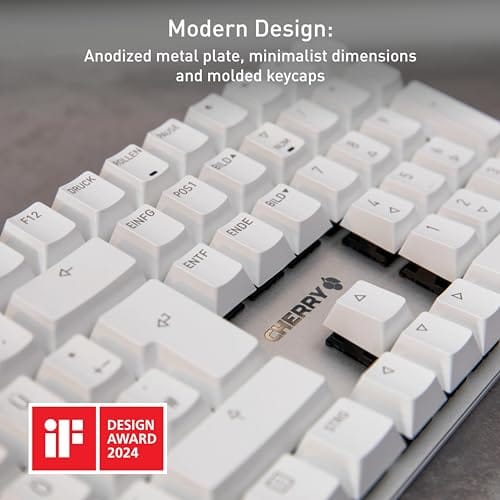
A keyboard with clean, consistent switches makes macro work more reliable, since a flaky key can drop inputs during recording. Something like the Cherry KC 200 MX, at $56.31 with a 4.0 rating, uses Cherry’s newer MX2A Silent Red switches in a metal-plate frame, which gives you a stable, quiet base for office macros. It’s a plain, well-built board rather than a flashy gaming deck, and that’s exactly what you want when precision matters more than lighting.

Pros
- MX2A Silent Red linears actuate quietly, good fit for open-plan offices
- Metal plate frame keeps chassis stiff and reduces caseping under typing
- Cherry Gold-Crosspoint contacts rated for 50 million keystrokes on this variant
- Full-size layout with dedicated numpad suits data entry and spreadshet work
Cons
- Renewed unit with no owner fedback loged yet, cosmetic and wear condition varies
- Silent Red linears lack tactile bump, typists who prefer fedback should pick Brown
- Source data omits connectivity, cable type, polling rate, and dimensions
The Cherry KC 200 MX is a full-size office-focused mechanical keyboard sold here as a Renewed unit in Bronze with MX2A Silent Red linear switches. It targets office typists, developers, and finance or admin users who want Cherry switch fel and a metal plate frame without the RGB and gamer styling of enthusiast boards.
The defining feature is the MX2A Silent Red switch, Cherry's updated linear with dampened stems aimed at reducing bottom-out and return noise. Cherry rates this variant for 50 million keystrokes. Based on the linear profile, expect smooth actuation with no tactile bump, which suits fast touch typists and users on frequent video calls.
Trade-offs are typical at this tier and Renewed status. Silent Red linears are polarizing, users coming from Browns or Blues will miss the tactile feedback, and the source does not specify polling rate, connection type, cable, keycap material, or dimensions. As a Renewed listing, cosmetic condition and remaining switch life depend on the refurbisher rather than a factory-fresh baseline.
Buy this if you want a quiet full-size Cherry mechanical for office or shared-space use and value the metal plate build over RGB features. Skip this if you prefer tactile or clicky switches, need confirmed wireless or USB-C connectivity, or want a waranty profile equivalent to new stock.
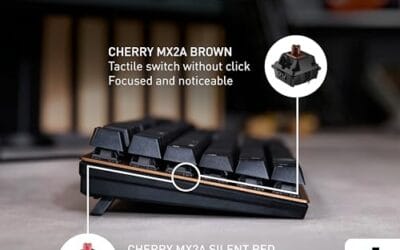
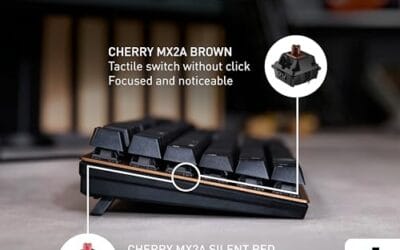
Switches: Cherry MX2A Silent Red, linear with integrated dampeners, made in Germany with Gold-Crosspoint contacts. Rated for 50 million keystrokes on this variant, versus 100 million on MX2A Brown. Linear travel with no tactile bump favors light, fast keypresses over deliberate typing fedback.
Build: Metal plate frame under the switches, which stiffens the deck and cuts flex compared with plastic-only office boards. Cherry positions the KC 200 MX as a slim modern design, though exact case height, weight, and keycap material are not specified in the source data.
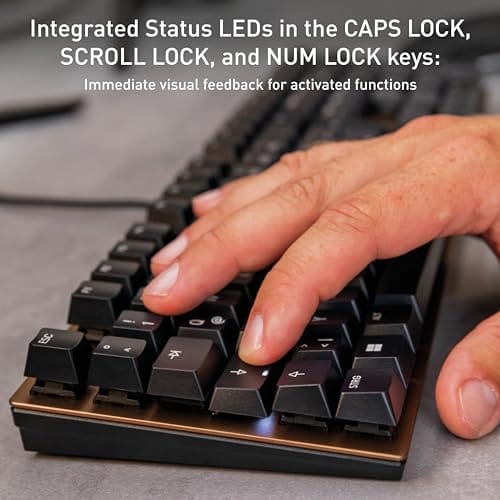
Layout and indicators: Full-size layout retains the dedicated numpad and function row, which maters for spreadsheet,ERP, and accounting workflows. White LED status indicators are built into Caps Lock, Scroll Lock, and Num Lock keys, avoiding a separate indicator strip and keeping the top edge clean.
Gaming fit: Silent Red linears work for casual gaming and MMO or productivity crossover use given their light linear fel, but the source does not list polling rate, N-key rollover, or onboard profiles, so competitive esports buyers should confirm specs before committing.
Step 1: Choose your macro tool
Your first decision is where the macro will live. If your keyboard has its own software, like Logitech G Hub, Corsair iCUE, or Razer Synapse, start there because it stores macros in a profile tied to the hardware. If your board runs open firmware such as QMK or VIA, macros live on the keyboard itself and work on any computer you plug into, which is the most portable option. If you have neither, a free utility like AutoHotkey on Windows handles system-wide macros for any keyboard.
Pick based on how you’ll use the macro. Hardware or firmware macros travel with the keyboard and don’t need software running, ideal for gaming or a shared machine. Software-level tools like AutoHotkey are more flexible for text expansion and app-specific actions. For most people starting out, the keyboard’s own app is the gentlest entry point, so we’ll frame the next steps around a typical recorder-based workflow.
Step 2: Record the keystroke sequence
Open your macro editor and create a new macro, then find the record button. Before you hit it, decide whether you want the recorder to capture timing, the actual delays between your presses, or just the sequence of keys with a fixed delay. For text and command macros, a fixed short delay of around 10 to 20 milliseconds between keys is clean and fast. For in-game combos where timing matters, recording real delays can be more faithful.
Hit record, perform your sequence exactly once, slowly and deliberately, then stop. Don’t rush, because every stray keypress gets captured. If you fat-finger a key, stop and start over rather than trying to edit it out. A clean single-pass recording beats a messy one you have to repair. Once you stop, the editor shows the sequence as a list of key-down and key-up events with delays between them, which you’ll tidy up next.
Step 3: Edit and clean the macro
Raw recordings almost always need trimming. Look at the event list and remove any accidental keys, then check the delays. If the recorder captured your natural typing pace, you’ll often see uneven gaps like 240ms here and 90ms there, which you can normalize to a consistent short value for a snappier result. For a text-paste macro, you can usually strip delays entirely so it fires instantly.
Pay attention to key-down and key-up pairing. A macro that presses Ctrl and never releases it will wreak havoc, so confirm every key that goes down also comes back up. If your macro holds a modifier like Shift for several keys, make sure the release event sits after the last key it should affect. This is the step where a five-minute cleanup saves you a broken macro that types garbage. Take your time reading the sequence top to bottom.
Step 4: Bind the macro to a key
Now assign your finished macro to a trigger. In your software, drag or select the macro onto the key you want, whether that’s a dedicated G-key, a spare function key, or a layer combination like Fn plus a number. Choose a key you won’t hit by accident during normal typing. Binding a macro to the spacebar, for instance, is a recipe for chaos. A far-corner key or a secondary layer is much safer.
Decide the activation behavior too. Most tools offer fire-once-on-press, repeat-while-held, or toggle-on-toggle-off. For a text snippet, fire-once is right. For a rapid-fire game action, repeat-while-held may be what you want, though check the game’s rules first since some treat that as an unfair advantage. Save the profile after binding, because an unsaved bind vanishes when the software closes or the profile switches.
Step 5: Verify and refine
Open a text editor or the target app and trigger your macro to confirm it does exactly what you expect. Watch the output closely for the classic problems, a missing character, a modifier that stuck, or a delay that’s too short for the app to keep up. Some programs, especially older games, drop inputs that arrive faster than a few milliseconds apart, so if characters go missing, add a little more delay between keys.
Refine in small passes. Change one thing, trigger again, and see the effect, rather than rewriting the whole macro at once. Once it fires cleanly every time across a few tries, you’re done. Save the profile one more time, and if your tool supports exporting, back up the macro file so a software reinstall doesn’t wipe your work. That backup habit pays off the first time an update resets your profiles.
Troubleshooting common issues
The macro won’t trigger at all
First confirm the right profile is active, since macros bound in one profile don’t fire in another. Then check that the keyboard software is actually running in the background if it’s a software-level macro. If you bound to a key that the current app intercepts, like a game grabbing all keyboard input, the macro may be blocked. Try binding to a different, less-used key and verify again.
Characters are missing or out of order
This is almost always a delay problem. The target app can’t keep up with inputs firing microseconds apart, so it drops some. Go back into the editor and raise the inter-key delay to 15 or 20 milliseconds, then re-check. If order is scrambled, look for a modifier key whose release event landed in the wrong spot in the sequence.
A modifier key gets stuck
A stuck Ctrl, Shift, or Alt means a key-down event has no matching key-up. Open the macro’s event list and find the modifier, then confirm there’s a release event for it after the keys it should affect. Adding the missing key-up fixes the runaway behavior. Tapping the physical modifier key once also clears a currently stuck state.
Before and after expected outcomes
Before, a repetitive action took you several deliberate keystrokes every time, whether that’s typing a stock email reply or chaining commands in an app. After, a single key does the whole thing in a fraction of a second, consistently and without typos. For heavy keyboard users, that adds up to real time saved across a day, and the mental load of remembering multi-key sequences disappears.
Variations and advanced setups
Once you’re comfortable, layers open up a lot. With firmware like QMK or VIA you can build an entire macro layer accessed by holding one key, turning your number row into a bank of shortcuts. AutoHotkey scripts can go further, inserting the current date, running conditional logic, or launching apps. If you use several machines, firmware-stored macros travel with the board, which is why programmers often favor a board with onboard memory over software-locked profiles.
Text expansion is another power move worth setting up. Instead of a single keystroke, you define a short trigger string, type “brb” and have it expand to a full phrase, or “sig” and have it drop your email signature. Tools like AutoHotkey and dedicated expanders watch what you type and swap the abbreviation for the full text instantly. For anyone who writes the same lines dozens of times a day, support replies, code snippets, addresses, this saves more time than a single-key macro ever will.
You can also chain macros or add conditional pauses for more complex jobs. A build-and-deploy macro might open a terminal, wait a set number of milliseconds, then fire a command sequence, with each delay tuned so the app is ready before the next input lands. Keep these advanced macros well commented in your editor so you remember what each step does, because a clever macro you can’t decode six months later is a macro you’ll be afraid to change. Document as you build.
Common questions
Do I need special software to program macros?
Not necessarily. Many keyboards ship with their own macro app, and boards running QMK or VIA store macros in firmware so no software runs at all. If your keyboard has neither, a free tool like AutoHotkey on Windows lets you build system-wide macros for any keyboard. Pick whichever matches how portable you need the macro to be.
Are macros allowed in online games?
It depends entirely on the game. Simple key-rebinds are usually fine, but macros that automate multiple actions from one press can violate a game’s rules and risk a ban. Check the specific game’s policy before you bind a combat macro. For single-player games and productivity apps, you can macro freely without worry.
Why does my macro type too fast and drop keys?
The macro is firing inputs faster than the target app can register them. Open the editor and add a small delay, around 15 to 20 milliseconds, between each keystroke, which gives the app time to catch each one. Older programs and some games need more delay than modern text editors. Raise it gradually until every character lands.
Will my macros survive a software reinstall?
Software-stored macros can be wiped by a reinstall or a bad update, so export and back up your profile files after you finish. Firmware macros on a QMK or VIA board live on the keyboard itself and survive any PC change. If you rely on your macros daily, keeping a backup export is the cheap insurance that saves you rebuilding them from scratch.






























Write Your Review
No reviews yet. Be the first to share your experience!