

Installing case fans for airflow is one of those PC jobs that looks simple until the arrows, cables, dust filters, and fan headers all start competing for attention. The goal isn’t just adding more spinning plastic. It’s building a clear front-to-back or bottom-to-top path so cool air reaches the CPU cooler, GPU, VRMs, and storage before warm air leaves the case. If you’re starting from a restrictive chassis, our airflow-focused PC case guide can help you compare layouts; if you’re staying budget-conscious, the budget airflow case picks show what good ventilation looks like without a high price. For this walkthrough, we’ll assume you’ve got at least two fan mounts, a few 120mm or 140mm fans, and a motherboard with enough headers or a hub. Small changes matter. A flipped fan can raise GPU temperature several degrees, while one well-placed intake can clean up a hot pocket near the graphics card.
What you’ll need
You’ll need the fans themselves, the included fan screws or rubber mounts, a Phillips #2 screwdriver, a few zip ties or hook-and-loop straps, and access to your motherboard manual so you can identify SYS_FAN, CHA_FAN, or pump headers. Most case fans use either 3-pin DC or 4-pin PWM cables. A 4-pin PWM fan is easier to control precisely, but a 3-pin fan can still work well if your board supports voltage control. You’ll also want a flashlight, because fan arrows and header labels are often stamped in black plastic where nobody can see them. Classic.
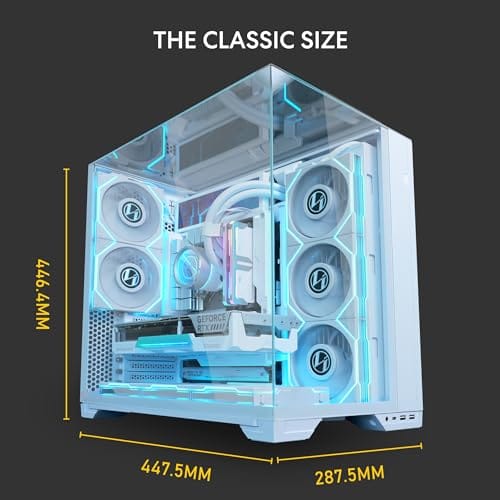
If your current enclosure doesn’t have enough open mesh, mounts, or cable room, replacing the case can be part of the airflow job rather than a separate upgrade. The Lian Li O11 Vision Compact White is a $124.99 ATX mid tower with tempered glass, white steel panels, and back-connect motherboard support, so it’s more relevant as a chassis choice than as a hand tool. Its 4.4 rating and O11-style layout make it a useful reference point for builders planning a cleaner airflow path with side and bottom intake options.


Pros
- Patented three-panel tempered glass exposes front, top, and left views of the build.
- Native back-connect motherboard support for hiden 24-pin, EPS, and PCIe cabling.
- Second chamber hides side-mounted AIO tubing for a cleaner primary compartment.
- Swappable top mesh panel suports a 360mm AIO when thermals take priority over glass.
Cons
- Limited owner feedback at time of writing makes long-term reliability signal thin.
- Full specs (GPU length, cooler height, fan count) not published in source data.
- Back-connect layout requires a compatible motherboard, narowing part selection.
The Lian Li O11Vision Compact is a mid-range ATX mid-tower positioned as a smaller sibling to the O11 Dynamic line, developed in collaboration with the PCMasterRace community. It targets showcase builders who want a dual-chamber layout, tempered glass on three sides, and native support for back-connect motherboards in a tighter footprint.
The defining feature is the patented three-panel tempered glass design covering the front, top, and left side. Paired with the second-chamber cable routing and back-connect motherboard compatibility, the front compartment stays visually clean. Builders wanting a 360mm AIO can swap in the included top mesh panel, trading a glass top for airflow.
Trade-offs are typical at this tier. Back-connect support only pays off if you buy a compatible board from ASUS, MSI, GIGABYTE, or similar, which narrows part selection and can raise motherboard cost. Concrete specs like GPU clearance, CPU cooler height, radiator sites, and included fan count are not specified in the source data, so verify against the official manual before finalizing parts.
Buy this if you want O11-family aesthetics with hidden cabling via a back-connect board and a side or top 360mm AIO. Skip this if you need a documented GPU length ceiling, bundled fans, or a traditional cable-visible motherboard build.
Motherboard support: The chassis accepts standard ATX boards and ads native routing for back-connect variants such as ASUS BTF, MSI Project Zero, and GIGABYTE Project Stealth. Cable cutouts on the tray align with rear-side connectors, keping the 24-pin, EPS, and PCIe cables out of the main chamber view.
Radiator and AIO: A swappable top mesh panel is included specifically to enable a 360mm AIO in the rof. When the AIO is mounted on the side instead, the dual-chamber layout routes the tubing into the second compartment, keeping the front-facing glass view unobstructed. Exact side radiator thickness limits are not specified.
Glass and panel layout: Three tempered glass panels cover the front, top, and left side. The top glass panel is the one you swap out when a 360mm radiator is installed, so builders choosing air cooling or a bottom-mounted AIO retain the full three-panel glass look.
Not specified in source: GPU length clearance, CPU cooler height, drive bay count, included fan count, front I/O (USB-C, USB-A), PSU length, and case dimensions are not listed in the provided data. Confirm these against the Lian Li O11VPW official spec sheet before finalizing parts.
Step 1: Map your airflow path before mounting anything
Before you grab screws, decide where air should enter and where it should leave. In a typical tower, front or bottom fans are intake, while rear and top fans are exhaust. That layout works because warm air naturally rises and because most GPU coolers dump heat back into the case. For a simple gaming PC, start with two intakes and one exhaust. If you’ve got a hot graphics card, three intakes and two exhausts can be better, but more fans won’t fix a blocked front panel or a bundle of cables sitting in front of the intake path.
Look for small arrows on the fan frame. One arrow shows blade rotation, and the other shows airflow direction. If there are no arrows, the open side with the struts usually points toward the exhaust side. The prettier sticker side often faces the intake side, though that’s not universal. Don’t guess if the frame is unusual. Power the fan briefly outside the case or feel the airflow with your hand at low speed. Not elegant. Still useful.
Step 2: Choose intake and exhaust positions
For most mid towers, place intake fans behind the front mesh or along the bottom if the case supports it. Put exhaust at the rear first, then add top exhaust only if CPU or VRM heat needs help leaving the case. Avoid filling every top slot with exhaust fans if the front intake is weak, because top fans placed too far forward can steal cool air before it reaches the CPU tower cooler. That’s a common reason a PC gets noisier without getting meaningfully cooler.
Fan size matters too. A 140mm fan can move similar air at lower RPM than a 120mm fan, which usually means less noise. But don’t force 140mm fans into a panel where they crowd cables, filters, or radiator brackets. If your case supports both sizes, line up the fan so the blade area sits behind open mesh, not behind a solid strip of metal. If you’re using an airflow case from a list like our mid-tower airflow picks, check the mount notes, because some cases support a fan size physically but leave less breathing room than you’d expect.
Step 3: Install the fans without warping the frame
Set the case on its side, remove both side panels, and route fan cables toward the back of the motherboard tray before the screws are fully tight. Standard self-tapping fan screws need pressure, but they don’t need brute force. Start all four screws loosely, then tighten them in a cross pattern until the fan sits flat. Stop when the screw head is snug against the frame. If the corner starts bending, you’ve gone too far, and a warped frame can add vibration or scraping noise.
Keep the fan cable away from the blades before powering the system. Use a small zip tie or a built-in cable channel, leaving just enough slack to remove the fan later. On bottom intake fans, check GPU clearance and make sure the fan cable can’t lift into the blades after the case is upright. For front fans, don’t sandwich the cable between the fan frame and the case rail. It might work for a week, then a side panel push can pinch the insulation. You’ll hate finding that later.
Step 4: Connect headers and set control mode
Plug each fan into a motherboard system fan header if you have enough headers. A 4-pin PWM fan should use PWM mode in BIOS or motherboard software. A 3-pin fan usually needs DC mode. Many boards can auto-detect, but auto settings aren’t always right, so check the fan control page after the first boot. If a fan reads 0 RPM, shut down and reseat the connector before assuming the fan is bad. The plastic guide on the header should line up with the slot on the plug.
If you’re using a splitter, keep the current draw reasonable. A typical motherboard fan header is often rated around 1 amp, but you should confirm your board’s manual. Three low-power fans on one splitter are usually fine; a pile of high-RPM fans is not. A powered hub is safer for larger builds because it pulls fan power from SATA or PCIe power while using one motherboard header for the control signal. Label the cables if the back chamber is busy. Future you will thank you.
Step 5: Tune fan curves and confirm direction
After the PC boots, enter BIOS and set a fan curve that matches the job. Intake fans can often idle around 30 to 40 percent until the motherboard or CPU sensor reaches the mid-40s Celsius, then ramp gradually. Exhaust fans can follow CPU temperature more closely if you use an air cooler. If your board allows sensor selection, GPU-heavy builds benefit from intake fans tied to a motherboard sensor near the PCIe area, but many consumer boards don’t expose that cleanly.
Now confirm direction with the panels off. Hold a thin strip of paper or tissue near each fan, not inside it. Intake should pull the paper toward the mesh, and exhaust should push it away from the case. Once that’s confirmed, reinstall filters and panels, then listen for new rattles. A healthy setup should sound like smooth air movement, not buzzing, pulsing, or clicking. If a fan curve jumps from 40 percent to 80 percent too quickly, flatten the curve so it ramps over 10 to 15 degrees instead of chasing every tiny temperature spike.
Troubleshooting common issues
The fans spin, but temperatures didn’t improve
Check for airflow short-circuiting. If top exhaust fans sit directly above front intake fans, cool air may leave before it crosses the CPU and GPU area. Move the top exhaust fan toward the rear, lower its curve, or add a stronger front intake. Also check dust filters. A dense filter plus a low-pressure fan can look fine on paper and still starve the case.
One fan is much louder than the others
A single loud fan is usually a mounting, curve, or bearing issue. Loosen and retighten the screws evenly, then make sure the fan isn’t touching a cable, filter, or front-panel bracket. If the noise changes when you press lightly on the case panel, you’re dealing with vibration. Rubber pads or lower RPM can help, but a rough bearing won’t get better.
The motherboard doesn’t detect a fan
Power down, unplug the PC, and check the connector orientation. A 3-pin fan can sit on a 4-pin header, but it must align with the plastic guide. If you’re using a splitter, only one fan usually reports RPM, so the other connected fans may spin even though the BIOS shows one speed. That’s normal for many splitters. If nothing spins, try a different header before blaming the fan.
Dust builds up faster after adding intakes
More intake airflow can pull more dust into the case, especially if the intake path isn’t filtered. Aim for slightly positive pressure, where intake airflow is a bit stronger than exhaust, and make sure incoming air passes through filters rather than side gaps. Clean front and bottom filters every few weeks in a dusty room. It’s boring maintenance, but it’s cheaper than cooking a GPU cooler with a felt blanket of dust.
Wrapping up
A good case fan install should give you lower component temperatures, smoother fan noise, and fewer hot pockets around the GPU and motherboard. Don’t chase a perfect number. If the CPU and GPU sit several degrees cooler under the same workload, and the system doesn’t surge in noise every time a game loads, you’ve done the important part. For compact builds, airflow is less forgiving, so the layout advice in our ITX airflow case guide is worth a look before you cram extra fans into tight space.
Common questions
Should case fans point in or out?
Use front and bottom fans as intake, then use rear and rear-top fans as exhaust. The strut side of most fans is the exhaust side, but check the frame arrows when available. A balanced path matters more than simply adding more fans.
How many case fans do I need?
Most gaming PCs are fine with two intake fans and one rear exhaust fan. Hotter systems with larger GPUs often benefit from three intakes and two exhausts. Past that point, the case design and fan curve usually matter more than the raw fan count.
Is positive or negative pressure better?
Slight positive pressure is usually easier to keep clean because more air enters through filtered intake areas. Strong negative pressure can pull dust through unfiltered gaps. Don’t obsess over exact math; just make intake a little stronger than exhaust and keep filters clean.
Can I plug a 3-pin fan into a 4-pin header?
Yes, a 3-pin fan can plug into a 4-pin motherboard header if the connector is aligned with the guide. It won’t use PWM control, so set that header to DC or voltage mode if your BIOS allows it. If you leave it in PWM mode, the fan may run too fast or ignore the curve.


































Write Your Review
No reviews yet. Be the first to share your experience!