

Slow WiFi on a PC is annoying because the symptom is vague: web pages drag, downloads start fast then sag, Discord clips, and Windows still claims the signal is fine. This guide takes a different route than the usual “move closer to the router” advice. We’re focusing on the PC-side chain: link rate, adapter placement, USB or PCIe behavior, Windows network settings, and heat around the wireless card. If you find that the router really is the bottleneck later, our WiFi 6 router guide and gaming mesh WiFi picks can help, but don’t buy hardware before you prove where the slowdown starts.
First check the obvious (the 30-second check)
Start with the number Windows hides in plain sight: link speed. Open Settings, go to Network & Internet, pick your WiFi connection, and look for the transmit and receive link speed. If your internet plan is 500Mbps but Windows shows a receive link speed of 72Mbps, your PC can’t pull 500Mbps over that wireless connection. That’s not an ISP mystery. It’s a local WiFi link problem.

Next, compare three quick results: your PC on WiFi, your phone beside the PC on WiFi, and the PC over Ethernet if you can temporarily run a cable. If Ethernet is fast and only PC WiFi is slow, focus on the adapter. If the phone is fast in the same spot, focus harder on the PC. If everything is slow, stop digging inside Windows and look at the modem, router, or ISP. Simple split. Saves hours.
Cause #1: The adapter negotiated a bad link rate
A WiFi card can show full bars and still negotiate a weak link rate. Bars only describe signal strength in a rough way. Link rate shows the actual ceiling Windows agreed on with the router. A desktop stuck at 144Mbps, 86Mbps, or 54Mbps may feel broken on a modern broadband plan, especially once overhead, interference, and background traffic cut into that number. Don’t chase browser settings until you check this.
Fix it by forcing a better band and cleaner mode. In your router, split 2.4GHz and 5GHz into separate network names for a few minutes, then connect the PC to 5GHz if it’s within reasonable range. In Device Manager, open the WiFi adapter properties and review advanced options such as preferred band, channel width, wireless mode, roaming aggressiveness, and transmit power. Names vary by adapter brand. Set preferred band to 5GHz or 6GHz if supported, keep transmit power high on a desktop, and avoid overly aggressive roaming on a stationary PC. Then reconnect and check link speed again. Tiny setting. Huge clue.
Cause #2: USB placement or PCIe antenna position is choking the signal
Desktop WiFi often fails for physical reasons that don’t look like network problems. A tiny USB WiFi dongle jammed behind a metal tower is sitting in the worst possible spot: low, shielded, warm, and surrounded by cable clutter. A PCIe WiFi card with antennas screwed directly onto the rear I/O can have the same issue because the case itself blocks part of the signal. The router isn’t always weak. The antenna may just be buried.
Move the antenna before replacing anything. For USB adapters, use a short USB extension cable or a front-panel port to lift the dongle above the desk. For PCIe cards, use a magnetic antenna base if your card came with one, then place it on top of the case or on the desk with the antennas upright. Keep it away from the GPU exhaust path and thick bundles of power cables. If that change bumps link speed from 144Mbps to 866Mbps, you’ve found the real culprit. No drama.
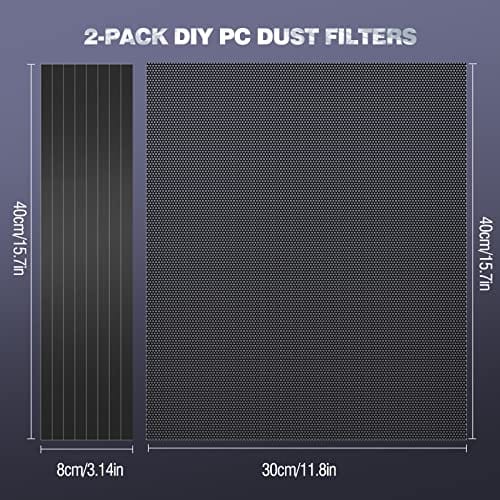
Heat and dust can make this worse inside compact gaming PCs. A WiFi card near a hot GPU or a dust-choked intake may drop stability under long downloads or game patches. The MoKo 400x300mm DIY PC Case Dust Mesh Filter is a $12.99 two-pack with a 4.9 rating, using PVC magnetic dustproof mesh panels sized for PC case vents. It’s not a WiFi upgrade, but it’s a sensible maintenance part if your adapter lives in a case that inhales dust and runs warm.

Pros
- Large 400x300mm sheets cover full-tower top or side panels after trimming.
- Magnetic strip and adhesive combo works on any ferrous steel case panel.
- 1mm mesh openings pass more air than tight foam filters at similar coverage.
- Two-pack plus eight strips gives enough material for multiple vents in one build.
Cons
- Limited owner feedback at time of writing, real-world durability is unverified.
- Requires ferrous steel panels, will not stick to aluminum or tempered glass cases.
- PVC and 3M adhesive strips can lose grip over time in warm, high-airflow builds.
This is a budget DIY dust filter kit, not a pre-cut case-specific filter. The package includes two 400x300mm PVC mesh sheets with a 1mm hole pattern plus eight 400mm magnetic frame strips. It targets builders with non-standard vents, modded cases, HTPC chassis, or console dust covers who want to fabricate their own filters.
The defining feature is the trim-to-fit format. You measure the vent, cut the PVC sheet with scissors, then frame the edges using the adhesive-backed magnetic strips so the assembly clamps to steel panels. The 1mm aperture is coarser than typical foam filters, which favors airflow over fine-dust capture, a reasonable trade for intake or exhaust with strong static pressure fans.
Trade-offs are typical at this tier. PVC is not as tear-resistant as nylon or stainless mesh, and 3M adhesive can soften near warm PSU or GPU exhaust zones. The magnetic attachment only works on ferrous steel, so tempered glass side panels or aluminum shells need alternative mounting. With no verified owner data yet, longevity and mesh consistency are unproven.
Buy this if you need to filter oddly shaped vents or console intakes and are comfortable cutting and framing your own mesh. Skip this if your case already ships with pre-fit magnetic filters, or if the panels are aluminum or glass where the magnets will not hold.
Sheet dimensions: Each sheet measures 400x300mm (15.75 x 11.81 inches) with a stated thickness of 0.01 inches. Two sheets ship per pack, enough surface area to cover a full-tower top vent plus a PSU shroud intake, or several smaller vents across a mid-tower build.
Mesh and material: PVC construction with a 1mm hole pattern. The 1mm aperture is coarser than fine foam or stainless woven filters, which prioritizes airflow over sub-micron dust capture. Expect it to catch pet hair, lint, and coarse household dust rather than fine particulates.
Mounting hardware: Eight 400mm magnetic strips are included, framed with 3M adhesive backing. Peel-and-stick application to the trimmed PVC edge lets the assembly clamp to any ferrous steel case panel. No screws or drilling needed, and the filter lifts off for shake-out or rinse cleaning.
Compatibility notes: Total kit weight is around 0.5 pounds. Magnetic mounting requires steel panels, it will not attach to aluminum shells, tempered glass, or plastic vents without a separate ferrous shim. Best suited to standard steel PC cases, older server chassis, HTPC builds, and console dust covers.
Cause #3: Windows is saving power on a desktop adapter
Windows power saving is helpful on laptops and silly on many desktops. If the system is allowed to reduce power to the WiFi adapter, you can see slower wakeups, random throughput dips, or a connection that feels normal until a download stalls. Open Device Manager, find the wireless adapter, then check the Power Management tab. If you see “Allow the computer to turn off this device to save power,” turn it off for a plugged-in desktop.
Also check the active power plan. In Control Panel, open Power Options and review advanced settings for Wireless Adapter Settings. Set power saving mode to Maximum Performance while plugged in. If you’re on a gaming desktop, that’s usually the right call. You’re not trying to preserve battery. You’re trying to keep the adapter awake and consistent while Steam, Windows Update, cloud backups, and game launchers all compete for bandwidth.
Cause #4: Driver drift or a bad Windows update changed adapter behavior
A slow PC WiFi problem that appears overnight often follows a driver change. Windows Update may swap in a generic driver, or a vendor driver may add a setting that doesn’t suit your router. Open Device Manager, note the adapter model and driver date, then download the current driver from the chip or PC vendor. Intel, Realtek, MediaTek, Qualcomm, ASUS, MSI, Gigabyte, and laptop vendors all publish drivers, but the newest one from the correct source matters more than whatever Windows grabs automatically.
If speeds dropped right after an update, use Roll Back Driver if the button is available. If it isn’t, uninstall the device, check the box to remove the driver only if you already have the replacement installer ready, then install the known-good package. Reboot after the driver swap. It sounds basic because it is, but wireless drivers sit directly between Windows and the radio hardware. A mismatched driver can turn a fast adapter into a stubborn one.
Cause #5: DNS, VPN, or background traffic is making WiFi look slow
Not every slow-feeling connection is a weak wireless link. If link speed is high but web pages hesitate before loading, DNS may be the drag. Switch the PC to a reputable DNS provider in Windows network settings or in the router, then retry the same sites. If downloads are fast but browsing feels sticky, DNS is worth checking. If every app slows only when a VPN is on, the VPN endpoint may be the ceiling, not your adapter.
Background traffic is the other fake-out. Open Task Manager, sort by Network, and watch for launchers, cloud sync, backup tools, or Windows components moving data. A PC can saturate its own connection while the user sees only a slow browser. Pause OneDrive, Steam, Epic, Battle.net, Windows Update delivery optimization, or backup software for a few minutes and compare again. If the speed returns, you don’t have bad WiFi. You have traffic you didn’t notice. It’s worth doing this check before you spend a cent on new hardware, since a paused sync job costs nothing to rule out.
Preventive maintenance
Keep a tiny WiFi baseline saved somewhere: normal link speed, normal download speed, adapter driver version, and which band you use. It takes five minutes and gives you a clean before-and-after reference when something changes. Update router firmware and adapter drivers, but don’t update both on the same day if you’re troubleshooting. Change one thing, check the result, then move on. It’s slower, but it’s much clearer.
Physically clean the PC too. Dust buildup near intake fans raises internal temperature, and high case temperature can make small add-in cards less stable during long transfers. Keep antennas vertical, keep USB dongles away from the rear metal shadow of the tower, and label your 2.4GHz and 5GHz networks clearly so the PC doesn’t quietly fall back to the slower band. Boring habits. Fewer weird nights.
When it’s not fixable: what to replace
Replace the adapter if it lacks modern WiFi support, can’t hold a strong link rate beside other devices, or needs awkward driver rituals after every Windows update. For a desktop, a PCIe WiFi 6 or WiFi 6E card with external antennas is usually better than a tiny rear-mounted USB dongle. If your motherboard has built-in WiFi and it’s consistently poor, you can disable it and use a better add-in card instead.
Replace the router only after the PC-side checks point that way. If every device is slow, if link rates are low across several rooms, or if the router can’t handle the number of devices in the house, then a router or mesh upgrade makes sense. The Linksys Hydra Pro 6 Mesh WiFi 6 Router costs $199.99, carries a 4.4 rating, and is listed for WiFi extender replacement, 30-plus devices, and up to 2,700 square feet. That’s relevant when the router is the shared ceiling, not when one PC has a bad driver.

Pros
- AX5400 class dual-band throughput up to 574 plus 4804 Mbps on 5 GHz
- Six spatial streams with OFDMA reduce congestion for 30+ device homes
- Intelligent Mesh compatibility allows scaling coverage beyond the 2,700 sq ft rating
Cons
- Limited owner feedback at time of writing, so real-world reliability data is thin
- Dual-band only, no dedicated 6 GHz or wireless backhaul band at this tier
- Detailed specifications, WAN port sped, and waranty not specified in source listing
The Linksys Hydra Pro 6 (MR5500-AMZ) is a mid-range dual-band WiFi 6 mesh router aimed at households upgrading from an older AC1900 or extender-based setup. Linksys rates it for 2,700 sq ft and 30 plus devices, targeting medium apartments, condos, and small two-story homes with mixed smart home and streaming traffic.
The defining feature is six-stream AX5400 class WiFi 6 with quoted rates of 574 Mbps on 2.4 GHz and 4804 Mbps on 5 GHz. OFDMA and MU-MIMO help when many low-bandwidth clients share airtime, which is where WiFi 5 routers typically stall. Real-world 5 GHz throughput at range appears to land in the mid-hundreds of Mbps based on category norms.
Trade-offs are typical at this tier. It is dual-band, so there is no dedicated 6 GHz radio and no separate backhaul channel when you add mesh nodes, meaning throughput can halve on satellite hops. Linksys does not specify WAN port speed, USB, or processor details in the listing, so multi-gig ISP users should verify before buying.
Buy this if you want a single WiFi 6 router that can grow into a Linksys Intelligent Mesh system for a 2,000 to 3,000 sq ft home with 30 plus clients. Skip this if you need WiFi 6E, 2.5 GbE WAN, or a dedicated backhaul band for a large multi-story house.
Wireless class: AX5400 class dual-band WiFi 6 with quoted PHY rates of 574 Mbps on the 2.4 GHz band and 4804 Mbps on the 5 GHz band, totaling roughly 5378 Mbps aggregate across six spatial streams. No 6 GHz radio is listed, so WiFi 6E clients fall back to 5 GHz.
Coverage and capacity: Linksys rates the MR5500 for 2,700 sq ft and 30 plus simultaneous devices. OFDMA, MU-MIMO, and 1024-QAM are standard at this WiFi 6 tier and help maintain throughput as client count scales, though actual coverage depends heavily on wall material and node placement.
Mesh behavior: Intelligent Mesh lets you pair the MR5500 with other Linksys nodes to extend coverage. Because it is dual-band, backhaul shares the 5 GHz client band, so expect throughput to roughly halve one hop from the root node. A wired Ethernet backhaul between nodes avoids this penalty.
Not specified: WAN and LAN port speeds, USB ports, processor and RAM, warranty length, and physical dimensions are not disclosed in the source listing. Buyers pairing this with multi-gig fber or DOCSIS 3.1 plans above 1 Gbps should confirm port specs before purchase.
Tools and parts needed
You don’t need much to diagnose this properly. Use Windows Settings for link speed, Device Manager for drivers and power settings, Task Manager for background traffic, and your router admin page for band names, channel width, and firmware. A temporary Ethernet cable is the cleanest comparison tool, even if you only run it across the hallway for ten minutes. A free WiFi analyzer app also helps, since it shows band, channel, and signal in one view so you can confirm the PC really is on the fast 5GHz network. For hardware, the only likely buys are a better WiFi adapter, a router or mesh replacement if the whole network is weak, and simple case dust control if heat around the adapter is part of the pattern.
A few more questions
Why is my PC WiFi slow even with full bars?
Full bars don’t guarantee a high link rate. Your PC can have strong signal but connect on a slow band, narrow channel, old wireless mode, or poor adapter driver. Check the transmit and receive link speed in Windows before changing random settings. If that number is low, fix the adapter, band, antenna placement, or router mode first.
Will changing DNS fix slow WiFi?
DNS can fix slow page starts, but it won’t fix a weak wireless link or low download throughput. If websites pause before opening but large downloads run fast, DNS is worth changing. If downloads are slow too, DNS probably isn’t the main issue. Check link speed and background network usage before blaming DNS.
Should I use a USB WiFi adapter or PCIe WiFi card?
A PCIe card with external antennas is usually better for a desktop because it can use larger antennas and sit more securely inside the PC. USB adapters are convenient, but tiny dongles behind a metal case often perform poorly unless you use an extension cable. If you use USB, lift it onto the desk and away from the tower. Placement matters more than people expect.


































Write Your Review
No reviews yet. Be the first to share your experience!