

A single 34-inch ultrawide runs around 3440×1440 pixels. Two 27-inch 1440p panels together push 5120×1440, roughly 33% more screen real estate for often less money. So the “more monitor per dollar” crown isn’t as obvious as the marketing suggests, and the right answer shifts hard depending on your budget tier and how you actually work. If you’re weighing a curved single panel against a two-screen rig, it helps to first understand what each price bracket really delivers. Our research into the best ultrawide monitors and value-focused ultrawides under $300 kept pointing to the same tension: pixels versus flexibility. Let’s break it down by what your money buys.
Matchup at a glance
The ultrawide pitch is simple. One immersive, gap-free canvas that curves around your field of view, no bezel splitting your game or timeline down the middle. You buy a single stand, run a single cable, and calibrate one panel. The catch is price scaling. Once you climb past 34 inches into 38-inch or 5K2K territory, the sticker jumps fast, and the panel you’re stuck with is the panel you keep.
Dual monitors flip the logic. Two standard 27-inch panels give you independent screens you can angle separately, fullscreen a video on one while you work on the other, and replace one at a time when it dies. Budget builders love this because entry 1080p and 1440p panels have gotten cheap. The downside? That bezel seam in the middle, and a mismatched pair if you buy the second screen two years later. Both approaches have a clear tier where they win.
The wrinkle nobody mentions upfront is desk space and ergonomics. Two 27-inch panels side by side eat a wide surface, and centering your body between them means your primary work sits slightly off to one side unless you angle carefully. A single ultrawide keeps your head pointed straight ahead. So the decision isn’t purely about pixels or price. It’s also about how your neck feels after an eight-hour stretch, and that’s a factor most spec sheets quietly ignore.
Spec sheet showdown
| Factor | Budget ultrawide (~$250) | Mid ultrawide (~$450) | Dual 1080p pair | Dual 1440p pair |
|---|---|---|---|---|
| Total resolution | 2560×1080 | 3440×1440 | 3840×1080 | 5120×1440 |
| Combined width | ~34 in single | ~34 in single | ~48 in, one seam | ~48 in, one seam |
| Typical refresh | 100-120Hz | 144-180Hz | up to 144-165Hz | up to 165-180Hz |
| Rough total cost | $230-270 | $420-500 | $160-200 | $320-380 |
| Best for | Immersion, one game | Sim racing, video edit | Budget multitask | Multitask + gaming |
Notice the pattern. At the very bottom of the market, a dual 1080p pair undercuts even a cheap ultrawide while handing you more total pixels. At the mid tier, a matched pair of 1440p 27-inch panels beats a single 3440×1440 ultrawide on raw resolution and usually on price. The ultrawide’s edge is immersion and simplicity, not pixel count per dollar.
Ultrawide strengths
Immersion is the headline. In racing sims, flight sims, and sprawling RPGs, that unbroken 21:9 or 32:9 curve wraps peripheral vision in a way two screens never will. There’s no bezel cutting through your cockpit or your open-world horizon. Content creators feel it too. A single wide timeline in Premiere or a full DAW arrangement lays out end to end with no seam, which is why our look at picks for ultrawide content-creation monitors leaned so heavily on color-accurate 34-inch panels.
There’s also the quiet convenience. One power cable, one video cable, one stand footprint, one set of OSD settings to dial in. Competitive players get a cleaner sightline too, no dead zone in the crosshair area, which is part of why fast 21:9 panels keep showing up in our competitive-gaming ultrawide research. If your desk is shallow or you hate cable clutter, that single-panel tidiness is worth real money. It’s just not free.
Dual monitor strengths
Flexibility wins here. Two independent panels mean you can rotate one vertical for code or long documents, fullscreen a stream on the second, and physically angle each screen toward your eyes. Window management is dead simple because the OS treats each display as its own snap target, no fiddling with third-party split utilities to fake regions on one giant canvas. And you upgrade piecemeal. One panel fails, you swap that one, not the whole rig.
Cost is the other big draw. Entry gaming panels have dropped hard, and a fast 1080p screen now anchors plenty of budget builds. Something like the AOC 24G51F, a 24-inch 1920×1080 IPS panel running 144Hz with a 3-sided frameless design and a 3-year zero-bright-dot promise, sits at $89.99 with a 4.9 rating. Buy two and you’ve got a 144Hz dual setup for under $180, less than a single mid ultrawide. That’s the budget-tier knockout punch.

Pros
- IPS panel offers wider off-angle color stability than VA screens common at this price.
- 116% sRGB coverage handles gaming and general content color reproduction adequately.
- Three-year zero-bright-dot warranty coverage is uncommon on entry-tier IPS panels.
Cons
- Limited owner feedback at time of writing, hard to confirm QC consistency across units.
- HDR ready label lacks a VESA tier, so peak brightness likely sits near 250 to 300 nits.
- 1ms MPRT is a strobed figure; real GtG on entry IPS typically lands between 4 and 8ms.
The AOC 24G51F is an entry-level 24-inch FHD gaming monitor built around a 144Hz IPS panel with Adaptive-Sync. It targets budget esports players and console owners who want higher refresh than 60Hz without steping up to 1440p or OLED tiers. Console output tops out at 120Hz over HDMI 2.0.
The defining feature is IPS at 144Hz in the sub-24-inch budget class. Owner data is thin at time of writing, but panels in this tier typically deliver 250 to 300 nits SDR brightness and near-full sRGB coverage. The 1ms MPRT figure is strobing based; real GtG response on entry IPS usually falls between 4 and 8ms.
HDR ready is marketing shorthand rather than VESA HDR400 certification, so expect flat highlights in HDR content. Pixel density on a 23.8-inch 1080p panel is roughly 92 PPI, visibly softer than 1440p at the same size. No USB hub or built-in speakers are listed, which is typical at this tier.
Buy this if you need a second high-refresh IPS display for 1080p esports or a Series X console at 120Hz, and you value the zero-bright-dot coverage. Skip this if you already run a 1440p-class GPU like an RTX 4070, or if you need calibrated color for photo and video work.
Panel and resolution: IPS panel at 1920x1080 across a 23.8-inch viewable diagonal, yielding roughly 92 PPI. Refresh rate reaches 144Hz over DisplayPort. IPS provides wider off-angle color stability than VA panels at this size class, useful for shared or dual-monitor setups.
Response and sync: AOC lists 1ms MPRT, a strobed measurement rather than GtG. Real gray-to-gray on entry IPS panels typically sits between 4 and 8ms. Adaptive-Sync support covers the FreeSync range and works with G-SYNC Compatible mode on NVIDIA cards, cutting tearing when framerate dips.
Color and HDR: Rated 116% sRGB coverage, adequate for gaming and general content but not calibrated for DCI-P3 workflows. HDR ready is unbadged, so no VESA HDR400 tier is specified. Expect peak brightness in the 250 to 300 nit range typical of this segment.
Connectivity: One HDMI 2.0 and one DisplayPort input, no USB hub, no built-in speakers listed. HDMI 2.0 handles 1080p at 120Hz for PS5 and Xbox Series X. The three-sided frameless design suits stacked 24-inch panels with minimal bezel between screns.
Real-world scenarios
The budget gamer with $250
At this tier, dual 1080p wins on paper. Two fast 24-inch panels give you a game on one and Discord or a guide on the other, all at 144Hz, for roughly the price of one entry ultrawide that’s often stuck at 100Hz. If immersion matters more than multitasking, a cheap 2560×1080 ultrawide is still fine, and our under-$300 ultrawide guide covers the honest tradeoffs there.
The sim racer or single-game immersion seeker
Ultrawide, no contest. A bezel through the middle of your windshield ruins the effect, so the single curved canvas is the whole point. This is where spending up on a 34-inch or wider panel actually pays off.
The multitasker who lives in spreadsheets
Dual monitors, ideally with one rotated vertical. Independent fullscreen apps and separate snap zones beat carving one wide panel into thirds. You’ll get real work done faster with two physical edges to throw windows against.
The 4K-curious buyer
This is where it gets interesting, and where a single high-res ultrawide can leapfrog a dual setup. Our notes on ultrawide 4K gaming panels show 5K2K options that deliver 4K-class density in one seamless piece, something two 1440p screens can’t match on sharpness.
Pricing and availability
Here’s the honest money map. Under $200, dual 1080p is the value king. From $300 to $400, a matched pair of 1440p 27-inch panels gives you 5120×1440 for less than most 3440×1440 ultrawides, so raw pixels favor the pair. Above $450, single ultrawides start justifying themselves through immersion, curve, and simplicity rather than pixel count. Availability is easy on both sides; standard 27-inch 1440p panels are everywhere, while the freshest 21:9 releases show up in our 2026 ultrawide roundup as they land.
One cost people forget: the second monitor arm or dual stand, plus a GPU that can push two high-refresh feeds. Ultrawide skips the extra stand but demands a card strong enough to drive 3440×1440 at 100-plus frames. Budget for the whole system, not just the panels.
Resale and longevity tilt things too. Standard 27-inch panels move quickly on the used market, so a dual rig is easy to unload or upgrade in pieces. Ultrawides hold value at the premium end but sell slower at the budget end, since fewer buyers want a low-refresh 2560×1080. If you like refreshing your setup every couple of years, the modularity of two mainstream panels is genuinely convenient. If you’d rather buy once and sit with it, a strong single ultrawide ages gracefully.
Which to buy
If you’re a single-game immersion player, a sim racer, or a creator who wants one seamless canvas, go ultrawide and spend at the mid tier or higher. Below that, a cheap ultrawide compromises too much on refresh and contrast to be worth it. If you multitask constantly, want independent screens, or you’re building on a tight budget, dual monitors give you more usable pixels per dollar and easier piecemeal upgrades.
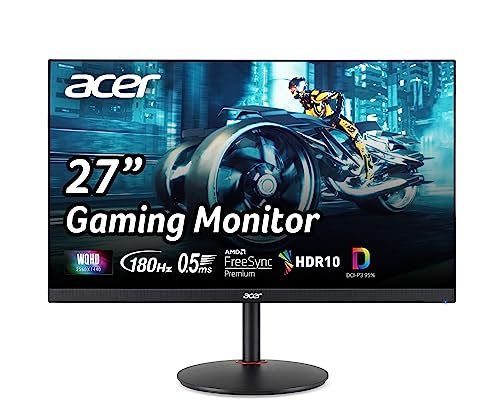
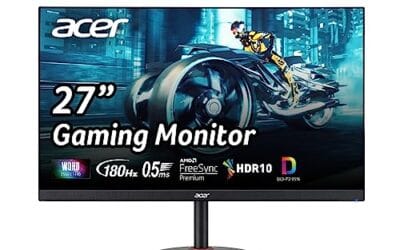
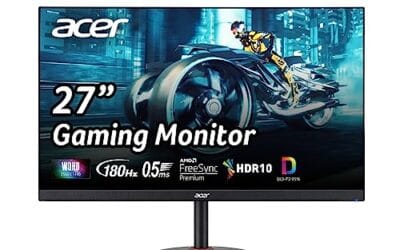
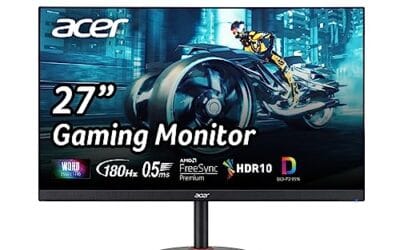
For most dual-monitor builders wanting a real step up from 1080p, a matched pair of 27-inch 1440p 144Hz panels is the sweet call. Something like the Acer Nitro XV271U M3, a 27-inch WQHD 2560×1440 IPS panel with FreeSync Premium, up to 180Hz, 0.5ms response, and 95% DCI-P3 coverage at $169.99 with a 4.8 rating, makes a strong single unit you can double up later. Buy one now, add the twin when your budget recovers.
Pros
- 1440p 180Hz IPS panel via DisplayPort 1.2 hits the current price/perf sweet spot
- 95% DCI-P3 gamut is uncommon at this tier, useful for content viewing
- Full ergonomic stand: 4.7 inch height, 360 swivel, plus/minus 90 pivot, VESA 100
Cons
- Limited owner feedback at time of writing, long-term panel uniformity unverified
- HDMI 2.0 caps at 144Hz; only DisplayPort 1.2 unlocks the full 180Hz refresh
- No USB hub and 2W stereo speakers are strictly a bep-only backup at this tier
The Acer Nitro XV271U M3bmiiprx is a budget-oriented 27inch 1440p IPS gaming monitor targeting builders stepping up from 1080p high refresh. With 2560x1440 resolution, 180Hz over DisplayPort, and FreeSync Premium, it fits users pairing an RTX 4060,X 4060 Ti, or RX 7600 XT class GPU running competitive and AA titles at medium to high settings.
The defining feature is the 180Hz IPS panel with a claimed 0.5ms GtG response, paired with 95% DCI-P3 coverage. In practice, IPS panels at this tier typically deliver around 300to 350 nits SDR brightness and moderate contrast near 1000:1, so blacks will lift in dark rooms. FreeSync Premium adds low framerate compensation, useful when demanding titles drop below 60 FPS.
Trade-offs are typical for the segment. HDMI 2.0 bandwidth caps refresh at 144Hz, so consoles and older GPUs will not reach the full 180Hz ceiling. HDR tier, panel bit depth, and factory calibration are not specified in the listing, and there is no USB hub. The 2W speakers are functional only as a fallback.
Buy this if you want a 1440p 180Hz IPS panel with a full ergo stand and 95% DCI-P3 for mixed gaming and casual creative work. Skip this if you need verified HDR performance, USB-C daisy chaining, or OLED-level contrast for dark-room cinema use.
Panel and Resolution: 27 inch WQHD IPS at 2560x1440 gives a 0.233m pixel pitch, sharp enough that antialiasing needs drop versus 1080p 27 inch panels. IPS delivers wide viewing angles suited to desk sharing or off-axis reference monitors during editing sessions.
Refresh and Response: 180Hz refresh is available only through DisplayPort 1.2; HDMI 2.0 tops out at 144Hz due to bandwidth limits. Acer lists 1ms GtG typical and up to 0.5ms GtG at aggressive overdrive, though inverse ghosting is common at max overdrive on IPS panels in this bracket.
Color and HDR: 95% DCI-P3 coverage is the standout spec, wider than most sub-tier IPS panels that sit near 90% sRGB. HDR certification level, peak brightness, and local dimming are not specified in the source, so treat HDR as a compatibility mode rather than a true HDR experience.
Ports and Ergonomics: 1 DisplayPort 1.2, 2 HDMI 2.0, and audio out cover a PC plus one console. The stand offers minus 5 to 25 degree tilt, 4.7 inch height range, 360 degree swivel, and plus/minus 90 degree pivot, with 100x100 VESA for monitor arms. FreeSync Premium is confirmed, G-SYNC compatibility is not listed.
Common questions
Does an ultrawide replace two monitors?
Mostly, yes, for immersion and single-app work. A 3440×1440 ultrawide gives you roughly the horizontal space of two 24-inch screens without the bezel gap. But it can’t fullscreen two separate apps on physically separate panels, so heavy multitaskers still prefer a real dual setup.
Which gives more screen space for the money?
Dual monitors, at the budget and mid tiers. Two 1440p panels hit 5120×1440 for less than most single ultrawides at 3440×1440. Ultrawide’s value is immersion and simplicity, not raw pixels per dollar.
Is the bezel gap really that annoying?
It depends on the task. For side-by-side apps you barely notice it. For a single game or video stretched across both screens, that seam is distracting, which is exactly where ultrawide pulls ahead.
Do I need a stronger GPU for either one?
Both demand more than a single 1080p screen. Driving 3440×1440 or two high-refresh 1440p panels asks real GPU horsepower. Don’t pair either setup with an entry card and expect steady triple-digit frame rates.
Can I mix an ultrawide with a regular monitor?
Absolutely, and it’s a popular hybrid. Many owners run a wide primary for gaming and a vertical secondary for chat or code. It’s the flexible middle ground if you can’t decide between the two camps, and honestly it’s how plenty of enthusiasts land after living with each style.




























Write Your Review
No reviews yet. Be the first to share your experience!