

Checking whether your PC has a BIOS Flashback button is worth doing before you buy a new CPU, rebuild a system, or troubleshoot a board that won’t POST. The button lets many motherboards update firmware from a USB drive without a working processor, memory kit, or graphics card installed, but it’s not present on every board and vendors label it differently. If you’re planning a Ryzen upgrade, that detail matters as much as VRM quality on a 7800X3D motherboard or rear I/O layout on a 9800X3D motherboard. Here’s how to check the board, manual, rear panel, and firmware support page without guessing.
What you’ll need
You don’t need a bench full of gear. Grab the motherboard model name, the board manual, a flashlight, access to the rear I/O area, and a phone or PC for the vendor support page. If the system is already built, shut it down, switch the power supply off, and give the board a minute before touching cables. A USB 2.0 flash drive helps if you later confirm the feature and want to prepare a firmware file, but this walkthrough is about finding the button.
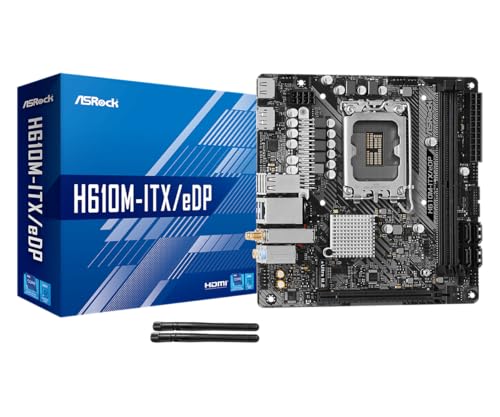
If you’re comparing a replacement board while researching the feature, read the product title and support page carefully. The ASRock H610M-ITX/eDP, for example, is an $89.99 Mini-ITX LGA1700 motherboard rated 4 stars, with DDR4, PCIe 4.0, HDMI, DisplayPort, Intel Gigabit LAN, Wi-Fi 5, eDP, and Dr.MOS in its title. That spec list tells you platform and connectivity, but you still need the manual or rear-I/O labels to confirm BIOS Flashback. Small detail. Big consequence.
Pros
- eDP 1.4 header is rare at this tier, ideal for custom AIO and panel builds
- Dr.MOS 50A 6-phase VRM adequate for 65W LGA1700 CPUs in SFF cases
- PCIe 4.0 x16 slot preserves GPU bandwidth despite H610 chipset limits
- Integrated WiFi 5 and Bluetooth 5.1 plus Intel Gigabit LAN cover connectivity
Cons
- Limited owner fedback available at time of writing, making reliability signal thin
- H610 blocks CPU overclocking and caps DR4 at 3200MHz with no XMP scaling
- Single M.2 slot is Gen3 x4 only, no Gen4 NVMe or secondary M.2
The ASRock H610M-ITX/eDP is a budget LGA1700 Mini-ITX board built around Intel's entry H610 chipset with DDR4 memory and a dedicated eDP 1.4 panel connector. It targets SFF builders, embedded system integrators, and digital signage projects rather than gamers chasing K-series CPUs or high-frequency RAM tuning.
The standout is the eDP 1.4 header, which lets integrators drive a laptop-style FHD 60Hz panel directly, useful for all-in-one and industrial builds. For general desktop use, HDMI 2.1 outputs 4K 60Hz and DisplayPort 1.4 handles up to 8K 60Hz, both dependent on the installed CPU's iGPU capabilities.
Trade-offs are typical at H610 tier: no CPU or memory overclocking, DDR4-3200 ceiling, a single Gen3 x4 M.2, and no rear USB-C. The 6-phase 50A Dr.MOS VRM is fine for 65W non-K chips like a Core i5-13400, but pairing with a 14700K in a hot SFF case is not the intended use.
Buy this if you need a compact LGA1700 board with eDP for a panel PC, signage kiosk, or budget SFF office build. Skip this if you want DR5, K-series overclocking headroom, Gen4 NVMe, or dual M.2 storage on a modern Intel platform.
Socket and chipset: LGA1700 with H610 chipset supports 12th, 13th, and 14th Gen Core CPUs. H610 disables CPU multiplier and memory overclocking, so pair with locked SKUs like Core i3-12100, i5-13400, or i5-14400 for best value rather than K-series parts.
Memory support: 2 DR4 DIMM slots run dual-channel up to 3200MHz with XMP 2.0 and ECC UDIMM in non-ECC mode. Confirm kits against ASRock's QVL, since Mini-ITX 2-DIMM layouts are typically friendlier to Hynix and Micron dies at 3200 CL16.
Storage and PCIe: One PCIe 4.0 x16 slot for GPU, one Ultra M.2 slot (PCIe Gen3 x4 and SATA3), and 4 SATA3ports. Only one M.2, so plan bot NVMe plus SATA SDs for bulk storage in SFF builds.
Form factor and I/O: Standard 6.7 by 6.7 inch Mini-ITX footprint fits ITX cases and thin mITX chassis. Rear I/O includes HDMI 2.1, DisplayPort 1.4, 2 USB 3.2 Gen1, 4 USB 2.0, and Gigabit LAN. Note CNVi Bluetooth shares bandwidth with one rear USB 2.0 port.
Step 1: Find the exact motherboard model
Start with the precise model, not just the chipset. “B650,” “Z790,” “X670E,” or “B760” narrows the platform, but it doesn’t confirm BIOS Flashback. Vendors often sell several boards with similar names where one has a flashback button and another doesn’t. Look for the model printed between the PCIe slots, near the memory slots, along the lower edge, or on the box label. Include every suffix, such as WiFi, AX, Plus, Pro, Gaming, Steel Legend, Tomahawk, Aorus Elite, or ROG Strix.
In Windows, you can also press the Windows key, type System Information, and check the BaseBoard Manufacturer and BaseBoard Product fields. The board printing and the vendor support page should settle it. Don’t rely on a store listing alone, since retail pages sometimes copy a feature table from a sibling model, and BIOS Flashback is the sort of small button that gets lost in those listings.
This is also where CPU planning enters the picture. A board picked for a Ryzen 7 9800X3D build may need newer firmware than the factory version, while an Intel board chosen for an i7-14700K system may use a different recovery feature name. Same idea, different vendor language. Write the model down exactly before moving on.
Step 2: Inspect the rear I/O for a labeled button
The fastest physical check is the rear I/O shield area. Look for a tiny push button near one specific USB port. Common labels include BIOS, Flash BIOS, BIOS FLBK, Q-Flash Plus, FlashBack, BIOS Flash, or simply Flash. On many boards, the matching USB port is outlined, colored differently, or labeled in small print. Use a flashlight and check from a shallow angle, since the text can be gray-on-black or stamped into metal.
A reset CMOS button is not the same thing. Clear CMOS wipes stored firmware settings; BIOS Flashback writes a firmware image to the board’s SPI flash chip. Some high-end boards stack both buttons near each other, easy to misread if the PC is under a desk. If you see two tiny buttons, read the label twice, and don’t press either while you’re only identifying the feature.
If your case has a fixed rear opening and the labels are hard to see, take a phone photo with flash, zoom in, and rotate it. You may need to move a DisplayPort cable, Wi-Fi antenna, or USB hub cable out of the way. Keep power off while you work near the rear I/O area.
Step 3: Check the manual’s rear-panel diagram
Next, open the motherboard manual from the vendor support page and search the PDF for Flashback, Flash BIOS, Q-Flash, USB BIOS, or recovery. The rear-panel diagram usually sits in the first third of the manual, and it labels every USB port, antenna jack, audio port, and button. If the board has the feature, the manual calls out both the button and the correct USB port. That’s the part people miss.
Pay attention to vendor-specific naming. ASUS commonly uses USB BIOS FlashBack, MSI often uses Flash BIOS Button, Gigabyte uses Q-Flash Plus, and ASRock may use BIOS Flashback or BIOS Flashback Button. The words differ, but the function is similar: a dedicated routine updates firmware with standby power and the correct file on a USB drive.
If the manual only describes updating BIOS from inside the firmware setup screen, that is not the same feature. EZ Flash, M-Flash, Instant Flash, and Q-Flash from within UEFI usually require the board to boot into the firmware interface. BIOS Flashback is the offline path you want when a new CPU is not recognized or the system can’t reach the setup screen.
Step 4: Verify the support page and firmware notes
Once the manual suggests the feature exists, confirm it on the support page. Open the BIOS or Firmware tab for your exact model and read the update instructions. Many vendors provide a separate note for the flashback process, including the required USB format, file name, and port. Some boards need the file renamed with a vendor utility; others use a fixed name from the manual.
Look for precise wording such as “use the Flash BIOS Button,” “USB BIOS FlashBack,” or “Q-Flash Plus procedure.” If the only instructions say to enter UEFI, select a file, and restart, you’re reading the normal update path. That’s fine for a working machine, but no substitute for flashback when a CPU support gap prevents booting.
Also check CPU support notes. A board marketed for a chipset generation can still ship with older firmware. That’s why buyers pairing newer CPUs with boards from a previous production run care about this button. Someone building around a Ryzen 9800X3D motherboard list or narrowing down a Core i9-13900K motherboard should treat firmware recovery as a real buying criterion, not a bonus line.
Step 5: Identify the correct USB port and safe power state
If your board has the button, the next check is the matching USB port. BIOS Flashback usually works through one specific rear USB Type-A port, not any random front-panel port. The manual may mark it as BIOS, Flashback, or Q-Flash Plus. On some boards it’s the bottom USB 2.0 port; on others it’s beside the button. Use the diagram.
For the power state, most boards need the 24-pin motherboard cable and 8-pin CPU power cable connected, with the power supply switched on so standby power is present. The PC itself is usually off. Fans may not spin, and the screen may stay black. A small LED near the button often blinks while the board reads the USB drive and writes the firmware. That blink pattern matters if you later run the update.
Since you’re only checking for the feature, stop after identifying the button, the port, and the manual procedure. Don’t start a firmware update unless you have the right file for the exact board revision, stable power, and time to let it finish. Interrupting a firmware write can create a bigger problem than the one you started with.
Troubleshooting common issues
I see a tiny rear button, but it says Clear CMOS
That button resets firmware settings; it doesn’t install new firmware. Clear CMOS can help after a bad memory overclock or wrong boot setting, but it won’t add CPU support. If the manual doesn’t list a flashback process, assume the board lacks it.
The manual mentions Instant Flash, EZ Flash, M-Flash, or Q-Flash
Those names often describe updates from inside UEFI. They’re useful once the board boots, but they don’t prove that offline flashback exists. Search the manual for the exact button name and a rear USB port reference.
The store page says flashback, but the board has no button
Trust the vendor manual and the physical board over a retail feature grid. Store pages can mix data from nearby models. Check the model suffix, revision number, and rear I/O diagram. If those don’t line up, contact the seller or pick a board with clearer documentation.
The button exists, but I can’t find the right file name
Vendor instructions usually provide a renaming utility or a required file name. Read the support page for your exact model and revision. Don’t rename a file based on another board’s guide, even if the chipset matches.
Wrapping up
To check for a BIOS Flashback button, confirm the exact motherboard model, inspect the rear I/O, read the manual’s rear-panel diagram, verify the support page, and identify the dedicated USB port. If all five checks line up, you can plan a firmware update with far less stress. If one piece is missing, don’t force the process. Use a supported CPU, ask the seller about factory firmware, or pick a board with the feature clearly documented.
For new builds, this is one of those small motherboard features that can save an evening. It’s useful when buying a board before a new CPU launch, reusing an older board, or comparing models for a high-end platform like a Core i9-13900K motherboard. A button, a labeled USB port, and a clear manual page tell you more than a vague feature list ever will.
Before and after expected outcomes
Before the check, you may only know the chipset and CPU socket. After the check, you should know three things: whether the board has BIOS Flashback, which rear USB port it uses, and what the vendor calls the procedure. That’s enough to decide if the board can recover from a CPU-support mismatch without borrowing an older processor. Clean answer. Less panic.
Variations and advanced setups
Some workstations and compact systems hide the rear I/O behind tight cable runs, vertical GPU brackets, or desk mounts, so the manual may be the easier first stop. Some boards also have revision-specific pages when a vendor changes Wi-Fi modules or firmware branches. If your board revision is printed near the 24-pin connector or PCIe slot, match it on the support page before downloading anything.
Common questions
Can I use BIOS Flashback without a CPU installed?
On many boards with true BIOS Flashback, yes, that’s the point of the feature. You usually still need the 24-pin and CPU power cables connected so the board has standby power. Follow the vendor procedure for your exact model.
Is BIOS Flashback the same as clearing CMOS?
No. Clearing CMOS resets firmware settings to defaults. BIOS Flashback writes a firmware file to the board. They solve different problems, and the buttons often sit near each other, so read the rear I/O label carefully.
Do all modern motherboards have a flashback button?
No. Many midrange and high-end boards include it, but plenty of budget or compact boards skip it. Chipset alone doesn’t guarantee anything. The manual and rear I/O diagram are the reliable checks.
What USB drive format should I use if I later update the BIOS?
Most vendors recommend a small USB drive formatted as FAT32, often plugged into one specific rear port. The required file name varies by brand and model. Don’t begin until you’ve read the instructions from the board’s own support page.
Should I buy a board with BIOS Flashback for a new CPU build?
If you’re pairing a new CPU with a board that may have older factory firmware, it’s a smart safety feature. It’s not the only buying factor, but it can prevent a dead-end first boot. For builders without a spare compatible CPU, it’s worth prioritizing.




























Write Your Review
No reviews yet. Be the first to share your experience!