Your PC boots, fans spin up, the hard drive whirs, the RGB does its little dance. But the monitor sits there black or flashes “No Signal” and walks away. Frustrating, but the fix is almost always one of three boring things: wrong input source, a flaky cable, or a graphics driver that didn’t wake up properly. We’ve talked dozens of friends through this exact panic, and we rarely get past step three. So let’s hit those first, then poke at the rarer hardware stuff if your setup is being weird about it.
The quick diagnosis (30-second check)
Before you yank cables or start Googling RMA forms, do this. Check the monitor’s power LED. It’s a separate light from the signal status, and if it’s off, you’ve got a power issue, not a PC issue. Next, hit the monitor’s INPUT or SOURCE button and cycle through every option: HDMI 1, HDMI 2, DisplayPort, VGA, whatever it has. Monitors love defaulting to the wrong one after a power blip. Then unplug both ends of the video cable, blow on the ports, and reseat them firmly. If you’ve got a spare cable lying around, swap it in. Here’s the tell: if the monitor flashes a “No Signal” message at any point during this, the panel is alive. That means the problem is upstream at the PC or cable, not the monitor itself. That’s good news. It narrows things down fast.
Most likely cause – wrong input source or bad cable
The number one fix we see, by a mile: the monitor’s input is set to HDMI, but the cable’s plugged into DisplayPort. Or vice versa. People move setups, swap GPUs, change desks, and the input setting doesn’t follow. Press SOURCE, scroll through, watch the screen wake up. Done. Embarrassing how often that’s it.
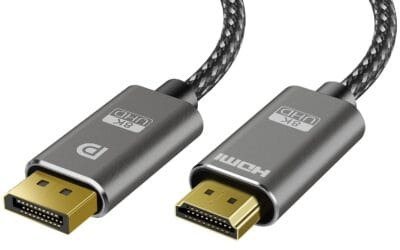
Number two: cable failure. HDMI and DisplayPort cables degrade with use, especially if you unplug them regularly or they’re bent sharply behind the desk. The inner pins corrode, the shielding frays, and signal drops. Spec mismatches sneak in too. A passive HDMI 1.4 cable physically connects to your 4K 144Hz monitor and your shiny new GPU, but it can’t carry that signal. You’ll get black screen, flicker, or a lower resolution forced down. Swap in a known-good cable from another setup, even if it’s just to confirm. Cheap DisplayPort-to-VGA adapter cables die especially fast, since they’ve got active conversion electronics inside that fry out.
If you’re running an older monitor or projector that only takes VGA, a fresh adapter cable is worth keeping around as a diagnostic spare.
Second most likely cause – GPU output vs motherboard output
This one trips up first-time builders constantly. If your PC has a dedicated graphics card, you must plug the monitor into the GPU’s output ports, not the motherboard’s video output. The motherboard outputs (usually near the USB stack at the top of the back panel) only work with integrated graphics. If you’ve got an Intel CPU with an “F” suffix, like the i5-13400F or i7-14700F, there’s no iGPU at all. Those motherboard outputs are completely dead. You’ll get nothing. No signal, no BIOS, no error, just black.
The GPU’s HDMI and DisplayPort ports sit lower on the back of the case, on a separate horizontal bracket that’s the GPU itself. Pull your side panel if you’re not sure which is which, look for the card with the fans, follow it to its output bracket, and plug in there. If you’ve been running off the motherboard ports this whole time wondering why performance is trash, congrats, you just unlocked your GPU.
The weird one (rare but happens) – graphics driver corruption or HDCP handshake
Sometimes the BIOS POST screen shows fine, you see the Windows logo, and then bam, black screen right as the desktop should load. That’s the GPU driver failing to initialize after Windows takes over. To confirm, boot into Safe Mode by holding Shift while clicking Restart, then navigate through Troubleshoot to Startup Settings. Safe Mode uses a generic basic display driver. If the screen works there, your installed driver is corrupted.
The clean fix is DDU, or Display Driver Uninstaller. Run it in Safe Mode, let it strip every trace of your current driver, reboot, and install fresh from Nvidia or AMD’s website. Don’t trust Windows Update for this. The other oddity is HDCP handshake failure, which mostly hits people running HDMI into a TV or projector instead of a regular monitor. The copy-protection authentication fails silently and you get nothing. Try with a known-good HDMI monitor (not a TV) to rule it out.
Step-by-step fix
Here’s the order we run through every time, no matter how cocky we’re feeling about a quick diagnosis. Just work down the list and stop when the picture comes back.
(a) Confirm the monitor’s power LED is lit. Not the signal indicator, the actual power light. If it’s off, check the power brick, the wall outlet, and the monitor’s own power button.
(b) Press the INPUT or SOURCE button on the monitor and cycle through every available port. Wait two seconds on each one before moving on.
(c) Verify the video cable is fully seated at both ends. Push firmly. DisplayPort cables have a little latch you have to depress to unplug, so if it’s wiggly, it’s not in.
(d) Try a different cable if you’ve got one. Different brand, different spec, doesn’t matter for diagnosis.
(e) If you’ve got a dedicated GPU, confirm the cable’s plugged into the GPU, not the motherboard.
(f) If possible, check with a totally different monitor. Borrow one, pull one from another room, whatever. This tells you if the monitor itself is the problem.
(g) Boot to Safe Mode. If the display works there, you’ve got a driver issue. Run DDU and reinstall.
(h) Power down, unplug, and clean the GPU’s gold contact fingers with isopropyl alcohol and a lint-free cloth. Fixes intermittent signal issues more often than you’d think.
(i) Reseat the GPU in its PCIe slot. Push down firmly until the retention clip clicks.
(j) If your motherboard has a second PCIe x16 slot, try the GPU there. Slots themselves can fail.
A small portable monitor is genuinely useful for this whole process, because you can confirm GPU output independently from your main display without dragging a TV into the room.
When it’s not fixable – what to replace
You’ve worked through the list and nothing changed. Time to figure out what’s actually dead.
If the GPU’s outputs are dead across multiple monitors AND multiple cables AND multiple ports on the card, the GPU itself has failed. Check your warranty, start the RMA paperwork, or budget for a replacement. GPUs do die, especially after long mining stints or years of heavy thermal cycling.
If the GPU works fine on one monitor but not on the one you care about, the target monitor is failing. Backlights die, T-CON boards burn out, internal cables loosen. Repair shops sometimes fix these for less than replacement cost, but for cheaper monitors it’s usually not worth it.
If you’re running on integrated graphics and they’ve gone dark, you’re looking at either a motherboard fault or CPU iGPU failure. The cheapest workaround is dropping in a budget dedicated GPU and bypassing the issue entirely.
A few more questions
How do I know if my GPU is dying or just driver-corrupted?
Boot to Safe Mode. If the display works there with the basic Windows driver, your installed driver is the issue, not the hardware. Run DDU, reinstall clean, you’re good. If Safe Mode is also black, or if you see visual artifacts (weird colors, lines, checkerboard patterns) even during BIOS POST before Windows loads, that’s hardware failure. POST-level artifacts almost always mean the GPU itself is dying, not software.
Will any HDMI cable work, or do I need HDMI 2.1?
Depends on your resolution and refresh rate. For 1080p at 60Hz, basically any HDMI cable from the last decade works fine. For 1440p at 144Hz, you want HDMI 2.0 minimum. For 4K at 120Hz or above, or anything with HDR at high refresh rates, you need certified HDMI 2.1. A cable that’s underspec’d will either drop to a lower mode automatically or just give you black screen. Cheap “Ultra High Speed” certified cables on Amazon are fine.
Should I plug my monitor into HDMI or DisplayPort?
DisplayPort, if both your GPU and monitor support it. It handles higher refresh rates and resolutions more reliably, supports daisy-chaining multiple monitors off one port, and has better support for adaptive sync (G-Sync and FreeSync) on most setups. HDMI’s fine for TVs and casual use, but for a dedicated PC monitor at high refresh rates, DisplayPort’s the default choice for a reason. Only use HDMI if your monitor lacks DP or you’re hitting compatibility issues.