

Choose 16GB of RAM for a new Windows PC that will run current games, a browser alongside work apps, or both. Keep 8GB if you already own the machine and it handles your everyday routine without slowdowns. If you play a game that recommends 32GB, edit 4K video regularly, or can’t upgrade the memory later, check the cost of buying 32GB now.
The difference is how much active work your PC can keep in memory. Twice the capacity. A game and a browser can occupy the same 16GB pool with more room left for Windows, voice chat, and other background apps. How much that matters depends on what your PC is already using and whether the machine has a compatible upgrade path.
8GB vs 16GB RAM at a glance
| What matters | 8GB of RAM | 16GB of RAM | What to check |
|---|---|---|---|
| Everyday work | Email, documents, and light browsing | More room for calls, tabs, and office apps together | Memory use during your busiest routine |
| Gaming | Works for games with modest requirements | A practical starting point for a general gaming PC | Each game’s recommended system RAM |
| Integrated graphics | Shared graphics memory leaves less room for apps | More room when graphics and apps draw from the same pool | Whether your system uses integrated graphics |
| Common configurations | One 8GB module, two 4GB modules, or onboard memory | Two 8GB modules, one 16GB module, or onboard memory | Slots, memory type, and supported capacity |
| Upgrade cost | Keep it if your workload fits | May require one added module or a full replacement kit | Whether you can reuse your existing memory |
What 8GB gives you
8GB is the installed capacity that Windows, running applications, and any graphics hardware that shares system memory draw from. It can be enough for a family computer that spends the day on email, a handful of tabs, and the occasional spreadsheet. An existing 8GB PC that still feels responsive doing those jobs can stay in service as it is.
What 16GB changes
16GB gives those same programs a larger pool. The benefit shows up when you keep a call, several browser tabs, and a large document open together, or when you switch from a game to another app without closing either. A 16GB kit labeled 2 × 8GB contains two modules with 8GB apiece.
Check your motherboard or laptop before buying
Look up the exact motherboard or laptop model and check its memory generation, supported module size, and slot count. Desktop boards typically take full-size DIMMs, while many upgradeable laptops take smaller SO-DIMMs. Some laptops have memory soldered to the board, and others combine onboard memory with a socket. Two versions of the same laptop line can have different upgrade options. Start with the model number on the device or in its specifications.
DDR4 and DDR5 use different sockets. Match the generation your board supports before you compare capacities or advertised speeds. If you’re choosing a new platform, see our DDR4 vs DDR5 comparison for the broader decision.
Then work out what’s installed. One 8GB desktop stick and a free slot may let you add a compatible 8GB module. If a two-slot board already has two 4GB sticks, you’ll need to replace them to reach 16GB. A four-slot motherboard may have specific sockets for a pair. ASUS, for example, specifies A2 and B2 on its ROG Strix Z690-A Gaming WiFi D4. Follow the diagram for your own board. For other layouts, see our guide to using two or four sticks of RAM.
For a prebuilt or laptop listing that just says “16GB RAM,” ask how that capacity is configured. Two 8GB modules can use both memory channels on a compatible system with the correct slots populated. A single 16GB stick can leave a socket free for a later upgrade. If the memory is soldered, the capacity you order is the one you’ll live with. This detail is especially useful when two systems with the same CPU and advertised RAM have similar prices.
Why 16GB is a better starting point for many games
Epic lists 8GB of system RAM as the minimum for Fortnite on PC and 16GB or more as its recommendation. That’s a useful distinction if you leave voice chat and browser tabs open while you play. A minimum tells you where the publisher puts the entry point. Read the recommended figures for the games you buy the PC to play, including their CPU and GPU requirements. See Epic’s Fortnite PC requirements.
When a workload outgrows physical memory, Windows can use the page file on your drive as part of its memory management. Retrieving data from storage can take longer, which can show up as a pause when a game loads more assets or when you switch applications. A capacity upgrade can help when that’s the problem. If a game already fits comfortably in memory, frame rates can still depend on the processor, graphics card, and settings.
Consider an 8GB PC that runs an older game smoothly on its own but hitches when you alt-tab to a browser with a stream playing. Close the stream and replay the same section. If the hitch disappears and available memory was low, it’s worth looking at a 16GB upgrade. If it happens in the same scene with the browser closed and memory to spare, check graphics settings and the GPU before buying RAM. That comparison narrows down where to spend the money without assuming every hitch has the same cause.
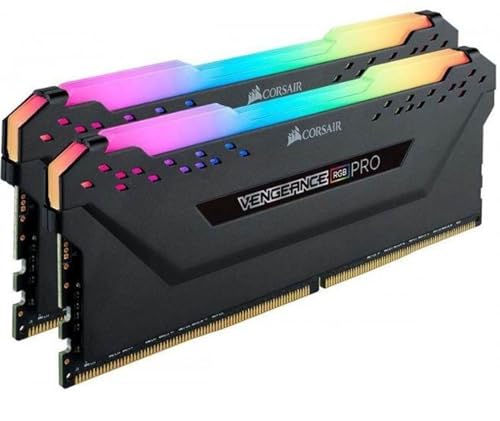
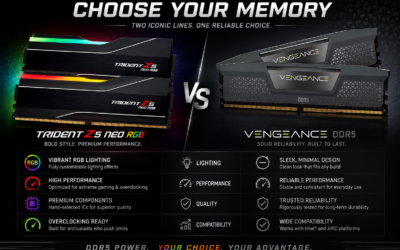
Channel layout can matter as well. Going from one 8GB stick to two 8GB sticks on a compatible dual-channel platform can change both capacity and memory bandwidth. If you have a DDR4 desktop that needs a full replacement kit, Corsair’s Vengeance RGB Pro SL is an example of a 16GB kit with two 8GB modules. Its advertised 3200 MT/s depends on the board, CPU, and memory settings. For less expensive kits and DDR5 alternatives, compare the options in our budget RAM buying guide.

When it makes sense to keep 8GB
One main app at a time. That’s where 8GB makes the most sense. A student who works on a document and consults a few reference tabs may be fine. A student who keeps a video lecture, a large spreadsheet, a browser, and a call open at once has a better case for upgrading. Microsoft’s 4GB Windows 11 minimum is for the operating system, so judge the decision on your applications and what you run together.
Before spending money, open Task Manager > Performance > Memory and repeat the routine that feels slow. Look at available memory while the problem is happening. Repeated slow switching when available memory stays low is a stronger clue than one high reading. Check the CPU and disk graphs as well. A PC that bogs down during a file copy or software update may have a different bottleneck.
Pay closer attention on a machine with integrated graphics. Intel documents that its integrated graphics can draw on system memory. The amount used can change with the workload. If you’re buying a laptop with soldered memory and you expect to play games alongside your day-to-day apps, lean toward 16GB or more from the start.
When to go straight to 32GB
Start with the applications that will use it. Microsoft Flight Simulator 2024 specifies 16GB of RAM as its minimum and 32GB as its recommendation. Adobe lists 16GB for HD media and 32GB or more for 4K and higher in its recommended Windows memory requirements for Premiere. For someone who regularly flies that simulator or edits 4K footage, 32GB is a reasonable target if the rest of the machine meets the workload’s demands. See the Flight Simulator 2024 requirements and Adobe Premiere requirements.
Also consider the cost of upgrading twice. If a desktop has two slots and the next step after a 2 × 8GB kit means replacing both sticks, compare that cost with a 2 × 16GB kit before buying. If you’re keeping an older PC for web browsing and a few games, consider whether you’ll use the extra capacity before you replace the machine.
Which capacity should you buy?
- Keep 8GB if your current PC feels responsive under your usual workload and your games and apps fit within that capacity.
- Buy 16GB for a new general-purpose or gaming PC, or upgrade an older machine when slow app switching and low available memory show up together.
- Buy 32GB when a priority workload calls for it or when you’re choosing a fixed-memory configuration for several years of heavier work.
Price the path that actually gets your machine to the target. On a laptop with one compatible 8GB DDR4 SO-DIMM and an open socket, another 8GB module may be all you need to reach 16GB. This Silicon Power 8GB DDR4 SO-DIMM illustrates that option. Match the laptop’s supported specifications and your existing module before ordering.

Frequently asked questions
Can you combine an 8GB stick and a 16GB stick for 24GB?
Some systems support that combination. Check the manual for mixed capacities, maximum module size, and the recommended slot order. On platforms that support asymmetric dual-channel operation, a matched portion of the memory can operate across both channels while the remainder uses one channel. If the documentation is unclear and you’re buying all new memory, a supported matched kit makes the configuration easier to verify.
Why does Windows show less usable RAM than I installed?
Some installed RAM can be unavailable to apps because hardware or firmware reserves it. Integrated graphics can be part of that picture. Task Manager lists hardware-reserved memory on the Memory screen. If almost an entire module appears to be missing after an upgrade, compare the total reported in the BIOS with the installed capacity and check the manufacturer’s seating and slot guidance.














Write Your Review
No reviews yet. Be the first to share your experience!