

Streaming and gaming at the same time asks a lot of your PC, and the CPU is usually where it either holds up or falls apart. Encode a live broadcast while running a demanding game, and suddenly core count, clock speed, and encoder support all matter at once. The short version: for streaming you want a CPU with enough cores to handle the game and the encode together, high enough clocks to keep frame pacing smooth, and ideally the option to offload encoding to your GPU. If you’re shopping specific chips, our guides to the best CPU for streaming and the best budget CPU for streaming narrow it down.
This isn’t about buying the most expensive processor on the shelf. It’s about matching cores and clocks to how you actually stream. A single-PC streamer using GPU encoding has different needs than someone running CPU-based x264 for maximum quality. We researched what each approach demands and reference two real Intel chips, the $469 Core i9-14900K and the $587.77 Core i9-13900K, to show what high core counts bring to the table.
The short answer
For streaming, prioritize a CPU with a strong mix of high core count and high clock speed. More cores let the processor game and encode simultaneously without stuttering, while high clocks keep your frame rate and stream frame pacing smooth. If you plan to encode with your CPU using x264, cores matter even more. If you’ll offload encoding to your GPU, clocks and per-core speed carry more weight.

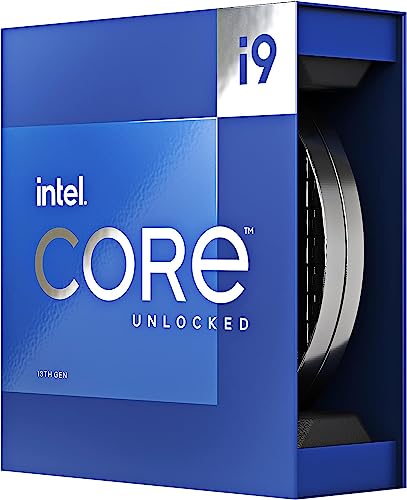
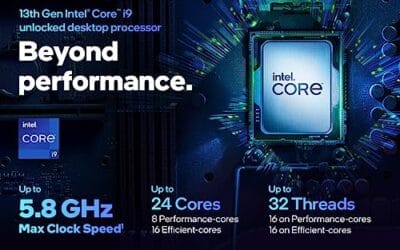
The Intel Core i9-13900K below is a clear example of the high-core approach. At $587.77 with a 4.8 rating, it packs 24 cores, 8 performance cores plus 16 efficiency cores, with 36MB of cache and boost up to 5.8 GHz. That P-core and E-core split is genuinely useful for streamers, since the E-cores can absorb background encode and capture tasks while the P-cores keep the game running fast.
Pros
- Massive multi-threaded performance for 4K video editing, 3D rendering, and complex data science workloads.
- High 5.8 GHz peak frequency provides excellent single-core performance for gaming and CAD applications.
- Integrated UHD Graphics 770 serves as a reliable backup for troubleshooting or non-gaming productivity setups.
- Broad platform compatibility across two motherboard generations and two different memory standards.
Cons
- High 125W base power and significant peak wattage require a high-end 360mm AIO or custom loop cooling.
- Requires a BIOS update on many Intel 600 series motherboards before the system will POST.
- Platform longevity is limited as LGA1700 is an established socket nearing the end of its release cycle.
The Intel Core i9-13900K represents the pinnacle of the 13th Gen Raptor Lake lineup, positioned as a flagship solution for users who refuse to compromise. With a total of 24 cores and 32 threads, it is specifically engineered for enthusiast gamers, streamers, and heavy content creators who frequently run demanding applications like Adobe Premiere Pro, DaVinci Resolve, or Blender.
The standout technical achievement here is the refined hybrid architecture. By pairing 8 high-frequency Performance-cores with 16 Efficiency-cores, the 13900K manages heavy compute loads without sacrificing the responsiveness of background applications. In real-world gaming, this typically translates to higher 1% low frame rates and smoother overall performance, especially when multitasking with OBS or Discord in the background.
Thermal management is a critical consideration for this chip. While the 125W base power seems manageable, the processor is designed to scale its power consumption significantly to maintain the 5.8 GHz boost clock. Users should expect high operating temperatures under sustained all-core loads, necessitating a robust cooling solution and a high-airflow case to prevent thermal throttling.
An honest trade-off for this level of performance is the power draw and the resulting heat output. This is not a 'set and forget' chip for budget cooling or small form factor builds without careful undervolting or power limiting. Additionally, while the support for DDR4 is a welcome cost-saving measure, the highest performance tiers are only unlocked when paired with high-frequency DDR5 memory.
Buy this if you are building a top-tier workstation or gaming rig and already have a 360mm liquid cooler and a high-wattage power supply. Skip this if you are primarily gaming at 4K where the GPU is the bottleneck, or if you prefer a more power-efficient system with lower cooling requirements.
| Feature | Specification |
|---|---|
| Core Count | 24 (8 P-cores + 16 E-cores) |
| Thread Count | 32 |
| Max Turbo Frequency | 5.8 GHz |
| P-core Base Frequency | 3.0 GHz |
| E-core Base Frequency | 2.2 GHz |
| Intel Smart Cache (L3) | 36 MB |
| Total L2 Cache | 32 MB |
| Processor Base Power | 125 W |
| Memory Support | DDR5 5600 / DDR4 3200 |
| PCIe Revision | 5.0 and 4.0 |
| Total CPU PCIe Lanes | 20 |
| Socket Support | LGA1700 |
| Integrated Graphics | Intel UHD Graphics 770 |
Socket and Chipset: This processor uses the LGA1700 socket. It is natively compatible with Intel 700 series motherboards (Z790, H770, B760). While it works with 600 series boards (Z690, H670, B660, H610), a BIOS update is almost certainly required for the system to boot if the board was manufactured before the 13th Gen launch.
Cooling Requirements: Given the 5.8 GHz boost clock and high core count, a premium 360mm or 420mm All-In-One (AIO) liquid cooler is strongly recommended. High-end dual-tower air coolers may suffice for gaming but will likely lead to thermal throttling during intensive multi-threaded rendering or stress testing.
Memory Selection: The i9-13900K supports both DDR4 and DDR5, but this is determined by your motherboard choice. For a flagship build, pairing this CPU with DDR5 5600MT/s or higher is recommended to avoid bandwidth bottlenecks in memory-sensitive applications and modern games.
Power Supply Guidance: Due to the high transient power spikes typical of i9 processors, ensure your PSU has sufficient headroom. For a build featuring this CPU and a high-end GPU like an RTX 4080 or 4090, a minimum of an 850W or 1000W 80 Plus Gold power supply is advised.
Operating System: To properly utilize the Intel Thread Director for efficient task scheduling between P-cores and E-cores, Windows 11 is highly recommended. While Windows 10 is supported, it may not always assign tasks to the optimal core type, potentially impacting performance.
The longer explanation
Streaming adds a second heavy job on top of gaming. Your game wants CPU time for physics, AI, and draw calls, while your broadcast software wants CPU or GPU time to compress video in real time. If the processor can’t juggle both, you get dropped frames, encoding lag, or a stuttering game. That’s why raw core count matters more for streamers than for pure gamers, who can often get by with fewer, faster cores.
Intel’s hybrid design helps here. Performance cores handle the demanding, latency-sensitive game threads, while efficiency cores mop up background work like the encoder, chat overlays, and capture. A chip with 24 total cores like the i9-13900K has room to spread that load. High boost clocks, up to 5.8 GHz on that chip, keep the game responsive even while the encode runs. Cores for parallel work, clocks for responsiveness. You want both.
How it works: CPU vs GPU encoding
There are two main ways to encode a stream, and your CPU choice depends on which you use. CPU encoding with x264 runs the compression on your processor cores. It can produce excellent quality at a given bitrate, but it’s demanding, and at higher presets it eats cores fast. This is where a 24-core chip earns its price, since it has threads to spare for the game and the encode at once.
GPU encoding offloads compression to a dedicated hardware encoder on your graphics card, freeing the CPU. Modern GPU encoders are efficient and produce great results with far less CPU load, which is why many single-PC streamers use them. If you go this route, you can lean toward per-core speed and clocks rather than maxing out core count. Knowing which method you’ll use tells you where to spend.
Why it works this way
Real-time video compression is parallel work. Encoders split each frame into chunks and process them across many threads, so more cores generally mean the ability to hold higher quality without stealing time from your game. That’s the core reason streamers benefit from higher core counts than gamers who never broadcast. The encode is a constant background tax, and cores are how you pay it without slowing the game.
Clock speed handles the other half. Games often lean on a handful of fast threads, so high boost clocks keep minimum frame rates up and input feeling crisp. A chip that boosts to 5.8 GHz keeps the game snappy even while cores are busy encoding. The best streaming CPUs combine both traits, plenty of cores and high clocks, which is exactly what the flagship Intel chips here deliver.
When you’d want this
You want a high-core, high-clock CPU if you stream and game on a single PC, especially with CPU-based x264 encoding or demanding multitasking like running a game, broadcast software, chat tools, and browser sources at once. The more you ask the machine to do live, the more those extra cores keep everything smooth. Serious streamers who also edit video or run virtual machines get even more from the parallel horsepower.
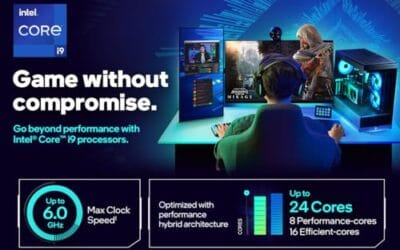
The Intel Core i9-14900K is a strong fit for this profile. At $469 with a 4.7 rating, it’s a high-end desktop processor built for heavy multithreaded loads, which is exactly what simultaneous gaming and streaming create. If you’re building a do-everything single-PC streaming rig and want long-term headroom, a flagship like this handles the encode and the game together without forcing compromises. It’s more chip than a pure gamer needs, and that’s the point for streamers.

Pros
- Industry-leading 6.0GHz out-of-the-box boost clock for single-threaded applications.
- Massive 32-thread capacity excels in multi-threaded workloads like 4K video rendering and 3D modeling.
- Compatible with existing LGA 1700 motherboards via BIOS updates, extending the life of 600-series boards.
- Integrated Intel UHD Graphics 770 provides a fallback for troubleshooting and QuickSync hardware acceleration.
- Highly binned silicon offers significant tuning potential for users with high-end cooling solutions.
Cons
- High 253W maximum turbo power requires premium 360mm or 420mm AIO liquid cooling for sustained loads.
- Aggressive stock voltage curves can lead to thermal throttling on standard air coolers or entry-level AIOs.
- Final generation for the LGA 1700 socket, limiting future CPU upgrade paths without a motherboard change.
- Significant power draw necessitates a high-quality PSU with sufficient 12V EPS overhead.
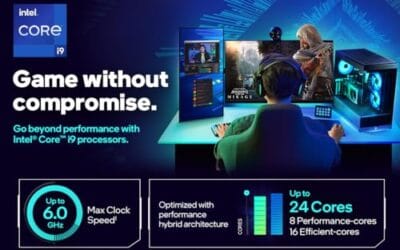
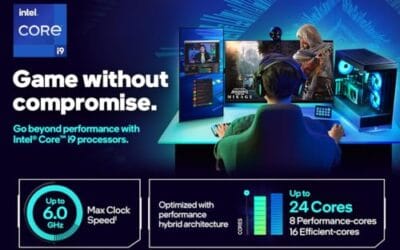
The Intel Core i9-14900K represents the enthusiast-tier peak of the Raptor Lake Refresh lineup, targeting professional creators and gamers who require the highest possible clock speeds. With 24 cores and 32 threads, it is designed to handle simultaneous gaming, streaming, and recording without the performance degradation typically seen on lower-core-count processors.
Technical performance is defined by its 6.0GHz Thermal Velocity Boost, a milestone frequency that pushes the limits of the LGA 1700 platform. In real-world gaming, this translates to high frame ceilings in 1080p and 1440p scenarios, while the 16 Efficient-cores provide the necessary throughput for background tasks and heavy multi-threaded productivity suites like Adobe Premiere Pro and DaVinci Resolve.
Build quality and reliability are consistent with Intel's high-end silicon, though the chip is notoriously demanding regarding thermals. The integrated heat spreader (IHS) must dissipate significant heat during 250W+ bursts, making the choice of thermal interface material and mounting pressure critical for maintaining stability under full load.
The primary trade-off for this level of performance is power consumption and heat. Users should expect the processor to hit its thermal junction maximum (TjMax) quickly during synthetic stress tests if paired with inadequate cooling. It is a processor that requires manual tuning of power limits (PL1 and PL2) to balance efficiency and performance effectively.
Final verdict: Buy this processor if you are an enthusiast with a high-end Z790 motherboard and a 360mm+ liquid cooler who needs the absolute fastest gaming and multitasking performance currently available on the Intel platform. Skip this if you prefer a plug-and-play experience with low power draw or are building in a small form factor case with limited cooling clearance.
| Cores / Threads | 24 (8P + 16E) / 32 |
| Max Turbo Frequency | 6.0 GHz |
| Intel Smart Cache (L3) | 36 MB |
| Total L2 Cache | 32 MB |
| Processor Base Power | 125 W |
| Max Turbo Power | 253 W (Listed as 250W in specs) |
| Socket Support | LGA 1700 |
| Memory Support | DDR5 5600 / DDR4 3200 |
| PCIe Lanes | 20 Total (Up to Gen 5.0) |
| Integrated Graphics | Intel UHD Graphics 770 |
Motherboard and Chipset: The i9-14900K requires an LGA 1700 socket. While it is compatible with older Z600-series motherboards, a BIOS update is mandatory for the system to POST. For optimal power delivery and PCIe 5.0 support, a high-end Z790 motherboard with robust VRMs is strongly recommended to handle the 250W+ power excursions.
Cooling Requirements: Due to the 6.0GHz boost clock and high TDP, air cooling is generally not recommended for this tier unless using a flagship dual-tower cooler with a contact frame. A 360mm or 420mm All-In-One (AIO) liquid cooler is the standard recommendation to prevent thermal throttling during intensive rendering or compilation tasks.
Memory Selection: This CPU supports both DDR4 and DDR5, but the motherboard determines which one you must use. For maximum performance in modern titles and professional apps, pairing this with a DDR5-7200+ kit on a Z790 platform is the ideal configuration, though DDR4 remains a viable cost-saving path for those upgrading from 12th gen.
Power Supply Guidance: Given the potential for 300W+ spikes from the CPU alone, especially when overclocked, a high-quality 850W or 1000W 80 Plus Gold PSU is recommended. Ensure your PSU has at least two 8-pin EPS (CPU) connectors to provide stable voltage to the motherboard's power phases.
Operating System: To properly utilize the Intel Thread Director and the hybrid core architecture, Windows 11 is the recommended operating system. Windows 10 may not efficiently schedule tasks between the P-cores and E-cores, potentially leading to inconsistent performance in multitasking scenarios.
What to look for in a streaming CPU
Start with core and thread count. For CPU encoding or heavy multitasking, more cores directly translate to smoother simultaneous gaming and streaming. A chip with a P-core and E-core layout, like these Intel flagships, spreads game and background tasks efficiently. Then check boost clock speed, since high clocks keep both your game frame rate and stream frame pacing responsive. You want a balance, not one extreme.
Also weigh cache, platform cost, and cooling. Larger cache, 36MB on the i9-13900K, helps feed those cores in demanding workloads. Remember the whole platform: high-end chips need a capable motherboard and strong cooling to sustain boost clocks, so budget for that. And be honest about your encoding method. If you’ll use GPU encoding, you can save money by not chasing the absolute highest core count. Match the chip to the workflow.
Common misconceptions
The biggest misconception is that streaming needs the most expensive CPU no matter what. It doesn’t. If you use GPU encoding, a lot of the encode load leaves the CPU, so a mid-tier chip with good clocks can stream beautifully. The flagship 24-core chips shine most for CPU-based x264 encoding and heavy multitasking, not for every single-PC streamer.
Another myth is that more cores always beat higher clocks. For streaming, you want both, and the balance depends on your setup. Pure gaming leans on fast cores, heavy CPU encoding leans on many cores, and most streamers sit in between. Buying a 24-core chip and then using GPU encoding leaves a lot of that silicon idle during a stream. Know your workflow first.
A third misconception is that the CPU alone determines stream quality. It’s a big factor, but your upload bandwidth, encoder settings, and bitrate matter just as much. A monster processor can’t rescue a stream throttled by a weak internet connection or a bitrate set too low for the resolution. Balance the whole chain. Get the CPU right, then confirm your upload speed and encoder settings actually match the quality you’re aiming for, because the weakest link caps the result.
Frequently asked
How many cores do I need to stream and game?
For single-PC streaming with GPU encoding, a modern 6 to 8 core chip is often enough. For CPU-based x264 encoding or heavy multitasking, more cores help a lot, which is why flagship chips like the 24-core i9-13900K appeal to serious streamers. Match core count to your encoding method and how many live tasks you run at once.
Should I use CPU or GPU encoding?
GPU encoding is easier on your processor and produces great results, making it the popular choice for single-PC streamers. CPU x264 encoding can offer excellent quality at a given bitrate but demands lots of cores. If you have a strong GPU, start with GPU encoding. If you want maximum quality and have a high-core CPU, x264 is worth exploring.
Do high clock speeds matter for streaming?
Yes. High boost clocks, like the 5.8 GHz on the i9-13900K, keep your game frame rate and stream frame pacing smooth, especially for games that lean on a few fast threads. Cores handle the parallel encode load, while clocks handle responsiveness. The best streaming CPUs combine high clocks with plenty of cores.
Is the i9-14900K overkill for streaming?
For casual GPU-encoded streaming, it’s more chip than you need. For a do-everything single-PC rig running CPU encoding, heavy multitasking, or video editing alongside gaming, the i9-14900K’s high core count and clocks give real headroom. Buy it if your workflow is demanding and you want long-term margin, not just to have the biggest number.
Does my GPU still matter if the CPU handles streaming?
Very much. The GPU drives your game’s frame rate and, with GPU encoding, handles the stream compression too. A strong CPU helps, but a weak GPU limits both game performance and encode quality. Balance the two. For most streamers, a capable GPU plus a solid multi-core CPU beats spending everything on one and starving the other.




























Write Your Review
No reviews yet. Be the first to share your experience!