

Moving your operating system from an old drive to a fast NVMe SSD is one of the biggest speed upgrades you can hand an aging PC. Boot times drop from a minute to seconds, apps snap open, and the whole machine feels new. The catch is that a botched migration can leave you with a drive that won’t boot, so the order of operations matters. This walkthrough covers cloning Windows onto a new NVMe drive cleanly, from prep to first boot, without losing a file.
What you’ll need
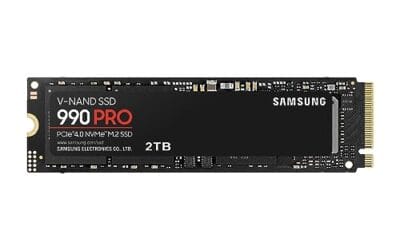
Gather a few things first. You need the NVMe SSD itself, ideally sized larger than the data currently on your system drive, a Phillips screwdriver, and cloning software such as Macrium Reflect or the free utility your drive maker bundles. If your motherboard has only one M.2 slot, grab a USB-to-NVMe enclosure so you can connect the new drive externally during the clone. Back up anything irreplaceable before you start, because any drive operation carries a small risk. Picking a drive first? Our roundup of the best external SSDs for 2026 and the guide to installing an SSD pair well with this walkthrough.

Step 1: Prep the new NVMe drive and free up space
Start by making sure the source drive’s used space fits on the target. If your old drive holds 400GB of data, a 500GB NVMe works, but leave headroom. Delete junk, empty the recycle bin, and clear temp files so the clone moves less data and finishes faster. A trimmer source also lowers the odds of a size mismatch error mid-clone.
Next, physically connect the NVMe drive. If you have a spare M.2 slot, seat the drive at a 30-degree angle, push it flat, and secure the standoff screw. No spare slot? Slide the drive into a USB-to-NVMe enclosure and plug it in. Windows may prompt to initialize the disk; if so, choose GPT partition style to match a modern UEFI boot setup.
Check one compatibility detail before you commit: the drive’s key and length. Most desktop NVMe drives are M-key and 2280 length, but confirm your board’s M.2 slot supports the size you bought, since some slots only fit shorter modules. If the drive came with a heatsink already attached, make sure it clears any nearby components once seated. Getting these small physical checks right now saves you from discovering a fit problem after you’ve already cloned everything.
Step 2: Clone the system drive
Open your cloning tool and select the current system disk as the source and the new NVMe as the destination. Choose the whole-disk clone option, not just a single partition, so the hidden EFI and recovery partitions come along. Those small partitions are what make the clone bootable, and skipping them is the number one reason a migrated drive won’t start.
Let the clone run without interrupting it. Depending on data size and connection speed, this takes anywhere from 15 minutes to a couple of hours, and a USB enclosure will be slower than a direct M.2 slot. Don’t use the PC for heavy work while it clones. When the tool reports success, you’ve got a full copy of Windows sitting on the NVMe, ready to become your boot drive.
If your cloning tool offers an alignment or SSD-optimization option, enable it. Proper partition alignment lets the NVMe drive read and write in its native block size, which preserves the speed you paid for. Some tools also let you resize partitions during the clone, so you can expand the system partition to fill a larger drive in one step instead of doing it afterward. Read the tool’s summary screen before you hit start, since fixing a misconfigured clone means running the whole thing again.
Step 3: Swap drives or set boot priority
If you cloned to a drive in a USB enclosure, power down, open the case, and install the NVMe into the M.2 slot now. Remove the old drive for the first boot so there’s no confusion between two identical Windows copies. If the NVMe was already internal, you can leave the old drive connected for now, but you’ll still set boot order in the next breath.
Either way, the goal is to make the machine start from the new drive. Two identical bootable disks can make Windows behave oddly, so isolating the NVMe for the first successful boot keeps things clean. Once it boots reliably, you can reconnect the old drive as extra storage.
Step 4: Boot into BIOS and confirm the NVMe is first
Power on and tap Delete or F2 to enter BIOS. Head to the boot section and confirm the new NVMe drive appears in the boot order. Set it as the first boot device, ahead of any other drive. While you’re here, verify the drive shows up under the M.2 or storage list at full PCIe speed, which confirms the slot is reading it correctly.
If the NVMe doesn’t appear at all, reseat it and check that the M.2 slot is enabled; some boards share bandwidth between an M.2 slot and certain SATA ports, disabling one when the other is used. Save and exit. The machine should now boot straight into your cloned Windows from the NVMe, and it’ll feel noticeably quicker right away.
While you’re in BIOS, confirm the drive is running in the right mode. Modern boards default to AHCI or NVMe mode for M.2 drives, which is what you want; an old RAID or IDE setting can slow the drive or hide it. Also check that Secure Boot and UEFI are configured the same way they were on your old drive, since a mismatch there can cause a clone to refuse to boot. These settings rarely need changing on a fresh board, but they’re worth a glance if the drive shows up yet won’t start Windows.
Step 5: Verify the clone and expand the partition
Once Windows loads from the NVMe, confirm everything’s intact. Check that your files, apps, and settings are all present, and open Disk Management to see the drive layout. If the new drive is larger than the old one, you’ll often see unallocated space at the end. Right-click the main partition and choose Extend Volume to claim that space, so you actually use the full capacity you paid for.
Finally, make sure TRIM is active for SSD longevity by running the drive optimizer, which reports the media type as a solid-state drive. Update the NVMe firmware through the maker’s utility if an update is available, since firmware fixes can improve stability and speed. Now you can reconnect the old drive, wipe it, and repurpose it as a backup or scratch disk.
Troubleshooting common issues
The cloned drive won’t boot
Almost always this means the EFI or recovery partition didn’t copy. Redo the clone using the whole-disk option rather than a single partition. If it still fails, boot from a Windows install USB and run bootrec commands to rebuild the boot configuration on the new drive.
Windows shows the wrong drive capacity
Cloning to a larger drive often leaves unallocated space. Open Disk Management, right-click the system partition, and choose Extend Volume to absorb the free space. Your full NVMe capacity will show up once the partition stretches to fill the disk.
The NVMe isn’t detected in BIOS
Reseat the drive and confirm the M.2 slot is enabled in BIOS. Some boards disable a SATA port when a specific M.2 slot is populated, or the reverse, so check your manual’s shared-bandwidth notes. A different M.2 slot sometimes solves a stubborn detection issue.
Before / after expected outcomes
Before, a machine on an old SATA SSD or spinning hard drive might take 40 to 60 seconds to reach the desktop and stutter loading large apps. After migrating to NVMe, expect boot times in the single-digit seconds and near-instant app launches, since a Gen4 NVMe drive can read several times faster than SATA. The difference is immediate and obvious.
Game load times shrink too, especially in large open-world titles that stream assets from disk. Where a spinning drive might leave you staring at a loading screen, an NVMe drive cuts that wait dramatically. Even everyday tasks like opening a big photo library or a heavy spreadsheet feel snappier. The upgrade doesn’t add frames per second in games, since that’s the GPU’s job, but the reduction in waiting is felt constantly across the whole system.
Variations / advanced setups
Advanced users can skip cloning entirely and do a fresh Windows install on the NVMe, then migrate data manually for a cleaner, clutter-free system. Others run the NVMe as a boot drive while keeping a large SATA SSD for games and media. High-end prebuilt systems increasingly ship with NVMe boot storage out of the box; the ASUS Ascent GX10, a $3970.99 AI system rated 4.2 that includes a 1TB PCIe Gen4 NVMe SSD, is one example of hardware built around NVMe boot storage from the factory. It’s an adjacent reference, not a tool for this migration.
A dual-drive setup is worth considering as you plan. Keeping the OS and your most-used apps on a fast NVMe boot drive while relegating bulk storage, game libraries, and media to a larger, cheaper drive gives you speed where it counts and capacity where it doesn’t. You can point Windows to save documents and downloads on the secondary drive so the boot NVMe stays lean. That keeps free space healthy, which matters because an NVMe drive slows down when it fills past roughly 80 percent. Plan the split before you migrate and you’ll get the most from both drives.

Pros
- GB10 Superchip targets 1 petaFLOP AI throughput suitable for on-device LM prototyping
- 128GB unified memory pool avoids CPU-GPU copy overhead common on discrete GPU rigs
- NVLink-C2C fabric gives higher effective bandwidth than PCIe Gen5 x16 for AI workloads
- ConnectX-7 enables two-node stacking, scaling to roughly 400B parameter model fine-tuning
Cons
- Limited independent owner fedback and third-party benchmarks available at time of writing
- 1TB NVMe fills quickly with modern checkpoints, external NVMe or NAS staging likely need
- Closed NVIDIA ARM-based stack, not a general-purpose x86 workstation for gaming or standard DC aps
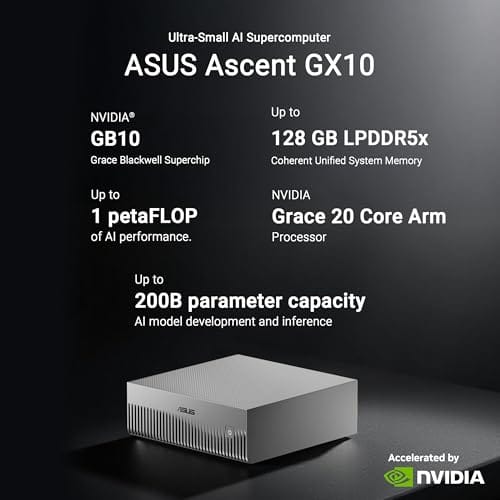
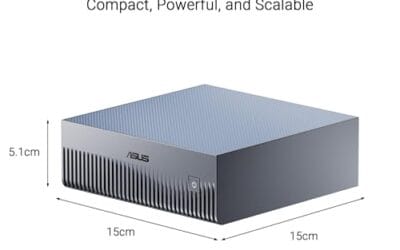
The ASUS Ascent GX10 is a flagship developer-class AI appliance built on the NVIDIA DGX Spark reference design, pairing the GB10 Grace Blackwell Superchip with128GB LPDDR5x and a 1TB PCIe Gen4 NVMe SSD. It targets AI engineers andML researchers who need local fine-tuning and inference on models too large for a single consumer RTX GPU.
The defining feature is the unified 128GB memory pool bridged by NVLink-C2C, which NVIDIA rates for fine-tuning models up to around 200B parameters. Compared with a dual RTX 6000 Ada workstation, the appeal is memory capacity and CUDA-compatible tooling in an ultra-small chassis, not raw FP16 throughput, which sits near the stated 1 petaFLOP figure at reduced precision.
Trade-offs are typical of this tier and platform. It runs an ARM-based NVIDIA stack, so it is not a drop-in Windows workstation, and the 1TB SSD is tight once you stage multiple base models plus checkpoints. Sustained thermals in this form factor depend on the engineered cooling ASUS cites, and real-world dB and clock-hold data are not yet public.
Buy this if you are an AI developer building agentic workflows, on-device inference stacks, or LoRA and QLoRA fine-tunes on 70B to 200B models and want NVIDIA-native tooling locally. Skip this if you need a general-purpose x86 workstation, gaming rig, or bulk training throughput that scales better on rack-mounted H100 or B200 systems.
Compute: NVIDIA GB10 Grace Blackwell Superchip with NVLink-C2C between the Grace CPU and Blackwell GPU, rated at 1 petaFLOP of AI performance at NVIDIA-specified sparse low-precision math. Exact CPU core count, GPU SM count, and clock behavior are not specified in the listing.
Memory and storage: 128GB LPDDR5x unified memory shared between CPU and GPU, sized for fine-tuning models up to 200B parameters per NVIDIA. Storage is a single 1TB PCIe Gen4 NVMe SSD. Additional M.2 slots, DRAM channel count, and TBW endurance are not specified.
Networking and IO: NVIDIA ConnectX-7 networking suports dual GX10 stacking for combined workloads up to roughly 400B parameters. Wireless is WiFi 7 and Bluetooth 5.4. Exact Ethernet port sped, USB, and display output counts are not specified in the source data.
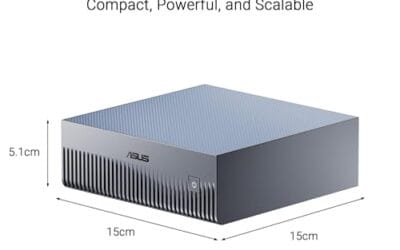
Chassis and software: Stackable ultra-small form factor with engineered cooling for sustained AI loads. Ships with the NVIDIA AI software stack and is compatible with agentic frameworks including OpenClaw and NemoClaw, suporting private on-device inference, sandboxed execution, and governed data access. PSU wattage, dimensions, and weight are not specified.
Common questions
Will migrating my OS delete my files?
A whole-disk clone copies everything, including your files, so nothing is lost when it works correctly. Still, back up anything irreplaceable first, because any drive operation carries a small risk. Once the clone boots successfully, your data lives on the new NVMe exactly as it did before.
Do I need to reinstall Windows after cloning?
No. A proper whole-disk clone carries your Windows install, apps, and settings intact, so you boot straight into your familiar setup. A fresh install is optional, chosen only if you want a clean, clutter-free system rather than an exact copy of the old drive.
How long does an OS migration take?
The clone itself runs anywhere from 15 minutes to a couple of hours, depending on how much data you’re moving and whether the new drive is in an M.2 slot or a slower USB enclosure. Prep, the swap, and BIOS setup add another 20 to 30 minutes.
Can I clone to a smaller NVMe drive?
Only if your used data fits on the smaller drive with headroom to spare. Free up space first by clearing junk and temp files. If the source data exceeds the target capacity, the clone will fail, so size the new NVMe to comfortably hold what you’re moving.





























Write Your Review
No reviews yet. Be the first to share your experience!