

You installed a Windows update, restarted, and now your PC won’t POST with all the RAM sticks seated. Pull a stick or two and it boots fine. Put them all back and you get a black screen, maybe a diagnostic LED stuck on DRAM, or an endless reboot loop. It’s a frustrating one because the memory worked yesterday, and a software update shouldn’t kill hardware. Usually it hasn’t. We researched the common causes and the fixes that actually clear this, and most of them cost nothing.
The short version? A Windows update can reset firmware settings, nudge a memory profile, or expose a stick that was already sitting on the edge of stable. That’s the thread we’ll pull. If you end up needing fresh memory, our guides to the best RAM for gaming and video editing and the best DDR5 kits for Ryzen 9800X3D can help you pick a known-good kit.
First check the obvious (the 30-second check)
Before you blame the update, do the fast stuff. Power off fully, flip the PSU switch, and press the case power button for ten seconds to drain residual charge. Then reseat every stick. Open the latches, pull each module, and push it back until both clips snap. A surprising number of no-boot cases are just a stick that crept loose in a slot.
While you’re in there, confirm the sticks sit in the correct dual-channel slots, usually A2 and B2, per your motherboard manual. If all sticks are seated and it still won’t POST, note whether a DRAM diagnostic light stays lit. That single LED tells you the board is failing at memory training, which points us straight at the next few causes.
One more fast check before you dig deeper: try booting with just one stick in the primary slot. If a single module posts cleanly, you’ve confirmed the board and CPU are basically healthy, and the trouble only appears when all sticks have to train together. That’s a useful data point, because it steers you toward a profile or training issue rather than a dead board. Keep track of which stick and which slot you tried, so you can be methodical as you add modules back.
Cause #1: XMP or EXPO profile got reset or destabilized
This is the most common culprit after an update. Many Windows updates ship firmware or chipset components that trigger a BIOS setting reset, and when the board reverts, your memory can boot at a default JEDEC speed while the enabled overclock profile fights it. Or the profile re-applies but was never rock-solid at full capacity. Add a fourth stick or high-density modules and the memory controller strains to train them all, so it simply won’t POST.
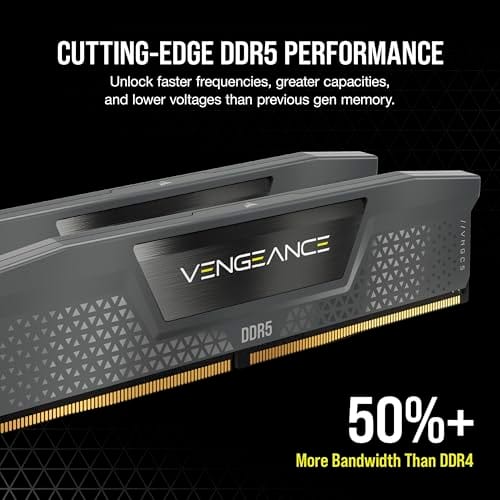
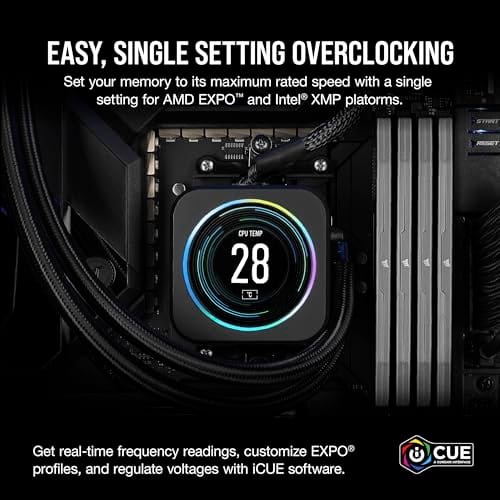
The fix is to enter BIOS with fewer sticks installed, then load optimized defaults and re-enable XMP or EXPO deliberately. If it still fails with all sticks, drop the memory frequency one notch, say from 6000 to 5600, or bump DRAM voltage slightly within safe limits. Four-stick kits and high-capacity modules are harder to train than two sticks, so a small speed reduction often restores a clean boot. A quality matched kit helps here. The Corsair Vengeance DDR5 16GB (2x8GB), listed at $234.99 with a 4.4 rating, runs up to 5200MHz at CL40 with AMD EXPO and Intel XMP 3.0 support, so its rated profile is conservative and easy for a controller to train.
If you want to understand why this happens, it helps to know what training is. Every boot, the memory controller runs a quick calibration to find stable timings and voltages for the sticks it sees. More sticks and higher speeds make that calibration harder, so a profile that trained fine yesterday can fail today if a firmware reset changed the starting conditions. Lowering the speed gives the controller an easier target, and raising DRAM voltage a hair, staying within safe limits like 1.35 to 1.4V on DDR5, gives it more margin to lock in. Start conservative, confirm a stable boot, then nudge back toward your rated profile.

Pros
- AMD EXPO profile activates 5200MHz CL40-40-40-77 with a single BIOS toggle on Ryzen 7000 boards.
- Low 35mm module height clears virtually any AM5 or LGA1700 tower cooler without physical conflict.
- 1.25V operating voltage sits within DDR5 spec, reducing thermal stress on integrated PMIC under sustained load.
- Aluminum heatspreader aids passive heat dissipation in open-air cases without requiring active cooling.
Cons
- 16GB total capacity is increasingly marginal for content creation workflows and modern open-world titles running texture packs.
- 5200MHz CL40 offers modest latency compared to DDR5-6000 CL30 kits that hit the Ryzen 7000 FCLK 1:1 ratio sweet spot.
The CORSAIR Vengeance DDR5 16GB 2x8GB is a mid-range DDR5 kit targeting AMD Ryzen 7000 series and Intel 12th-generation-or-newer desktop builds. It ships with both AMD EXPO and Intel XMP 3.0 profiles, making it broadly compatible across AM5 and LGA1700 or LGA1851 platforms without manual timing configuration.
The standout feature is dual-profile support at a frequency that loads with a single BIOS toggle. At 5200MHz CL40-40-40-77 and 1.25V, it sits within DDR5 JEDEC specification territory, and onboard voltage regulation on the module itself reduces dependency on motherboard power delivery for the memory rail, which matters on budget AM5 boards with fewer VRM phases dedicated to DRAM.
The honest trade-off at this tier is frequency positioning. Ryzen 7000 performs best at DDR5-6000 with CL30 timings, where FCLK and memory controller run at a clean 1:1 ratio. This kit at 5200MHz places it below that threshold, meaning buyers on AM5 leave some CPU bandwidth on the table. The 16GB total capacity is also worth scrutinizing for any workload beyond gaming or light productivity.
Buy this if you are building a budget-to-mid AM5 or Intel DDR5 system and need reliable plug-and-play EXPO or XMP activation without manual overclocking. Skip this if your platform is AM5 and you plan to run a Ryzen 7000 CPU near its performance ceiling, where DDR5-6000 CL30 kits deliver measurably better throughput and latency at comparable pricing.
Platform Requirements: DDR5 requires AMD 600-series or newer motherboards paired with Ryzen 7000 series or newer CPUs, or Intel 600-series or 700-series boards with 12th-generation Core or newer. DDR5 is not backward compatible with DDR4 slots. Verify your motherboard QVL lists this kit before purchasing.
EXPO and XMP Activation: The rated 5200MHz speed requires enabling AMD EXPO or Intel XMP 3.0 in BIOS. Without activation, the kit defaults to DDR5-4800 JEDEC. On Ryzen 7000, DDR5-6000 is the accepted 1:1 FCLK sweet spot; this kit at 5200MHz runs below that threshold, which carries a small but measurable bandwidth and latency penalty versus a tuned DDR5-6000 kit.
Physical Clearance: Module height is 35mm, which clears nearly all air coolers without conflict. The 1.25V operating voltage and onboard PMIC mean power comes from the module itself rather than solely from the motherboard, reducing stress on budget boards with lighter DRAM power stages.
Capacity and Channel Config: The 2x8GB configuration fills two slots in dual-channel. CORSAIR explicitly advises against mixing kits, so expansion to 32GB requires replacing both modules with a validated 2x16GB kit rather than adding a second 2x8GB pair.
Cause #2: A firmware or BIOS mismatch after the update
Windows updates sometimes install a new Intel ME or AMD firmware layer that doesn’t play nicely with an older motherboard BIOS. When that happens, the board’s memory reference code can behave differently than it did before, and a marginal stick that used to squeak by now fails training. You didn’t change the RAM, but the environment around it shifted.
Update your motherboard BIOS to the latest stable version from the manufacturer, since newer releases almost always improve memory compatibility and training reliability. Clear CMOS first, either with the jumper or by pulling the battery for a minute, to wipe any half-applied settings. After the BIOS update, reseat all sticks and re-enable your memory profile. This combination clears a large share of post-update no-boot cases, and it costs nothing but time.
If the board won’t post at all with the current chip’s memory, most modern motherboards offer a BIOS Flashback feature that flashes a firmware file from a USB stick without needing a full boot. Download the correct file, rename it as the manual specifies, drop it on a FAT32 USB drive, and press the Flashback button. It’s the safety net for exactly this situation, letting you push a better BIOS onto the board even when memory training is failing. After the flash, load defaults and bring your profile back gradually.
Cause #3: A failing or mismatched stick exposed by the update
Sometimes the update just happens to coincide with a stick going bad, or reveals that two kits you mixed were never truly compatible. Mixing different kits, even same-brand ones, means different ICs, timings, and voltages that the controller has to reconcile. It might have limped along before, then a firmware reset removed the loose tolerances that were hiding the conflict.
Diagnose by booting with one stick at a time to find the bad or incompatible module. Run a memory diagnostic overnight on each stick individually. If one stick consistently fails to POST in a slot that works with others, that module is the problem. When you need a replacement, buy a single matched kit rather than mixing, so every stick shares the same specs. The G.SKILL Ripjaws V DDR4 32GB (2x16GB), listed at $219.99 with a 4.1 rating, runs 3600MT/s at CL18-22-22-42 and 1.35V as a matched pair, which removes the mixed-kit variable entirely.
Be systematic about the isolation. Check each stick in the same known-good slot so you’re changing one variable at a time, then swap slots with a good stick to rule out a faulty DIMM slot on the board. A stick that fails everywhere is bad; a slot that fails with every module is a board issue. Overnight diagnostics matter because some memory errors only show up after the sticks warm and the machine has run for a while, so a two-minute pass can miss a fault that hours of scanning catches. Label your findings as you go, since a no-boot investigation gets confusing fast without notes.

Pros
- DDR4-3600 XMP at 1.35V is the Ryzen AM4 sweet spot, aligning FCLK 1:1 at 1800MHz for best latency.
- Matched 2x16GB kit is factory-tested as a pair, reducing dual-channel instability compared to mixing sticks.
- Compatible with both Intel XMP and AMD DOCP/A-XMP BIOS profiles without manual sub-timing adjustments.
- Ships with JEDEC SPD fallback so the system always boots safe at default clocks before XMP is enabled.
Cons
- CL18 primary latency is mid-range; DDR4-3600 CL16 kits exist for buyers prioritizing tighter timings.
- No ECC support, so workstation or Threadripper ECC builds need a different kit entirely.
The G.SKILL RipjawsV F4-3600C18D-32GVK is a mid-range DDR4 desktop kit targeting Intel and AMD mainstream platform builders who want 32GB capacity at DDR4-3600 without overpaying for CL14 or CL16 enthusiast kits. It ships as a matched 2x16GB dual-channel pair in the standard 288-pin U-DIMM form factor.
The defining spec here is the XMP profile: DDR4-3600 at CL18-22-22-42, 1.35V. On AMD AM4 Ryzen systems, 3600MHz is the well-documented sweet spot for achieving a 1:1 FCLK ratio at 1800MHz, which keeps infinity fabric latency in check and translates to measurable gains in lightly-threaded workloads and gaming frame times compared to DDR4-3200 or lower.
CL18 is a genuine trade-off at this speed. Competing DDR4-3600 kits with CL16 or CL14 exist and offer lower absolute latency, though they typically carry a price premium. Owners report stable XMP operation across a wide range of B450, X570, and Z490/Z590 boards, but reaching rated speed on some budget AM4 boards may require manual sub-timing adjustments or AGESA microcode updates.
Buy this if you are building or upgrading an AM4 Ryzen or Intel LGA1700 desktop and want reliable 32GB DDR4-3600 dual-channel performance without tuning. Skip this if you need CL16 or tighter for competitive latency, or if your board has a limited QVL and you have not verified compatibility via G.SKILL's configurator tool first.
Platform Support: This kit uses 288-pin DDR4 U-DIMM and is compatible with Intel LGA1700 (Z690/Z790) and AMD AM4 (B450/X470/B550/X570) platforms. AM5 uses DDR5 exclusively, so this kit is not compatible with Ryzen 7000/9000 series builds on AM5 boards.
XMP and DOCP Activation: Rated speed of DDR4-3600 CL18-22-22-42 at 1.35V requires enabling XMP (Intel) or DOCP/A-XMP (AMD) in BIOS. Default JEDEC SPD boots at DDR4-2133 or DDR4-2400. On AM4, DDR4-3600 aligns FCLK at 1800MHz for a 1:1 ratio, which is the recommended operating point for Ryzen 3000 and 5000 series CPUs.
Slot Population and Mixing: Install both sticks in the recommended dual-channel slots per your motherboard manual, typically A2 and B2 in a 4-slot board. G.SKILL explicitly warns against mixing this kit with other modules; doing so voids the matched-pair guarantee and risks instability at XMP speeds.
Cooler Clearance: Exact heatspreader height is not specified in the source data, but RipjawsV modules are noted for a lower profile than Trident Z or RGB variants, reducing conflicts with wide tower coolers. Verify clearance if using a low-clearance cooler on a tight ITX board.
Preventive maintenance
Once you’re stable, lock it in. Note your working BIOS version and memory settings so you can restore them fast after any future firmware reset. Keep the board on a current stable BIOS, since memory training only gets better with newer releases. And if you ever expand memory, buy a single kit sized for your needs instead of stacking a second pair onto the first. Matched sticks train far more reliably than a patchwork.
Saving a BIOS profile is the trick most people skip. Many boards let you store your working configuration as a named profile you can reload in seconds, so a firmware reset doesn’t send you back to square one. Export it to a USB stick if the board supports that, and jot down the key numbers, speed, timings, and voltage, somewhere outside the machine. The next time an update resets your settings, you’ll restore a known-good memory config in under a minute instead of retuning from scratch.
When to call a pro vs DIY
Reseating, clearing CMOS, toggling XMP, and updating BIOS are all safe DIY steps that most owners can handle in under an hour. If you’ve isolated a bad stick and swapped in a known-good module and the board still won’t train memory, the fault may sit in the CPU’s memory controller or a damaged DIMM slot. That’s when a shop or an RMA makes sense, since diagnosing a controller or slot issue takes gear most people don’t own. If the kit or board is still under warranty, contact support before doing anything invasive, and have your BIOS version and diagnostic notes ready to speed the claim.
Tools and parts needed
You’ll want a Phillips screwdriver, your motherboard manual for slot order, and a USB drive to flash the BIOS. Optional but handy: a known-good spare stick for isolation, and a fresh matched kit if diagnosis points to failed memory. Something like the Corsair DDR5 or G.SKILL DDR4 kits above gives you a clean, single-kit replacement so you’re not fighting mixed modules again. For build-specific picks, our RAM guide for the 9800X3D covers current options.
Common questions
Why does my PC boot with one stick but not all of them?
More sticks are harder for the memory controller to train, especially at higher speeds. If a profile reset or a marginal stick is in play, the board manages a single module but chokes when it has to sync all of them. Reseat every stick, load defaults, then re-enable your memory profile one step at a time. Nine times out of ten it’s a training or profile problem, not dead hardware.
Can a Windows update really change my BIOS settings?
Indirectly, yes. Updates can install firmware or chipset components that trigger a settings reset or change how the board’s memory code behaves. Your RAM didn’t change, but the environment around it did, which can expose a stick that was already borderline. Clearing CMOS and re-applying your profile usually sorts it out.
Should I update my BIOS to fix this?
Often yes. Newer BIOS versions almost always improve memory compatibility and training reliability, so a stable update paired with a CMOS clear resolves many post-update no-boot cases. Flash from the manufacturer’s official file, and reseat your sticks afterward before turning your memory profile back on.
Is my RAM dead if it won’t POST with all sticks?
Not necessarily. Most of the time it’s a profile reset, a firmware mismatch, or a loose stick, not dead memory. Confirm by booting each stick alone and running a memory diagnostic. Only after a known-good stick works while the suspect one fails should you treat a module as bad and replace it with a matched kit. Don’t assume the worst until you’ve isolated the fault.


































Write Your Review
No reviews yet. Be the first to share your experience!