

You closed the lid or walked away, the mini PC dropped into sleep, and now it won’t wake. The power light blinks or stays dim, the monitor reads no signal, and only a hard power-button hold brings it back. If this started right after a Windows update, you’re not imagining the connection. Updates routinely reset power settings, swap drivers, and re-enable features that break sleep and wake behavior on small-form-factor machines. Here’s how to run it down.
Work through the causes below in order, since the fix is usually a driver or a single setting, not a dead machine. If it does turn out the unit is failing, we’ll point to a couple of replacement options. For picking a solid small system in general, our guides to the best mini PCs for office use and the best mini PCs for a home server cover reliable models. First, the quick check.
First check the obvious (the 30-second check)
Before diving into settings, rule out the simple stuff. Press a key and click the mouse, then hold the power button for a full ten seconds to force a restart if there’s no response. Once it’s back, confirm the monitor cable is seated at both ends and the display’s input is set correctly, since a mini PC that woke fine but shows no signal can look identical to one that won’t wake.
Check the power source too. A loose barrel connector or a USB-C power brick not fully seated can cause a mini PC to sleep and never return. Try a different outlet, and if the unit uses an external adapter, make sure it’s the correct wattage. These take under a minute and rule out the non-software causes before you start changing Windows settings.
Peripherals matter more than you’d think on these small machines. Unplug USB hubs, docks, and any nonessential devices, then try to wake it. A misbehaving dock or a peripheral that lost its driver in the update can hold the whole system in a bad power state. If it wakes cleanly with everything stripped off, add devices back one at a time until the culprit shows itself. That single step catches a surprising number of post-update wake failures.
Cause #1: USB wake and power management got reset by the update
Windows updates frequently reset the “Allow this device to wake the computer” checkbox on your keyboard and mouse, and they toggle USB selective suspend back on. When that happens, your input devices lose the ability to wake the machine, so the PC is technically asleep but deaf to your key presses. It looks dead when it’s just ignoring you.
Wireless keyboards and mice make this worse. A Bluetooth or 2.4GHz-dongle input device often loses wake permission after an update more readily than a wired one, and some simply can’t wake a PC from deeper sleep states at all. If your mini PC uses wireless peripherals and won’t respond, plug in a wired keyboard temporarily to confirm the machine wakes at all. If the wired one works and the wireless doesn’t, you’ve narrowed it to the peripheral’s wake settings rather than the system itself.
Open Device Manager, find your keyboard and mouse under their categories, open Properties, and on the Power Management tab re-check “Allow this device to wake the computer.” Then go to Control Panel power options, into the advanced settings, and disable USB selective suspend. This pair of fixes resolves a large share of post-update wake failures on mini PCs, since those tiny machines lean heavily on USB for input.
There’s a command-line check worth running too. Open an admin command prompt and type powercfg /lastwake to see what last woke the machine, and powercfg /devicequery wake_armed to list every device currently allowed to wake it. If your keyboard and mouse aren’t on that armed list, that’s your smoking gun. You can also run powercfg /waketimers to spot scheduled tasks that wake the PC unexpectedly, which sometimes explains a mini PC that wakes on its own but not on command.
Cause #2: Graphics or chipset driver rolled back or broke
A Windows update can install a generic display driver over your proper one, and integrated graphics on mini PCs are especially prone to wake bugs when the wrong driver is in place. The symptom is classic: the machine’s fan spins up on wake, indicating it’s running, but the display stays black because the graphics driver failed to reinitialize the output. That’s a driver problem, not a hardware one.
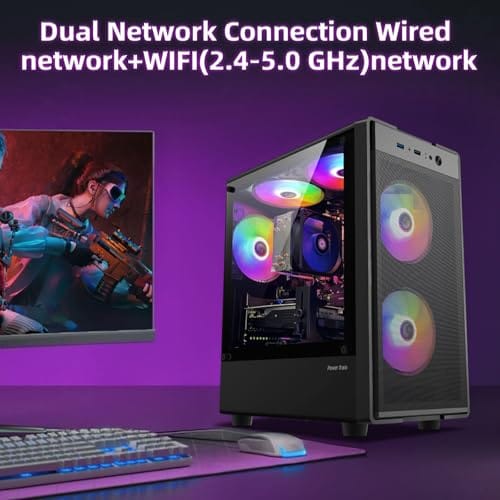
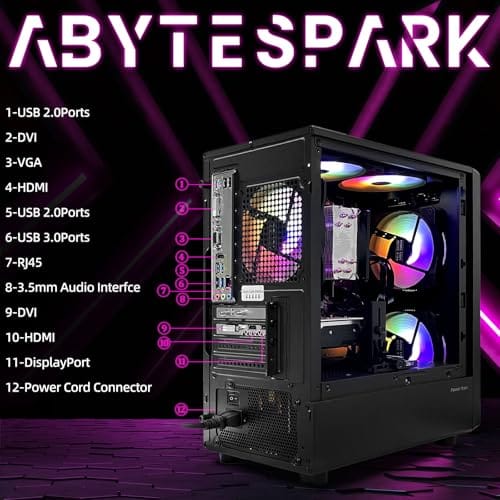
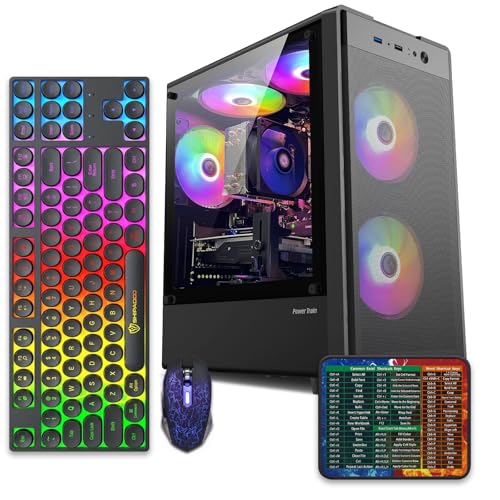
Download the correct graphics and chipset drivers directly from the CPU maker (Intel or AMD) or the mini PC manufacturer, then do a clean install rather than an update-over-top. While you’re at it, update the chipset driver too, since it governs power states. If the unit is genuinely too old to get working drivers, a modern replacement like the abytespark Intel Core i7 prebuilt desktop at $499.99 (4.4 stars) sidesteps the whole legacy-driver problem with current hardware and driver support.
For a truly clean driver install, a tool like DDU (Display Driver Uninstaller) run in safe mode strips out every trace of the old and generic drivers before you install the correct one. That matters because a leftover generic driver can keep reasserting itself after each update, and a plain reinstall on top of it doesn’t always clear the conflict. Once you’ve done a clean install, the display should reinitialize properly on wake instead of leaving you staring at a black screen while the fans spin.
Pros
- 512GB SSD bot drive avoids the HDD bottleneck common in budget prebuilts
- RX 590 8GB VRAM buffer handles 1080p textures better than 4GB budget cards
- Complete bundle with RGB peripherals means no extra spend to start using
- Genuine Windows 11 Home 64-bit preinstalled, no activation hassle out of box
Cons
- Limited owner feedback at time of writing, verify seller reputation before purchase
- Core i7-4770 is Haswell era LGA150, no upgrade path and weak IPC versus modern CPUs
- Windows 11 on 4th-gen Intel is unsupported by Microsoft and may miss feature updates
- No CD/DVD-ROM support and RAM/GPU generation limits future workload headroom
This is an entry-tier prebuilt tower built around an Intel Core i7-4770 Haswell CPU, 16GB RAM, a 512GB SSD, and an AMD Radeon RX 590 8GB GDDR5 GPU. It targets budget buyers who need a working office and light gaming PC with peripherals bundled, not enthusiasts chasing current-gen performance.
The defining feature is the RX 590 8GB paired with a 512GB SSD, an uncommon combo at this price band. Cards in this class typically handle 1080p esports titles at 60+ FPS on medium to high, matching the vendor claim for CS:GO, League of Legends, Apex, and Overwatch. Newer AA titles will need lowered settings.
Trade-offs are significant. The i7-4770 launched in 2013, so IPC, single-thread performance, and platform features like NVMe bot, PCIe Gen4, and modern USB are limited. Windows 11 runs here but sits outside Microsoft's official supported CPU list. There is no realistic CPU or socket upgrade path on LGA1150.
Buy this if you need a plug-and-play 1080p esports and office tower with keyboard, mouse, and RGB included at a low outlay. Skip this if you want current-gen platform support, sustained AA 1440p gaming, or a build with a meaningful upgrade runway.
GPU class: The AMD Radeon RX 590 8GB GDDR5 is a Polaris-refresh card roughly equivalent to a GTX 1060 6GB tier. Expect 1080p 60+ FPS in esports titles like CS:GO, Overwatch, Apex, League, and Fortnite on medium settings, matching the listing's claims.
AAA and modern titles: The vendor lists GTA V, Warzone, Hogwarts Legacy, and The Division 2. Realistically, these run at 1080p low to medium with FSR upscaling where suported.Ray tracing is unsupported on RX 590. No DLSS, no frame gen, no AV1 encode.
CPU bottleneck: The Core i7-4770 quad-core with 8threads at up to 3.9GHz will bottleneck the RX 590 in CPU-heavy titles like Warzone and Escape from Tarkov. Expect frame time inconsistency in large team fights even when average FPS looks aceptable.
Storage and RAM fit: 512GB SSD holds Windows plus 3 to 5 modern game installs before space pressure. 16GB DR3-era RAM is adequate for current esports but leaves no headroom for heavy streaming, browser tabs, and OBS NVENC alongside a game session.
Cause #3: Fast Startup or a BIOS power state is fighting sleep
Windows Fast Startup, a hybrid shutdown feature, is a notorious cause of wake and sleep glitches, and updates love to re-enable it. It can leave the machine in a half-state that won’t resume cleanly. The related culprit is the BIOS sleep mode setting, often labeled S3 versus the newer S0 “Modern Standby,” which many mini PCs handle poorly and which updates can change.
Disable Fast Startup in Control Panel under “Choose what the power buttons do,” then unlock and uncheck it. Reboot into the BIOS and look for a sleep-state or “Modern Standby” option; switching between S3 and Modern Standby often cures a stubborn wake issue, depending on which one your hardware prefers. If the BIOS is badly out of date, a firmware update from the maker may include the wake fix outright.
Modern Standby, the S0 state, deserves a special mention because it causes a lot of grief on budget mini PCs. Unlike the older S3 deep sleep, S0 keeps parts of the system lightly active to allow instant-on and background updates. On hardware that implements it poorly, the machine can overheat in a bag, drain its battery, or fail to display on wake. If your mini PC offers a BIOS toggle back to S3, and many do, switching to it often restores the reliable, old-school sleep behavior that just works.
Preventive maintenance
After any major Windows update, take two minutes to re-verify your power settings, since updates keep resetting them. Keep your chipset and graphics drivers current from the manufacturer rather than letting Windows Update pick generic ones. Creating a system restore point before big updates gives you a clean rollback if a new build breaks sleep again, which saves a lot of troubleshooting the next time around.
You can also tell Windows to hold specific drivers. Once you’ve clean-installed the correct graphics driver, pausing automatic driver updates through Windows Update settings stops the next patch from swapping it back to a generic one. It’s the single best way to keep a working configuration working. Just remember to re-enable updates periodically so security patches still land.
When to call a pro versus DIY
Almost everything here is DIY-friendly, since it’s settings and drivers rather than soldering. If you’re comfortable in Device Manager, Control Panel, and the BIOS, you can resolve the vast majority of post-update wake failures yourself in under an hour. That’s the honest reality: this is rarely a hardware repair. Where a pro helps is if you suspect failing storage or memory behind the sleep issue, or if a BIOS flash goes wrong and the board won’t post, which is a delicate recovery best left to someone with the right tools.
When it’s not fixable: what to replace
If you’ve reset power management, clean-installed drivers, disabled Fast Startup, and adjusted the BIOS sleep state and the machine still won’t wake reliably, the mini PC’s firmware or motherboard may simply not support modern Windows sleep cleanly. Very old or budget units sometimes never get fixed, because the maker stopped issuing BIOS updates. At that point, a working current desktop is the practical replacement.
For a straightforward, driver-supported replacement, the WIWB prebuilt at $569.99 (4.7 stars), a Ryzen 5 desktop with an RX 560 4GB GPU, 16GB of DDR4, a 512GB SSD, and Wi-Fi 6, is a modern tower that avoids the legacy sleep-state problems older mini PCs hit. It’s a full-size machine rather than a mini PC, so it trades the tiny footprint for current firmware and easier serviceability, which is often the right call when the small unit is the thing that’s broken.

Pros
- Ryzen 5 3500X 6-core CPU bosts to 4.1GHz for smooth 1080p esports CPU load.
- Discrete RX 560 4GB handles DirectX 12 and Vulkan esports titles better than integrated graphics.
- 512GB SSD as bot drive keps Windows load times and app launches snappy out of box.
Cons
- Limited owner feedback at time of writing, no verified reviews to validate build quality.
- RX 560 is a legacy entry-tier GPU, skip if you want modern AAA at 1080p high.
- Ryzen 5 3500X sits on aging AM4, upgrade path is caped at Zen 3 with a BIOS update.
The WIWB is a budget prebuilt tower built around a Ryzen 5 3500X, RX 560 4GB, 16GB DDR4, and a 512GB SSD. It targets students, home office users, and casual gamers who want a plug-and-play box for esports at 1080p rather than a rig for current AAA titles.
The defining pairing here is the 3500X and RX 560. The 6-core, 6-thread CPU bosting to 4.1GHz is still competent for League, CS2, Valorant, and Overwatch, and typically pushes well above 100FPS at 1080p low-to-medium when paired with this GPU class. The RX 560 4GB is the bottleneck for anything heavier.
Trade-offs are typical at this tier. The RX 560 predates FSR frame generation and struggles with modern UE5 titles even at 1080p low. AM4 with a 3500X caps future CPU upgrades at Zen 3, and the case, PSU wattage, VRM phases, and included cooler are not specified, so headroom for a stronger GPU later is unclear.
Buy this if you need a cheap, pre-assembled Windows tower for schoolwork, browsing, and light esports at 1080p. Skip this if you plan to play current AAA releases, stream at 1080p60, or want a platform with a real multi-year upgrade path.
CPU workload: The Ryzen 5 3500X is a 6-core, 6-thread Zen 2 part with a 3.6GHz base and 4.1GHz boost. It stays viable for 1080p esports and light productivity like image editing and IDE work, but lacks SMT, which hurts streaming and modern CPU-bound AA titles.
GPU class and resolution fit: The RX 560 4GB GDDR5 is an entry esports card. Expect high frame rates in CS2, League, and Overwatch at 1080p low-to-medium, and playable frame rates in older AAA titles at 1080p low. 1440p and modern AA at medium are outside its envelope.
Memory and storage: 16GB DDR4 is the current baseline for gaming and multitasking, and the 512GB SSD covers Windows plus roughly 3 to 5 modern game installs. Exact DDR4 speed, dual-channel status, and SSD interface (SATA vs NVMe) are not specified.
Connectivity and upgrade path: WiFi 6 is included, and the board exposes an M.2 slot plus spare DDR4 slots for later expansion. PSU wattage, connector layout, case clearance, and waranty length beyond the stated 1-year coverage are not specified, so plan GPU upgrades cautiously.
Tools and settings you’ll use
You won’t need a screwdriver for most of this, since it’s software. The tools are Device Manager for peripheral wake settings, Control Panel power options for sleep and Fast Startup, an admin command prompt for the powercfg diagnostics, and the BIOS for the sleep-state and firmware controls. Keeping a wired keyboard on hand helps you rule out wireless-peripheral wake issues, and a USB stick lets you flash the BIOS or run a driver-cleaning tool when you need to. That’s genuinely the whole kit for chasing down a stubborn post-update wake failure on a mini PC.
A few more questions
Why did sleep work fine until the Windows update?
Updates reset power settings, swap in generic drivers, re-enable Fast Startup, and sometimes change the BIOS-facing sleep state. Any one of those can break a wake behavior that was previously stable. It’s not that the update targeted your machine; it’s that the new defaults don’t match what your specific hardware needs to resume cleanly.
Should I just disable sleep entirely?
You can, as a stopgap, by setting the PC to never sleep in power options. It’s a workaround, not a fix, and it costs you the energy savings sleep provides. Better to resolve the driver or setting causing the failure. But if you need the machine reliable today, disabling sleep gets you working while you sort the root cause.
Is a black screen on wake the same as not waking?
Not always. If the fans spin up but the display stays black, the PC likely woke but the graphics driver didn’t reinitialize the output, which points to a driver fix rather than a power one. If there’s no fan or light activity at all, that’s a truer failure to wake, more likely tied to power settings or the BIOS sleep state.


































Write Your Review
No reviews yet. Be the first to share your experience!