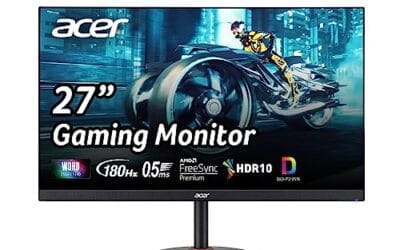
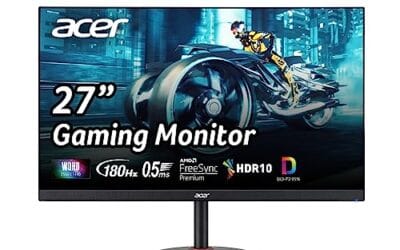
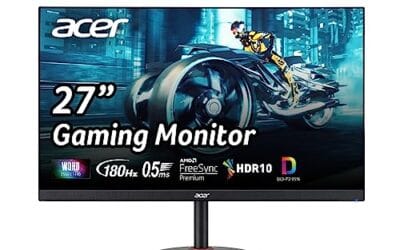
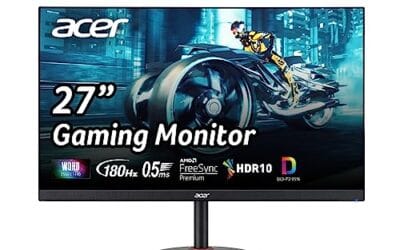
A 144Hz monitor refreshes every 6.94ms, while a 165Hz monitor refreshes every 6.06ms. That’s about 0.88ms per frame. If you’re moving up from 60Hz, either option feels smoother. Between 144Hz and 165Hz, the decision is mostly price, panel quality, adaptive sync, and the games you play. We researched current options from Acer, Sceptre, ASUS, and MSI to see where the extra 21Hz matters.
Related buying guides: 24-inch monitor picks, 1440p gaming monitor guide, 360Hz monitor picks, gaming monitors under $300, and HDMI 2.1 monitor picks.
Matchup at a glance
144Hz is the safer value pick if you’re building a budget gaming setup, mixing gaming with office work, or using an entry-level GPU that won’t sit above 144 fps in newer games. The MSI PRO MP243L, for example, is a 24-inch IPS 1080p monitor at $79.99 with a 4.8-star rating from 164 reviews, Adaptive-Sync, HDMI, VGA, VESA mounting, and a slim-bezel design. That’s cheap enough to leave room for a better mouse, more RAM, or a GPU upgrade.
165Hz is the better default if the price gap is tiny, and right now it often is. The Acer Nitro KG241Y costs $109.99 with a 4.5-star rating from 4,156 reviews, while the Sceptre IPS 24-inch 165Hz/144Hz model is $107.97 with a 4.5-star rating from 5,854 reviews. Both advertise Full HD, FreeSync support, and DisplayPort. Not a huge premium. If your games hold above 144 fps, 165Hz gives a little more motion clarity and lower display-side latency.
Spec sheet showdown
| Monitor | Refresh rate | Panel / size | Adaptive sync and gaming specs | Price, rating, reviews |
|---|---|---|---|---|
| MSI PRO MP243L | 144Hz | 24-inch IPS, 1920 x 1080 | Adaptive-Sync, HDR Ready, 1ms, HDMI, VGA, VESA mount | $79.99, 4.8 stars, 164 reviews |
| Acer Nitro KG241Y | 165Hz | 23.8-inch VA, 1920 x 1080 | AMD FreeSync Premium, 1ms VRB, DisplayPort 1.2, 2 HDMI 2.0 | $109.99, 4.5 stars, 4,156 reviews |
| Sceptre IPS 24 Gaming Monitor | 165Hz / 144Hz | 24-inch IPS, 1920 x 1080 | FreeSync, Eye Care, FPS/RTS modes, DisplayPort, HDMI, built-in speakers | $107.97, 4.5 stars, 5,854 reviews |
| ASUS TUF VG277Q1A | 165Hz, supports 144Hz | 27-inch, 1920 x 1080 | 1ms, Extreme Low Motion Blur, FreeSync Premium, Shadow Boost, Eye Care, HDMI, DisplayPort | $179.00, 4.7 stars, 1,002 reviews |
| ASUS TUF VG27VH1B | 165Hz, supports 144Hz | 27-inch curved, 1920 x 1080 | Extreme Low Motion Blur, Adaptive-sync, FreeSync Premium, 1ms, Eye Care, HDMI, D-Sub | $179.00, 4.7 stars, 2,401 reviews |
144Hz strengths
The biggest strength of 144Hz is value. At 144 frames per second, motion is already smooth enough for fast shooters, racing games, MOBAs, and general desktop use. You’re not stuck in old 60Hz territory, and you don’t need an expensive graphics card to benefit. For esports titles such as Counter-Strike 2, Valorant, Overwatch 2, Fortnite, and Rocket League, a modest GPU can often push near or above 144 fps at 1080p with sensible settings.
The MSI PRO MP243L shows why 144Hz still makes sense. It’s only $79.99, yet it lists a 24-inch IPS panel, Full HD resolution, Adaptive-Sync, HDR Ready support, VESA mounting, tilt, and a 4-side slim bezel. It’s also rated 4.8 stars, although the 164-review count is much smaller than the Acer, Sceptre, and ASUS options here. For a dorm desk, second PC, compact gaming corner, or work-first setup that still needs smooth play after hours, that’s appealing.
144Hz also asks slightly less from the rest of the system. If your PC is producing 120 to 150 fps in the games you care about, a 144Hz panel lets you use most of the monitor without obsessing over every settings slider. With adaptive sync, dips below the refresh ceiling can still look fluid as long as the frame pacing is stable. Tiny gains matter less if your GPU is the bottleneck. Simple as that.
165Hz strengths
165Hz doesn’t transform a monitor the way 144Hz transforms a 60Hz display, but it does give you a bit more headroom. The screen shows 21 more frames each second, and each refresh arrives about 0.88ms sooner than on 144Hz. Not every player will call it out instantly, but in fast camera pans, flicks, and tracking, the extra refresh budget can make motion feel tighter.
The more important point is pricing. The Sceptre IPS 24-inch 165Hz/144Hz monitor is $107.97 with 4.5 stars from 5,854 reviews, while the Acer Nitro KG241Y is $109.99 with 4.5 stars from 4,156 reviews. Those are not luxury prices. Both sit close enough to many 144Hz displays that choosing 165Hz can be an easy upgrade if you like the rest of the spec sheet.
165Hz models also tend to be marketed more directly at gamers. The Acer Nitro KG241Y lists AMD FreeSync Premium, 1ms VRB, a ZeroFrame design, DisplayPort 1.2, and two HDMI 2.0 ports. The ASUS TUF options add features like Extreme Low Motion Blur, FreeSync Premium, Shadow Boost, Eye Care, and 27-inch sizing. You’ll still want to judge each monitor by panel type, stand, ports, and reviews, but 165Hz often comes bundled with the gaming features buyers are already looking for.
Pros
- 165Hz listed over DisplayPort for full refresh from compatible cards.
- Included HDMI cable reduces need for extra purchases at setup.
- NTSC 72 percent color coverage provides adequate saturation for general use.
- Low tilt range still permits basic angle tweaks for viewing comfort.
Cons
- Tilt only stand offers fewer adjustments than height or swivel models.
- VA panel can show dark scene smearing common in this price segment.
- No USB hub or speakers limits peripheral connectivity.
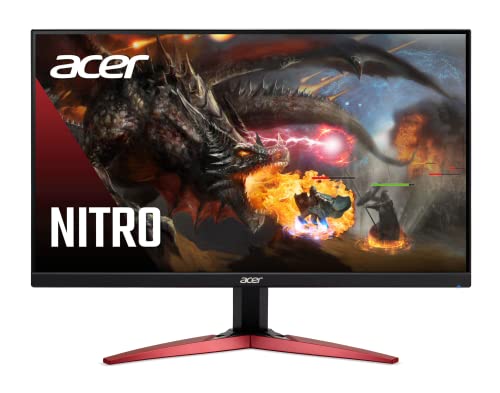
This is a budget tier 23.8 inch 1080p VA gaming monitor aimed at entry level gamers and general desktop users who want higher than 60Hz refresh in a small footprint.
The standout feature is the 165Hz refresh paired with AMD FreeSync Premium, which aligns frame delivery to cut tearing while keeping input lag low in variable rate scenarios typical of 1080p gaming.
Build uses a thin ZeroFrame bezel and basic tilt stand, with a matte panel that reduces reflections in typical room lighting.
Trade offs include limited ergonomic range and the motion characteristics of VA technology that can blur dark elements during rapid movement.
Buy this if you need an affordable high refresh 1080p display for everyday gaming and work. Skip this if you require height adjustment or faster pixel transitions in dark scenes.
| Panel Type | VA |
|---|---|
| Size | 23.8 inch |
| Resolution | 1920 x 1080 |
| Refresh Rate | 165Hz |
| Response Time | 1ms (VRB) |
| HDR | HDR Ready (HDR10) |
| Sync Technology | AMD FreeSync Premium |
| Ports | 1x DisplayPort 1.2, 2x HDMI 2.0 |
| Stand Adjustments | Tilt -5 to 15 degrees |
| VESA Mount | 100 x 100mm |
| Color Coverage | NTSC 72% |
Display connections: Use DisplayPort for the full 165Hz output from recent GPUs. HDMI 2.0 ports support lower rates in some configurations.
Resolution and GPU pairing: Matches well with entry level to mid range cards running 1080p at high frame rates in esports titles.
Multi monitor setups: ZeroFrame edges allow minimal bezel gaps when placing units side by side on a desk or mount.
Ergonomics and mounting: VESA 100x100 support enables monitor arms if the included tilt stand is insufficient for your posture needs.
Real-world scenarios
Competitive shooters at 1080p
If you mainly play competitive shooters and can keep frame rates above 165 fps, buy the 165Hz monitor unless the panel quality or price is clearly worse. The difference from 144Hz is small, but shooters are exactly where small response and motion gains are easiest to appreciate. You’ll still need the basics nailed down: a stable frame rate, adaptive sync configured properly, a decent mouse, and settings that avoid heavy frame-time spikes. No miracle. Just a little more ceiling.
Single-player games and mixed PC use
For single-player RPGs, strategy games, browsing, schoolwork, and everyday desktop use, 144Hz is already plenty. A 165Hz display won’t hurt, of course, but the improvement will be subtle if your games usually run between 70 and 130 fps. In that situation, panel quality matters more. An IPS 144Hz display at $79.99 may be a smarter buy than a slightly faster monitor if you prefer viewing angles, slim bezels, and a lower total spend.
Budget builds with entry-level GPUs
Budget GPUs and older systems make this comparison more interesting. If your PC rarely reaches 165 fps, paying extra for 165Hz doesn’t automatically improve the experience. You can still buy the faster monitor for future headroom, but don’t expect it to fix low frame rates. A 144Hz screen matched with adaptive sync is often the cleaner fit for a lower-power PC, especially at 1080p where price sensitivity is high.
Pricing and availability
Based on the current item data, the cheapest monitor in this set is the MSI PRO MP243L at $79.99. That’s the clear budget 144Hz representative, and its 4.8-star rating is strong, though the review count is modest at 164. The next step up is not far away: the Sceptre IPS 24-inch 165Hz/144Hz model is $107.97, and the Acer Nitro KG241Y is $109.99. Both are in stock and both have thousands of reviews, which gives buyers more owner feedback to scan before purchasing.
The ASUS TUF models cost more at $179.00 each. They’re 27-inch Full HD displays with extra feature sets, and they’re better fits for someone who wants a larger screen and ASUS TUF branding.
The key takeaway is that 165Hz no longer demands a big premium. If you’re comparing a $79.99 144Hz monitor against a $109.99 165Hz monitor, that’s a $30 difference. If your budget is strict, keep the money. If your PC is fast and the ports, panel type, and reviews line up, the faster option is easy to justify.
Which to buy
Buy 144Hz if you’re chasing maximum value, using a budget GPU, or building a PC that needs to handle work, school, and games without stretching the monitor budget. The MSI PRO MP243L is the value anchor here: $79.99, 24-inch IPS, 1080p, 144Hz, Adaptive-Sync, VESA mounting, and a very high 4.8-star rating from a smaller pool of 164 reviews. For many players, that’s enough refresh rate. You’ll notice the leap over 60Hz immediately, and you won’t be paying for headroom your PC may not use.
Buy 165Hz if the price gap is modest and you play fast games where your PC can push past 144 fps. The Acer Nitro KG241Y and Sceptre IPS 24-inch model are both around $108 to $110, both in stock, and both backed by thousands of reviews. That’s the strongest argument for 165Hz: not that it’s wildly better, but that it’s often barely more expensive.
Our pick for most competitive 1080p buyers is 165Hz, with the Acer Nitro KG241Y standing out for its 23.8-inch size, AMD FreeSync Premium, 1ms VRB claim, DisplayPort 1.2, dual HDMI 2.0, and 4,156-review footprint. Our pick for strict budget buyers is 144Hz, with the MSI PRO MP243L saving about $30. If $30 matters, go 144Hz. If it doesn’t, go 165Hz.
Pros
- 144Hz IPS at 1080p covers esports and general productivity without ghosting complaints typical of TN.
- FreeSync support tames tearing across the variable refresh range on compatible GPUs.
- VESA 100x100 compatibility lets you swap the tilt-only stand for a monitor arm.
Cons
- Limited owner feedback at time of writing, so long-term panel uniformity and QC trends are unclear.
- Stand offers tilt only, no height, swivel, or pivot, forcing arm upgrades for ergonomic setups.
- HDR Ready labeling with no stated nits or HDR tier means expect SDR-grade highlights in practice.
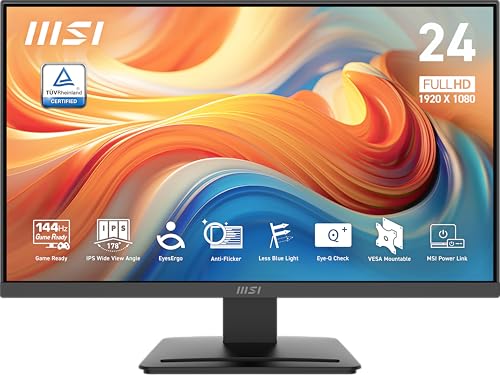
The MSI PRO MP243L E14 is a budget 23.8-inch FHD IPS monitor targeting office users and casual gamers who want a 144Hz refresh rate without stepping up to 1440p. With 1920x1080 resolution, FreeSync, and both HDMI 2.0 and VGA inputs, it fits dorm rigs, refresh builds, and secondary display roles.
The defining feature is the 144Hz IPS panel at 1080p, which pairs well with GPUs in the GTX 1660 to RTX 4060 class for esports titles. MSI cites a 1ms response spec and 1500:1 contrast with 178 degree viewing angles. Monitors in this tier typically deliver 250 to 300 nits SDR brightness, so treat HDR Ready as marketing, not a real HDR tier.
Trade-offs are typical at this price. The stand is tilt only with a range of minus 5 to 20 degrees, and there is no USB hub, DisplayPort, or headphone jack listed. Color gamut is not specified, so color-critical work needs a calibrator or a different panel. VGA is useful for legacy PCs but not for anything above 1080p60.
Buy this if you want a 24-inch 144Hz IPS secondary or esports panel for a modest budget build. Skip this if you need DisplayPort, height adjustment, verified sRGB coverage, or genuine HDR performance for content work.
Panel and resolution: 23.8-inch IPS with 1920x1080 FHD resolution, 1500:1 contrast, and 178 by 178 degree viewing angles. Pixel density lands near 92 PI, which is comfortable for text at typical desk distance without scaling. Color gamut coverage in sRGB or DCI-P3 is not specified in the source data.
Motion and sync: 144Hz refresh rate with a claimed 1ms response time, category norms suggest this is MPRT rather than true GtG. FreeSync (labeled Free-Synch in the source) matches refresh to GPU output to reduce tearing. No G-SYNC compatible certification is listed, though Adaptive Sync generally works with recent NVIDIA drivers.
HDR and eye care: Marketed as HDR Ready with no peak nits, local dimming, or HDR tier specified, so treat it as SDR with metadata aceptance. TUV Rheinland Flicker Free and Low Blue Light certifications are included, aimed at long sessions above the ~200Hz flicker threshold MSI cites for standard panels.
Ports andergonomics: One HDMI 2.0 with CEC and one D-Sub VGA input, no DisplayPort or USB hub listed. Stand suports tilt from minus 5 to 20 degrees with no height, swivel, or pivot. VESA 100x100m mounting is suported for arms and multi-monitor setups.
Common questions
Can you actually tell the difference between 144Hz and 165Hz?
Some players can, especially in fast shooters with frame rates above 144 fps, but the difference is subtle. The frame-time gap is about 0.88ms, so don’t expect a dramatic change. The jump from 60Hz to either 144Hz or 165Hz is much more obvious. Between these two, price and panel quality should guide the decision.
Is 165Hz worth it over 144Hz for gaming?
It’s worth it if the price gap is small and your PC can regularly deliver more than 144 fps. In this product set, the Acer Nitro KG241Y at $109.99 and Sceptre IPS 24-inch at $107.97 make 165Hz fairly affordable. If you’re comparing them against a $79.99 144Hz MSI PRO MP243L, the savings may matter more. Both choices are valid.
Does 165Hz need a stronger GPU than 144Hz?
Yes, if you want to use the full refresh ceiling. A game running at 120 fps won’t look magically like 165 fps just because the monitor supports 165Hz. Adaptive sync can still help smooth out variable frame rates, but the GPU has to generate the extra frames. That’s why 144Hz can be the better match for modest systems.
Should I choose 24-inch or 27-inch for 1080p high refresh gaming?
Most 1080p gamers will prefer 24 inches for sharper pixel density at a normal desk distance. A 27-inch 1080p monitor can still be fun, especially for casual gaming or a more immersive setup, but text and fine details won’t look as tight up close. The ASUS TUF 27-inch options add size and gaming features, while the 24-inch Acer, Sceptre, and MSI models focus more on value.
Do I need FreeSync or G-Sync with 144Hz or 165Hz?
You don’t strictly need variable refresh rate, but it’s a feature we’d want on almost any modern gaming monitor. FreeSync or compatible VRR helps when frame rates move below the monitor’s ceiling, reducing visible tearing and uneven motion. Several monitors here list FreeSync, FreeSync Premium, or Adaptive-Sync. If you’re unsure about compatibility, start with our G-Sync vs FreeSync breakdown before buying.