

If you’ve ever bought a laptop or a budget desktop and never touched a graphics card, you were probably running on integrated graphics the whole time. It’s the quiet workhorse inside most consumer chips, and plenty of people use it for years without knowing it has a name.
So let’s clear it up in plain English. Integrated graphics means the graphics processor is baked directly into the CPU instead of living on a separate expansion card. That one design choice shapes how a machine handles gaming, video, and everyday work. If you’re weighing a chip for a new build, it helps to know what you’re getting, and later you might compare notes with our roundups of the best budget CPU for gaming or the best CPU without integrated graphics to see where each approach makes sense.
The short answer
Integrated graphics, sometimes called an iGPU, is a graphics engine built onto the same silicon as your processor. It borrows a slice of your system memory instead of carrying its own dedicated VRAM, and it draws power through the CPU socket. No extra card, no extra cable, no extra power connector. That’s the whole idea.

Most Intel desktop chips ship with a small iGPU even when buyers plan to add a discrete card later. Take the Intel Core i9-14900K, priced around $469 with a 4.7 rating. It’s a serious gaming and workstation processor, yet it still carries Intel UHD Graphics on board, which means the system can boot and display video before you ever install a dedicated GPU. Handy for troubleshooting, and handy for anyone who wants a screen without a graphics card sitting in the slot.


Pros
- Industry-leading 6.0GHz out-of-the-box boost clock for single-threaded applications.
- Massive 32-thread capacity excels in multi-threaded workloads like 4K video rendering and 3D modeling.
- Compatible with existing LGA 1700 motherboards via BIOS updates, extending the life of 600-series boards.
- Integrated Intel UHD Graphics 770 provides a fallback for troubleshooting and QuickSync hardware acceleration.
- Highly binned silicon offers significant tuning potential for users with high-end cooling solutions.
Cons
- High 253W maximum turbo power requires premium 360mm or 420mm AIO liquid cooling for sustained loads.
- Aggressive stock voltage curves can lead to thermal throttling on standard air coolers or entry-level AIOs.
- Final generation for the LGA 1700 socket, limiting future CPU upgrade paths without a motherboard change.
- Significant power draw necessitates a high-quality PSU with sufficient 12V EPS overhead.
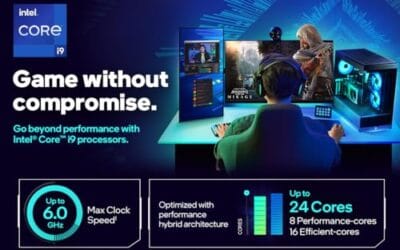
The Intel Core i9-14900K represents the enthusiast-tier peak of the Raptor Lake Refresh lineup, targeting professional creators and gamers who require the highest possible clock speeds. With 24 cores and 32 threads, it is designed to handle simultaneous gaming, streaming, and recording without the performance degradation typically seen on lower-core-count processors.
Technical performance is defined by its 6.0GHz Thermal Velocity Boost, a milestone frequency that pushes the limits of the LGA 1700 platform. In real-world gaming, this translates to high frame ceilings in 1080p and 1440p scenarios, while the 16 Efficient-cores provide the necessary throughput for background tasks and heavy multi-threaded productivity suites like Adobe Premiere Pro and DaVinci Resolve.
Build quality and reliability are consistent with Intel's high-end silicon, though the chip is notoriously demanding regarding thermals. The integrated heat spreader (IHS) must dissipate significant heat during 250W+ bursts, making the choice of thermal interface material and mounting pressure critical for maintaining stability under full load.
The primary trade-off for this level of performance is power consumption and heat. Users should expect the processor to hit its thermal junction maximum (TjMax) quickly during synthetic stress tests if paired with inadequate cooling. It is a processor that requires manual tuning of power limits (PL1 and PL2) to balance efficiency and performance effectively.
Final verdict: Buy this processor if you are an enthusiast with a high-end Z790 motherboard and a 360mm+ liquid cooler who needs the absolute fastest gaming and multitasking performance currently available on the Intel platform. Skip this if you prefer a plug-and-play experience with low power draw or are building in a small form factor case with limited cooling clearance.
| Cores / Threads | 24 (8P + 16E) / 32 |
| Max Turbo Frequency | 6.0 GHz |
| Intel Smart Cache (L3) | 36 MB |
| Total L2 Cache | 32 MB |
| Processor Base Power | 125 W |
| Max Turbo Power | 253 W (Listed as 250W in specs) |
| Socket Support | LGA 1700 |
| Memory Support | DDR5 5600 / DDR4 3200 |
| PCIe Lanes | 20 Total (Up to Gen 5.0) |
| Integrated Graphics | Intel UHD Graphics 770 |
Motherboard and Chipset: The i9-14900K requires an LGA 1700 socket. While it is compatible with older Z600-series motherboards, a BIOS update is mandatory for the system to POST. For optimal power delivery and PCIe 5.0 support, a high-end Z790 motherboard with robust VRMs is strongly recommended to handle the 250W+ power excursions.
Cooling Requirements: Due to the 6.0GHz boost clock and high TDP, air cooling is generally not recommended for this tier unless using a flagship dual-tower cooler with a contact frame. A 360mm or 420mm All-In-One (AIO) liquid cooler is the standard recommendation to prevent thermal throttling during intensive rendering or compilation tasks.
Memory Selection: This CPU supports both DDR4 and DDR5, but the motherboard determines which one you must use. For maximum performance in modern titles and professional apps, pairing this with a DDR5-7200+ kit on a Z790 platform is the ideal configuration, though DDR4 remains a viable cost-saving path for those upgrading from 12th gen.
Power Supply Guidance: Given the potential for 300W+ spikes from the CPU alone, especially when overclocked, a high-quality 850W or 1000W 80 Plus Gold PSU is recommended. Ensure your PSU has at least two 8-pin EPS (CPU) connectors to provide stable voltage to the motherboard's power phases.
Operating System: To properly utilize the Intel Thread Director and the hybrid core architecture, Windows 11 is the recommended operating system. Windows 10 may not efficiently schedule tasks between the P-cores and E-cores, potentially leading to inconsistent performance in multitasking scenarios.
The longer explanation
A discrete graphics card is its own little computer. It has a dedicated processor, its own high-speed memory, its own cooling, and it plugs into a PCIe slot. Integrated graphics throws all of that out and folds the graphics duties into the CPU package. The tradeoff is straightforward. You lose raw horsepower, but you gain simplicity, lower cost, and far less heat and power draw.
Because the iGPU has no memory of its own, it carves out a portion of your regular system RAM to use as graphics memory. On a machine with 16GB of RAM, the graphics engine might reserve a couple of gigabytes for frame buffers and textures. That shared arrangement is the single biggest reason integrated graphics trails a dedicated card. System RAM is slower than the specialized memory soldered onto a real GPU, so bandwidth-hungry tasks like high-resolution gaming feel the pinch first.
There’s a second reason the two aren’t in the same league. A dedicated card packs thousands of specialized cores and its own power budget, while an iGPU has to share physical space and thermal headroom with the CPU cores sitting right next to it. When both parts get busy at once, they compete for the same resources. That’s fine for a spreadsheet and a browser. It’s a real ceiling for a demanding 3D scene. Knowing where that ceiling sits saves you from expecting console-level frame rates out of a chip that was never built for them.
How we got here
Integrated graphics used to live on the motherboard chipset, a separate chunk of silicon near the CPU. Early integrated solutions were slow and mostly good for displaying a desktop and playing back video. Gamers ignored them entirely.
That changed when chipmakers moved the graphics engine onto the CPU die itself. Intel folded graphics into its Core processors, AMD built its APU line around the concept, and suddenly the graphics sat right next to the processor cores with a fast internal link between them. Modern iGPUs now handle 1080p esports titles, multi-monitor office setups, and hardware video decoding without breaking a sweat. The gap between “good enough” and “needs a real card” keeps shifting upward every generation.
Why it works this way
Putting graphics on the CPU makes sense for the vast majority of computers. Most people browse, stream video, run office apps, and maybe play a light game. None of that needs a $300 graphics card. By integrating the GPU, manufacturers ship a complete, working system on a single chip, which cuts cost and shrinks the whole machine.
There’s a physics angle too. A dedicated card can pull 200 watts or more and needs a big heatsink and fans. An iGPU shares the CPU’s power and cooling budget, so it stays modest by design. That’s why laptops and mini PCs lean on integrated graphics. They simply don’t have room, power, or airflow for a discrete card. The engineering favors efficiency over peak speed, and for daily computing that’s the right call.
When you’d want this
Integrated graphics shines in a few clear situations. Office and productivity machines don’t need more. Home theater PCs benefit from the low heat and quiet operation. Budget builds save real money by skipping a card entirely, at least at first. And troubleshooting is easier when the CPU can drive a display on its own, so a dead graphics card never leaves you staring at a black screen.
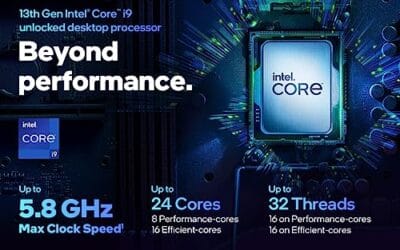
There’s also the enthusiast angle. Buyers who plan to run a high-end discrete card still appreciate a chip with an iGPU as a backup. The Intel Core i9-13900K, around $587.77 with a strong 4.8 rating, packs 24 cores in an 8 P-core plus 16 E-core layout with 36MB of cache and clocks up to 5.8 GHz. It’s built for heavy work and gaming, yet its onboard graphics let the system POST and diagnose issues even with no card installed. That safety net matters more than people expect.
Content creators land in a similar spot. Video editors and streamers sometimes lean on the iGPU’s dedicated media engine to encode footage while the discrete card handles the game or the render. Running both at once can lighten the load on either part. And for a small home server or a media box tucked behind a TV, integrated graphics is often the only sensible choice. Low power, low noise, no card to fail. If any of that describes your plan, an iGPU isn’t a compromise. It’s the feature you actually wanted.
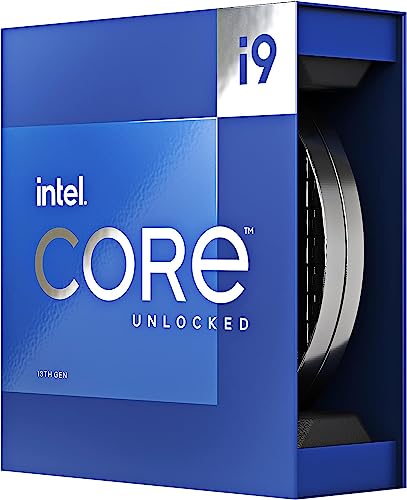
Pros
- Massive multi-threaded performance for 4K video editing, 3D rendering, and complex data science workloads.
- High 5.8 GHz peak frequency provides excellent single-core performance for gaming and CAD applications.
- Integrated UHD Graphics 770 serves as a reliable backup for troubleshooting or non-gaming productivity setups.
- Broad platform compatibility across two motherboard generations and two different memory standards.
Cons
- High 125W base power and significant peak wattage require a high-end 360mm AIO or custom loop cooling.
- Requires a BIOS update on many Intel 600 series motherboards before the system will POST.
- Platform longevity is limited as LGA1700 is an established socket nearing the end of its release cycle.
The Intel Core i9-13900K represents the pinnacle of the 13th Gen Raptor Lake lineup, positioned as a flagship solution for users who refuse to compromise. With a total of 24 cores and 32 threads, it is specifically engineered for enthusiast gamers, streamers, and heavy content creators who frequently run demanding applications like Adobe Premiere Pro, DaVinci Resolve, or Blender.
The standout technical achievement here is the refined hybrid architecture. By pairing 8 high-frequency Performance-cores with 16 Efficiency-cores, the 13900K manages heavy compute loads without sacrificing the responsiveness of background applications. In real-world gaming, this typically translates to higher 1% low frame rates and smoother overall performance, especially when multitasking with OBS or Discord in the background.
Thermal management is a critical consideration for this chip. While the 125W base power seems manageable, the processor is designed to scale its power consumption significantly to maintain the 5.8 GHz boost clock. Users should expect high operating temperatures under sustained all-core loads, necessitating a robust cooling solution and a high-airflow case to prevent thermal throttling.
An honest trade-off for this level of performance is the power draw and the resulting heat output. This is not a 'set and forget' chip for budget cooling or small form factor builds without careful undervolting or power limiting. Additionally, while the support for DDR4 is a welcome cost-saving measure, the highest performance tiers are only unlocked when paired with high-frequency DDR5 memory.
Buy this if you are building a top-tier workstation or gaming rig and already have a 360mm liquid cooler and a high-wattage power supply. Skip this if you are primarily gaming at 4K where the GPU is the bottleneck, or if you prefer a more power-efficient system with lower cooling requirements.
| Feature | Specification |
|---|---|
| Core Count | 24 (8 P-cores + 16 E-cores) |
| Thread Count | 32 |
| Max Turbo Frequency | 5.8 GHz |
| P-core Base Frequency | 3.0 GHz |
| E-core Base Frequency | 2.2 GHz |
| Intel Smart Cache (L3) | 36 MB |
| Total L2 Cache | 32 MB |
| Processor Base Power | 125 W |
| Memory Support | DDR5 5600 / DDR4 3200 |
| PCIe Revision | 5.0 and 4.0 |
| Total CPU PCIe Lanes | 20 |
| Socket Support | LGA1700 |
| Integrated Graphics | Intel UHD Graphics 770 |
Socket and Chipset: This processor uses the LGA1700 socket. It is natively compatible with Intel 700 series motherboards (Z790, H770, B760). While it works with 600 series boards (Z690, H670, B660, H610), a BIOS update is almost certainly required for the system to boot if the board was manufactured before the 13th Gen launch.
Cooling Requirements: Given the 5.8 GHz boost clock and high core count, a premium 360mm or 420mm All-In-One (AIO) liquid cooler is strongly recommended. High-end dual-tower air coolers may suffice for gaming but will likely lead to thermal throttling during intensive multi-threaded rendering or stress testing.
Memory Selection: The i9-13900K supports both DDR4 and DDR5, but this is determined by your motherboard choice. For a flagship build, pairing this CPU with DDR5 5600MT/s or higher is recommended to avoid bandwidth bottlenecks in memory-sensitive applications and modern games.
Power Supply Guidance: Due to the high transient power spikes typical of i9 processors, ensure your PSU has sufficient headroom. For a build featuring this CPU and a high-end GPU like an RTX 4080 or 4090, a minimum of an 850W or 1000W 80 Plus Gold power supply is advised.
Operating System: To properly utilize the Intel Thread Director for efficient task scheduling between P-cores and E-cores, Windows 11 is highly recommended. While Windows 10 is supported, it may not always assign tasks to the optimal core type, potentially impacting performance.
What to look for in an integrated GPU
If integrated graphics is your main engine, a few things decide how well it performs. Fast dual-channel RAM is the big one. Since the iGPU steals bandwidth from system memory, running two matched sticks instead of one can noticeably improve frame rates. Skimp on memory and you handcuff the graphics.
Beyond memory, check which display outputs the platform supports, how many monitors it can drive, and whether it includes modern video decode blocks for smooth 4K playback and efficient streaming. Newer iGPU generations pull ahead of older ones in gaming, so a recent chip is worth paying for if graphics is the point. Owner reports consistently show that recent AMD APUs and current Intel graphics handle 1080p far better than the sluggish integrated parts of a decade ago.
Driver support deserves a mention too. Both Intel and AMD update their graphics drivers regularly, and those updates can add real frame rate gains and fix game-specific quirks long after launch. If you plan to lean on integrated graphics for gaming, keep the drivers current and check that the specific title you care about runs well on your chip’s graphics generation. A quick search through community reports before you buy tells you far more than a marketing slide ever will.
Common misconceptions
The biggest myth is that integrated graphics can’t game at all. Not true. Plenty of esports and older titles run fine at 1080p on a modern iGPU, just at lower settings. It won’t touch a demanding AAA release at high detail, but “useless for gaming” hasn’t been accurate for years.
Another mix-up is thinking every CPU has graphics built in. It doesn’t. Many high-performance and workstation chips, especially certain AMD models and Intel F-series parts, ship with no iGPU to save cost, and those require a discrete card just to show a picture. People also assume the iGPU steals a huge amount of RAM. In reality it reserves a modest slice, and the amount often adjusts based on what you’re doing.
Frequently asked
Is integrated graphics good enough for gaming?
For lighter and older games at 1080p, yes. Modern iGPUs run popular esports titles at playable frame rates on lower settings. For demanding AAA games at high detail or high refresh rates, you’ll still want a dedicated graphics card.
Does integrated graphics use my system RAM?
Yes. An iGPU has no memory of its own, so it reserves a portion of your regular RAM as graphics memory. That’s why fast, dual-channel RAM helps integrated graphics perform better. Single-stick setups leave real speed on the table.
Can I use integrated graphics and a dedicated card together?
Often, yes. Many systems let you run both, driving extra monitors from the iGPU while the discrete card handles the heavy work. Behavior varies by motherboard and BIOS settings, so check your board’s options if you want both active at once.
Do all Intel and AMD CPUs have integrated graphics?
No. Intel F-series chips and several AMD processors ship without an iGPU to lower the price. Those parts need a discrete graphics card to output any video at all, so read the spec sheet carefully before buying if a screen with no card matters to you.
Will integrated graphics slow down my CPU?
Under heavy graphics load the iGPU shares power, thermal, and memory bandwidth with the processor cores, so there can be minor contention. For everyday tasks the effect is small. If you push demanding 3D work, a dedicated card frees the CPU to focus on its own job.




























Write Your Review
No reviews yet. Be the first to share your experience!