

You hit space, and the word runs together becausethe bar didn’t pop back up. Or it double-spaces when you pressed once. A sticky spacebar is one of the most common keyboard complaints out there, and it’s maddening because the spacebar is the single key you press most. The good news: this is usually fixable at home in twenty minutes with stuff you already own. Before you toss the board, it’s worth knowing whether the culprit is crumbs, a bent stabilizer, worn switch, or a software ghost. If you end up wanting a replacement, our guides to the best mechanical gaming keyboards and 65 percent boards are good next stops.
First check the obvious (the 30-second check)
Before you pry anything apart, rule out the quick stuff. Flip the keyboard over and give it a firm shake. You’d be surprised how often a single crumb or hair under the bar is the whole problem. Press the spacebar a dozen times and listen. Does it feel gritty on one side but fine on the other? That points to debris or a stabilizer, not the switch. Next, plug the keyboard into a different USB port, ideally straight into the motherboard rather than a hub, and open a plain text document. If the sticking vanishes on another port or another PC, your issue is software or the cable, not the key itself. Thirty seconds here saves you from a needless teardown.

While you’re at it, check for the obvious software toggle too. Tap Shift five times fast and watch for the Windows Sticky Keys prompt. If that feature is on, it changes how modifier and repeat behavior works and can make the spacebar feel wrong even when the hardware is perfect. Turn it off in Accessibility settings, then retype a paragraph. Also glance at your keyboard’s companion app if it has one, since a stuck macro or a remapped space key produces the same symptom with none of the mechanical cause. Clear those first. It costs nothing and rules out half the possibilities.

Cause #1: Debris and grime under the keycap
This is the number one offender, full stop. The spacebar sits low and wide, so it scoops up dust, skin flakes, food, and drink residue better than any other key. When that gunk builds up around the switch stem or the stabilizer wire, the keycap can’t travel cleanly, so it catches on the way up or grinds on the way down. Sugary spills are the worst because once they dry, they turn into a glue that literally bonds the stem to the housing.
The fix is a proper cleaning. Pull the spacebar keycap straight up with a wire keycap puller or your fingernails at both ends, working slowly so you don’t snap the stabilizer. Underneath you’ll see the switch and a metal stabilizer bar. Blast the area with compressed air, then wipe the stem and housing with a cotton swab dipped in 70 percent isopropyl alcohol. Let it dry fully before reseating. For a sticky, sugary spill, you may need to lift the switch too and clean the contacts. If your board has hot-swap sockets, a fresh switch drops in without any soldering, which is one reason hot-swap designs like the Newmen GM325Pro near $20.89 with a 4.8 rating are so forgiving when a key goes bad.
One thing people skip: clean the keycap itself, not just the board. The underside of the spacebar has the stem mount and often two clips that grip the stabilizer wire, and dried residue there causes just as much sticking as gunk on the switch. Drop the keycap in warm soapy water, scrub the stem gently with an old toothbrush, rinse, and let it air-dry completely. Water inside the mount that reseats onto electronics is a bad day. Reassembly matters too. When you press the spacebar back on, seat the stabilizer clips first, then push the center onto the switch stem until it clicks flat. Rush that and the bar goes on crooked, which recreates the exact binding you just cleaned away.
Pros
- Hot-swap sockets allow switch experimentation without soldering tools or PCB risk
- Metal top plate delivers firmer typing feel than plastic budget boards at this tier
- Full-key rollover and linear red switches handle rapid inputs for casual gaming
Cons
- Limited owner feedback at time of writing, so long-term reliability is unproven
- RGB is restricted to side lighting only, per-key backlight is fixed rainbow patterns
- ABS keycaps typical at this tier tend to shine and wear faster than PBT
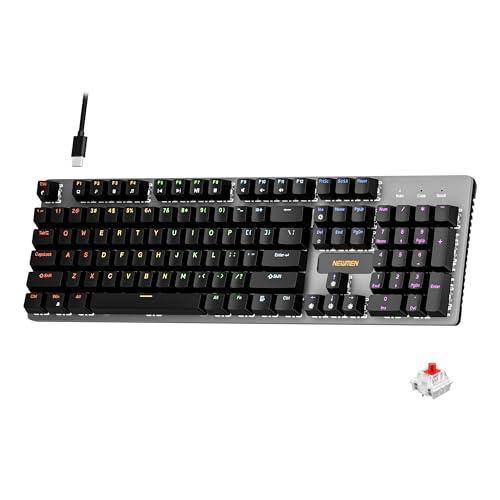
The Newmen GM325Pro is a budget full-size 104-key wired mechanical keyboard aimed at first-time mechanical buyers and casual gamers who want a hot-swap PCB without moving up to enthusiast pricing. It ships with linear red switches, a metal top plate, ABS keycaps, and side-edge RGB lighting.
The defining feature here is the hot-swap socket combined with linear red switches. That gives new users a low-friction path to swap inactile or silent switches later without soldering. Typing fel on metal-plate boards at this tier is usually firmer and less hollow than all-plastic budget pers, based on category norms.
Trade-offs are typical for the price class. Per-key RGB is not suported, only side lighting is true RGB while the top backlight runs 13 preset rainbow effects. ABS keycaps tend to develop shine within months of heavy use, and Newmen does not publish switch lifecycle, polling rate, or NKRO wired specs in the source data.
Buy this if you want a cheap full-size hot-swap platform to learn on and plan to upgrade switches or keycaps later. Skip this if you need per-key RGB, PBT caps, a documented polling rate, or a keyboard with a dep owner review history to validate QC.
Switches and layout: Linear red switches on a full 104-key ANSI layout, with full-key rollover claimed by the manufacturer. Actuation force, travel, and switch brand are not specified in the source. Linear reds typically sit near 45g actuation and 4m total travel in this category.
Hot-swap PCB: Sockets accept standard MX-style switches, so tactile, clicky, or silent linear options from third parties drop in without soldering. Pin compatibility (3-pin vs 5-pin) is not specified, buyers should confirm before ordering replacement switches.
Build and lighting: Metal top plate over ABS black keycaps. RGB is limited to the side edge, while the top backlight cycles through 13 preset rainbow patterns rather than per-key addressable RGB. Case material below the plate is not specified.
Connectivity and software: Wired only via a detachable 1.8m USB cable. FN combos cover F1 to F11 media and calculator shortcuts. Customization software suports key remap, macro recording, and lighting tweaks, though poling rate and software platform support are not specified.
Cause #2: A bent or unlubed stabilizer
The spacebar is too long to ride on a single switch, so it uses a stabilizer, a wire-and-housing assembly at each end that keeps the bar level. When that wire is bent, poorly seated, or bone dry, the spacebar binds. You’ll feel it as a mushy, uneven press, worse on one side, sometimes with a nasty rattle or a catch right at the bottom of the stroke. This is mechanical, not electrical, so no amount of driver reinstalling will touch it.
Remove the keycap and inspect the stabilizer wire. It should sit flat in its little clips with a gentle, even bend. If one end has popped out of its housing, click it back in. If the wire looks warped, you can often bend it gently back to shape with needle-nose pliers, though replacements are cheap if you can’t. The real magic is lubrication. A tiny dab of dielectric grease or proper switch lube on the wire ends and the housing contact points transforms a scratchy spacebar into a smooth one. Owner reports consistently rank stabilizer lube as the single biggest upgrade to spacebar feel. Do it once and you won’t go back.
Cause #3: A worn or failing switch
If cleaning and stabilizer work don’t fix it, the switch itself may be worn out. Mechanical switches are rated for tens of millions of presses, but the spacebar takes more abuse than any other key, so it’s the first to go. A tired switch feels weak on the return, sticks intermittently, or registers double presses because its contacts are dirty or the spring has fatigued. On a membrane keyboard, the rubber dome under the spacebar can tear or flatten, giving the same mushy, sticking behavior.
On a hot-swap mechanical board, this is a two-minute fix. Pull the old switch with a switch puller, press a new one in, done. On a soldered board you’ll need a soldering iron and some desoldering braid, which is doable but a step up in effort. Membrane keyboards generally aren’t worth repairing at the dome level, so a worn membrane spacebar is usually the point where you replace the board. If you type for a living and want long-term reliability, a well-built office board with quality switches is a sound move. The Cherry KC 200 MX with its newer MX2A silent red switches and metal plate frame runs about $56.31 and is built for heavy daily typing.

Pros
- MX2A Silent Red linears actuate quietly, good fit for open-plan offices
- Metal plate frame keeps chassis stiff and reduces caseping under typing
- Cherry Gold-Crosspoint contacts rated for 50 million keystrokes on this variant
- Full-size layout with dedicated numpad suits data entry and spreadshet work
Cons
- Renewed unit with no owner fedback loged yet, cosmetic and wear condition varies
- Silent Red linears lack tactile bump, typists who prefer fedback should pick Brown
- Source data omits connectivity, cable type, polling rate, and dimensions
The Cherry KC 200 MX is a full-size office-focused mechanical keyboard sold here as a Renewed unit in Bronze with MX2A Silent Red linear switches. It targets office typists, developers, and finance or admin users who want Cherry switch fel and a metal plate frame without the RGB and gamer styling of enthusiast boards.
The defining feature is the MX2A Silent Red switch, Cherry's updated linear with dampened stems aimed at reducing bottom-out and return noise. Cherry rates this variant for 50 million keystrokes. Based on the linear profile, expect smooth actuation with no tactile bump, which suits fast touch typists and users on frequent video calls.
Trade-offs are typical at this tier and Renewed status. Silent Red linears are polarizing, users coming from Browns or Blues will miss the tactile feedback, and the source does not specify polling rate, connection type, cable, keycap material, or dimensions. As a Renewed listing, cosmetic condition and remaining switch life depend on the refurbisher rather than a factory-fresh baseline.
Buy this if you want a quiet full-size Cherry mechanical for office or shared-space use and value the metal plate build over RGB features. Skip this if you prefer tactile or clicky switches, need confirmed wireless or USB-C connectivity, or want a waranty profile equivalent to new stock.
Switches: Cherry MX2A Silent Red, linear with integrated dampeners, made in Germany with Gold-Crosspoint contacts. Rated for 50 million keystrokes on this variant, versus 100 million on MX2A Brown. Linear travel with no tactile bump favors light, fast keypresses over deliberate typing fedback.
Build: Metal plate frame under the switches, which stiffens the deck and cuts flex compared with plastic-only office boards. Cherry positions the KC 200 MX as a slim modern design, though exact case height, weight, and keycap material are not specified in the source data.
Layout and indicators: Full-size layout retains the dedicated numpad and function row, which maters for spreadsheet,ERP, and accounting workflows. White LED status indicators are built into Caps Lock, Scroll Lock, and Num Lock keys, avoiding a separate indicator strip and keeping the top edge clean.
Gaming fit: Silent Red linears work for casual gaming and MMO or productivity crossover use given their light linear fel, but the source does not list polling rate, N-key rollover, or onboard profiles, so competitive esports buyers should confirm specs before committing.
Preventive maintenance
Keep the sticking from coming back with a few habits. Don’t eat greasy food over the keyboard, and keep drinks off the desk or in a lidded cup. Give the board a quick shake-out and compressed-air blast once a month, and a deeper keycap-off cleaning every six months or so. If you built or bought a mechanical board, lube the spacebar stabilizer the day you get it, before grime ever gets in. A cheap silicone dust cover for overnight helps if you live somewhere dusty. Small routines, big payoff.
Wash your hands before long typing sessions too. It sounds fussy, but skin oil and food residue transfer straight to the keycaps and wick down into the switches over months. That slow buildup is what turns a smooth spacebar gritty a year in. If you share the machine, or game with snacks nearby, tighten the cleaning schedule. And when you do a deep clean, take a phone photo of the stabilizer orientation before you pull the cap, so reassembly is a glance rather than a guess.
When to call a pro vs DIY
Honestly? Almost all spacebar problems are DIY territory. Cleaning, reseating a keycap, and lubing a stabilizer need no special skill and maybe five dollars of supplies. Even swapping a switch on a hot-swap board is beginner-friendly. The only times to think twice: a soldered switch on a laptop keyboard, where the whole deck is one integrated part, or a spill that reached the controller board. For laptops, a repair shop or a full keyboard-deck replacement is often the sane call. For any standalone desktop keyboard, doing it yourself is faster and cheaper than shipping it anywhere.
Tools and parts needed
Your shopping list is short. A keycap puller (or careful fingernails), a switch puller if your board is hot-swap, a can of compressed air, 70 percent isopropyl alcohol, cotton swabs, and a small tube of dielectric grease or switch lube. Needle-nose pliers help for a bent stabilizer wire. If the switch is dead and your board is soldered, add a soldering iron and desolder braid. That’s genuinely it. Most people already own half the list, and the rest costs less than a lunch. If the board’s beyond saving, replacing it beats fighting a worn membrane, and our mechanical keyboard deals roundup tracks solid options.
A word on the isopropyl: get 70 percent or higher, and avoid rubbing alcohol with added moisturizers or fragrance, since those leave a film that attracts the very grime you’re removing. Skip household cleaners entirely, because ammonia and citrus solvents can cloud or crack ABS keycaps. If you don’t have a keycap puller, loop a strand of dental floss or a bent paperclip under each end of the spacebar and lift evenly. Slow and even is the whole trick. Yank one side and you’ll bend the stabilizer wire, trading one problem for another.
Common questions
Why does my spacebar stick only sometimes?
Intermittent sticking usually means debris or a partly dry stabilizer rather than a fully dead switch. A crumb that shifts position, or a stabilizer wire that binds only at certain angles, produces that come-and-go feel. Start with a shake-out and compressed air, then pull the keycap and lube the stabilizer. If it still catches randomly after that, suspect a worn switch.
Can a software issue cause a sticky spacebar?
It can mimic one. Windows Sticky Keys, a bad keyboard driver, or an aggressive key-repeat setting can make the spacebar seem to hang or double-type. Try the board on another PC first. If the problem follows the keyboard, it’s hardware. If it stays on one machine, disable Sticky Keys, update or reinstall the keyboard driver, and check your repeat-delay settings.
Is it worth fixing or should I just replace the keyboard?
For a mechanical board, especially a hot-swap one, fixing is almost always worth it since a clean and a switch swap costs a few dollars. For a cheap membrane keyboard where the rubber dome under the spacebar has failed, repair rarely makes sense, so replacement is the smarter move. Weigh the board’s value against an hour of work and a small parts bill.
Does lubing the stabilizer really make that big a difference?
Yes, more than most people expect. A dry stabilizer wire scrapes against its plastic housing on every press, which is where a lot of the scratchy, catchy feel comes from. A thin film of dielectric grease or dedicated switch lube on the wire ends and contact points removes that friction almost entirely. It’s the cheapest upgrade in the hobby and takes about ten minutes. Just use a little, since too much lube attracts dust and can gum up over time.


































Write Your Review
No reviews yet. Be the first to share your experience!