You hit the power button and nothing happens. It’s the most common PC failure mode, and eight out of ten times it’s one of three causes: a tired PSU, a loose front-panel header, or RAM that didn’t seat right. The other twenty percent gets weird, chassis shorts, dead CMOS cells, bent CPU pins. Most folks panic and start swapping parts at random, which wastes hours and sometimes makes things worse. There’s a smarter way. Below is the diagnostic flow pros run, in order from most-likely to least, so you stop guessing and start isolating. Grab a flashlight and let’s work through it.
The quick diagnosis (30-second check)
Before you even think about opening the case, knock out the dumb stuff. Plug a lamp into the same wall outlet to confirm it’s live. Walk around to the back of the PSU and check that the I/O switch is flipped to ON, it’s easy to bump during cable management. Then reseat both ends of the power cable: wall side and PSU side. Cables walk loose more than you’d think, especially if the rig sits on carpet or gets nudged by a chair.
Now press the power button and watch closely. Do case fans twitch for half a second? Does the CPU cooler spin briefly? Any LED on the motherboard glowing? Each of those clues points somewhere different. A twitch without boot suggests a short. Zero motherboard light means no standby power at all, which usually points straight at the PSU.
Most likely cause – PSU failure or front-panel header
Aging power supplies fail in a predictable way. The capacitors on the 5V standby rail dry out, and one day there’s not enough juice to wake the motherboard. If you’ve got zero motherboard LEDs and nothing happens on button press, that’s the textbook signature. PSUs over five years old under daily load are prime suspects, and budget units fail sooner.
The other top contender is the front-panel header. That tiny 2-pin connector labeled PWR_SW is the only thing telling your board you pressed the button. It works loose during cleaning, GPU swaps, or aggressive cable routing. Pop the side panel, find the header (the motherboard manual shows the exact pin layout), and confirm PWR_SW is firmly seated. While you’re in there, try jumping the two PWR_SW pins with a screwdriver for two seconds. If the board fires up, your front-panel button or its wire is the problem, not the board.
To rule out the PSU without yanking a known-good one from another build, you’ve got two options: the paperclip method (jumper the green wire to any black on the 24-pin) or a dedicated tester that reads each rail.
Pros
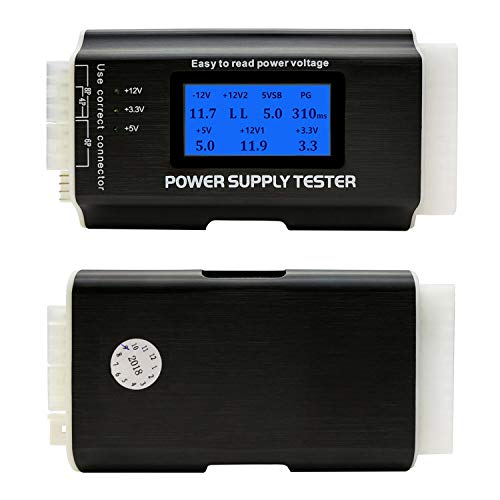
- Covers eight connector types including 24-pin, EPS 8-pin, PCIe 6-pin, SATA, IDE, Floppy
- 1.8-inch LCD displays +3.3V, +5V, +12V1, +12V2, -12V, 5VSB, and PG signal
- Aluminum shell ads durability over plastic-bodied testers common in this price bracket
- Bep alarm triggers on out-of-spec rails, useful for hands-free bench diagnostics
Cons
- Limited owner feedback at time of writing, so long-term reliability signal is thin
- No PCIe 8-pin support, forcing adapter workarounds when checking modern GPU power cables
- LCD is powered only through the 24-pin, so EPS or PCIe testing needs ATX pluged in simultaneously
The Fuhengli is a budget-tier ATX PSU tester aimed at hobbyist builders, repair techs, and homelab users who need to sanity-check a power supply before dropping it into a build. It reads eight connector types including 24-pin, EPS 8-pin, PCIe 6-pin, SATA, IDE, and Floppy through a 1.8-inch LCD and side LEDs.
The defining feature is rail coverage on the LCD: +3.3V, +5V, +12V1, +12V2, -12V, 5VSB, and the PG (Power Good) timing signal. That is enough to catch a sagging 12V rail or a dead 5VSB before you troubleshoot a no-post board, which is the main use case at this tier. The buzzer alarm covers hands-free checks.
Trade-offs are typical for the segment. There is no PCIe 8-pin socket, so modern GPU cables need a 6-pin split or adapter. The LCD only powers from the 24-pin, meaning EPS and PCIe reads require theATX connector plugged in as well. Owner feedback is thin at time of writing, so build consistency is hard to verify.
Buy this if you service olderATX systems or need a cheap bench tester for basic rail and PG checks. Skip this if you need PCIe 8-pin or 12V-2x6 support for testing modern GPU-focused PSUs, or if you require calibrated load testing rather than no-load rail readout.
Connector coverage: Supports 20-pin ATX, 24-pin ATX, HDD/IDE, Floppy 4-pin, PCIe 6-pin, PCIe 4-pin, EPS 8-pin, and SATA. PCIe 8-pin and 12V-2x6/12VHPWR connectors are not suported, which limits usefulness for testing PSUs paired with RTX 40 or 50 series GPUs.
Rail readout: The 1.8-inch LCD reports +3.3V, +5V, +12V1, -12V, 5VSB, and PG timing from the 24-pin. EPS 8-pin, PCIe 6-pin, and PCIe 4-pin voltages route through the +12V2 field on the same LCD, so only one 12V rail displays at a time.
Peripheral indicators: IDE and Floppy connectors show +12V and +5V through side LEDs. SATA shows +12V, +5V, and +3.3V, with the tester lighting two LEDs for 4-wire SATA cables and three LEDs for 5-wire SATA cables, per the manufacturer note.
Housing: Aluminum aloy enclosure with a factory protective film on the LCD. Weight and exact dimensions are not specified, but aluminum-shelled testers in this class typically sit under 150 grams, making it viable for a tolkit rather than a fixed bench station.
Second most likely cause – RAM seating or CMOS battery
Modern boards are picky. A DIMM that’s 95% seated will refuse to POST, and you won’t get beeps or LEDs depending on the board. The fix is brute and reliable: push both retention clips fully open, pull each stick out, blow the slot, and press the stick back in until both clips snap closed. Don’t just nudge the clips shut with your finger, if they don’t snap from the downward pressure, the stick isn’t home yet.
If reseating doesn’t move the needle, pull every stick except one and drop it in slot A2 (second from the CPU on most boards). If it POSTs with one stick, you’ve isolated either a bad stick or a memory training hiccup. Rotate sticks through A2 one at a time to find the dead one.
Then there’s the CMOS battery. That little CR2032 coin cell keeps your BIOS settings alive, and when it dies, some boards just refuse to POST until they get fresh juice. Pop it out, check voltage with a multimeter if you’ve got one (should read 3.0V or higher), and swap in a new one. They’re three bucks at any pharmacy. While the old battery’s out, hold the power button for 30 seconds to drain residual capacitance, that’s your CMOS reset for free.
The weird one (rare but happens) – motherboard short
This one bites first-time builders and folks who’ve recently moved a rig. Motherboards mount on brass standoffs, and there’s supposed to be exactly one standoff under each mounting hole on the board. An extra standoff sitting under a spot with no hole touches a solder pad and shorts the whole system. No power, no LEDs, sometimes a brief twitch then nothing. It mimics PSU failure perfectly.
The fix is annoying but simple: pull the board, count standoffs against mounting holes, and remove any extras. While the board’s out, flip it over and look for scorch marks or discolored pads near the standoff positions. If you see burn marks, the board’s likely cooked.
Other oddballs in this tier: a stray screw that fell into the case during build and lodged against the front-panel header pins, or a CPU with bent pins. Intel pins live on the socket, AMD AM5 pins are also on the socket now (AM4 had them on the CPU itself). Pull the cooler, lift the CPU, and inspect the pad and socket under good light. Bent pins are sometimes recoverable with a sewing needle if you’re patient.
Step-by-step fix
Run this in order. Don’t skip steps because you “already know”, the whole point is ruling things out cleanly so you don’t chase ghosts.
(a) Plug a lamp into your wall outlet. If the lamp’s dead, your outlet is. Try another. (b) Confirm the PSU rocker switch is ON and the power cable is fully seated on both ends. (c) Press the power button and listen for any fan twitch, click, or relay sound. Note what you hear or don’t. (d) Open the side panel. Look for a motherboard power-good LED, most boards from 2018 onward have one, usually labeled or near the 24-pin. If it’s lit, you’ve got standby power and the PSU’s probably fine.
(e) Reseat both RAM sticks until clips snap closed on their own. (f) Reseat the 24-pin and the 8-pin CPU power connector at both ends, PSU side and board side. The 8-pin EPS is the one people forget; without it, the board won’t POST. (g) Check the PSU with a tester or paperclip method. Compare rails against spec (12V should read 11.4-12.6V, 5V should read 4.75-5.25V, 3.3V should read 3.14-3.47V). (h) If you’ve got access to a known-good PSU, swap it in. This is the fastest single check you can run. (i) If nothing’s worked, pull the motherboard out of the case and bench-check it on the cardboard box it came in. Eliminates chassis shorts in one move.
When it’s not fixable – what to replace
If your PSU tester shows rails out of spec, 12V reading 11.1V or 5V drooping below 4.7V under no load, the PSU’s done. Replace it. Budget for $70-90 for a quality 650W 80+ Gold unit for a mainstream gaming rig, or $130-180 for a 850W+ Gold/Platinum for a high-end build with a 4070 Ti or above. Don’t cheap out here; a bad PSU can take the rest of the system with it.
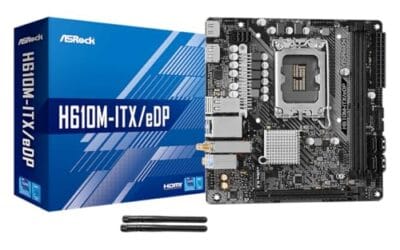
If the motherboard’s power-good LED never lights with a confirmed-good PSU, the board itself has failed. Plan a replacement. Match the socket to your existing CPU (LGA1700 for 12th-14th gen Intel, AM4 for older Ryzen, AM5 for current Ryzen).
CPU failure is rare but possible. If literally every component’s been swapped or checked and there’s still no life, RMA the CPU if it’s under warranty, or replace it. Also worth grabbing: a bootable repair USB for when the hardware’s fine but Windows won’t load, and a replacement front-panel power button if yours is sticky or unresponsive.

Pros
- Dual USB-A and USB-C physical connectors cover most modern laptops and desktops without dongles.
- Supports both UEFI and legacy BIOS boot modes, useful for hardware spanning roughly a decade.
- Offline operation means no network dependency during recovery, useful in isolated or air-gapped environments.
Cons
- Mixed owner feedback and a sub-4.0 rating signal inconsistent real-world results; verify use case before buying.
- Bundled tool versions and exact software titles are not disclosed in listing, making capability verification difficult.
- Not Linux-based unlike most competing toolkits in this price range, limiting advanced filesystem and network diagnostics.
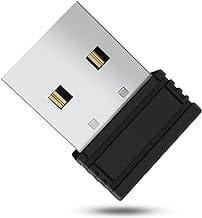
The TECHSTOREON Windows PC Repair Bootable USB is a 32GB dual-connector recovery drive targeting DIY home users and small-shop technicians who need an offline, self-contained toolkit for diagnosing and repairing unbootable Windows systems. The physical drive ships with both USB-A and USB-C connectors, covering the majority of consumer PCs and laptops without requiring adapters.
The most defining feature is its ability to boot independently of the internal drive via UEFI or legacy BIOS, launching a Windows-based rescue environment. From there, the toolkit surfaces local account password reset, file access and copy tools, partition management, and boot repair utilities. Owner reports suggest the interface is navigable by non-technical users, which is the intended audience.
At this tier and price point, the honest trade-off is transparency. The listing does not disclose specific software titles, version numbers, or update cadence for the bundled tools. For a product category where tool provenance and licensing matter, that is a genuine gap, not a typical budget compromise. The mixed owner rating reflects real variability in results across different hardware configurations, and Tier B classification applies here.
Buy this if you are a home user or small reseller who needs a basic offline recovery drive ready to go without building one yourself. Skip this if you require auditable, named recovery tools, or if your workflow demands Linux-based environments with full filesystem and network diagnostic support.
Storage Capacity and Connector: The drive ships at 32GB with a physical dual-connector design providing both USB-A and USB-C ports on the same device. This eliminates the need for a separate USB-C adapter on modern thin-and-light laptops that have dropped full-size USB-A ports.
Boot Mode Support: Compatible with both UEFI and legacy BIOS boot modes, covering PC hardware across a broad generational range. The listing confirms support for desktops, laptops, mini PCs, all-in-one systems, tablet PCs running x86, and Intel-based Macs with compatible firmware.
Included Recovery Functions: Documented capabilities include local Windows account password reset, file access and backup from non-booting drives, disk and partition inspection, boot repair, and system diagnostics. The drive can operate as a live environment or be installed to a hard drive for persistent use.
Customization and Offline Use: The listing specifies the USB is user-customizable, allowing replacement or addition of compatible bootable ISO files with included instructions. All functions run offline with no internet connection required, which is relevant for recovery scenarios where network access is unavailable or undesirable.

Pros
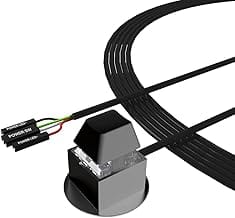
- Long 118-inch cable clears under-desk towers, server racks, and flor placements without cable strain
- Splitter board keeps the OEM chassis button live alongside the extended switch
- 4-pin POWER SW plus LED plug matches JFP1and F_PANEL headers on most ATX boards
- Adhesive mount and slim footprint fit test benches, open frames, and water-cooled DIY chassis
Cons
- No owner reviews at time of writing, so long-term switch and LED reliability is unverified
- Not compatible with laptops, and proprietary OEM prebuilt front panel wiring may not match
- Long unshielded lead may be prone to snaging or accidental preses without careful routing
This is a budget accessory: an external ATX power button on a 118-inch lead with a small 1-to-2 splitter board and adhesive stickers. It targets DIY builders running water-cooled lops, open-frame test benches, or towers stashed under desks and inside AV cabinets where reaching the case button is awkward.
The defining feature is the cable length. At roughly 3 meters, it comfortably reaches from a floor-mounted or rack-mounted PC up to a desktop surface. The 4-pin plug caries POWER SW positive, plus power LED positive and negative, matching the standard JFP1 or F_PANEL layout used on the vast majority of ATX and Micro-ATX motherboards.
Trade-offs are typical at this tier. There is no reset switch or HD LED lead, no shielding is specified for the long run, and the adhesive mount depends on clean, flat surfaces. Laptops and some OEM prebuilts using proprietary front panel connectors are excluded. With no verified owner fedback yet, switch fel and LED lifespan remain unknown.
Buy this if you need a cheap way to power on a hidden tower, repair a dead chassis button, or drive a bare-board test bench from the desk. Skip this if your build uses proprietary OEM front panel wiring, or if you require reset and HDD activity leads.
Header Pinout: The 4-pin connector carries POWER SW positive, power LED positive, and power LED negative, mapping to the JFP1 or F_PANEL block on standard ATX boards. No reset switch or HDD activity LED lead is included, so full front panel replacement is out of scope.
Cable Reach: The 118-inch, roughly 3-meter, lead is long enough to route from a floor tower up to a desk surface, through a rear120mm fan grille, an unused PCIe expansion slot, or a 5.25-inch optical bay opening without pinching the chassis panel.
Mounting: A 3M-style adhesive sticker fixes the switch to a desk edge, monitor arm, or test bench rail. No drilling or screw holes are specified. Exact switch dimensions and button travel are not specified in the source data.
Splitter Use: The included 1-to-2 spliter board lets the original chassis button and the extended switch run in parallel on the same POWER SW header, useful for test benches or dual-access setups. Not intended for laptops or proprietary OEM prebuilt front panel connectors.
A few more questions
How do I know if my PSU is dying vs already dead?
A fully dead PSU gives you nothing: no LEDs on the board, no fan twitch, no click from the PSU itself when you hit power. Standby’s gone. A dying PSU is sneakier. Symptoms include random reboots under load (especially GPU-heavy games), USB devices dropping out, occasional failure to boot from cold but working fine after a few tries, coil whine that wasn’t there before, or a faint burnt-electronics smell from the rear vent. If you’ve got a tester, dying PSUs often show rail voltages within spec at idle but droop hard the moment load hits, that’s why bench-checking under load matters. A multimeter on the 12V rail while the system’s gaming can catch it. Another tell: the PSU fan spinning at full tilt when the system’s idle, which usually means thermal protection’s tripping early because internal components are degraded. If you’re seeing any combo of these and the unit’s older than five years, replace it before it takes the GPU or board with it. PSUs are the one component where preventive replacement pays off.
Does CMOS reset really help, or is it placebo?
It genuinely helps in a narrow set of cases: corrupted BIOS settings from a failed overclock, stuck XMP profiles that won’t POST, or after a CPU swap where the board’s confused about what’s installed. It won’t fix dead hardware. If your CMOS reset works, it was a settings problem, not a component problem.
Should I swap parts one at a time or all at once during diagnosis?
One at a time, always. If you swap three things and the system boots, you’ve learned nothing, could’ve been any of them. Change one variable, check, document, move on. Slower but it actually tells you what failed, which matters when you’re deciding what to RMA or replace.