

Your PC ran cool for months, then a Windows update landed and suddenly the fans scream, temps climb, and the case feels like it’s choking. Frustrating, because you didn’t touch a single fan. Here’s the thing: a Windows update almost never changes physical airflow. What it does change is drivers, power plans, background processes, and fan-control software, and any of those can make a well-built case act like it’s gasping for air. Let’s walk through what actually causes it and how to get your thermals back.
We researched the common culprits owners report after updates, from reset power profiles to broken fan-curve utilities, and lined up fixes you can do in an afternoon. If your case genuinely was borderline before, it’s worth checking guides like the best PC case for airflow in 2026 or the best mid-tower case for airflow, but for most people this is a software problem wearing a hardware mask. Start with the quick check below.
First check the obvious (the 30-second check)
Before you blame the update, confirm the basics. Are all your case fans still spinning? Open the side panel and look. A fan that stopped for an unrelated reason, a snagged cable or failed bearing, can coincide with an update and fool you. Put your hand near the exhaust and feel for airflow. If one fan’s dead still, that’s your answer before any software digging.
Next, open Task Manager and check CPU usage at idle. If something’s pinning your processor at 40 percent doing nothing, the heat is from load, not airflow. Windows updates often trigger background indexing, driver installs, and telemetry right after they finish, and that can run for an hour. Let it settle, then recheck temps. Half the “bad airflow” reports vanish once the post-update housekeeping is done.
While you’re in Task Manager, glance at the Startup tab too. Updates sometimes re-enable startup apps you’d disabled, and a pile of background programs adds heat the moment you boot. Note your idle temps with a monitoring tool so you have a real number to compare, not a vibe. If your CPU sat at 38C before the update and idles at 55C now with nothing running, that’s a genuine change worth chasing. If it’s the same and only spikes under load, your airflow is fine and the fans are just doing their job.
Cause #1: Windows reset your power plan and fan behavior
This is the most common one. Major Windows updates frequently reset the active power plan back to Balanced, or quietly swap in a new default. That changes how aggressively the CPU boosts and how long it holds high clocks, which changes heat output. Some updates also toggle processor performance settings so the chip runs hotter at idle than it did before. Your fans then ramp to compensate, and it feels like airflow got worse when really the heat source changed.
Fix it by opening Control Panel power options and reselecting your preferred plan, or rebuild a custom one. Check the minimum and maximum processor state under advanced settings. If minimum is stuck at 100 percent, the CPU never downclocks at idle and stays warm. Set it back to around 5 percent. It’s amazing how often this single toggle, flipped by an update, explains a rig that suddenly “can’t cool itself” despite identical hardware.
There’s a related trap on some systems: a firmware or BIOS update bundled alongside the Windows update, or a chipset driver change, can alter how the CPU boosts. If resetting the Windows power plan doesn’t fully settle things, check whether a BIOS setting like a power or performance mode got reset to default. You don’t need to overclock anything, just confirm the board isn’t running the chip more aggressively than before. Matching the pre-update behavior usually drops idle temps right back where they belong, and the fans calm down with them.
Cause #2: Fan-control software broke or lost its profile
If you use motherboard software or a third-party utility to set custom fan curves, an update can break it. Windows might disable the app’s startup entry, block a driver it depends on, or reset the curve to a default that spins fans up on any tiny temperature bump. Owner reports point to this constantly: the update didn’t hurt airflow, it wiped the software that was quietly keeping fans calm and letting the case breathe efficiently.
Reopen your fan-control app and confirm your profile is still loaded and set to launch at boot. If the app won’t start, reinstall the latest version, since updates sometimes break older builds. Where the software talks to the motherboard through a driver, reinstall that too. Once your real fan curve is back in charge instead of a panicked default, the noise drops and the case returns to the quiet, steady airflow you remember.
Watch for a second, sneakier version of this problem: two fan-control tools fighting each other. If Windows re-enabled a manufacturer utility that you’d replaced with a third-party app, both may try to set the curve at once, causing fans to surge up and down. Pick one tool, disable the other’s startup entry, and let a single program own the fans. Conflicting controllers produce exactly the ramping, hunting behavior people mistake for failing hardware, and it clears the instant only one app is in charge.
Cause #3: A GPU or chipset driver got swapped and runs hotter
Windows Update loves to install its own graphics and chipset drivers, and they’re often older or more generic than the ones you had. A worse GPU driver can leave the card at higher idle clocks, break its zero-RPM fan mode, or bump power draw, all of which dump extra heat into the case. Since the GPU is usually your biggest heat source, this alone can make the whole case feel starved even though the fans are fine.
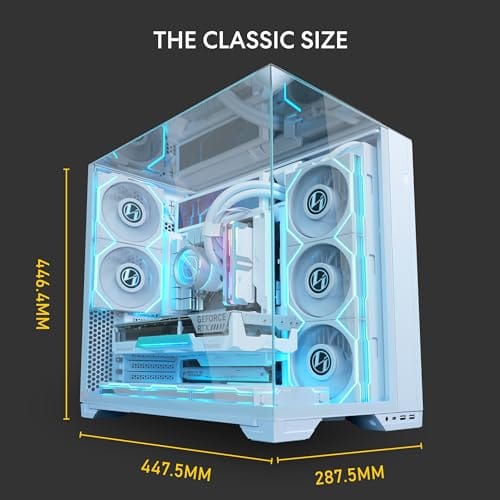
Roll back to your manufacturer’s proper driver. Download the current GPU driver straight from the vendor and do a clean install to wipe the update’s substitute. Grab the chipset driver from your motherboard maker too. If your case was already marginal and you’re eyeing a better-ventilated enclosure anyway, the Lian Li O11Vision Compact at $124.99, a 4.4-star steel and tempered-glass ATX mid tower with back-connect support, is a clean, airflow-friendly platform to move into. It won’t fix a driver, but it gives good fans room to work.

Pros
- Patented three-panel tempered glass exposes front, top, and left views of the build.
- Native back-connect motherboard support for hiden 24-pin, EPS, and PCIe cabling.
- Second chamber hides side-mounted AIO tubing for a cleaner primary compartment.
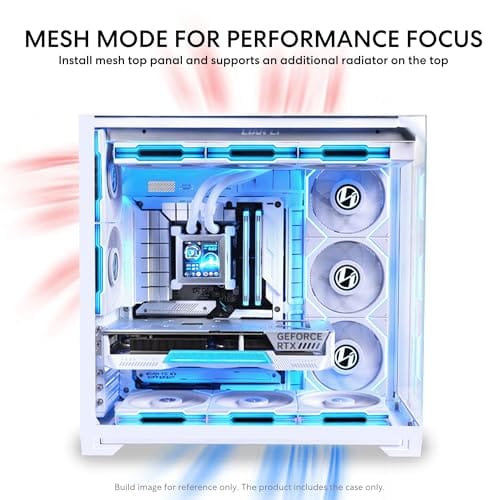
- Swappable top mesh panel suports a 360mm AIO when thermals take priority over glass.
Cons
- Limited owner feedback at time of writing makes long-term reliability signal thin.
- Full specs (GPU length, cooler height, fan count) not published in source data.
- Back-connect layout requires a compatible motherboard, narowing part selection.
The Lian Li O11Vision Compact is a mid-range ATX mid-tower positioned as a smaller sibling to the O11 Dynamic line, developed in collaboration with the PCMasterRace community. It targets showcase builders who want a dual-chamber layout, tempered glass on three sides, and native support for back-connect motherboards in a tighter footprint.
The defining feature is the patented three-panel tempered glass design covering the front, top, and left side. Paired with the second-chamber cable routing and back-connect motherboard compatibility, the front compartment stays visually clean. Builders wanting a 360mm AIO can swap in the included top mesh panel, trading a glass top for airflow.
Trade-offs are typical at this tier. Back-connect support only pays off if you buy a compatible board from ASUS, MSI, GIGABYTE, or similar, which narrows part selection and can raise motherboard cost. Concrete specs like GPU clearance, CPU cooler height, radiator sites, and included fan count are not specified in the source data, so verify against the official manual before finalizing parts.
Buy this if you want O11-family aesthetics with hidden cabling via a back-connect board and a side or top 360mm AIO. Skip this if you need a documented GPU length ceiling, bundled fans, or a traditional cable-visible motherboard build.
Motherboard support: The chassis accepts standard ATX boards and ads native routing for back-connect variants such as ASUS BTF, MSI Project Zero, and GIGABYTE Project Stealth. Cable cutouts on the tray align with rear-side connectors, keping the 24-pin, EPS, and PCIe cables out of the main chamber view.
Radiator and AIO: A swappable top mesh panel is included specifically to enable a 360mm AIO in the rof. When the AIO is mounted on the side instead, the dual-chamber layout routes the tubing into the second compartment, keeping the front-facing glass view unobstructed. Exact side radiator thickness limits are not specified.
Glass and panel layout: Three tempered glass panels cover the front, top, and left side. The top glass panel is the one you swap out when a 360mm radiator is installed, so builders choosing air cooling or a bottom-mounted AIO retain the full three-panel glass look.
Not specified in source: GPU length clearance, CPU cooler height, drive bay count, included fan count, front I/O (USB-C, USB-A), PSU length, and case dimensions are not listed in the provided data. Confirm these against the Lian Li O11VPW official spec sheet before finalizing parts.
Preventive maintenance
Software aside, dust is the silent airflow killer, and updates just make you notice heat you’d have hit eventually. Every few months, blow out filters, front intakes, and heatsink fins with compressed air. A clogged front filter chokes a great case as surely as a bad fan curve. Keep intake paths clear and cables tidy so air actually moves front to back.
On the software side, note your working power plan and fan profile before big updates so you can restore them fast. Set your GPU and chipset drivers to update from the vendor, not Windows, where the option exists. A little record-keeping means the next update won’t send you troubleshooting from scratch.
It also pays to keep a simple monitoring tool installed so you always know your normal idle and load temps. When you have a baseline, diagnosing a post-update scare takes minutes instead of guesswork, because you can instantly see whether temps actually moved. Pair that with a quarterly dust-out and a habit of grabbing drivers straight from the vendor, and most “airflow suddenly broke” panics never get off the ground. The rig stays predictable, which is the whole point.
When to call a pro vs DIY
Nearly everything here is DIY. Resetting a power plan, reinstalling fan software, and clean-installing drivers are all safe, reversible steps any owner can handle in an afternoon. If you’re comfortable opening the side panel to check fans, you’re comfortable enough for all of it. Take your time and change one thing at a time so you know what fixed it.
Call a pro if temps stay dangerous after the software fixes, if a fan or pump is physically dead and you’re not confident replacing it, or if you suspect the cooler mount or thermal paste failed. Those are hardware jobs. But a post-update airflow scare is overwhelmingly a software problem, so exhaust the free fixes before you pay anyone.
One useful gut-check before calling anyone: does the machine run hot even in Safe Mode or with a clean driver install? Safe Mode loads minimal drivers and no third-party fan software, so if temps behave there, your problem is definitely software, and no technician needs to touch the hardware. If it still cooks in Safe Mode with clean drivers, then you’ve got a genuine hardware or mounting issue worth expert eyes. That single check tells you whether to keep tweaking settings or to open the case, and it saves both time and a service fee you might not need to pay.
When it’s not fixable: what to replace
Sometimes the update just exposed a case that was always too restrictive. If you’ve reset power plans, restored fan curves, and clean-installed drivers and temps are still high with clean filters, the enclosure itself may be the limit. A move to a genuinely airflow-oriented chassis is the honest fix. The Lian Li O11Vision Compact mentioned above, at $124.99 with its 4.4-star rating and back-connect cable routing, keeps the front and top open for real intake and gives your existing fans a much better shot.
If a specific fan is the failure, replace that fan rather than the whole case, it’s cheaper and faster. And if you’re transporting a rig between locations and want it protected in transit, a padded rolling hard case is a niche accessory some owners use, though it has nothing to do with daily thermals. For airflow itself, focus spending on the chassis and fans, not accessories.
Common questions
Can a Windows update really change my PC’s temperatures?
Not physically, but yes in effect. Updates reset power plans, swap drivers, and can break fan-control software, all of which change how much heat your parts make and how fans respond. The airflow through the case is identical, but the heat load and fan behavior shift, so temps rise. It’s a software change with a thermal symptom.
Why did my fans get loud right after updating?
Two usual reasons. First, post-update background tasks like indexing and driver installs load the CPU for a while, so fans ramp. Second, the update may have wiped your custom fan curve, leaving an aggressive default that spins up on any small temperature bump. Let background tasks finish, then restore your fan profile, and the noise usually settles.
Should I roll back the Windows update?
Rarely necessary. It’s faster and safer to fix the specific side effects: reset your power plan, restore fan software, and clean-install your GPU and chipset drivers from the vendor. Rolling back is a blunt tool that reintroduces whatever the update fixed. Try the targeted fixes first, since they solve the thermal issue without giving up security patches.


































Write Your Review
No reviews yet. Be the first to share your experience!