

You sit down, press a key, and nothing shows up on screen. A keyboard that won’t type is one of the most common PC headaches, and the good news is that most cases trace back to something simple, not a dead board. It might be a loose cable, a frozen driver, a stuck key, or a battery that gave up overnight. Before you toss the thing in a drawer, it’s worth working through the causes in order. We researched the usual failure points and the fixes that actually stick, and we’ll walk you through each one. If you decide the keyboard is genuinely toast, we’ll also point you toward solid replacements. For a broader look at good boards, our best mechanical keyboard for typing guide is a handy companion.
This applies to wired and wireless keyboards, membrane and mechanical, laptop and desktop. The symptoms overlap, and so do the fixes. Let’s start with the 30-second checks that solve maybe half of all cases, then dig into the deeper causes.
First check the obvious (the 30-second check)
Start with the boring stuff, because it works more often than you’d think. Unplug the keyboard and plug it back in, ideally into a different USB port directly on the motherboard rather than a front-panel hub. If it’s wireless, check the batteries or the charge, and confirm the USB dongle is seated. Look at the Num Lock and Caps Lock lights. If they respond when you tap those keys, the board has power and the hardware is likely fine, which points you toward software. If nothing lights up at all, you’re probably looking at a cable, port, or power problem.
One more quick move. Restart the PC. It sounds like a joke, but a reboot clears the frozen driver states that cause a huge share of no-typing complaints. Don’t skip it. If a full restart plus a port swap fixes things, you’re done, and you just saved yourself an hour.
Cause #1: Loose connection or dead cable
The single most common culprit is a physical connection that isn’t making contact. USB cables fray at the strain point near the connector, ports wear out, and cheap front-panel headers lose contact over time. If your keyboard is wired, inspect the cable end for bent pins or damage, then try every USB port on the back of the machine one at a time. Skip USB hubs and extension cables during this step, since they add failure points. On a desktop, a keyboard that dies only in front ports but works in rear ports tells you the motherboard header or the case cable is the weak link.
For wireless boards, the connection problem is usually the receiver or the batteries. Swap in fresh batteries even if you think they’re fine, re-pair the dongle, and move the receiver closer to eliminate interference from other 2.4GHz gear. If the keyboard works on a second computer but not yours, the fault is on the PC side, not the board. If it fails everywhere, the keyboard’s own cable or controller may be dying, and that’s when replacement enters the picture.
Bluetooth keyboards add one more wrinkle. If yours dropped off entirely, remove the pairing in Windows Bluetooth settings and pair it again from scratch, since a corrupted pairing profile can silently block input. Also confirm the board isn’t still connected to a phone or tablet it paired with earlier, because many wireless keyboards remember multiple devices and quietly latch onto the wrong one. A quick tap of the device-switch key or a hard power cycle usually clears that up. When in doubt, plug the board in with a cable if it supports wired mode, which instantly tells you whether the radio is the problem or the keyboard itself is.
Cause #2: Driver or software glitch
When the lights come on but keys still do nothing, software is the prime suspect. In Windows, open Device Manager, expand Keyboards, right-click the entry, and choose Uninstall device. Reboot, and Windows reinstalls the standard driver automatically. That single step clears a shocking number of no-typing cases caused by a corrupted or half-updated driver. While you’re there, check for a yellow warning triangle, which flags a driver that failed to load.
A few other software gremlins are worth ruling out. Filter Keys, an accessibility setting, can make Windows ignore quick or repeated keystrokes, so turn it off in the Accessibility settings if keys feel dead or laggy. A stuck background app or a recent Windows update can also grab keyboard focus. Boot into Safe Mode, and if typing works there, a startup program or driver is the offender. Gaming keyboards with custom firmware sometimes need their companion app reinstalled after an update breaks the mapping. Owner reports frequently mention a firmware reflash restoring a board that seemed bricked.
Layout and language settings trip people up too. If your keyboard suddenly types the wrong symbols, like an at sign where the quote mark should be, Windows likely switched your input language, often after an update or an accidental Windows-plus-Space press. Check the language bar in the taskbar and set it back to your correct layout. It’s not a broken keyboard at all, just a mismatched map. And if a specific program refuses input while everything else types fine, the app itself may have hung. Close it through Task Manager and reopen it before you blame the hardware.
Cause #3: Stuck keys, debris, or a worn switch
Physical wear and grime are the third big category, and this is where mechanical boards and membrane boards diverge. On a membrane keyboard, spilled liquid or dust under the rubber dome can kill a whole row or the entire board, and cleaning is fiddly at best. On a mechanical keyboard, a single failing switch usually kills just one key, which is easier to diagnose. Pop the keycap, blow out debris with compressed air, and check whether the stem moves freely. A sticky or dead switch that keeps repeating or refuses to register is a classic mechanical failure.
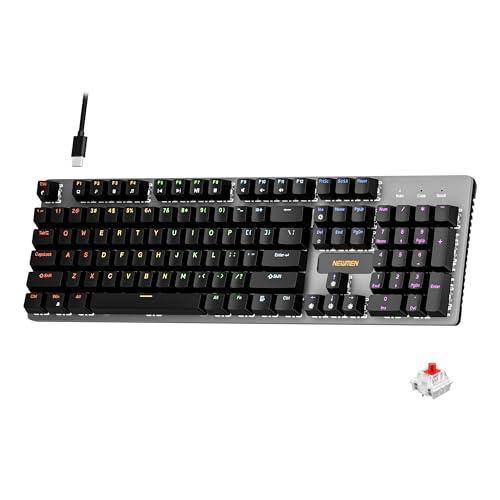
This is exactly where a hot-swap board saves you. If your keyboard supports hot-swappable switches, you pull the dead switch with a puller and drop in a fresh one, no soldering required. A budget hot-swap board like the Newmen GM325Pro, a 104-key wired mechanical keyboard at $20.89 and rated 4.8 stars, makes that repair trivial thanks to its hot-swap metal panel and linear red switches. It’s cheap enough to keep as a backup and forgiving enough that a stuck switch never sidelines you again. For a full membrane board drowned in soda, though, replacement is usually smarter than a rescue.
Pros
- Hot-swap sockets allow switch experimentation without soldering tools or PCB risk
- Metal top plate delivers firmer typing feel than plastic budget boards at this tier
- Full-key rollover and linear red switches handle rapid inputs for casual gaming
Cons
- Limited owner feedback at time of writing, so long-term reliability is unproven
- RGB is restricted to side lighting only, per-key backlight is fixed rainbow patterns
- ABS keycaps typical at this tier tend to shine and wear faster than PBT
The Newmen GM325Pro is a budget full-size 104-key wired mechanical keyboard aimed at first-time mechanical buyers and casual gamers who want a hot-swap PCB without moving up to enthusiast pricing. It ships with linear red switches, a metal top plate, ABS keycaps, and side-edge RGB lighting.
The defining feature here is the hot-swap socket combined with linear red switches. That gives new users a low-friction path to swap inactile or silent switches later without soldering. Typing fel on metal-plate boards at this tier is usually firmer and less hollow than all-plastic budget pers, based on category norms.
Trade-offs are typical for the price class. Per-key RGB is not suported, only side lighting is true RGB while the top backlight runs 13 preset rainbow effects. ABS keycaps tend to develop shine within months of heavy use, and Newmen does not publish switch lifecycle, polling rate, or NKRO wired specs in the source data.
Buy this if you want a cheap full-size hot-swap platform to learn on and plan to upgrade switches or keycaps later. Skip this if you need per-key RGB, PBT caps, a documented polling rate, or a keyboard with a dep owner review history to validate QC.
Switches and layout: Linear red switches on a full 104-key ANSI layout, with full-key rollover claimed by the manufacturer. Actuation force, travel, and switch brand are not specified in the source. Linear reds typically sit near 45g actuation and 4m total travel in this category.
Hot-swap PCB: Sockets accept standard MX-style switches, so tactile, clicky, or silent linear options from third parties drop in without soldering. Pin compatibility (3-pin vs 5-pin) is not specified, buyers should confirm before ordering replacement switches.
Build and lighting: Metal top plate over ABS black keycaps. RGB is limited to the side edge, while the top backlight cycles through 13 preset rainbow patterns rather than per-key addressable RGB. Case material below the plate is not specified.
Connectivity and software: Wired only via a detachable 1.8m USB cable. FN combos cover F1 to F11 media and calculator shortcuts. Customization software suports key remap, macro recording, and lighting tweaks, though poling rate and software platform support are not specified.
Preventive maintenance
A little upkeep goes a long way. Blow the crumbs and dust out of your keyboard every couple of months with compressed air, and wipe the keycaps with a barely damp cloth. Eat away from the board, because sugary spills are the number one killer of membrane keyboards. Keep drinks off the desk mat, or at least behind the keyboard rather than beside it. For wireless boards, pull the batteries if you’re storing the keyboard for weeks, since leaked cells corrode contacts and end a board for good. Update your keyboard’s firmware and companion software once or twice a year too, since a stale driver quietly causes more no-typing scares than most people realize.
If you type for a living, layout matters as much as maintenance. A compact board reduces reach, while a full-size or ergonomic design eases strain over long sessions. Picking a keyboard that fits your hands and desk means you’ll baby it more and replace it less. Our best 65 percent keyboard for typing guide covers the compact route if you want to free up desk space.
When it’s not fixable: what to replace
Sometimes the board is genuinely done. A liquid-soaked membrane keyboard, a cracked controller, or a laptop keyboard with multiple dead rows often costs more to repair than to replace. When you’ve swapped cables, reinstalled drivers, cleaned the switches, and it still won’t type, it’s replacement time. The upgrade is usually worth it anyway, since a modern mechanical board outlasts and outtypes the mushy membrane it replaces. Laptop users have one extra option worth noting. If your built-in keyboard died but the machine is otherwise fine, a cheap external USB or wireless keyboard gets you working again in seconds while you decide whether an internal repair is worth it.
If you want a durable office-grade replacement, the Cherry KC 200 MX is a strong pick. It’s a mechanical office keyboard at $56.31, rated 4 stars, built around Cherry’s new MX2A switches with a metal plate frame for rigidity, and this listing uses the Silent Red switch that keeps things quiet in a shared room. It’s the kind of board you buy once and forget about. For typing-first shoppers, our mechanical typing keyboard guide and the best ergonomic keyboard roundup cover more layouts and price tiers.

Pros
- MX2A Silent Red linears actuate quietly, good fit for open-plan offices
- Metal plate frame keeps chassis stiff and reduces caseping under typing
- Cherry Gold-Crosspoint contacts rated for 50 million keystrokes on this variant
- Full-size layout with dedicated numpad suits data entry and spreadshet work
Cons
- Renewed unit with no owner fedback loged yet, cosmetic and wear condition varies
- Silent Red linears lack tactile bump, typists who prefer fedback should pick Brown
- Source data omits connectivity, cable type, polling rate, and dimensions
The Cherry KC 200 MX is a full-size office-focused mechanical keyboard sold here as a Renewed unit in Bronze with MX2A Silent Red linear switches. It targets office typists, developers, and finance or admin users who want Cherry switch fel and a metal plate frame without the RGB and gamer styling of enthusiast boards.
The defining feature is the MX2A Silent Red switch, Cherry's updated linear with dampened stems aimed at reducing bottom-out and return noise. Cherry rates this variant for 50 million keystrokes. Based on the linear profile, expect smooth actuation with no tactile bump, which suits fast touch typists and users on frequent video calls.
Trade-offs are typical at this tier and Renewed status. Silent Red linears are polarizing, users coming from Browns or Blues will miss the tactile feedback, and the source does not specify polling rate, connection type, cable, keycap material, or dimensions. As a Renewed listing, cosmetic condition and remaining switch life depend on the refurbisher rather than a factory-fresh baseline.
Buy this if you want a quiet full-size Cherry mechanical for office or shared-space use and value the metal plate build over RGB features. Skip this if you prefer tactile or clicky switches, need confirmed wireless or USB-C connectivity, or want a waranty profile equivalent to new stock.
Switches: Cherry MX2A Silent Red, linear with integrated dampeners, made in Germany with Gold-Crosspoint contacts. Rated for 50 million keystrokes on this variant, versus 100 million on MX2A Brown. Linear travel with no tactile bump favors light, fast keypresses over deliberate typing fedback.
Build: Metal plate frame under the switches, which stiffens the deck and cuts flex compared with plastic-only office boards. Cherry positions the KC 200 MX as a slim modern design, though exact case height, weight, and keycap material are not specified in the source data.
Layout and indicators: Full-size layout retains the dedicated numpad and function row, which maters for spreadsheet,ERP, and accounting workflows. White LED status indicators are built into Caps Lock, Scroll Lock, and Num Lock keys, avoiding a separate indicator strip and keeping the top edge clean.
Gaming fit: Silent Red linears work for casual gaming and MMO or productivity crossover use given their light linear fel, but the source does not list polling rate, N-key rollover, or onboard profiles, so competitive esports buyers should confirm specs before committing.
Tools and parts needed
You don’t need much. A can of compressed air, a keycap puller, and a switch puller cover most mechanical repairs, and all three often come bundled with hot-swap boards. For diagnosis, a spare USB cable and a second computer let you isolate whether the fault is the board or the PC. Fresh batteries are worth keeping on hand for wireless setups. A soft brush and a bottle of isopropyl alcohol help with sticky spills on a mechanical board, though anything soaked in soda is usually beyond saving. That’s the whole kit, and it fits in a drawer.
A few more questions
Why does only one key not work?
On a mechanical keyboard, a single dead key almost always means a failed switch or debris under the keycap. Pull the cap, blow it out, and if the switch still won’t register, swap it on a hot-swap board. On a membrane board, one dead key usually signals a damaged contact layer, which is hard to fix and often means replacing the whole keyboard rather than the one key.
My keyboard works in BIOS but not in Windows. What gives?
That’s a software problem, not hardware, and it’s actually good news. If the board types in BIOS, the hardware and connection are fine. Reinstall the keyboard driver through Device Manager, check for a stuck background app, and disable Filter Keys. Booting into Safe Mode helps confirm whether a startup program is grabbing focus.
Is a keyboard worth repairing or should I just replace it?
It depends on the board. A hot-swap mechanical keyboard with one bad switch is a five-minute fix, so repair it. A membrane board hit by a liquid spill, or a cheap board with multiple dead keys, usually isn’t worth the effort. At $20 to $60 for a solid replacement, your time is often worth more than the rescue.


































Write Your Review
No reviews yet. Be the first to share your experience!