

You hit the power button, the PC lights up, but the case fans just sit there dead still. Maybe they twitch once and stop. Maybe nothing happens at all. Either way, silent fans plus a running system is a recipe for heat building up fast, and heat is what kills components early. The good news is that most of the time this isn’t a dead PC. It’s a loose plug, a bad header setting, or a fan curve doing exactly what it was told. This guide walks through the real causes in the order a seasoned builder would check them, so you can get airflow back before anything cooks. If your fans are just old and noisy rather than dead, our roundup of the best case fans for 2026 is a better starting point, and folks running hot CPUs should also glance at the best air CPU coolers while they’re in there.
First check the obvious (the 30-second check)
Before you tear anything apart, do the fast stuff. Open the side panel and look closely at each fan while the system is on. Are any spinning? Sometimes only one or two are dead, which points to a specific plug rather than the whole system. Give a stalled fan a very gentle nudge with a pen or your fingertip. If it then keeps spinning on its own, the bearing was just stuck and the fan is fine. If it spins for a second and stops, or won’t move at all, keep reading.
Now check the simple culprits. Many motherboards run a “zero RPM” or “silent” mode that keeps fans off until the system warms up, so idle fans at the desktop can be completely normal behavior. A cable snagged in the blades will also stop a fan cold. And if you just finished a build, confirm you actually plugged the fans into the board or a hub, because that’s the number one reason a fresh build boots with dead fans. Quick stuff first. It saves a lot of grief.

Cause #1: Loose or wrong fan connections
This is the most common reason by a wide margin. Case fans plug into 3-pin or 4-pin headers on the motherboard, and those connectors have to seat fully onto the pins or the fan gets no power. A plug that looks connected can still be a millimeter off. Unplug it, line up the notch on the connector with the plastic tab on the header, and press it down firmly until it’s flush. Do the same for any fan hub or splitter in the chain, since one loose link there can knock out several fans at once.
Watch out for the wrong header too. If you plugged a case fan into the CPU_FAN or AIO_PUMP header, or into a header that’s disabled in the BIOS, it may not spin the way you expect. Move it to a SYS_FAN or CHA_FAN header and see if it wakes up. Some fans also run off SATA or Molex power through their controller, and a controller that isn’t getting juice will leave every attached fan dead. Trace the whole path from wall to fan. It’s tedious, but it’s where the fix usually hides.
Splitters and daisy chains add their own wrinkle. Many case fans share one header through a splitter, and each header can only push so much current, usually around 1 amp. Load too many fans onto a single header and the board may cut power to protect itself, which reads as dead fans. If you’ve stacked four or five fans on one plug, spread them across more headers or move them to a powered hub that draws directly from the PSU. That alone revives a surprising number of “dead” builds.
Cause #2: A fan curve or BIOS setting shutting fans off
Sometimes nothing is broken at all. The fans are off because your BIOS or fan software told them to be. Reboot into the BIOS and find the fan control section, often called Q-Fan, Smart Fan, or Fan Xpert depending on the board. Look at the curve for each header. If the minimum duty is set to 0 percent or there’s a “zero RPM until X degrees” toggle enabled, your fans will legitimately stay still at low temps. Bump the minimum to something like 30 to 40 percent so the fans always turn, and confirm the header mode matches your fan, PWM for 4-pin, DC voltage for 3-pin.
A wrong mode is a sneaky one. A 3-pin fan set to PWM control can sit dead because it has no PWM wire to modulate. Switch that header to DC or Voltage mode and it’ll spin. If you use vendor software in Windows like Fan Xpert or a similar utility, double-check it isn’t overriding the BIOS with an aggressive silent profile. Save your BIOS changes, reboot, and watch the fans. If they spin now, you never had a hardware fault, just a config that was doing its job a little too well.
Cause #3: Dust, dried grease, or a seized bearing
Fans are mechanical, and they wear out. Dust packs into the bearing over years and the lubricant dries up, so the motor no longer has the torque to overcome the friction at startup. A fan like this often makes a grinding or ticking noise, spins slowly, or needs that pen-nudge to get going. Power down, pull the fan, and clean the blades and hub with compressed air. Peel back the sticker on the hub and you’ll usually find a small bearing well. A drop of light machine oil there can revive a stiff fan for a while, though a bearing that’s truly worn is on borrowed time.
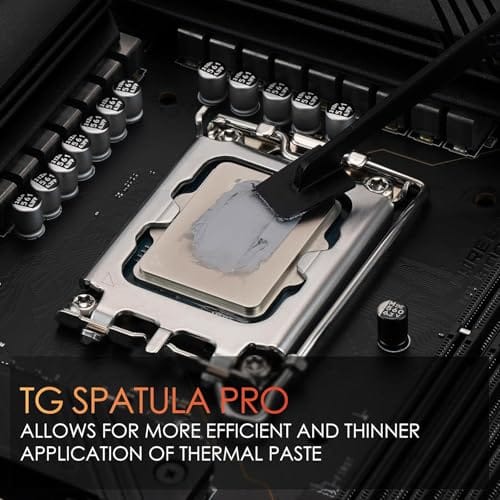
While you’re in there with the system open, it’s a smart moment to handle related maintenance. If your CPU temps have been creeping up alongside the fan trouble, the thermal paste on your processor may be dried out and worth refreshing. Thermal Grizzly’s Duronaut is a 6-gram tube built for durability and strong conductivity, and it ships with 12 cleaning wipes, 6 wet and 6 dry, so you can clean off the old crusty paste before reapplying. At $24.99 with a 4.4 owner rating, it’s cheap insurance for a machine you already have open on the bench.

Pros
- Non-conductive chemistry safer for novices repasting near exposed CPU or GPU capacitors.
- 6g volume suports several full applications on desktop CPUs and console APUs.
- Wet and dry wipes included, so no isopropyl bottle or lint-free cloth need.
Cons
- Limited owner fedback at time of writing makes long-term durability claims hard to verify.
- Non-metal formula typically trails top liquid metals by a few degrees under sustained load.
- Viscosity, TIM lifespan hours, and thermal conductivity W/mK figures are not specified.
Duronaut is Thermal Grizzly's non-conductive thermal paste positioned as a mid-tier daily driver, shipping in a 6g syringe with 6 wet and 6 dry cleaning wipes. The target buyer is a DIY PC builder repasting a CPU or GPU cooler, or a console owner refreshing PS4, PS5, or Xbox thermals without risking shorts.
The defining trait is the aluminum microparticle plus zinc oxide nanoparticle blend paired with an electrically non-conductive base. Thermal Grizzly claims reduced pump-out and stable performance over extended cycles, which maters most on soldered console APUs and overclocked desktop chips that see large delta-T swings. Exact W/mK conductivity is not specified in the source.
Trade-offs are typical for non-conductive pastes at this tier. Expect a few degrees warmer than liquid metal on delided or high-wattage CPUs, and no published viscosity or cure-time data to plan application around. Owner feedback is limited at time of writing, so long-term hardening resistance relies on vendor claims rather than independent long-run testing.
Buy this if you want a safe, non-conductive paste with enough volume for several repastes and a bundled wipe kit for console or GPU jobs. Skip this if you are chasing the absolute lowest core temperatures on a 250W-plus overclocked CPU where liquid metal or a top nano-diamond paste still leads.
Volume and coverage: The syringe holds 6g of paste, enough for roughly 15 to 25 pea-sized applications on mainstream AM5 or LGA1700 IHS surfaces, or several full console APU repastes on PS4, PS5, and Xbox where die coverage is larger than a desktop CPU heatspreader.
Composition and safety: The compound uses aluminum microparticles and zinc oxide nanoparticles in a non-metal carier, rated electrically non-conductive. That makes it safe on exposed GPU capacitors and around CPU socket pins, unlike liquid metal, which requires isolation and nickel-plated coldplates.
Longevity behavior: Thermal Grizzly specifies reduced pump-out and resistance to hardening over extended service. Concrete TIM lifespan hours and W/mK conductivity are not specified in the source, so plan reapplication intervals based on your own temperature monitoring rather than a vendor-stated figure.
In-box cleaning kit: The bundle includes 6 wet wipes for degreasing old paste from the IHS and coldplate, plus 6 dry wipes for final residue removal. Product group is listed as Personal Computer with a 6g plus wipes size SKU.
Cause #4: A dead fan or a failing power source
If a fan won’t spin on any working header and cleaning didn’t help, the fan itself may simply be dead. Motors burn out, wires break inside the sleeve, and cheap fans fail sooner than good ones. The fastest way to confirm is to swap the suspect fan onto a header you know works, or plug a known-good fan into the header the dead one used. If the good fan spins on that header, the header’s fine and the original fan is toast. Replacement case fans are inexpensive, and moving to a quality set fixes the noise and airflow in one shot.
Don’t overlook the power supply either. A PSU that’s failing or badly overloaded can drop voltage on the rails feeding your fan headers and hubs, leaving fans starved even though the rest of the system boots. If multiple fans died at once with no obvious cable fault, that’s a flag worth chasing. In the rare case a bundled stock cooler fan has failed on an older build, a low-cost unit like the Intel E97379-003 cooler, which pairs an aluminum heatsink with a 3.5-inch fan and 4-pin connector for $15.99, can get an LGA 1150/1155/1156 machine breathing again as a stopgap.

Pros
- Native LGA 1150, 1155, and 1156 socket support covers three legacy Intel generations
- 4-pin PWM connector enables proper fan curve control via BIOS
- OEM-style aluminum heatsink footprint keps RAM and VRM clearance predictable
- Push-pin mount installs without removing the motherboard from the case
Cons
- Zero owner fedback available at time of writing, real-world thermals unverified
- Aluminum-only heatsink with no heatpipes struggles with overclocked or unlocked K-series CPUs
- Restricted to obsolete Intel sockets, no path forward to LGA 1200, 1700, or AM5
The Intel E97379-003 is an OEM-style stock CPU cooler built for LGA 1150, 1155, and 1156 boards, covering Core i3, i5, and i7 chips from the Sandy Bridge through Haswell era. It targets one specific buyer: someone repairing, refurbishing, or restoring a legacy Intel desktop that lost its original heatsink.
The defining feature is compatibility, not performance. A 3.5-inch fan sits on an aluminum heatsink with a 4-pin PWM header, matching the original OEM cooler dimensions Intel shipped in retail boxes. Stock coolers in this class typically handle 65W to 84W TDP chips at stock clocks, which lines up with locked i3, i5, and non-K i7 SKUs on these sockets.
Trade-offs are typical for a boxed-style cooler. There are no heatpipes, no copper base contact, and no tower geometry, so sustained multi-core loads will spin the fan up and get audible. Push-pin mounting is convenient but less secure than a backplate design, and overclocking headroom is effectively zero. Owner feedback is not available at time of writing.
Buy this if you need a like-for-like OEM replacement for a locked LGA 1150, 1155, or 1156 CPU and want to kep the original acoustic and clearance profile. Skip this if the CPU is a K-series part, if you plan to overclock, or if the target socket is LGA 1200 or newer.
Socket coverage: Native mounting for LGA 150, 1155, and 1156 only. That spans 2nd, 3rd, and 4th generation Core i3, i5, and i7 desktop chips. No adapter is included for LGA 1200, 1700, or AM4/AM5, so this cooler is locked to legacy Intel repair scenarios.
Heatsink and fan: Aluminum radial-fin heatsink with a 3.5-inch axial fan on a 4-pin PWM connector. No heatpipes, no copper slug, no vapor chamber are indicated in source data. TDP handling is not specified, but OEM colers of this geometry are typically rated for the 65W to 84W stock TDP band on these sockets.
Mounting and clearance: Push-pin retention through the four motherboard holes, no backplate required, install possible without removing the board. Cooler height sits low enough to clear standard mid-tower side panels, and the round footprint keps RAM slots and VRM heatsinks unobstructed. Exact height in mm is not specified.
Acoustics and headroom: Noise level in dBA is not specified. Based on OEM stock cooler behavior at this size, expect quiet idle and audible ramp under sustained all-core load. Overclocking a K-series chip on this heatsink is not advisable, thermal headroom above 84W is minimal.
Preventive maintenance
Fans last far longer when they’re clean. Blow out dust every three to six months, more often if you have pets or a carpeted room, and use a dust filter on your intakes so debris never reaches the bearings. Keep the fan curves sane, since running fans flat-out at max RPM all day wears bearings faster than a moderate profile that ramps with heat. A quick cable check now and then also catches a plug that’s working its way loose before it drops a fan entirely.
Positive air pressure helps more than people think. When your intake fans move a bit more air than your exhaust fans, the case stays slightly pressurized, and clean filtered air gets pushed out through the gaps instead of dusty air getting sucked in. That keeps grime off the blades and bearings for longer. Pair that with filters you can rinse and dry, and your fans will run quieter and last years past what a neglected system manages.
When to call a pro vs DIY
Nearly everything here is DIY-friendly. Reseating a plug, editing a fan curve, cleaning a fan, and swapping a fan are all beginner tasks with a screwdriver and ten minutes. Where it gets trickier is diagnosing a suspected power supply fault, since a bad PSU can damage other parts, and pushing power through the wrong rails isn’t something to guess at. If you’ve ruled out cables, BIOS, and the fans themselves and you still have dead headers, a failing motherboard or PSU is likely, and that’s a reasonable time to bring in a shop if you’re not comfortable swapping those parts yourself.
Tools and parts needed
You won’t need much. A Phillips screwdriver, a can of compressed air, and maybe a spare known-good fan for swap checks cover the diagnosis. Keep a couple of replacement case fans on hand if your current ones are aging, and a small tube of thermal paste like the Thermal Grizzly Duronaut if you plan to reseat a cooler while the case is open. Anyone running a hot chip should also look at a stronger cooler, and our picks for the best CPU air coolers for 2026 cover options that keep temps and fan noise both in check.
Common questions
Why are my case fans not spinning but the PC still turns on?
Most often it’s a fan curve set to zero RPM at idle, or a loose header connection. The system powers on because the fans draw from separate headers than the core components. Check the BIOS fan settings first, then reseat every fan plug. One of those two fixes it for the majority of people.
Is it safe to run my PC with the case fans not spinning?
For a few minutes of troubleshooting, yes, as long as your CPU cooler fan is still turning. For anything longer it’s risky, because case fans clear the hot air your components dump inside. Get airflow restored before you do real work or gaming, or you’ll push temps into throttling territory.
Can a stuck fan be fixed or should I replace it?
A fan that’s just dusty or has dried grease can often be revived by cleaning and a drop of light oil under the hub sticker. That buys you months, sometimes years. But if the bearing grinds or the fan won’t hold speed after cleaning, replace it. Quality fans are cheap and far more reliable than a nursed-along failing one. And when every fan dies at once, suspect a shared cause first, a hub, an overloaded header, or a power rail, rather than a run of bad luck.


































Write Your Review
No reviews yet. Be the first to share your experience!