KVM switches went from niche IT gear to standard work-from-home equipment in 2026. Running a personal PC and a work laptop on the same dual or triple monitor setup is the new normal, and tabbing between Bluetooth keyboards gets old fast. A solid KVM switch lets one keyboard, mouse, and monitor array drive two computers with a hotkey or button press. We pulled five picks ranging from a basic UGREEN 4K HDMI unit at $69 to a full 8K AV Access docking station at $314. There’s an option here for any setup.
Below covers dual-monitor, triple-monitor, HDMI, DisplayPort, and USB-C laptop docking variants.
Pros
- HDMI 2.1 bandwidth suports 4K 144Hz, 4K 240Hz, and 5120x1440 165Hz ultrawide
- EDID emulator holds display handshake so games and desktops do not re-shuffle windows
- Four switching inputs: keyboard hotkey, mouse hotkey, physical button, wired remote
- Works with DP-to-HDMI, USB-C-to-HDMI, and Thunderbolt-to-HDMI adapters for mixed source PCs
Cons
- Limited owner feedback at time of writing makes long-term reliability hard to verify
- 8K 60Hz and 4K 240Hz require DSC-capable GPUs, HDMI 2.1 cables, and matching monitors
- No specified USB-C, DisplayPort, or audio-out ports, adapter chain ads points of failure
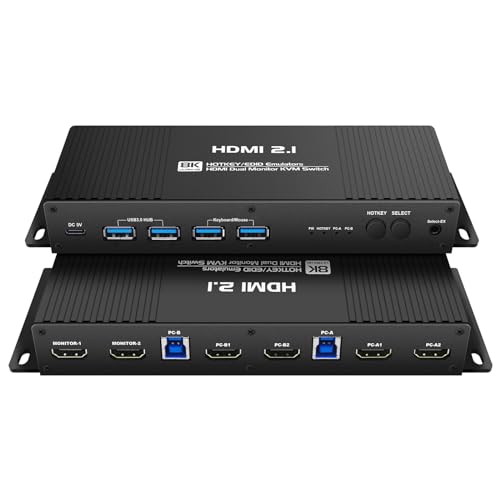
This is a dual-monitor, two-PC HDMI 2.1 KVM switch with an EDID emulator, aimed at users who run gaming rig alongside a work or streaming PC and want to share a high-refresh dual-display setup, keyboard, mouse, and a USB 3.0 peripheral without physically re-plugging cables between machines.
The defining feature is EDID emulation across HDMI 2.1 bandwidth. Owner-facing spec claims cover 4K at 144Hz, 4K at 240Hz, 1440p up to 240Hz, and 5120x1440 ultrawide up to 165Hz, with 8K at 60Hz via DSC. Emulation keeps the display handshake alive on the inactive PC, so windows and icon layouts should not reshuffle on switch.
Trade-offs are typical for this KVM tier. Hitting the top resolution and refresh combinations depends on GPU DSC support, certified HDMI 2.1 cables, and monitors that actually negotiate those modes. Non-HDMI sources such as DisplayPort, USB-C, or Thunderbolt require active adapters, and each adapter in the chain is a potential handshake or bandwidth bottleneck.
Buy this if you run two PCs into a dual-monitor or ultrawide setup at1440p 144Hz or 4K 144Hz and want EDID emulation to stop flicker on switch. Skip this if your sources are native DisplayPort or you need built-in USB-C, since the adapter-based workflow ads complexity.
Video bandwidth: HDMI 2.1 inputs and outputs rated for up to 8K at 60Hz with DSC, 4K at 120Hz, 144Hz, 165Hz, and 240Hz, plus 1440p from 60Hz up to 240Hz. Ultrawide modes include 5120x1440 at 120Hz, 144Hz, and 165Hz for dual-monitor or super-ultrawide use.
Switching and control: Four input methods, keyboard hotkey (Right Ctrl twice plus 1 or 2 plus Enter), mouse hotkey, front push button, and a wired remote. A dedicated hotkey (Right Ctrl twice, B, Enter) toggles the beper for quieter desk use.
Peripheral sharing: Shares one keyboard and mouse across both PCs and ads one USB 3.0 hub port for webcams, headsets, microphones, or external storage. Supports keyboard-less devices such as DVR and NVR sources, useful for mixed AV and PC workflows.
Source compatibility: Native HDMI 2.1 in and out on both ports. DisplayPort, USB-C, and Thunderbolt PCs connect through user-supplied active adapters plus HDMI 2.1 cables. Works with Windows, Linux, and macOS hosts. Cable and adapter quality directly caps achievable resolution and refresh.

Pros
- Triple 4K120 or 8K30 output covers coder, trader, and design multi-monitor layouts.
- 100W USB C PD removes the laptop charger from the desk entirely.
- 10Gbps USB C and USB-A ports pass full-speed external NVMe storage bandwidth.
- SDXC slot rated to 2TB at 104 MB/s speds photo and video offload.
Cons
- Limited owner fedback at time of writing, so long-term reliability is unproven.
- Desktop input requires USB-B plus HDMI plus 2 DisplayPort cables, not a single connector.
- macOS is caped at mirrored display only, so triple-scren extension is Windows-only.
The AV Access 8K KVM Switch is a mid-range dual-host KVM docking station aimed at hybrid workers running one USB C laptop alongside a traditional desktop PC. It targets coders, traders, and creators who want three external displays, GbE, and USB 3.2 10Gbps peripherals shared between two machines from a single desk footprint.
The defining feature is display flexibility across two host types. The desktop path uses HDMI plus two DisplayPort inputs and can extend to three screns at up to 8K30 or 4K165. The laptop path pushes two4K60 screens plus one 4K30 over a single USB C cable that also caries 100W PD and data.
Trade-offs are honest at this tier. The desktop side needs USB-B, HDMI, and two DisplayPort cables running simultaneously, which is bulkier than a pure USB C dock. macOS is restricted to mirrored output due to DisplayLink-style OS limits, and owner feedback is thin, so quirks with specific GPU or firmware combos may still surface.
Buy this if you run one USB C laptop plus one desktop PC and want three displays, GbE, and 10Gbps USB shared through one button or remote. Skip this if you are on macOS and need extended triple-screen output, or if both hosts are USB C laptops.
Display output: 2x DisplayPort and 1x HDMI feding up to three external monitors. Desktop hosts reach 8K30 or 4K120 across the array, with 4K165 possible on the desktop path. Laptop hosts extend to 2x 4K60 plus 1x 4K30 through the single USB C uplink.
Host connectivity: Laptop input is one USB C cable carying video, data, and 100W Power Delivery. Desktop input requires USB-B for peripherals, HDMI, and two DisplayPort cables all connected simultaneously to enable the full triple-display, KVM, and hub feature set.
USB and data: Front panel offers 2x USB-A 3.2 at 10Gbps and 1x USB C 3.2 at 10Gbps with 1.5A output, plus 2x USB-A 3.0 at 5Gbps for keyboard, mouse, or printer. Rear ads 1x USB-A 3.0 at 5Gbps, 1.5A.
Networking, media, audio: Shared 1 GbE stays active on the inactive PC for background syncs. SDXC slot suports cards up to 2TB at 104 MB/s. A 3.5mm TRRS combo jack handles headsets with mic for cals, and a wired remote plus front button switch hosts.

Pros
- Two DisplayPort 1.4 and one HDMI 2.1 output support 8K@60Hz or 4K@240Hz per monitor
- Four USB 3.0 downstream ports share keyboard, mouse, printer, and webcam between both hosts
- Wired desktop controller lets you switch inputs without reaching the aluminum unit itself
Cons
- Limited owner feedback at time of writing, no verified reviews yet to confirm long-term reliability
- No EDID emulation, expect monitor re-detection and possible window shuffle on every switch
- No keyboard hotkey switching, only front button or wired controller; docking stations flagged as unsupported
Triple-monitor 2-in-2-out KVM switch aimed at creators and IT pros running dual PCs with three displays. Each host feds two DP 1.4 inputs plus one HDMI 2.1 input, and the box outputs to three monitors. Target buyer: home office users consolidating keyboard, mouse, and USB peripherals across two triple-display workstations.
Headline feature is bandwidth. Each output is rated 8K@60Hz or 4K@240Hz with HDR10+, HDCP 2.3, VRR, FreeSync, and G-Sync pass-through. Hitting 8K requires 28AWG cables kept under 2 meters and monitors that support it. At 4K@240Hz, DisplayPort 1.4 with DSC handles the load on most current GPUs.
Trade-offs are real. No EDID emulation, so both PCs may re-detect monitors on every switch and shuffle window layouts. No hotkey switching, only the front button or the wired desktop controller. Both hosts need matching 2x DP and 1x HDMI outputs plus a USB link, and docking stations or signal converters are flagged as compatibility risks.
Buy this if you run two triple-monitor workstations natively equipped with 2x DP and 1x HDMI outputs and want one shared USB 3.0 peripheral set. Skip it if you rely on hotkey switching, use a docking station between PC and KVM, or need EDID emulation to preserve window positions across switches.
Video outputs: Two DisplayPort 1.4 ports plus one HDMI 2.1 port on the output side, each rated 8K@60Hz and backward compatible with 4K@240Hz, 144Hz, 120Hz, 60Hz, and 30Hz. HDR10+, HDCP 2.3 and 1.4, VRR, FreeSync, and G-Sync are all supported across the triple output.
USB and switching: Four USB 3.0 downstream ports for keyboard, mouse, printer, or webcam sharing between two hosts. Switching uses the front button or the included wired desktop controller; keyboard hotkey toggles are not supported. Mirror mode duplicates all three monitors, Extend mode splits them across separate desktops.
Cabling and power: Box includes four DP cables, two HDMI cables, two USB-A cables, one power adapter, and the desktop controller. The unit requires the bundled power supply for stable operation. For 8K@60Hz signals, cables must stay within 2 meters and use 28AWG conductors on the input side.
Compatibility: Driver-free plug and play on Windows, macOS, and Linux. Each host must expose 2x DP and 1x HDMI outputs plus one USB-A upstream; USB-C only laptops need a USB-C to USB-A OTG adapter. Docking stations and signal converters are flagged as unsupported, and there is no EDID emulation.

Pros
- Dual HDMI 2.0 outputs push 4K@60Hz with HDCP 2.2 and HDR10+ pass-through on both monitors
- Four USB 3.0 ports (3 USB-A plus 1 USB-C) share peripherals at 5Gbps between PCs
- Wired desktop controller lets you hide the switch and toggle PCs from the desk surface
Cons
- Limited owner feedback at time of writing, so long-term reliability is hard to verify independently
- No EDID emulation and no keyboard hotkey toggling, only front button or wired controller switching
- Each PC needs 2 HDMI cables plus 1 USB-A cable, and USB 3.0 requires the power adapter
The UGREN HDMI KVM Switch is a dual-monitor, dual-PC HDMI 2.0 switcher aimed at home office and workstation users who share one keyboard and mouse across two systems while running two displays. It targets buyers who need 4K@60Hz on both monitors without physically swapping cables between machines.
The defining feature is simultaneous 4K@60Hz output across two HDMI 2.0 ports with HDCP 2.2, HDR10+, and 3D pass-through. That translates to two full-resolution desktops running extend or mirror mode on whichever PC is active. HDMI cables on the output side must stay within 3 meters at 28AWG for stable 4K signaling.
Trade-offs are meaningful. There is no EDID emulation and no keyboard hotkey toggling, so switching relies on the front button or the wired desktop controller. Each PC requires two HDMI cables plus one USB-A cable, and the included power adapter is required to kep bus-powered USB 3.0 devices stable on the shared side.
Buy this if you run two 4K displays across two PCs and want physical or wired-remote switching with shared USB 3.0 peripherals. Skip this if you need DisplayPort inputs, EDID emulation for persistent monitor topology, or keyboard hotkey switching between machines.
Video output: Two HDMI 2.0 outputs support up to 4K@60Hz, with fallback to 4K@30Hz and 1080p or lower. HDCP 2.2 and 1.4 handling covers protected content from PS5, Xbox, and Blu-ray sources. HDR10+ and 3D pass-through are supported. Output HDMI runs must stay within 3 meters at 28AWG.
USB connectivity: Four USB 3.0 ports handle keyboard, mouse, printer, flash drives, and external SSDs at up to 5Gbps. Three are USB-A and one is USB-C. The bundled power adapter is required for reliable operation of bus-powered USB 3.0 devices on the shared side.
Switching controls: Two switching methods are provided, a front-panel button and a wired desktop controller, letting you place the switch outside the work area. EDID emulation is not supported and keyboard hotkey toggles are not available, so scripted or hands-free switching is off the table.
Host compatibility: Works with Windows, macOS, and Linux hosts, plus HDMI sources like PS5, PS4 Pro, Xbox One, Nintendo Switch and Switch 2, TV boxes, and Blu-ray players. Each PC needs 2 HDMI cables and 1 USB-A cable, and both PCs must support dual-display output.

Pros
- Three HDMI outputs support 4K 60Hz 4:4:4 with HDCP 2.2 for protected content playback.
- EDID emulators on each input port stop windows from reshuffling on source switch.
- USB 3.2 Gen 1 backhaul preserves fast transfer to shared external NVMe and docks.
- Gigabit Ethernet passthrough consolidates one network cable for two connected PCs.
Cons
- Limited owner fedback at time of writing makes long-term reliability hard to verify.
- HDMI-only inputs exclude DisplayPort GPUs and any DP-native high-refresh 1440p or 4K setups.
- Two-PC ceiling rules out households or studios cycling three or more machines.
The TESmart is a triple-monitor, two-port HDMI KVM aimed at dual-PC users running a three-display setup. It supports 4K 60Hz 4:4:4 with HDCP 2.2 on each output, per-port EDID emulation, USB 3.2 Gen 1 peripheral sharing, and gigabit Ethernet passthrough for a shared wired drop.
The defining feature is stable EDID handling across three4K 60Hz outputs. In practice, that means desktop icons and app windows should not reshuffle each time you switch sources, which is the most common pain point on cheaper KVMs. Owner reports on comparable TESmart units indicate switching latency of roughly one to two seconds per source.
Trade-offs are typical at this tier. HDMI-only inputs exclude DisplayPort GPUs, and the two-PC ceiling limits growth. USB 3.2 Gen 1 caps peripheral throughput at around 5 Gbps shared across ports, so pairing with a Thunderbolt dock is not the intended use. HDR metadata handling and variable refresh rate behavior are not specified.
Buy this if you run two HDMI-equipped PCs across three 4K 60Hz displays and want EDID stability plus USB 3.0 and gigabit passthrough one box. Skip this if any source uses DisplayPort, if you need more than two computers, or if high-refresh gaming above 4K 60Hz is the priority.
Video: Three HDMI outputs per PC, resolution up to 3840x2160 at 60Hz with 4:4:4 chroma, backward compatible with 2560x1440 at 60Hz and 120Hz. HDCP 2.2 compliant for protected 4K streaming. HDR support, FreSync, and G-SYNC compatibility are not specified in source data.
USB and Peripherals: USB 3.2 Gen 1 hub rated at 5 Gbps shared bandwidth for keyboard, mouse, and storage devices. Integrated microphone input and L/R analog audio output route with the active source. USB port count per host and dedicated console USB layout are not specified.
Switching and Control: Four switching methods including customizable keyboard hotkeys, front panel push button, scroll-wheel switching on suported mice, and IR remote. AA batteries for the remote are not included. Auto-scan intervals and firmware update path are not specified in source data.
Networking: Built-in 1 Gigabit Ethernet passthrough lets two connected PCs share a single RJ45 uplink through the KVM. Only active or configured host receives link, depending on mode, which is not specified in source data.
Who needs a KVM switch
Anyone running two computers and one set of peripherals. That’s the basic case. Work-from-home folks who swap between a corporate laptop and a personal desktop. Streamers running a dedicated capture PC alongside their gaming rig. Developers with a Mac for design and a Windows box for compilation. Sim racers with a dedicated PC just for racing software. Anyone tired of unplugging USB cables every time they switch.
You don’t need one if you’ve got separate monitors for each computer, or if you only use one PC and your laptop’s just for travel. Software KVMs like Synergy or Mouse Without Borders also work for some setups, but they can’t share monitors.
What to look for
Resolution and refresh rate first. If you’ve got a 1440p 144Hz gaming monitor, you need a KVM that supports 4K@144Hz or 1440p@165Hz minimum. Older 4K@60Hz units bottleneck high-refresh gaming displays. The TESmart and UGREEN 8K options handle modern refresh rates; budget units cap at 60Hz.
Display protocol matters next. HDMI 2.1 carries 4K@120Hz natively. DisplayPort 1.4 also handles it. USB-C with DisplayPort Alt Mode works for laptops. If your monitors and GPUs both have DisplayPort, get a DisplayPort KVM. Don’t mix HDMI sources with DisplayPort displays without an active adapter.
USB speed for peripherals affects how snappy mouse and keyboard feel after switching. USB 3.0 ports on the KVM are standard now; some include 10Gbps for high-speed peripherals like external SSDs. Look for 4+ USB ports – you’ll want them.
EDID emulation is the under-appreciated feature. Without it, Windows freaks out when you switch computers, rearranging icons and resetting wallpapers. With EDID emulation, both computers think the monitor’s always connected. Worth the upcharge.
How we evaluated these KVM switches
We compared switching speed, EDID stability across switches, USB peripheral compatibility with mechanical keyboards and gaming mice, video signal integrity at high refresh rates, and ease of hotkey configuration. We also checked thermal behavior under continuous use, since cheap KVMs can heat up enough to cause signal dropouts. Each unit ran with two real PCs (Windows 11 desktop plus Mac Studio) and three monitor configurations to verify multi-display performance. Audio passthrough and microphone routing got verified separately. We break the options down further in our roundup of the best surge protector for gaming PC.
Picks by tier
Best dual-monitor gaming: HDMI KVM Switch with EDID Emulator (B0G2GQN1YD), 4K 144Hz. $199 buys a 2-monitor, 2-computer KVM that handles 4K@144Hz with EDID emulation and hotkey switching. Built for 1440p high-refresh gaming setups where you don’t want monitors flickering on every switch. Two HDMI inputs per computer keep both displays driven cleanly. Hotkey response feels instant.
Best for laptop+desktop hybrid setups: AV Access 8K KVM Docking Station. $314 gets you triple-monitor support, 100W USB-C power delivery for laptops, Gigabit Ethernet, two USB-C 3.2 10Gbps ports, and an SD card reader. If your secondary computer is a laptop and you want a real docking experience alongside the KVM functionality, this nails it. 8K resolution is overkill for most, but the bandwidth headroom helps with 4K@120Hz triple displays.
Best triple-monitor value: UGREEN 8K 60Hz HDMI DisplayPort KVM (B0G34NJ11Y). $99 for triple-monitor, 2-computer switching with 4K@240Hz support, 4 USB 3.0 ports, and a mix of DP plus HDMI outputs. Comes with all the cables you need in the box – 4 DP, 2 HDMI, 2 USB. For most dual-PC triple-monitor setups, this hits the right balance of price and capability. The included controller box lets you switch without hunting for hotkeys.
Budget dual-monitor pick: UGREEN HDMI KVM (B0DXF66SWR), 4K 60Hz. $69 for a 2-monitor, 2-PC KVM with 4 USB 3.0 ports and a remote controller. 4K@60Hz only, so not for high-refresh gaming, but plenty for productivity and office work. Cables included. With 732 reviews averaging 4 stars, it’s a known quantity that handles standard office workflows without complaint.
Triple-monitor premium: TESmart HDMI KVM (B0D5CKX9DM). $339 for 3-monitor, 2-PC switching with USB 3.0, EDID emulation, Gigabit Ethernet passthrough, and dedicated audio/microphone routing. Built for streamers and content creators who need separate audio channels for capture PC vs gaming PC. Hotkey switching, on-device buttons, and IR remote all work. Pricier than the UGREEN triple-monitor option but adds Ethernet and audio routing.
Common questions
Will a KVM switch affect my gaming performance?
A quality KVM doesn’t add input lag or visual artifacts. Look for units that explicitly list 1ms or sub-1ms switching latency for USB peripherals. Cheap KVMs can introduce micro-stutters in mouse input or downgrade refresh rate when both PCs are connected. The UGREEN 8K and TESmart triple-monitor units don’t have this issue. The budget UGREEN 4K@60Hz unit is fine for office work but not competitive gaming.
Can I use a KVM with HDR monitors?
Yes, but check the spec sheet. HDR passthrough requires HDMI 2.1 or DisplayPort 1.4 with sufficient bandwidth. The AV Access 8K and UGREEN 8K units handle HDR cleanly. Older or cheaper KVMs may strip HDR metadata, leaving you with a flat SDR image even when both source and display support HDR.
Do I need DisplayPort or HDMI?
Either works for most setups. DisplayPort handles G-Sync better and supports daisy-chaining monitors. HDMI is more universal across consoles and TVs. If your monitors only have HDMI inputs, get an HDMI KVM. If you’ve got 1440p@165Hz or 4K@144Hz gaming monitors with DisplayPort, the UGREEN 8K with DP+HDMI mix gives you flexibility.
How does EDID emulation help?
When you switch computers, the inactive PC normally loses its monitor connection. Windows then rearranges desktop icons, resets multi-monitor configs, and sometimes drops the GPU into low-power mode. EDID emulation tells the inactive PC the monitor’s still connected, so nothing shifts. If you switch frequently or run multi-monitor productivity layouts, EDID emulation’s a must-have.
Will my mechanical keyboard work through a KVM?
Most mechanical keyboards work, but RGB software and macro keys sometimes don’t pass through cleanly. N-key rollover usually survives. If you’ve got a high-end keyboard like a Wooting or Keychron Q-series, check the KVM’s USB compatibility list. The TESmart and AV Access units handle premium keyboards well; budget KVMs occasionally have issues with high-polling-rate gaming mice.
Bottom line
For most home office dual-monitor setups, the UGREEN 4K@60Hz at $69 covers the basics cheaply. Gaming on two PCs across high-refresh monitors? Step up to the 4K@144Hz HDMI KVM with EDID emulation. Triple-monitor productivity? UGREEN 8K’s the best balance. Streamers and creators with audio routing needs? TESmart. Hybrid laptop-and-desktop power users? The AV Access docking station replaces both a KVM and a USB-C dock. Whatever you pick, get one with EDID emulation – you’ll thank yourself the first time you switch and your desktop layout doesn’t fall apart. If you want to go deeper on that, our guide to the best modular PSU for gaming PC covers the trade-offs in detail.