

Dust filters are the unsung heroes of a quiet, cool PC, and they only work if you actually clean them. Over a few months, the fine mesh panels on the front, top, and bottom of your case trap a gray blanket of dust that slowly chokes airflow, raises component temperatures, and makes your fans spin louder to compensate. The task itself is simple, takes about fifteen minutes, and needs almost nothing you don’t already own. If your current case fights you every time you try to reach a filter, our guides to the best PC case for airflow 2026 and the best mid-tower case 2026 are worth a browse for your next build.
This walkthrough covers how to find every filter on your case, remove them without damage, clean them properly, and get them back in place so your intake stays clear. We’ll go step by step, then cover the mistakes that turn a quick chore into a mess. Power the system down and unplug it before you start, since you’ll be moving the case and handling panels near the fans.
What you’ll need
The good news is your supply list is short. A can of compressed air or an electric air duster clears the bulk of the dust. A soft-bristle brush, an old toothbrush works, loosens caked grime from the mesh. For filters that are truly filthy, lukewarm water and a mild dish soap get them spotless, plus a towel to dry them fully. Keep a lint-free cloth handy for the case surfaces, and if you want to see what you’re doing, a flashlight helps spot dust hiding in corners.
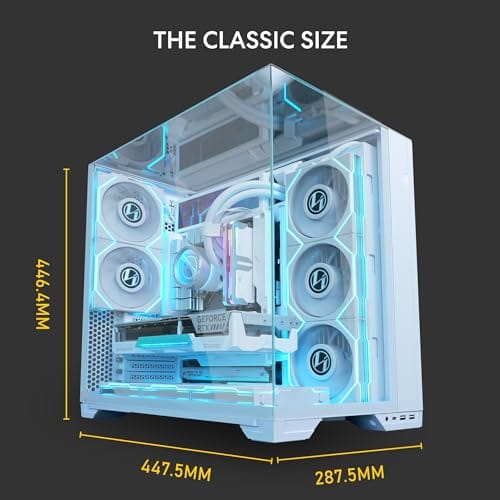
That’s genuinely it. No specialty gear, no solvents, nothing that risks your hardware. If you’re cleaning filters as part of a bigger case upgrade, a well-designed chassis makes the whole job easier for years to come. The Lian Li O11 Vision Compact is a good example of a modern airflow-focused case, and its layout matters here because filter access is a real design feature.

Pros
- Patented three-panel tempered glass exposes front, top, and left views of the build.
- Native back-connect motherboard support for hiden 24-pin, EPS, and PCIe cabling.
- Second chamber hides side-mounted AIO tubing for a cleaner primary compartment.
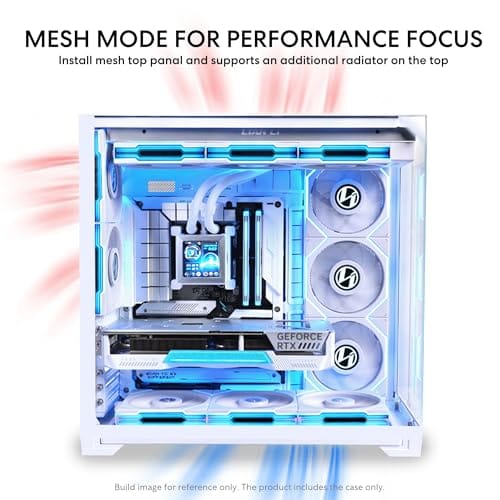
- Swappable top mesh panel suports a 360mm AIO when thermals take priority over glass.
Cons
- Limited owner feedback at time of writing makes long-term reliability signal thin.
- Full specs (GPU length, cooler height, fan count) not published in source data.
- Back-connect layout requires a compatible motherboard, narowing part selection.
The Lian Li O11Vision Compact is a mid-range ATX mid-tower positioned as a smaller sibling to the O11 Dynamic line, developed in collaboration with the PCMasterRace community. It targets showcase builders who want a dual-chamber layout, tempered glass on three sides, and native support for back-connect motherboards in a tighter footprint.
The defining feature is the patented three-panel tempered glass design covering the front, top, and left side. Paired with the second-chamber cable routing and back-connect motherboard compatibility, the front compartment stays visually clean. Builders wanting a 360mm AIO can swap in the included top mesh panel, trading a glass top for airflow.
Trade-offs are typical at this tier. Back-connect support only pays off if you buy a compatible board from ASUS, MSI, GIGABYTE, or similar, which narrows part selection and can raise motherboard cost. Concrete specs like GPU clearance, CPU cooler height, radiator sites, and included fan count are not specified in the source data, so verify against the official manual before finalizing parts.
Buy this if you want O11-family aesthetics with hidden cabling via a back-connect board and a side or top 360mm AIO. Skip this if you need a documented GPU length ceiling, bundled fans, or a traditional cable-visible motherboard build.
Motherboard support: The chassis accepts standard ATX boards and ads native routing for back-connect variants such as ASUS BTF, MSI Project Zero, and GIGABYTE Project Stealth. Cable cutouts on the tray align with rear-side connectors, keping the 24-pin, EPS, and PCIe cables out of the main chamber view.
Radiator and AIO: A swappable top mesh panel is included specifically to enable a 360mm AIO in the rof. When the AIO is mounted on the side instead, the dual-chamber layout routes the tubing into the second compartment, keeping the front-facing glass view unobstructed. Exact side radiator thickness limits are not specified.
Glass and panel layout: Three tempered glass panels cover the front, top, and left side. The top glass panel is the one you swap out when a 360mm radiator is installed, so builders choosing air cooling or a bottom-mounted AIO retain the full three-panel glass look.
Not specified in source: GPU length clearance, CPU cooler height, drive bay count, included fan count, front I/O (USB-C, USB-A), PSU length, and case dimensions are not listed in the provided data. Confirm these against the Lian Li O11VPW official spec sheet before finalizing parts.
At $124.99 with a 4.4-star rating, the Lian Li O11 Vision Compact is a white steel and tempered-glass ATX mid tower with a back-connect layout, and cases like it show why easy-pull magnetic or slide-out filters save you real hassle at cleaning time. You don’t need to buy one to clean the filters you have, but it’s a useful benchmark if your current case makes filter removal a wrestling match.
Step 1: Power down and locate every filter
Shut Windows down fully, flip the power supply switch off, and pull the wall cord. Give the system a minute so the fans stop completely. Now walk the case and find every filter, because most builds have more than one. The usual spots are a front intake filter behind the front panel, a bottom filter under the power supply, and a top filter above the radiator or exhaust fans.
Look closely, since filters aren’t always obvious. Some clip on with plastic tabs, some slide out like a drawer, and modern cases often use magnetic frames that lift straight off. A bottom PSU filter frequently slides out from the rear of the case, so check there too. Knowing where all of them live before you start means you won’t clean two and forget the third that’s doing half the choking.
It helps to know which filters do the most work. The front intake filter usually collects the heaviest load, because that’s where your fans pull room air in. The bottom filter under the power supply catches carpet fibers and floor dust, and it clogs fast if the case sits on soft flooring. Top filters over exhaust fans tend to stay cleaner, since air moves out there, not in. Prioritize the front and bottom panels and you’ll fix most of the airflow loss.
Step 2: Remove the filters carefully
Take the filters off one at a time so you remember how each goes back. Magnetic filters are the easiest: grip an edge and peel it away from the steel frame. Slide-out trays pull straight out, usually toward the front or rear of the case. Clip-in filters need gentle pressure on the tabs, so don’t yank, because the thin plastic frames crack if you force them at an angle.
If a front filter is hidden behind the face panel, that panel typically pops off with a firm tug at the bottom edge, then lifts away. Set each filter on a flat surface as you remove it. Handling them over a trash can or outdoors is smart, since the loose dust wants to go everywhere. Keep the mesh side up so you don’t grind the trapped dust deeper into the material.
Step 3: Clear the loose dust first
Start dry. Take the filters outside or over a bin and knock the loose dust off with a few gentle taps. Then hit them with compressed air or an electric duster, blowing from the clean side outward so you push dust out of the mesh rather than deeper into it. Hold the can upright and use short bursts to avoid spitting cold propellant onto the frame.
For dust that clings, work a soft brush across the mesh in one direction. A dry toothbrush lifts a surprising amount without wetting anything. If the filter comes out looking clean at this point, you’re done with it and can skip the wash. Many filters only need this dry pass every month or two, and staying on that schedule means you rarely have to break out water at all.
One habit worth building: do the dry clean over a trash can or outside, never over your desk or carpet. Fine dust drifts a long way, and blowing it off indoors just relocates the problem back onto your components in a week. If you use compressed air inside, crack a window. The whole point is to get the dust out of your space, not to scatter it around the room where your fans will pull it right back in.
Step 4: Wash the stubborn ones
When a filter is greasy or packed solid, water finishes the job. Rinse it under lukewarm tap water, then add a drop of mild dish soap and work it through the mesh with your fingers or the brush. Rinse again until the water runs clear. Avoid hot water, which can warp thin plastic frames, and skip harsh cleaners that leave residue behind.
Drying is the part people rush, and it’s the one that matters most. A damp filter reinstalled near powered electronics is asking for trouble. Shake off the excess, pat it with a towel, and then let it air-dry completely, ideally for a few hours or overnight. Magnetic-framed filters especially need the metal strip fully dry before they go back on the case.
If you can’t wait overnight, don’t reach for a hair dryer on high heat, which can warp the plastic frame. A cool setting held well back works, or simply prop the filter in front of a running fan. The goal is a filter with no visible moisture and no damp smell before it goes anywhere near your hardware. Patience here is free, and it’s a lot cheaper than a short circuit from a filter that wasn’t quite dry.
Step 5: Reinstall and confirm airflow
Once every filter is bone dry, put them back exactly where they came from, matching the orientation you noted in step two. Magnetic ones snap on with a light press. Slide-out trays glide back into their channels, and clip-in frames seat with a soft click. Reattach the front panel if you removed it, pressing until it’s flush all the way around.
Plug the system back in, switch the PSU on, and boot up. Put a hand near the intake and you should feel stronger, cleaner airflow than before. If you monitor temperatures, run something demanding for a few minutes and watch your CPU and GPU numbers settle lower than they did with clogged filters. That temperature drop and the quieter fans are your proof the job worked.
Take a second to confirm nothing shifted while you had the case open. Make sure no fan cables got tugged loose, the front panel clicked back on evenly, and every filter sits flat with no lifted corner letting air bypass the mesh. A filter that’s off by a few millimeters leaves a gap that pulls unfiltered air, which defeats the cleaning you just did. Thirty seconds of double-checking here saves you from wondering later why the dust came back so quickly.
Troubleshooting common issues
The filter frame cracked while removing it
Thin plastic clip frames are brittle, and a cracked one still works if the mesh is intact, so a bit of tape can hold it together short term. For a cleaner fix, most case makers sell replacement filters cheaply, or a universal magnetic mesh filter cut to size does the job. Next time, release the tabs gently and lift straight out rather than prying at an angle.
Dust builds up again within weeks
Fast reaccumulation usually means your room is dusty, you have pets, or the case sits on carpet where it pulls fibers up through the bottom filter. Raise the case onto a hard surface or a small stand, run a positive-pressure fan setup so intake air is filtered, and vacuum the room more often. A filter that clogs in two weeks is doing its job, you just need to clean it more frequently.
Temperatures didn’t drop after cleaning
If clean filters didn’t help, the dust is likely inside the case on the heatsinks and fan blades, not just on the filters. Open the side panel and give the CPU cooler, GPU fins, and case fans a careful blast of compressed air. Filters guard the intake, but dust that already slipped through settles on the components, and that internal buildup is often the real cause of high temperatures.
Wrapping up
Cleaning dust filters is one of the cheapest, fastest ways to keep a PC cool and quiet, and doing it every month or two prevents the slow temperature creep that shortens component life. A dry brush-and-air pass handles most sessions, with an occasional water wash for the filthy ones. Keep the system unplugged, dry everything fully, and match each filter to its spot on the way back in.
Make it a habit tied to something you already do, like paying a monthly bill or swapping your desk calendar page. Your fans will run slower, your components will run cooler, and you’ll spot other issues early because you’re already inside the case looking around. Fifteen minutes now saves you a much bigger cleanup, and a hotter machine, later.
If you find yourself cleaning filters constantly and still fighting dust, it might be a sign your case or fan layout is working against you. A build set up for positive pressure, where intake airflow slightly exceeds exhaust, forces most air in through the filtered panels rather than pulling unfiltered air through every gap and cutout. That single change cuts down how fast dust settles inside. Clean filters are the maintenance half of the equation, and good airflow design is the prevention half. Get both right and dust stops being a monthly headache.


































Write Your Review
No reviews yet. Be the first to share your experience!