

You press the power button, the light flickers, and nothing happens. The mini PC that dutifully ran your media server or office rig last night now sits there deaf to keyboard taps, mouse clicks, and power presses after going to sleep. It’s one of the most maddening faults on small-form-factor machines because the box looks alive but refuses to come back. The good news: most wake-from-sleep failures on mini PCs trace to a handful of causes you can work through in order, and few of them mean the hardware is dead. Let’s walk the fixes we researched, from the 30-second checks to the deeper power and firmware settings.
This guide applies no matter what you built the machine for. The same sleep gremlins hit a mini PC running as a home server, an office mini PC, and a living-room box handling media duty. If yours is a newer build, our writeup on the best mini PC for a home server in 2026 covers the current models, but the troubleshooting below is model-agnostic. Work top to bottom and don’t skip steps.
First check the obvious (the 30-second check)
Before you blame firmware, rule out the boring stuff. Hold the power button for a full 10 seconds to force a hard shutdown, then press it once to boot cold. If it comes back, the sleep state hung rather than the hardware failing, which narrows things a lot. Next, check that your monitor is actually awake and on the right input, since a machine that’s running fine can look dead if the display never wakes. Try a different HDMI or DisplayPort cable and port.
Then look at the peripherals. A wireless keyboard with a dead battery or a receiver that lost sync can’t send the wake signal, so plug in a known-good wired keyboard and mouse and tap a key. Confirm the power brick’s LED is lit and the barrel or USB-C connector is seated fully. Mini PCs run on external adapters, and a loose plug or a flaky wall outlet mimics a wake failure perfectly. Sort these first. They’re the cause more often than anyone admits.
One more quick check before you move on: note the pattern. Does the machine fail to wake every single time, or only after it’s been asleep for hours? A consistent every-time failure usually points at a setting or a driver, while a fault that only appears after long sleep often means the machine dropped into a deeper power state your hardware struggles to resume from. Also watch the front LED as you press the button. A light that changes from a slow pulse to solid means the system is receiving the wake command but the display or a device isn’t coming back, which shifts your focus toward graphics drivers rather than the power path.
Cause #1: USB wake devices are disabled or misbehaving
On most mini PCs, your keyboard and mouse are supposed to wake the system from sleep over USB. When that permission gets switched off, or when a power-saving setting suspends the USB ports themselves, the machine sleeps and never hears you knocking. This is the single most common software cause we found, and it’s fixable in a couple of minutes inside Windows.
Open Device Manager, expand Keyboards and Mice, right-click your device, choose Properties, and look under the Power Management tab for “Allow this device to wake the computer.” Make sure it’s checked. Then, under Universal Serial Bus controllers, open each USB Root Hub, go to Power Management, and uncheck “Allow the computer to turn off this device to save power.” That stops Windows from cutting power to the ports during sleep. Reboot, let it sleep, and try waking it. If your keyboard now revives the box, you’ve found it.
There’s a command-line angle worth knowing too. Open an admin Command Prompt and run powercfg -devicequery wake_armed, which lists every device currently allowed to wake the system. If your keyboard and mouse aren’t on that list, that confirms the permission is off. You can also run powercfg -lastwake after a failed attempt to see what, if anything, the system logged. If the list is empty, no device is armed to wake the machine, which explains the silence. Arm the keyboard through Device Manager as above, then requery to confirm it now appears. This is the quickest way to prove the USB wake path is the problem rather than guessing.
Cause #2: Fast Startup and modern standby conflicts
Windows ships with Fast Startup enabled, and on a lot of mini PCs it fights with the firmware’s sleep handling. The system enters a hybrid state that the hardware doesn’t resume from cleanly, so it wakes to a black screen or not at all. Layer in “modern standby” (the S0 low-power idle many small machines use instead of traditional S3 sleep), and you get boxes that appear asleep but keep half-running, drain power, and then refuse to display anything on wake.
Start by turning off Fast Startup. Go to Control Panel, Power Options, “Choose what the power buttons do,” click “Change settings that are currently unavailable,” and uncheck “Turn on fast startup.” Reboot and see if the wake behavior improves. If your machine uses modern standby and keeps misbehaving, you can often force traditional S3 sleep in the BIOS/UEFI (look for a “Sleep State” or “ACPI Sleep” option and set it to S3). That single change fixes a surprising number of these cases, because S3 is simpler and hardware resumes from it more reliably.
Cause #3: Outdated BIOS, chipset, or graphics drivers
Sleep and wake lean heavily on firmware and driver code, and mini PCs from smaller brands often ship with early BIOS revisions full of ACPI bugs. If the machine wakes intermittently, or wakes but the display stays dark, stale firmware or a buggy graphics driver is a prime suspect. Manufacturers patch exactly these issues in updates, so checking for a newer BIOS is worth the effort.
Find your exact model number on the underside of the unit, visit the maker’s support page, and see if a BIOS update lists sleep or resume fixes in its notes. Flash it carefully following their instructions, ideally on wall power with nothing else running. At the same time, update the graphics driver, since a black-screen-on-wake is frequently the GPU driver failing to reinitialize the display. Grab the chipset drivers too. On Intel-based mini PCs these govern power management, and an old version can be the whole problem. If your unit is a full desktop tower rather than a true mini box, the same driver logic applies to its integrated or discrete graphics.
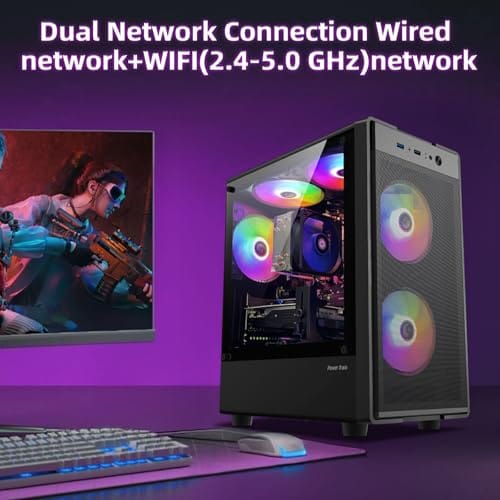
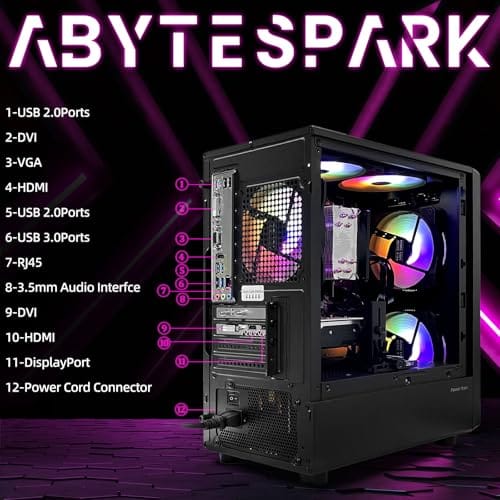
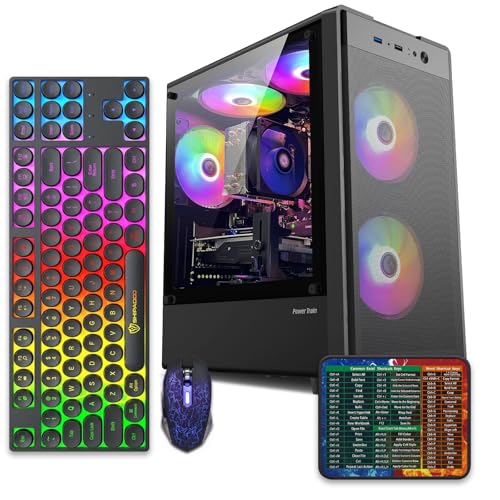
If the machine is genuinely beyond saving, an aging unit with dead firmware support and no updates left, a modest prebuilt makes a clean replacement. The abytespark Intel Core i7 business tower runs $499.99 with a 4.4 rating and handles office and light-duty roles that a failing mini PC was likely doing.
Pros
- 512GB SSD bot drive avoids the HDD bottleneck common in budget prebuilts
- RX 590 8GB VRAM buffer handles 1080p textures better than 4GB budget cards
- Complete bundle with RGB peripherals means no extra spend to start using
- Genuine Windows 11 Home 64-bit preinstalled, no activation hassle out of box
Cons
- Limited owner feedback at time of writing, verify seller reputation before purchase
- Core i7-4770 is Haswell era LGA150, no upgrade path and weak IPC versus modern CPUs
- Windows 11 on 4th-gen Intel is unsupported by Microsoft and may miss feature updates
- No CD/DVD-ROM support and RAM/GPU generation limits future workload headroom
This is an entry-tier prebuilt tower built around an Intel Core i7-4770 Haswell CPU, 16GB RAM, a 512GB SSD, and an AMD Radeon RX 590 8GB GDDR5 GPU. It targets budget buyers who need a working office and light gaming PC with peripherals bundled, not enthusiasts chasing current-gen performance.
The defining feature is the RX 590 8GB paired with a 512GB SSD, an uncommon combo at this price band. Cards in this class typically handle 1080p esports titles at 60+ FPS on medium to high, matching the vendor claim for CS:GO, League of Legends, Apex, and Overwatch. Newer AA titles will need lowered settings.
Trade-offs are significant. The i7-4770 launched in 2013, so IPC, single-thread performance, and platform features like NVMe bot, PCIe Gen4, and modern USB are limited. Windows 11 runs here but sits outside Microsoft's official supported CPU list. There is no realistic CPU or socket upgrade path on LGA1150.
Buy this if you need a plug-and-play 1080p esports and office tower with keyboard, mouse, and RGB included at a low outlay. Skip this if you want current-gen platform support, sustained AA 1440p gaming, or a build with a meaningful upgrade runway.
GPU class: The AMD Radeon RX 590 8GB GDDR5 is a Polaris-refresh card roughly equivalent to a GTX 1060 6GB tier. Expect 1080p 60+ FPS in esports titles like CS:GO, Overwatch, Apex, League, and Fortnite on medium settings, matching the listing's claims.
AAA and modern titles: The vendor lists GTA V, Warzone, Hogwarts Legacy, and The Division 2. Realistically, these run at 1080p low to medium with FSR upscaling where suported.Ray tracing is unsupported on RX 590. No DLSS, no frame gen, no AV1 encode.
CPU bottleneck: The Core i7-4770 quad-core with 8threads at up to 3.9GHz will bottleneck the RX 590 in CPU-heavy titles like Warzone and Escape from Tarkov. Expect frame time inconsistency in large team fights even when average FPS looks aceptable.
Storage and RAM fit: 512GB SSD holds Windows plus 3 to 5 modern game installs before space pressure. 16GB DR3-era RAM is adequate for current esports but leaves no headroom for heavy streaming, browser tabs, and OBS NVENC alongside a game session.
Preventive maintenance
Once your mini PC wakes reliably, keep it that way with a few habits. Leave Fast Startup off if turning it off fixed your issue, and don’t re-enable it during a Windows feature update, which sometimes flips it back on. Keep BIOS and drivers current, but only update when release notes mention stability or power fixes, since chasing every version can introduce new bugs. Set a calendar reminder to check for firmware once a quarter.
Heat matters too. A mini PC choked with dust runs its components hotter, and thermal stress can make sleep states flaky over time. Blow out the vents every few months, keep the box in open air rather than a sealed cabinet, and make sure the power adapter isn’t buried under other gear where it overheats. Clean power in, cool air around it, current firmware. That trio prevents most repeat wake failures.
It also helps to audit what’s allowed to wake and sleep the machine in the first place. Some mini PCs get scheduled wake events from Windows maintenance tasks or network activity, which can leave the box in a confused half-awake state. Run powercfg -waketimers in an admin prompt to see if any scheduled timers are set, and disable the ones you don’t need through Task Scheduler or the power plan’s advanced settings. If you rely on the machine waking over the network, confirm Wake-on-LAN is enabled in both the BIOS and the network adapter’s power settings, since a half-configured WoL setup is a frequent source of erratic sleep behavior.
When it’s not fixable: what to replace
Sometimes the fault is hardware, not settings. If you’ve disabled Fast Startup, forced S3, updated the BIOS and drivers, and the machine still won’t wake, the culprit may be a failing power adapter, a dying CMOS battery scrambling the firmware clock, or a motherboard whose power circuitry is degrading. A cheap replacement barrel or USB-C adapter matching your unit’s voltage and amperage is the first low-cost swap to try, since a weak brick often causes exactly this behavior.
If the board itself is going, repair rarely makes sense on a compact machine, and moving to a new small desktop is the pragmatic call. The WIWB prebuilt tower at $569.99, rated 4.7, packs a Ryzen 5 chip up to 4.1GHz, an RX 560 4G graphics card, 16GB of DDR4, a 512GB SSD, and Wi-Fi 6, which covers home, office, student, and casual-gaming duty. It’s a straightforward step up from an aging mini box that’s given up on sleep.

Pros
- Ryzen 5 3500X 6-core CPU bosts to 4.1GHz for smooth 1080p esports CPU load.
- Discrete RX 560 4GB handles DirectX 12 and Vulkan esports titles better than integrated graphics.
- 512GB SSD as bot drive keps Windows load times and app launches snappy out of box.
Cons
- Limited owner feedback at time of writing, no verified reviews to validate build quality.
- RX 560 is a legacy entry-tier GPU, skip if you want modern AAA at 1080p high.
- Ryzen 5 3500X sits on aging AM4, upgrade path is caped at Zen 3 with a BIOS update.
The WIWB is a budget prebuilt tower built around a Ryzen 5 3500X, RX 560 4GB, 16GB DDR4, and a 512GB SSD. It targets students, home office users, and casual gamers who want a plug-and-play box for esports at 1080p rather than a rig for current AAA titles.
The defining pairing here is the 3500X and RX 560. The 6-core, 6-thread CPU bosting to 4.1GHz is still competent for League, CS2, Valorant, and Overwatch, and typically pushes well above 100FPS at 1080p low-to-medium when paired with this GPU class. The RX 560 4GB is the bottleneck for anything heavier.
Trade-offs are typical at this tier. The RX 560 predates FSR frame generation and struggles with modern UE5 titles even at 1080p low. AM4 with a 3500X caps future CPU upgrades at Zen 3, and the case, PSU wattage, VRM phases, and included cooler are not specified, so headroom for a stronger GPU later is unclear.
Buy this if you need a cheap, pre-assembled Windows tower for schoolwork, browsing, and light esports at 1080p. Skip this if you plan to play current AAA releases, stream at 1080p60, or want a platform with a real multi-year upgrade path.
CPU workload: The Ryzen 5 3500X is a 6-core, 6-thread Zen 2 part with a 3.6GHz base and 4.1GHz boost. It stays viable for 1080p esports and light productivity like image editing and IDE work, but lacks SMT, which hurts streaming and modern CPU-bound AA titles.
GPU class and resolution fit: The RX 560 4GB GDDR5 is an entry esports card. Expect high frame rates in CS2, League, and Overwatch at 1080p low-to-medium, and playable frame rates in older AAA titles at 1080p low. 1440p and modern AA at medium are outside its envelope.
Memory and storage: 16GB DDR4 is the current baseline for gaming and multitasking, and the 512GB SSD covers Windows plus roughly 3 to 5 modern game installs. Exact DDR4 speed, dual-channel status, and SSD interface (SATA vs NVMe) are not specified.
Connectivity and upgrade path: WiFi 6 is included, and the board exposes an M.2 slot plus spare DDR4 slots for later expansion. PSU wattage, connector layout, case clearance, and waranty length beyond the stated 1-year coverage are not specified, so plan GPU upgrades cautiously.
Tools and parts needed
For the software fixes, you need nothing but access to Windows and 20 minutes. For the hardware checks, keep a known-good wired keyboard and mouse handy to rule out peripheral wake failures, and confirm your power adapter’s exact voltage and amperage rating printed on its label before buying a replacement. A small Phillips screwdriver lets you open the case to reseat RAM or swap the CMOS battery if the firmware clock keeps resetting. That’s the whole kit.
It helps to have a spare barrel or USB-C power adapter that matches your unit’s rating on hand, since swapping the brick is the quickest way to rule out a failing power supply. A coin-cell CR2032 battery is worth keeping around too, because it’s the exact part a mini PC uses to hold its firmware settings, and a dead one causes clock and sleep glitches. None of this is expensive, and having the parts ready turns a multi-day diagnostic into a single afternoon of swapping and checking.
A few more questions
Why does my mini PC turn on but show a black screen after sleep?
That’s usually the graphics driver failing to reinitialize the display on resume, or a Fast Startup conflict. Update your graphics and chipset drivers first, then disable Fast Startup. If it persists, forcing traditional S3 sleep in the BIOS often clears the black-screen-on-wake behavior because the hardware resumes from S3 more cleanly than from modern standby.
Should I just disable sleep entirely?
You can, and for an always-on role like a home server it’s a reasonable workaround. Set the machine to never sleep in Power Options and it sidesteps the whole problem, though it uses more power. For a desktop you want to idle quietly, it’s better to fix the root cause so sleep works, rather than leaving it running around the clock.
Could a Windows update have caused this?
Yes, it happens often. Feature updates can re-enable Fast Startup, reset USB power settings, or install a graphics driver that handles wake poorly. If your mini PC woke fine until a recent update, recheck the Device Manager power settings and Fast Startup first, then roll back or update the graphics driver. That combination resolves most update-triggered wake failures.


































Write Your Review
No reviews yet. Be the first to share your experience!