

A headset with no sound is one of those PC problems that feels bigger than it usually is. One minute Discord, Windows, or a game is fine; the next, your headset is lit up, paired, and completely silent. We researched the common failure points across wired USB, 3.5 mm, 2.4 GHz wireless, and Bluetooth gaming headsets, then built this fix path so you can separate a Windows routing issue from a dead cable, dongle, port, or headset. If you’re deciding whether the gear is worth saving, our gaming headset guide and wireless gaming headset picks are useful references after the diagnosis.
First check the obvious
Start with the 30-second pass because it catches a surprising number of silent headsets. Turn the headset volume wheel up, unmute any inline cable switch, check the boom mic isn’t the only active device, and make sure the headset is charged if it’s wireless. Then play audio from two apps, for example a browser video and the Windows sound settings page. One app can be muted while the whole headset is fine.

In Windows 11, right-click the speaker icon, open Sound settings, and look at Output. Pick the headset by name, not a monitor, HDMI display, controller, or motherboard audio device. Click Volume mixer and check that the app you’re using isn’t at 0. If the headset has separate chat and game endpoints, pick the game endpoint for normal playback. Tiny detail. Big difference.
While you’re in that panel, glance at three quick things: the master output slider, the per-app sliders in Volume mixer, and the little mute icon that sits next to each one. A single muted app is the most-missed cause we researched, and it fools people because the taskbar icon still shows sound bars moving. If everything looks unmuted and the headset name is selected but you still hear nothing, note that down. You’ve just ruled out the easy stuff, which means the next causes are worth a careful pass rather than a random reboot.
Cause #1: Windows is sending audio to the wrong output
This is the most common cause after a GPU driver update, monitor swap, new controller, or USB dongle reconnect. Windows may see HDMI audio from the graphics card, the monitor’s speakers, a webcam microphone device, and the headset at the same time. If the wrong endpoint becomes default, your headset still powers on and still appears connected, but the audio stream goes somewhere else. That’s why the headset can seem dead while the PC is actually playing sound.
Open Sound settings, select the headset under Output, and press the device arrow. Confirm Audio is set to Allow, set Format to a basic option like 24-bit 48000 Hz or 16-bit 48000 Hz, and disable spatial effects until sound returns. If you use Discord, Steam, or a game launcher, also set the output device inside that app. Don’t rely only on Windows default. For headsets with a chat/game mixer, move the physical dial to the center because a full chat-side mix can make game audio disappear.
Cause #2: The wireless dongle, Bluetooth profile, or battery state is wrong
Wireless headsets add two more failure points: the radio link and the headset’s internal mode. A 2.4 GHz dongle usually behaves like a USB sound card, while Bluetooth can expose separate stereo and hands-free profiles. If Windows grabs the low-bandwidth hands-free profile, sound may be thin, intermittent, or missing in some apps. If the battery is extremely low, some headsets keep lights on but shut down playback under load. Annoying, but normal.
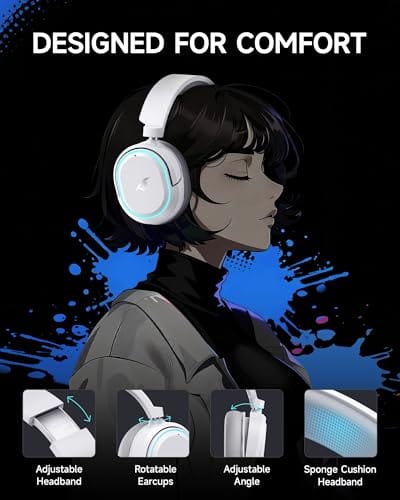
Unplug the dongle for 10 seconds, move it to a rear motherboard USB port, and avoid plugging it beside a hot Wi-Fi adapter or front-panel hub. For Bluetooth, remove the headset from Windows, restart the PC, and pair again. If you need a replacement headset after confirming the old one won’t hold a link, the Picun G2 costs $59.99, carries a 4.5 rating, and lists 2.4 GHz, Bluetooth 5.4, wired mode, 5 ms low-latency audio, and a 100-hour battery. That’s the kind of multi-mode design that gives you fallback options if one connection type acts up.

Pros
- Three connection modes on a single headset: 2.4GHz dongle, Bluetooth 5.4, and 3.5mm wired fallback.
- Vendor-rated 5ms 2.4GHz latency keps audio synced in competitive shooter scenarios.
- Long rated runtime, up to 100 hours in Bluetooth with RGB disabled for travel use.
- RetractableENC microphone tucks away, useful when switching between gaming and general listening.
Cons
- Limited owner feedback at time of writing, real-world reliability and QC signal is unverified.
- 7.1 surround is virtual DSP, not true multi-driver, so positional accuracy varies by title andear.
- RGB lighting materially cuts battery life, cited100-hour figure requires lighting turned off.
The Picun G2 is a budget-tier wireless gaming headset built around 40mm drivers, virtual 7.1 surround, and tri-mode connectivity across2.4GHz, Bluetooth 5.4, and 3.5m wired. Target buyer is a multi-platform player rotating between PC, PS5, PS4, and Switch who wants low-latency wireless without moving up to established brand pricing.
The defining feature is the tri-mode radio stack. The 2.4GHz USB-A or Type-C dongle is rated at 5ms latency, which is competitive for the tier and adequate for most FPS titles, while Bluetooth 5.4 handles phones and tablets. Headsets in this class typically deliver serviceable rather than reference-grade imaging, and virtual 7.1 leans on DSP rather than discrete drivers.
Trade-offs are typical at this tier. Battery figures are optimistic: 100 hours assumes Bluetooth with RGB off, and 2.4GHz drops the number to 42 to 45 hours. Driver material, impedance, frequency response, clamp force, and weight are not specified, so tonal balance and long-session comfort cannot be verified from source data alone.
Buy this if you want one headset that jumps between a PS5, a Switch dock, and a work laptop over Bluetooth, and you accept spec-sheet-only marketing. Skip this if you rely on measured frequency response, discrete suround, or detachable bom mics with broadcast-grade pickup for streaming.
Drivers and tuning: Picun specifies 40mm dynamic drivers paired with virtual 7.1 surround processing. Impedance, sensitivity, and frequency response are not specified, so bass extension and treble air cannot be quantified from source. Virtual 7.1 is DSP-based positional widening, useful for FPS cues but not equivalent to true multi-driver surround.
Connectivity and latency: Three modes are covered: 2.4GHz via USB-A or USB-C dongle, Bluetooth 5.4, and 3.5mm analog. The 2.4GHz link is rated at 5ms latency. Bluetooth codec support (SBC, AAC, aptX) is not specified, which maters for wireless music quality on phones and tablets.
Battery and power: Rated up to 100 hours on Bluetooth with RGB off, and 42 to 45 hours on 2.4GHz wireless. Play-while-charging is supported, so a USB cable can extend sessions past the rated ceiling. Charge time and battery capacity in mAh are not specified.
Microphone: Retractable omnidirectional bom with ENC noise reduction. Sample rate, bit depth, and pickup pattern beyond omni are not specified.ENC filtering targets background noise on the transmit side, adequate for party chat but below dedicated USB mic quality.
Cause #3: The cable, USB port, adapter, or jack is failing
For wired headsets, no sound often comes down to physical contact. A 3.5 mm plug that’s half-seated can leave the mic working while the headphones stay silent. A TRRS headset plug may need the correct splitter for separate PC headphone and mic jacks. USB headsets can also fail through a weak front-panel port, a loose hub, or a cable strain point near the earcup. Wiggle is a clue, not a fix.
Move USB headsets directly to a rear motherboard port. For 3.5 mm models, try the rear green audio jack, then try the headset on a phone, controller, laptop, or monitor that still has analog output. If the headset works elsewhere, your PC port or driver path is the suspect. If it fails everywhere, the headset cable or internal connection is likely done. Also inspect the plug for pocket lint, bent metal, and oxidation. Clean gently with a dry microfiber cloth. No liquid inside the jack.
Detachable cables deserve a second look. Many gaming headsets use a proprietary 2.5 mm or USB-C plug at the earcup, and those connectors loosen over time or collect grime that breaks the signal. Reseat the cable firmly at both ends, and if you own a spare cable, swap it in. Owner reports repeatedly point to a frayed strain-relief section right where the cable leaves the earcup, so run your fingers along the whole length and watch the sound while you flex it. If audio cuts in and out as you bend one spot, that’s your answer, and a $10 replacement cable beats a new headset.
Cause #4: The app, game, or chat mixer is overriding Windows
Some apps ignore the Windows default device once you’ve set a manual output. Discord, OBS, Battle.net voice chat, Steam voice, Xbox Game Bar, and many games store their own device choices. If you changed headsets last month, the app may still be pointed at the old device ID. It won’t always warn you. It just stays quiet.
Open the app’s audio settings and select the headset explicitly. In Discord, check Voice & Video, Output Device, Output Volume, and the attenuation settings that lower other sounds while someone speaks. In games, look for separate speaker, voice chat, and output format settings. If you stream or record, confirm OBS monitoring isn’t capturing the headset as an input while sending monitoring to a different output. It’s a small stack of menus. Still worth doing before buying anything.
Cause #5: Drivers, firmware, or enhancements are breaking playback
Driver issues usually appear after a Windows update, GPU package update, motherboard audio driver change, or vendor software install. Symptoms include the headset appearing in Device Manager but not making sound, volume meters moving with no audible output, or audio working until surround sound is enabled. Virtual 7.1, loudness correction, noise suppression, and vendor EQ layers can all create conflicts.
Open Device Manager, expand Sound, video and game controllers, right-click the headset, and choose Uninstall device. Restart, reconnect the headset, and let Windows rebuild the driver. Then keep the first verification simple: stereo output, enhancements off, spatial audio off, and one browser video. If vendor software is required for firmware, update it after basic audio works, not before. One clean variable at a time.
There’s one more driver trap worth naming. After a major Windows feature update, the old audio endpoint can linger as a ghost device while a fresh copy takes over, and apps sometimes stay bound to the stale one. In Sound settings, scroll to the bottom, open the advanced device list, and disable any duplicate or disconnected headset entries. If your headset came with a control app that installs its own virtual audio driver, a corrupted install of that app can silence everything, so a clean reinstall of the vendor software often restores sound faster than fighting Windows directly.
Preventive maintenance
Headset audio stays more reliable when the connection stays boring. Keep the wireless dongle in a rear USB port or short extension dock, charge wireless models before they drop under roughly 20 percent, and avoid wrapping cables tightly around the earcups. If you use a stand, don’t hang the headset by the cable or rest it where the volume wheel gets bumped; our headset stand roundup is a useful place to compare desk-friendly storage ideas. Also save a known-good USB port and a known-good 3.5 mm adapter for troubleshooting. Future you will appreciate it.
When it’s not fixable, what to replace
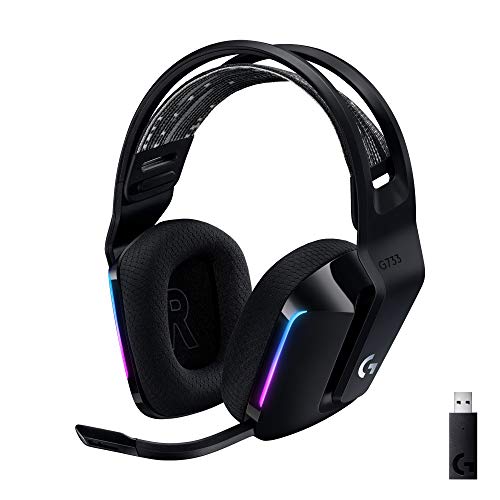
Replace the headset when it fails on two different devices, produces audio only when the cable is bent, drops wireless audio beside the dongle after a full reset, or won’t charge from a known-good cable and charger. That’s not a Windows setting anymore. It’s hardware. If you want a higher-end wireless replacement, the Logitech G733 Lightspeed is $124.92 with a 4.0 rating and lists Lightspeed wireless, a suspension headband, Lightsync RGB, Blue VO!CE mic processing, PRO-G audio, and PC, PS5, PS4, and Switch compatibility.
Pros
- Lightspeed wireless with 20 meter range handles typical living room and desk distances
- Up to 29 hours battery life covers multi-day use between charges
- Blue VO!CE mic processing in G HUB improves clarity for Discord and streaming
- Suspension headband and low mass design reduce clamp fatigue during long sessions
- Dual-zone Lightsync RGB with 16.8M colors is customizable through G HUB
Cons
- PS4 output limited to stereo, no suround on older PlayStation hardware
- Driver size, frequency response, and mic pattern not specified in source data
The Logitech G733 is a mid-tier wireless gaming headset targeting PC, PS5, PS4, and Nintendo Switch users who want a lightweight all-day fit. It leans on Lightspeed 2.4GHz wireless, PRO-G drivers, Blue VO!CE mic processing, and a reversible suspension headband, aimed at multi-hour gamers and streamers.
The defining feature is the combination of Lightspeed wireless with a quoted 20 meter range and up to 29 hours of battery. In practice this covers full workdays plus evening sessions without a charge cycle. PRO-G drivers, per Logitech, reduce distortion, and headsets in this tier typically deliver a mildly V-shaped tuning suited to positional FPS cues.
Trade-offs are typical at this price point. PS4 users are locked to stereo output with no virtual surround. Driver diameter, impedance, and frequency response are not published in the source data, so absolute output quality is hard to benchmark against wired competitors. There is no Bluetooth fallback listed, so mobile pairing is not supported.
Buy this if you want a light, long-battery 2.4GHz wireless headset for PC or PS5 with a usable broadcast-style mic. Skip this if you need wired low-latency USB, Bluetooth multipoint, or vendor-published driver and frequency response specs before purchase.
Drivers and tuning: Logitech lists PRO-G drivers tuned for reduced distortion, though exact driver diameter and frequency response are not specified in the source. Headsets in this tier typically ship with 40 to 50mm dynamic drivers and a mildly V-shaped response suited to explosions and footstep cues in FPS gameplay.
Connection and latency: Lightspeed 2.4GHz wireless with a stated 20 meter range covers desk and living room use. Compatibility is confirmed for PC, PS5, PS4 (stereo only), and Nintendo Switch. Bluetooth and wired 3.5mm fallback are not listed in the source, so single-dongle 2.4GHz is the only documented path.
Battery life: Rated up to 29 hours per charge, enough for roughly three to four full evening sessions before recharging. Exact charge time and USB-C versus micro-USB charging port are not specified in the source data.
Microphone: Detachable mic with Blue VO!CE filters configured in G HUB, providing EQ, noise reduction, and de-eser presets useful for Discord and Twitch chat. Mic polar pattern, sensitivity, and frequency range are not disclosed in the source specifications.
Tools and parts needed
You don’t need much: a second device for comparison, a known-good USB port, a known-good charging cable for wireless headsets, a clean 3.5 mm adapter or splitter if your PC separates mic and headphone jacks, and ten minutes with Windows Sound settings. For competitive play, also check latency expectations against guides like budget competitive gaming headsets, because a headset can be technically working and still feel wrong if the wireless mode adds too much delay.
Common questions
Why does my headset mic work but I hear no sound?
Windows treats the mic input and headphone output as separate devices. The mic can be selected correctly while playback is routed to HDMI, monitor speakers, or a chat-only endpoint. Set the headset under Output, then check the app’s own output menu.
Why does my Bluetooth headset connect with no audio?
It may be paired to the wrong Bluetooth profile or held by another device. Remove it from Windows, forget it on nearby phones or tablets, restart the headset, and pair again. If the headset offers 2.4 GHz wireless, use that for gaming because it’s usually more stable.
Can a bad USB port cause headset no sound?
Yes. Front-panel USB ports and unpowered hubs can cause dropouts, silent playback, or weird reconnect loops. Plug the dongle or USB headset directly into a rear motherboard port before you assume the headset is dead.
Should I reinstall audio drivers for a headset with no sound?
Do it after checking output routing, app settings, and the physical connection. Uninstalling the headset device and restarting is safe in most Windows setups, and it often clears a bad device state. Keep enhancements off until normal stereo sound works again.


































Write Your Review
No reviews yet. Be the first to share your experience!