

You bought a 144Hz or 165Hz panel, plugged it in, and Windows still swears it’s a 60Hz display. Motion looks choppy, the cursor smears, and every guide online says your monitor should be faster than this. It’s one of the most common complaints on PC hardware forums, and the frustrating part is that the panel itself is almost never broken. Nine times out of ten the high refresh rate is sitting right there, unused, because one setting or one cheap cable is quietly capping you.
The good news? You can usually fix a monitor stuck at 60Hz in under five minutes without buying anything. We researched the causes owners report most often, ranked them by how likely they are, and laid out the exact clicks. If you’re shopping around while you troubleshoot, our roundups of the best 1440p gaming monitors and the current best gaming monitor deals are worth a glance, but hold off, since most readers don’t need a new screen at all.
First check the obvious (the 30-second check)
Before you touch a driver or a cable, open your display settings and confirm what the system actually thinks it has. On Windows 11, right-click the desktop, choose Display settings, scroll to Advanced display, and look at the “Choose a refresh rate” dropdown. If 60Hz is the only option listed, the bottleneck is upstream, meaning the cable or the connection, not a setting you forgot to flip. If higher numbers appear but 60 is selected, you found your fix already. Pick the highest value, click Keep, and you’re done.
Also check which port the cable is plugged into. A lot of monitors have one DisplayPort and two HDMI jacks, and the HDMI ports are frequently older or lower-spec than the DisplayPort. Owner reports show people spending an hour on drivers when the real answer was moving the cable one socket over. Quick, free, worth ruling out first.
One more thing to rule out in these thirty seconds: make sure the cable is plugged into your graphics card, not the motherboard. On desktops with a dedicated GPU, the motherboard’s display outputs often route through integrated graphics that default to conservative modes, and that alone can pin you at 60Hz. The card’s ports usually sit lower on the back of the case. If you’re on a laptop driving an external screen, the same logic applies, since the port you use decides whether the discrete GPU or the integrated chip handles the signal.
Cause #1: Your cable can’t carry the bandwidth
This is the single most common reason a monitor stays locked at 60Hz, and it catches even experienced builders. Refresh rate isn’t just a monitor spec, it’s a bandwidth budget shared across resolution, color depth, and frames per second. A 1440p signal at 144Hz needs far more data throughput than 1080p at 60Hz, and a cheap or old cable simply can’t move that many bits per second. The monitor and GPU negotiate down to the highest mode the cable can sustain, which lands you at 60Hz.
HDMI is the usual culprit. An older HDMI 1.4 cable tops out around 1440p at 60Hz or 1080p at 120Hz, while HDMI 2.0 handles 1440p at 144Hz comfortably. DisplayPort 1.2 and newer are the safer bet for high refresh, which is why that Acer panel we cite below ships with DisplayPort 1.2 plus two HDMI 2.0 ports. If you’re running HDMI, swap to the DisplayPort cable that came in the box and re-check the dropdown. Don’t buy a random “8K 240Hz” cable off a marketplace listing, since the ratings are often fiction. Stick with a certified DisplayPort 1.4 or HDMI 2.1 cable from a name you recognize.
Cable length and quality matter more at high refresh than most people realize. A three-foot certified DisplayPort cable is a safe bet, but a cheap ten-foot run can lose enough signal integrity to force a step down to 60Hz, or cause the screen to flicker and blank intermittently. If your only spare cable is long and generic, that’s reason enough to grab a shorter certified one before blaming the monitor. Adapters are another quiet offender. A USB-C to HDMI dongle or a DisplayPort-to-HDMI converter can silently cap the mode it passes through, so check with a direct cable first and add adapters back only if you have to.
Cause #2: Windows and your GPU are set to the wrong refresh rate
Say the cable is fine and higher refresh rates do show up, but the system keeps defaulting to 60. Windows doesn’t always grab the fastest mode on its own, especially after a driver update, a new monitor, or a display it hasn’t seen before. It plays it safe at 60Hz and leaves the rest to you.
Fix it in two places so nothing overrides you. First, set it in Windows Advanced display as described above. Then confirm it in your GPU control panel, because that layer can quietly reset things. In the NVIDIA Control Panel, go to Change resolution, and make sure the refresh rate matches your panel’s rating, then apply. On AMD, open Adrenalin, click the Display tab, and verify the refresh rate there. If you run two monitors and one is a 60Hz office panel, Windows sometimes syncs both to the slower one, so set each display’s rate independently. This same mismatch trips people up on fast panels like the ones in our 360Hz gaming monitor guide, where every setting has to line up before the full rate unlocks.
Watch the resolution too. Some panels only hit their top refresh rate at a specific resolution, and if Windows dropped you to a non-native mode, the fast rates can vanish from the list. Set the resolution to the panel’s native value first, then the refresh dropdown, in that order. And if you game, don’t forget the in-game settings. A title running in a windowed or borderless mode sometimes ignores your desktop refresh rate, so check the game’s own video options and confirm it’s set to match. It’s an easy miss when the desktop looks smooth but the game still feels like 60.
Cause #3: Outdated GPU drivers or a stale monitor profile
If the higher refresh rates never appear no matter what you do, and you’ve confirmed a good DisplayPort cable, the driver stack is the next suspect. A fresh Windows install ships with a generic display driver that only exposes 60Hz. Owner reports are full of people who assumed a dead 144Hz panel when they’d just never installed the real GPU driver. Grab the current package straight from NVIDIA, AMD, or Intel, not Windows Update, and do a clean install so old profiles get wiped.
A stale monitor profile can do the same thing. Windows stores an EDID, the little data block a monitor uses to tell the PC what modes it supports, and a corrupted or cached EDID can hide the fast modes. Deleting the monitor under Device Manager and rebooting forces Windows to re-read it fresh. It sounds fiddly. It usually takes one restart. Between a clean driver and a re-read profile, this pair resolves most cases where the fast rates simply refuse to show up.
Preventive maintenance so it doesn’t creep back
Once you’ve got the full refresh rate, a few habits keep it that way. Label your good DisplayPort cable so it doesn’t get swapped for a mystery HDMI one during a move. After any major GPU driver update, take ten seconds to re-open the refresh dropdown and confirm it didn’t reset to 60. And if you enable a variable refresh feature like FreeSync or G-Sync, verify it in both the monitor’s on-screen menu and your GPU panel, since a half-enabled sync setting can behave oddly. These small checks cost nothing and save you from re-diagnosing the same problem in six months.
It’s also worth updating the monitor’s own firmware if the maker offers it. That’s rarer than a GPU driver update, but a handful of panels have shipped with EDID bugs that were patched later, and a firmware flash can restore modes that went missing. Check the support page for your exact model number once, and you’ll probably never need to again. Keep the box, the DisplayPort cable, and the model number written down somewhere. When a problem does resurface, having those on hand turns a long troubleshooting session into a two-minute one.
When it’s not fixable: what to replace
Sometimes the monitor really is the limit. If your panel is a genuine 60Hz display, no cable or driver will conjure 144Hz that the hardware never had. Same story if the DisplayPort input is physically damaged and only the older HDMI jacks work. At that point you’re not fixing a setting, you’re shopping for a replacement, and the upgrade is usually cheaper than people expect. A high-refresh IPS panel that fixes the choppiness for good starts well under $200.
For a 1440p step up, the Acer Nitro XV271U runs $169.99 with a 4.8 rating, and it’s a clean example of what to look for: a 27-inch WQHD 2560 x 1440 IPS panel rated up to 180Hz, 0.5ms response, AMD FreeSync Premium, DCI-P3 95% color, and one DisplayPort 1.2 plus two HDMI 2.0 ports. That port mix matters here, since it hands you the DisplayPort connection that avoids the whole 60Hz cable trap from the start. If you want to compare it against similar sizes, our best 27-inch 1440p monitor picks line up several alternatives.
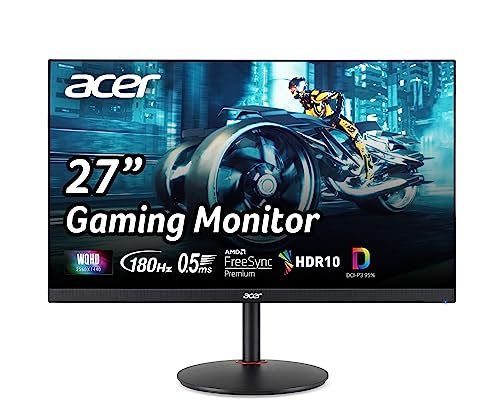
Pros
- 1440p 180Hz IPS panel via DisplayPort 1.2 hits the current price/perf sweet spot
- 95% DCI-P3 gamut is uncommon at this tier, useful for content viewing
- Full ergonomic stand: 4.7 inch height, 360 swivel, plus/minus 90 pivot, VESA 100
Cons
- Limited owner feedback at time of writing, long-term panel uniformity unverified
- HDMI 2.0 caps at 144Hz; only DisplayPort 1.2 unlocks the full 180Hz refresh
- No USB hub and 2W stereo speakers are strictly a bep-only backup at this tier
The Acer Nitro XV271U M3bmiiprx is a budget-oriented 27inch 1440p IPS gaming monitor targeting builders stepping up from 1080p high refresh. With 2560x1440 resolution, 180Hz over DisplayPort, and FreeSync Premium, it fits users pairing an RTX 4060,X 4060 Ti, or RX 7600 XT class GPU running competitive and AA titles at medium to high settings.
The defining feature is the 180Hz IPS panel with a claimed 0.5ms GtG response, paired with 95% DCI-P3 coverage. In practice, IPS panels at this tier typically deliver around 300to 350 nits SDR brightness and moderate contrast near 1000:1, so blacks will lift in dark rooms. FreeSync Premium adds low framerate compensation, useful when demanding titles drop below 60 FPS.
Trade-offs are typical for the segment. HDMI 2.0 bandwidth caps refresh at 144Hz, so consoles and older GPUs will not reach the full 180Hz ceiling. HDR tier, panel bit depth, and factory calibration are not specified in the listing, and there is no USB hub. The 2W speakers are functional only as a fallback.
Buy this if you want a 1440p 180Hz IPS panel with a full ergo stand and 95% DCI-P3 for mixed gaming and casual creative work. Skip this if you need verified HDR performance, USB-C daisy chaining, or OLED-level contrast for dark-room cinema use.
Panel and Resolution: 27 inch WQHD IPS at 2560x1440 gives a 0.233m pixel pitch, sharp enough that antialiasing needs drop versus 1080p 27 inch panels. IPS delivers wide viewing angles suited to desk sharing or off-axis reference monitors during editing sessions.
Refresh and Response: 180Hz refresh is available only through DisplayPort 1.2; HDMI 2.0 tops out at 144Hz due to bandwidth limits. Acer lists 1ms GtG typical and up to 0.5ms GtG at aggressive overdrive, though inverse ghosting is common at max overdrive on IPS panels in this bracket.
Color and HDR: 95% DCI-P3 coverage is the standout spec, wider than most sub-tier IPS panels that sit near 90% sRGB. HDR certification level, peak brightness, and local dimming are not specified in the source, so treat HDR as a compatibility mode rather than a true HDR experience.
Ports and Ergonomics: 1 DisplayPort 1.2, 2 HDMI 2.0, and audio out cover a PC plus one console. The stand offers minus 5 to 25 degree tilt, 4.7 inch height range, 360 degree swivel, and plus/minus 90 degree pivot, with 100x100 VESA for monitor arms. FreeSync Premium is confirmed, G-SYNC compatibility is not listed.
On a tighter budget, or for a smaller desk, the AOC 24G51F is $89.99 with a 4.9 rating. It’s a 24-inch 1920×1080 IPS panel at 144Hz, three-sided frameless, console-gaming ready, with one HDMI 2.0 and one DisplayPort, plus a three-year zero-bright-dot policy. For most people coming off a stuck 60Hz screen, jumping to a native 144Hz 1080p panel is the single biggest smoothness gain per dollar. If that size fits your setup, browse our best 24-inch monitor and value-focused best gaming monitor under $400 guides before you commit.

Pros
- IPS panel offers wider off-angle color stability than VA screens common at this price.
- 116% sRGB coverage handles gaming and general content color reproduction adequately.
- Three-year zero-bright-dot warranty coverage is uncommon on entry-tier IPS panels.
Cons
- Limited owner feedback at time of writing, hard to confirm QC consistency across units.
- HDR ready label lacks a VESA tier, so peak brightness likely sits near 250 to 300 nits.
- 1ms MPRT is a strobed figure; real GtG on entry IPS typically lands between 4 and 8ms.
The AOC 24G51F is an entry-level 24-inch FHD gaming monitor built around a 144Hz IPS panel with Adaptive-Sync. It targets budget esports players and console owners who want higher refresh than 60Hz without steping up to 1440p or OLED tiers. Console output tops out at 120Hz over HDMI 2.0.
The defining feature is IPS at 144Hz in the sub-24-inch budget class. Owner data is thin at time of writing, but panels in this tier typically deliver 250 to 300 nits SDR brightness and near-full sRGB coverage. The 1ms MPRT figure is strobing based; real GtG response on entry IPS usually falls between 4 and 8ms.
HDR ready is marketing shorthand rather than VESA HDR400 certification, so expect flat highlights in HDR content. Pixel density on a 23.8-inch 1080p panel is roughly 92 PPI, visibly softer than 1440p at the same size. No USB hub or built-in speakers are listed, which is typical at this tier.
Buy this if you need a second high-refresh IPS display for 1080p esports or a Series X console at 120Hz, and you value the zero-bright-dot coverage. Skip this if you already run a 1440p-class GPU like an RTX 4070, or if you need calibrated color for photo and video work.
Panel and resolution: IPS panel at 1920x1080 across a 23.8-inch viewable diagonal, yielding roughly 92 PPI. Refresh rate reaches 144Hz over DisplayPort. IPS provides wider off-angle color stability than VA panels at this size class, useful for shared or dual-monitor setups.
Response and sync: AOC lists 1ms MPRT, a strobed measurement rather than GtG. Real gray-to-gray on entry IPS panels typically sits between 4 and 8ms. Adaptive-Sync support covers the FreeSync range and works with G-SYNC Compatible mode on NVIDIA cards, cutting tearing when framerate dips.
Color and HDR: Rated 116% sRGB coverage, adequate for gaming and general content but not calibrated for DCI-P3 workflows. HDR ready is unbadged, so no VESA HDR400 tier is specified. Expect peak brightness in the 250 to 300 nit range typical of this segment.
Connectivity: One HDMI 2.0 and one DisplayPort input, no USB hub, no built-in speakers listed. HDMI 2.0 handles 1080p at 120Hz for PS5 and Xbox Series X. The three-sided frameless design suits stacked 24-inch panels with minimal bezel between screns.
Tools and parts needed
You won’t need much. A certified DisplayPort 1.4 or HDMI 2.1 cable covers nearly every fix here, and most monitors already include the right one in the box. Beyond that, it’s software: the current GPU driver from your card maker and about five minutes in Windows display settings. No screwdriver, no thermal paste, nothing to open. If the panel itself is the cap and you decide to replace it, that’s the only real purchase, and shoppers chasing higher-end features can compare against our best 4K G-Sync monitor shortlist to see where the extra money goes.
A few more questions
Why does my monitor say 60Hz when it’s a 144Hz model?
Almost always a cable or a setting, not a defect. Windows and GPUs default new displays to 60Hz to stay safe, and older HDMI cables physically cap the bandwidth needed for higher rates. Check the refresh dropdown in Advanced display first, then swap to a DisplayPort cable, then confirm the rate in your GPU control panel. One of those three fixes it in the vast majority of cases.
Does the HDMI cable really matter for refresh rate?
Yes, more than people think. HDMI 1.4 can’t push 1440p past 60Hz, while HDMI 2.0 handles 1440p at 144Hz. DisplayPort 1.2 and up is the more reliable choice for high refresh, which is why so many gaming monitors ship a DisplayPort cable in the box. If you’re stuck at 60, that cable swap is the cheapest thing to try.
Could a driver update have reset my refresh rate to 60Hz?
It can, and it’s a known annoyance. A clean GPU driver install sometimes resets the display back to a default 60Hz profile, so after any big update it’s smart to re-open the refresh dropdown and bump it back up. It takes ten seconds and saves you from thinking your fast panel suddenly broke.


































Write Your Review
No reviews yet. Be the first to share your experience!