

You hit the power button, the tower lights up, the fans spin, and the screen just sits there black with a “No Signal” message floating in the corner. Sound familiar? A monitor that won’t get detected is one of the most common panic-inducing problems in PC building, and the frustrating part is that it’s almost never the dramatic failure you fear. Nine times out of ten it’s a loose cable, the wrong input, or a driver that got confused after an update. We researched the most reported causes across owner forums and manufacturer support docs to pull together a fix-it order that actually saves time.
Here’s the thing. The word “not detected” covers a few different symptoms. Sometimes Windows sees no display at all. Sometimes it sees the monitor but shows a black screen. Sometimes a second monitor vanishes while the primary works fine. We’ll walk through each layer from the 30-second check up to the point where the panel itself is dead. If you’re shopping while you troubleshoot, our roundups of the best 1440p gaming monitor picks and current best gaming monitor deals are worth a bookmark, because a $90 backup panel can rule out a hardware fault faster than anything.
First check the obvious (the 30-second check)
Before you open the case or reinstall anything, run through the fast stuff. Is the monitor actually powered on? A surprising number of “dead” monitors just have a power strip switched off or a standby LED that looks like off. Press the monitor’s physical power button and watch for the on-screen menu to flicker.
Next, cycle the input source manually. Most monitors default to auto-detect, but auto-detect fails constantly. Use the monitor’s on-screen menu button to force it to the exact port your cable is plugged into, HDMI 1, HDMI 2, or DisplayPort. Then confirm the video cable runs from your graphics card, not the motherboard’s HDMI port. If your PC has a dedicated GPU, plugging into the motherboard output leaves you staring at a blank screen because that port is usually disabled. That single mistake accounts for a huge share of “my new build won’t display” posts.
One more fast move before you dig deeper. Do a full power cycle. Turn the PC off, unplug the monitor from the wall for a solid 30 seconds, then plug it back in and boot. This clears the monitor’s internal handshake state, which sometimes gets stuck after a sleep-wake cycle or a sudden power loss. It sounds too simple to matter. It fixes more “not detected” reports than people admit, so it’s worth the minute.
Cause #1: the cable or port is the real problem
Cables fail more than people expect. HDMI and DisplayPort connectors have tiny pins that bend, and cheap bundled cables can’t always carry the bandwidth a high-refresh panel demands. A cable rated for 1080p60 will choke on a 1440p 180Hz signal and simply show nothing, which reads as “not detected” even though everything else works. If you’re running anything above 144Hz, you want a certified high-speed HDMI 2.0 or DisplayPort 1.2 cable, not the mystery cord from a drawer.
To isolate it, swap the cable for a known-good one and try a different port on both the monitor and the GPU. If the picture returns on a different port, you’ve found a dead connector. DisplayPort in particular has a locking clip that can seat improperly, so push until it clicks. Loose seating is why a monitor sometimes works, then drops signal when the desk gets bumped. Owners chasing flawless high-refresh performance often pair a fresh cable with a panel built for it, and our guide to the best 360Hz gaming monitor models spells out which cable standards those speeds actually require.
Adapters deserve extra suspicion. HDMI-to-DisplayPort and USB-C-to-HDMI dongles introduce a conversion step that can drop the signal entirely, especially at higher resolutions. If you’re running the display through any adapter, remove it and connect directly to verify the panel works native first, then reintroduce the adapter only if you must. Active adapters handle high bandwidth better than the passive kind, but a bad one is a genuine cause of a screen that reads as completely absent.
Cause #2: graphics drivers got confused
If the hardware checks out but Windows still won’t recognize the display, the driver layer is your next suspect. A botched GPU driver update, a Windows feature update, or a corrupted display profile can all make a perfectly healthy monitor invisible to the system. The classic tell is that the monitor works during POST and the BIOS screen, then goes black the moment Windows loads. That means the panel and cable are fine, and software is the culprit.
Boot into Safe Mode, which loads a generic display driver and usually restores a picture. From there, use Display Driver Uninstaller to strip the GPU driver completely, then reinstall the latest version straight from Nvidia or AMD rather than Windows Update. While you’re in there, open Display Settings and click Detect under Multiple Displays, because Windows sometimes needs a manual nudge to re-scan. Set the correct resolution and refresh rate too. A monitor pushed past its rated refresh will blank out, so match the panel’s spec. If you’re weighing a replacement that plays nicely with modern GPUs, the best 4K G-Sync monitor options are engineered to sync cleanly and cut down on these handshake headaches.
Cause #3: the GPU seating or the monitor itself is failing
When cables and drivers both come back clean, the fault sits in hardware. Reseat the graphics card. Power down, unplug, and pull the GPU fully out of the PCIe slot, then press it back in until the retention clip snaps. Cards work loose during shipping or after years of thermal cycling, and a partially seated GPU throws no signal at all. While you’re inside, confirm the PCIe power cables are firmly connected, since an under-powered card won’t output video.
If the card is solid and you’ve verified it in a second machine, the monitor’s internal board may be dying. Backlight failure, a blown capacitor, or a cracked panel ribbon all present as “not detected.” At that point repair rarely makes financial sense on a mid-range display. A capable 24-inch replacement runs under a hundred bucks, and you get a warranty on top. Here’s a value-first option that owners rate highly for exactly this kind of quick swap.

Pros
- IPS panel offers wider off-angle color stability than VA screens common at this price.
- 116% sRGB coverage handles gaming and general content color reproduction adequately.
- Three-year zero-bright-dot warranty coverage is uncommon on entry-tier IPS panels.
Cons
- Limited owner feedback at time of writing, hard to confirm QC consistency across units.
- HDR ready label lacks a VESA tier, so peak brightness likely sits near 250 to 300 nits.
- 1ms MPRT is a strobed figure; real GtG on entry IPS typically lands between 4 and 8ms.
The AOC 24G51F is an entry-level 24-inch FHD gaming monitor built around a 144Hz IPS panel with Adaptive-Sync. It targets budget esports players and console owners who want higher refresh than 60Hz without steping up to 1440p or OLED tiers. Console output tops out at 120Hz over HDMI 2.0.
The defining feature is IPS at 144Hz in the sub-24-inch budget class. Owner data is thin at time of writing, but panels in this tier typically deliver 250 to 300 nits SDR brightness and near-full sRGB coverage. The 1ms MPRT figure is strobing based; real GtG response on entry IPS usually falls between 4 and 8ms.
HDR ready is marketing shorthand rather than VESA HDR400 certification, so expect flat highlights in HDR content. Pixel density on a 23.8-inch 1080p panel is roughly 92 PPI, visibly softer than 1440p at the same size. No USB hub or built-in speakers are listed, which is typical at this tier.
Buy this if you need a second high-refresh IPS display for 1080p esports or a Series X console at 120Hz, and you value the zero-bright-dot coverage. Skip this if you already run a 1440p-class GPU like an RTX 4070, or if you need calibrated color for photo and video work.
Panel and resolution: IPS panel at 1920x1080 across a 23.8-inch viewable diagonal, yielding roughly 92 PPI. Refresh rate reaches 144Hz over DisplayPort. IPS provides wider off-angle color stability than VA panels at this size class, useful for shared or dual-monitor setups.
Response and sync: AOC lists 1ms MPRT, a strobed measurement rather than GtG. Real gray-to-gray on entry IPS panels typically sits between 4 and 8ms. Adaptive-Sync support covers the FreeSync range and works with G-SYNC Compatible mode on NVIDIA cards, cutting tearing when framerate dips.
Color and HDR: Rated 116% sRGB coverage, adequate for gaming and general content but not calibrated for DCI-P3 workflows. HDR ready is unbadged, so no VESA HDR400 tier is specified. Expect peak brightness in the 250 to 300 nit range typical of this segment.
Connectivity: One HDMI 2.0 and one DisplayPort input, no USB hub, no built-in speakers listed. HDMI 2.0 handles 1080p at 120Hz for PS5 and Xbox Series X. The three-sided frameless design suits stacked 24-inch panels with minimal bezel between screns.
The AOC 24G51F is a 24-inch 1920×1080 IPS panel running at 144Hz, and it lands at $89.99 with a 4.9 rating. It carries a single HDMI 2.0 and one DisplayPort, a 3-sided frameless design, and AOC’s 3-year zero-bright-dot coverage, which is reassuring when you’re replacing a panel that just failed on you. For a diagnostic backup or a straight budget rebuild, it does the job without drama. If you specifically want to browse this size class further, our best 24-inch monitor roundup lists several alternatives at the same tier.
Preventive maintenance
Most detection failures are avoidable with a little discipline. Route cables so they don’t tug on the ports when you move the desk, and avoid coiling excess DisplayPort cable tightly, which stresses the connector. Keep one spare, known-good cable in a drawer so you can isolate a fault in seconds instead of guessing. When you update GPU drivers, do a clean install rather than an overwrite, and create a Windows restore point first. Dust matters too. A GPU choked with dust runs hot, and thermal stress is what loosens seating and cooks capacitors over time.
When it’s not fixable: what to replace
Some monitors are simply done. If you’ve verified the cable, the port, the drivers, and the GPU in another system, and the panel still shows nothing on a machine you know works, replacement is the sane call. Repairing a dead backlight or driver board often costs more than a new display, and you inherit none of the warranty. The good news is that this is a great moment to upgrade rather than merely replace.
If you were running a basic 1080p panel, stepping up to 1440p at high refresh is a noticeable jump for gaming and everyday clarity. Here’s a strong all-rounder that fits a wide range of builds.
Pros
- 1440p 180Hz IPS panel via DisplayPort 1.2 hits the current price/perf sweet spot
- 95% DCI-P3 gamut is uncommon at this tier, useful for content viewing
- Full ergonomic stand: 4.7 inch height, 360 swivel, plus/minus 90 pivot, VESA 100
Cons
- Limited owner feedback at time of writing, long-term panel uniformity unverified
- HDMI 2.0 caps at 144Hz; only DisplayPort 1.2 unlocks the full 180Hz refresh
- No USB hub and 2W stereo speakers are strictly a bep-only backup at this tier
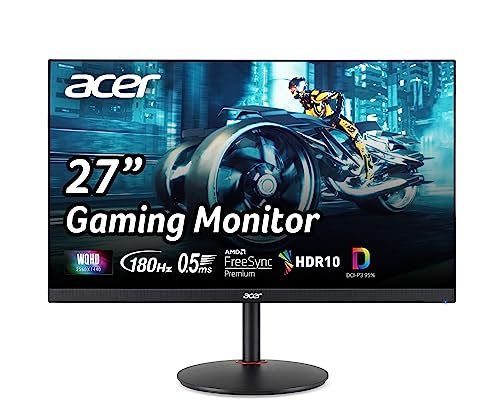
The Acer Nitro XV271U M3bmiiprx is a budget-oriented 27inch 1440p IPS gaming monitor targeting builders stepping up from 1080p high refresh. With 2560x1440 resolution, 180Hz over DisplayPort, and FreeSync Premium, it fits users pairing an RTX 4060,X 4060 Ti, or RX 7600 XT class GPU running competitive and AA titles at medium to high settings.
The defining feature is the 180Hz IPS panel with a claimed 0.5ms GtG response, paired with 95% DCI-P3 coverage. In practice, IPS panels at this tier typically deliver around 300to 350 nits SDR brightness and moderate contrast near 1000:1, so blacks will lift in dark rooms. FreeSync Premium adds low framerate compensation, useful when demanding titles drop below 60 FPS.
Trade-offs are typical for the segment. HDMI 2.0 bandwidth caps refresh at 144Hz, so consoles and older GPUs will not reach the full 180Hz ceiling. HDR tier, panel bit depth, and factory calibration are not specified in the listing, and there is no USB hub. The 2W speakers are functional only as a fallback.
Buy this if you want a 1440p 180Hz IPS panel with a full ergo stand and 95% DCI-P3 for mixed gaming and casual creative work. Skip this if you need verified HDR performance, USB-C daisy chaining, or OLED-level contrast for dark-room cinema use.
Panel and Resolution: 27 inch WQHD IPS at 2560x1440 gives a 0.233m pixel pitch, sharp enough that antialiasing needs drop versus 1080p 27 inch panels. IPS delivers wide viewing angles suited to desk sharing or off-axis reference monitors during editing sessions.
Refresh and Response: 180Hz refresh is available only through DisplayPort 1.2; HDMI 2.0 tops out at 144Hz due to bandwidth limits. Acer lists 1ms GtG typical and up to 0.5ms GtG at aggressive overdrive, though inverse ghosting is common at max overdrive on IPS panels in this bracket.
Color and HDR: 95% DCI-P3 coverage is the standout spec, wider than most sub-tier IPS panels that sit near 90% sRGB. HDR certification level, peak brightness, and local dimming are not specified in the source, so treat HDR as a compatibility mode rather than a true HDR experience.
Ports and Ergonomics: 1 DisplayPort 1.2, 2 HDMI 2.0, and audio out cover a PC plus one console. The stand offers minus 5 to 25 degree tilt, 4.7 inch height range, 360 degree swivel, and plus/minus 90 degree pivot, with 100x100 VESA for monitor arms. FreeSync Premium is confirmed, G-SYNC compatibility is not listed.
The Acer Nitro XV271U is a 27-inch WQHD 2560×1440 IPS monitor at $169.99 with a 4.8 rating. It pushes up to 180Hz with a 0.5ms response and AMD FreeSync Premium, covers 95% DCI-P3, and includes one DisplayPort 1.2 plus two HDMI 2.0 inputs, so you’ve got room to connect a console and a PC at once. That extra HDMI port alone is handy, since more inputs mean fewer cable swaps and fewer chances for a loose connector to blank your screen. For deeper comparison shopping in this exact size and resolution, the best 27-inch 1440p monitor guide breaks down where the Nitro sits against rivals, and the best gaming monitor under 400 list covers step-up picks if your budget stretches.
Tools and parts needed
You don’t need much. A spare high-speed HDMI 2.0 or DisplayPort 1.2 cable is the single most useful diagnostic item you can own, because it rules out the most common cause in one move. Beyond that, a Phillips screwdriver for reseating the GPU, a can of compressed air for dust, and access to a second monitor or second PC to cross-check the fault. That’s genuinely the whole kit. Everything else is software you already have.
A few more questions
Why does my monitor say no signal but the PC is on?
The PC running with a “No Signal” message almost always means the video path is broken, not the computer. Confirm the cable runs from your dedicated GPU rather than the motherboard, force the monitor to the correct input, and swap in a known-good cable. If POST and BIOS display but Windows goes black, it’s a driver issue, so boot into Safe Mode and reinstall the GPU driver cleanly.
Why isn’t my second monitor being detected?
A vanishing second display usually comes down to Windows not re-scanning after a change. Open Display Settings and click Detect under Multiple Displays. If that fails, verify the second monitor’s cable and input the same way you’d check a primary, then confirm your GPU actually has enough output ports active. Some cards disable extra outputs when a specific port combination is used, so try a different port pairing.
How do I know if the monitor is dead or the graphics card is?
Cross-check by isolating one variable at a time. Connect the suspect monitor to a laptop or a second PC you know works. If it stays black there, the monitor is the problem. If it lights up, plug a working monitor into your original PC. Still no picture on a known-good display means the graphics card or its seating is at fault. This two-way swap tells you exactly which part to replace without guesswork.


































Write Your Review
No reviews yet. Be the first to share your experience!