

You hit the power button, the PC fans spin up, the RGB glows, and your monitor just sits there flashing “No Signal” before dropping into standby. It’s one of the most common panic moments in PC ownership, and it almost never means your graphics card just died. Nine times out of ten the display is fine and the machine is running. The signal simply isn’t reaching the panel, or the panel isn’t listening on the input you think it’s using.
Here’s the good news. Most “no signal” faults trace back to a loose cable, a wrong input source, or a GPU that isn’t seated the way it should be. That’s a 10-minute fix, not a new build. We researched the failure patterns owners report most often and lined them up from easiest to hardest so you don’t waste an afternoon. If your display turns out to be genuinely dead, we’ve also flagged a couple of sensible replacements from our roundups of the best 27-inch 1440p monitors and the best 24-inch monitors, so you know what to grab. Let’s work through it.
First check the obvious (the 30-second check)
Before you open the case or blame Windows, run the fast triage. Is the monitor actually powered on? Sounds silly, but a power strip switch or a bumped surge protector kills more displays than any hardware fault. Look for the power LED. If it’s dark, that’s a wall-power problem, not a signal problem. Try a different wall outlet if you have any doubt, and make sure the monitor’s own power brick, if it uses an external one, has a solid green light rather than a dim or flickering one.
Next, press the monitor’s physical input button and cycle through every source: HDMI 1, HDMI 2, DisplayPort, USB-C. This is the single most common fix. Your monitor might be sitting on HDMI 2 while your GPU is plugged into DisplayPort. Some monitors ship with auto-source detection switched off, so they never scan for a live input and just park on whatever port was last selected. If cycling inputs brings the picture back, you’re done. If not, unplug the video cable at both ends, reseat it firmly, and confirm it clicks. DisplayPort connectors have a little latch that’s easy to miss. That’s your 30 seconds. Most people never need to go further.
Cause #1: Cable or wrong port on the GPU
If input cycling didn’t help, the cable itself is the prime suspect. Video cables fail more than you’d expect, especially cheap HDMI cables bundled with older gear or bargain DisplayPort cables that can’t hold a high-refresh signal. A cable that works at 60Hz can throw a black screen the moment you push 144Hz or 4K. If you’ve got a spare, swap it. If the picture returns, the old cable was the culprit and it’s a couple of dollars to replace.
There’s a subtler failure worth understanding here: the handshake. Both DisplayPort and HDMI negotiate a link the instant they connect, agreeing on resolution, refresh rate, and HDCP copy protection before a single pixel appears. DisplayPort is stricter about that handshake, and a marginal cable or a partially latched plug can cause the link training to fail silently, leaving you on “no signal” even though voltage is present. HDMI tends to be more forgiving but can drop into a lower mode or refuse HDCP on a cheap cable. If you’re mixing an adapter or a docking station into the chain, that’s another handshake point that can break. Where possible, connect the GPU straight to the monitor with a single certified cable and remove adapters from the equation until you have a picture.
The other classic trap: plugging into the wrong port. On a desktop with a dedicated graphics card, you must use the ports on the GPU itself, down low on the back of the case, not the HDMI or DisplayPort ports on the motherboard’s I/O panel up top. Those motherboard ports only carry a signal from the CPU’s integrated graphics, which is often disabled when a discrete card is installed. Plug into the motherboard by mistake and you’ll get “no signal” every time, even though everything’s working. Move the cable to the GPU and reboot.
Cause #2: GPU not seated or power not connected
If you recently moved your PC, added RAM, or cleaned dust out of the case, there’s a real chance the graphics card shifted in its PCIe slot. A card that’s even slightly lifted at one end won’t make full contact, and the result is a dead display with a system that otherwise powers on normally. Power the machine down, unplug it, and press the card firmly back into the slot until the retention clip snaps. You’ll usually feel it seat. If reseating alone doesn’t do it, lift the card out completely, wipe the gold contact fingers with a lint-free cloth or a clean eraser, and set it back down square so both ends drop in together rather than one corner catching first.
While you’re in there, check the PCIe power cables running from the PSU to the top of the GPU. Modern cards pull serious wattage, and a partially connected 8-pin or 12VHPWR plug will let the system boot with no video output, sometimes with a warning LED on the card. The 12VHPWR connector on recent high-end cards is especially finicky; it has to be pushed in until it clicks fully flush, and a plug that looks seated but sits a millimeter proud can cut the card’s power budget and blank the screen. Reseat those connectors until they click. If you own a modular power supply, confirm the cable is fully home on the PSU side too, and never reuse a PCIe cable from a different brand of supply, since the pinouts don’t always match. A surprising number of “dead GPU” posts turn out to be one loose power lead. This step alone resolves a big share of no-signal reports on desktops.
Cause #3: Boot, POST, drivers, and dual monitors
Sometimes the hardware is fine but the machine never gets far enough in its boot sequence to send a picture. If the PC powers on but seems stuck, watch for motherboard diagnostic LEDs, the little labeled lights marked CPU, DRAM, VGA, and BOOT. A lit VGA or DRAM light points you straight at the graphics card or memory rather than the display. Reseating a stick of RAM clears a shocking number of black-screen-at-POST cases, because a memory error can halt the system before it ever initializes video. If your board has a POST beep speaker, a repeating beep code tells the same story in audio.
Driver problems cause a different flavor of the fault. If you saw the BIOS logo and Windows loading spinner but then the screen went black right as the desktop should appear, the graphics driver is the likely offender, not the cable. A corrupt or half-updated GPU driver can output nothing or push a mode the monitor can’t sync. Boot into Safe Mode by interrupting startup three times to reach recovery, then do a clean driver reinstall. It’s also worth confirming the display isn’t simply asleep on the wrong output after a driver reset shuffled your ports around.
Dual-monitor setups add their own trap. Windows can decide your second screen is the primary and route the desktop there, leaving the panel you’re staring at dark even though the GPU is happily driving both. Press Windows plus P to cycle projection modes, or unplug the working monitor entirely so the system is forced to fall back to the one that’s blank. If the picture reappears on a single-display config, you’re chasing a detection quirk, not a hardware failure, and rearranging displays in settings sorts it out.
Cause #4: Monitor input, firmware, or a dead panel
Now we check the display in isolation. Connect the monitor to a different device, a laptop or another PC, using a cable you know is good. If it shows a picture there, the monitor’s fine and your problem lives in the desktop. If it stays black on every device and every input, the panel or its internal board has likely failed. Older monitors sometimes benefit from a power-drain reset: unplug the monitor from the wall, hold its power button for 30 seconds, then plug it back in. Holding the button with no power connected bleeds the residual charge out of the capacitors and clears a stuck firmware state more often than you’d guess. If your monitor has a factory-reset option buried in its on-screen menu, that’s worth trying too once you have any picture at all, since a scrambled setting can lock it to a dead input.
If the monitor genuinely won’t display anything from any source, it’s usually not worth repairing. Panel and backlight replacements cost more than a new display. This is the point where a fresh, reliable monitor makes sense, and you don’t have to overspend. The AOC 24G51F is a 24-inch 1080p IPS panel running 144Hz with a DisplayPort and HDMI 2.0 input, priced at $89.99 with a 4.9 rating and a 3-year zero-bright-dot warranty. That warranty matters when your last screen just died on you.

Pros
- IPS panel offers wider off-angle color stability than VA screens common at this price.
- 116% sRGB coverage handles gaming and general content color reproduction adequately.
- Three-year zero-bright-dot warranty coverage is uncommon on entry-tier IPS panels.
Cons
- Limited owner feedback at time of writing, hard to confirm QC consistency across units.
- HDR ready label lacks a VESA tier, so peak brightness likely sits near 250 to 300 nits.
- 1ms MPRT is a strobed figure; real GtG on entry IPS typically lands between 4 and 8ms.
The AOC 24G51F is an entry-level 24-inch FHD gaming monitor built around a 144Hz IPS panel with Adaptive-Sync. It targets budget esports players and console owners who want higher refresh than 60Hz without steping up to 1440p or OLED tiers. Console output tops out at 120Hz over HDMI 2.0.
The defining feature is IPS at 144Hz in the sub-24-inch budget class. Owner data is thin at time of writing, but panels in this tier typically deliver 250 to 300 nits SDR brightness and near-full sRGB coverage. The 1ms MPRT figure is strobing based; real GtG response on entry IPS usually falls between 4 and 8ms.
HDR ready is marketing shorthand rather than VESA HDR400 certification, so expect flat highlights in HDR content. Pixel density on a 23.8-inch 1080p panel is roughly 92 PPI, visibly softer than 1440p at the same size. No USB hub or built-in speakers are listed, which is typical at this tier.
Buy this if you need a second high-refresh IPS display for 1080p esports or a Series X console at 120Hz, and you value the zero-bright-dot coverage. Skip this if you already run a 1440p-class GPU like an RTX 4070, or if you need calibrated color for photo and video work.
Panel and resolution: IPS panel at 1920x1080 across a 23.8-inch viewable diagonal, yielding roughly 92 PPI. Refresh rate reaches 144Hz over DisplayPort. IPS provides wider off-angle color stability than VA panels at this size class, useful for shared or dual-monitor setups.
Response and sync: AOC lists 1ms MPRT, a strobed measurement rather than GtG. Real gray-to-gray on entry IPS panels typically sits between 4 and 8ms. Adaptive-Sync support covers the FreeSync range and works with G-SYNC Compatible mode on NVIDIA cards, cutting tearing when framerate dips.
Color and HDR: Rated 116% sRGB coverage, adequate for gaming and general content but not calibrated for DCI-P3 workflows. HDR ready is unbadged, so no VESA HDR400 tier is specified. Expect peak brightness in the 250 to 300 nit range typical of this segment.
Connectivity: One HDMI 2.0 and one DisplayPort input, no USB hub, no built-in speakers listed. HDMI 2.0 handles 1080p at 120Hz for PS5 and Xbox Series X. The three-sided frameless design suits stacked 24-inch panels with minimal bezel between screns.
Want something with more resolution and headroom? Step up to a 1440p panel. Browse the full lineup in our best 1440p gaming monitor guide, or if you’re chasing a specific size, the best 27-inch 1440p picks cover the sizes owners buy most.
Preventive maintenance
A little cable discipline prevents most repeat scares. Route your video cable so it isn’t yanked taut when you slide the PC or swivel the monitor arm, since strain slowly loosens the connector over time. Don’t coil cheap HDMI cables tightly behind the desk either; a sharp kink can break internal conductors. If you run a high-refresh or 4K setup, use a certified cable rated for that bandwidth from day one so you’re not chasing intermittent blackouts later.
Keep the inside of your case reasonably clean too. Dust buildup on the GPU and in the PCIe slot contributes to poor contact and heat that can trigger flaky output. A gentle blast of compressed air every few months goes a long way. And when you move your rig, remove the graphics card or at least support it, because shipping a PC with a heavy card hanging in the slot is a classic way to knock it loose.
When it’s not fixable: what to replace
If you’ve cycled inputs, swapped cables, reseated the GPU, and confirmed the panel is dead on a second machine, replacement is the honest call. Don’t sink money into repairing an old display when a new one costs about the same and comes with a warranty. Match the replacement to how you actually use the machine. General work and casual play are well served by a solid 1080p or 1440p IPS panel, while competitive gaming benefits from higher refresh rates.
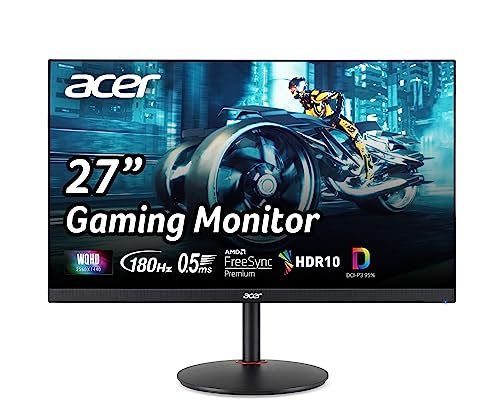
For a mainstream upgrade that lands under $200, the Acer Nitro XV271U is a 27-inch WQHD 2560×1440 IPS monitor with AMD FreeSync Premium, up to 180Hz refresh, a 0.5ms response spec, and 95% DCI-P3 coverage, at $169.99 with a 4.8 rating. That’s a genuine step up from a basic 1080p 60Hz screen, and the extra resolution pays off on a 27-inch panel where 1080p can look soft. It carries both DisplayPort 1.2 and dual HDMI 2.0, so input flexibility isn’t an issue.
Pros
- 1440p 180Hz IPS panel via DisplayPort 1.2 hits the current price/perf sweet spot
- 95% DCI-P3 gamut is uncommon at this tier, useful for content viewing
- Full ergonomic stand: 4.7 inch height, 360 swivel, plus/minus 90 pivot, VESA 100
Cons
- Limited owner feedback at time of writing, long-term panel uniformity unverified
- HDMI 2.0 caps at 144Hz; only DisplayPort 1.2 unlocks the full 180Hz refresh
- No USB hub and 2W stereo speakers are strictly a bep-only backup at this tier
The Acer Nitro XV271U M3bmiiprx is a budget-oriented 27inch 1440p IPS gaming monitor targeting builders stepping up from 1080p high refresh. With 2560x1440 resolution, 180Hz over DisplayPort, and FreeSync Premium, it fits users pairing an RTX 4060,X 4060 Ti, or RX 7600 XT class GPU running competitive and AA titles at medium to high settings.
The defining feature is the 180Hz IPS panel with a claimed 0.5ms GtG response, paired with 95% DCI-P3 coverage. In practice, IPS panels at this tier typically deliver around 300to 350 nits SDR brightness and moderate contrast near 1000:1, so blacks will lift in dark rooms. FreeSync Premium adds low framerate compensation, useful when demanding titles drop below 60 FPS.
Trade-offs are typical for the segment. HDMI 2.0 bandwidth caps refresh at 144Hz, so consoles and older GPUs will not reach the full 180Hz ceiling. HDR tier, panel bit depth, and factory calibration are not specified in the listing, and there is no USB hub. The 2W speakers are functional only as a fallback.
Buy this if you want a 1440p 180Hz IPS panel with a full ergo stand and 95% DCI-P3 for mixed gaming and casual creative work. Skip this if you need verified HDR performance, USB-C daisy chaining, or OLED-level contrast for dark-room cinema use.
Panel and Resolution: 27 inch WQHD IPS at 2560x1440 gives a 0.233m pixel pitch, sharp enough that antialiasing needs drop versus 1080p 27 inch panels. IPS delivers wide viewing angles suited to desk sharing or off-axis reference monitors during editing sessions.
Refresh and Response: 180Hz refresh is available only through DisplayPort 1.2; HDMI 2.0 tops out at 144Hz due to bandwidth limits. Acer lists 1ms GtG typical and up to 0.5ms GtG at aggressive overdrive, though inverse ghosting is common at max overdrive on IPS panels in this bracket.
Color and HDR: 95% DCI-P3 coverage is the standout spec, wider than most sub-tier IPS panels that sit near 90% sRGB. HDR certification level, peak brightness, and local dimming are not specified in the source, so treat HDR as a compatibility mode rather than a true HDR experience.
Ports and Ergonomics: 1 DisplayPort 1.2, 2 HDMI 2.0, and audio out cover a PC plus one console. The stand offers minus 5 to 25 degree tilt, 4.7 inch height range, 360 degree swivel, and plus/minus 90 degree pivot, with 100x100 VESA for monitor arms. FreeSync Premium is confirmed, G-SYNC compatibility is not listed.
If budget is the deciding factor, our best gaming monitors under $400 roundup has vetted options across sizes, and it’s worth checking the current gaming monitor deals before you buy, since panels like these go on sale regularly. Enthusiasts eyeing a long-term flagship can also compare the best 4K G-Sync monitors for a higher-end path.
Tools and parts needed
You barely need a toolkit for this. A spare video cable is the most useful thing to have on hand, since it isolates the single most common fault in minutes. A can of compressed air helps if dust is a factor, and a Phillips screwdriver covers case access on the rare build that needs it. A second device, any laptop will do, lets you confirm whether the monitor or the PC is at fault. That’s the whole list. Most no-signal fixes cost nothing but ten minutes.
A few more questions
Why does my monitor say no signal but the PC is on?
It means the display isn’t receiving a video signal on the input it’s watching, even though the computer is running. The usual causes are the monitor being set to the wrong input source, a loose or failed cable, or the cable plugged into the motherboard instead of the graphics card. Cycle the monitor’s inputs first, then reseat the cable at both ends. That resolves it for most people.
How do I know if it’s the monitor or the graphics card?
Connect the monitor to a different device with a known-good cable. If it displays a picture there, the monitor’s fine and the fault is in your PC, likely the GPU seating, cable, or port. If the screen stays black on every device and every input, the monitor itself has failed. This one check separates the two problems fast.
Can a bad cable really cause a no-signal error?
Absolutely, and it’s more common than people think. A cable that handles 1080p at 60Hz can fail to carry a 144Hz or 4K signal, throwing a black screen at higher settings. Cheap or kinked cables degrade over time, and DisplayPort connectors that aren’t fully latched drop the signal intermittently. Swapping in a spare cable is the quickest way to rule it out, and it’s the cheapest fix on this list.


































Write Your Review
No reviews yet. Be the first to share your experience!