

Upgrading low-profile RAM is one of the cleaner desktop improvements: power down, open the case, release the DIMM latches, install the new kit, then verify capacity and speed in BIOS and Windows. The details matter because low-profile memory is often chosen for cooler clearance, compact cases, or neat airflow. If you’re still choosing a kit, compare options in our best low-profile RAM guide and our low-profile RAM for gaming guide before you buy. Measure first. Guessing causes returns.
What you’ll need
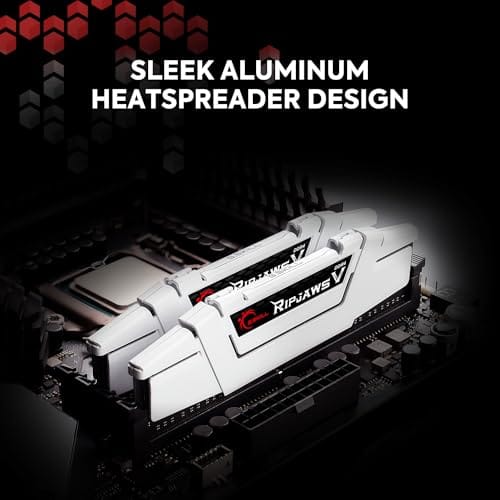
You’ll need a Phillips screwdriver for the side panel, an anti-static habit such as touching the PSU casing before handling parts, your motherboard manual, and the replacement memory kit. The available part here is the G.SKILL Ripjaws V 32GB DDR4 kit, a 2 x 16GB U-DIMM set rated for 3600MT/s at CL18-22-22-42 and 1.35V with XMP support for Intel and AMD desktop systems. At $219.99 with a 4.1 rating, it’s a real RAM kit, but confirm DDR4 compatibility before buying because DDR5 boards won’t accept it.


Pros
- DDR4-3600 XMP at 1.35V is the Ryzen AM4 sweet spot, aligning FCLK 1:1 at 1800MHz for best latency.
- Matched 2x16GB kit is factory-tested as a pair, reducing dual-channel instability compared to mixing sticks.
- Compatible with both Intel XMP and AMD DOCP/A-XMP BIOS profiles without manual sub-timing adjustments.
- Ships with JEDEC SPD fallback so the system always boots safe at default clocks before XMP is enabled.
Cons
- CL18 primary latency is mid-range; DDR4-3600 CL16 kits exist for buyers prioritizing tighter timings.
- No ECC support, so workstation or Threadripper ECC builds need a different kit entirely.
The G.SKILL RipjawsV F4-3600C18D-32GVK is a mid-range DDR4 desktop kit targeting Intel and AMD mainstream platform builders who want 32GB capacity at DDR4-3600 without overpaying for CL14 or CL16 enthusiast kits. It ships as a matched 2x16GB dual-channel pair in the standard 288-pin U-DIMM form factor.
The defining spec here is the XMP profile: DDR4-3600 at CL18-22-22-42, 1.35V. On AMD AM4 Ryzen systems, 3600MHz is the well-documented sweet spot for achieving a 1:1 FCLK ratio at 1800MHz, which keeps infinity fabric latency in check and translates to measurable gains in lightly-threaded workloads and gaming frame times compared to DDR4-3200 or lower.
CL18 is a genuine trade-off at this speed. Competing DDR4-3600 kits with CL16 or CL14 exist and offer lower absolute latency, though they typically carry a price premium. Owners report stable XMP operation across a wide range of B450, X570, and Z490/Z590 boards, but reaching rated speed on some budget AM4 boards may require manual sub-timing adjustments or AGESA microcode updates.
Buy this if you are building or upgrading an AM4 Ryzen or Intel LGA1700 desktop and want reliable 32GB DDR4-3600 dual-channel performance without tuning. Skip this if you need CL16 or tighter for competitive latency, or if your board has a limited QVL and you have not verified compatibility via G.SKILL's configurator tool first.
Platform Support: This kit uses 288-pin DDR4 U-DIMM and is compatible with Intel LGA1700 (Z690/Z790) and AMD AM4 (B450/X470/B550/X570) platforms. AM5 uses DDR5 exclusively, so this kit is not compatible with Ryzen 7000/9000 series builds on AM5 boards.
XMP and DOCP Activation: Rated speed of DDR4-3600 CL18-22-22-42 at 1.35V requires enabling XMP (Intel) or DOCP/A-XMP (AMD) in BIOS. Default JEDEC SPD boots at DDR4-2133 or DDR4-2400. On AM4, DDR4-3600 aligns FCLK at 1800MHz for a 1:1 ratio, which is the recommended operating point for Ryzen 3000 and 5000 series CPUs.
Slot Population and Mixing: Install both sticks in the recommended dual-channel slots per your motherboard manual, typically A2 and B2 in a 4-slot board. G.SKILL explicitly warns against mixing this kit with other modules; doing so voids the matched-pair guarantee and risks instability at XMP speeds.
Cooler Clearance: Exact heatspreader height is not specified in the source data, but RipjawsV modules are noted for a lower profile than Trident Z or RGB variants, reducing conflicts with wide tower coolers. Verify clearance if using a low-clearance cooler on a tight ITX board.
Step 1: Confirm the platform and clearance
Before opening the case, identify the motherboard model and current memory type. Windows Task Manager can show capacity and speed, but the motherboard support page tells you whether the board uses DDR4 or DDR5, how many DIMM slots it has, and which slots should be populated first. Most two-stick kits go into A2 and B2 on four-slot boards, but don’t assume. Check the manual.
Low-profile RAM is about physical clearance as much as speed. If you use a large air cooler, measure the space under the front fan. If the cooler fan has been raised to clear tall RAM, moving to a lower module can improve fit and reduce side-panel pressure. Compact builds benefit too. Less obstruction near the socket can make cable routing and airflow easier.
Also check the operating voltage and profile type before you buy. The G.SKILL kit lists 1.35V and XMP, which is normal for many DDR4 performance kits, but some business desktops and OEM boards won’t expose memory profiles in BIOS. In those systems, a 3600MT/s kit may boot at a lower default speed. That’s not a failed upgrade; it’s a platform limitation.
If you’re replacing two sticks with two sticks, keep the kit matched. Mixing old and new RAM can work, but it often forces lower speeds or looser timings. For a clean 32GB upgrade, using the supplied 2 x 16GB pair together is simpler than combining four mismatched modules. Fewer variables. Easier troubleshooting.
Step 2: Power down and discharge safely
Shut Windows down completely, switch the PSU off, and unplug the AC cable. Press the case power button once after unplugging to drain residual power from the board. Move the case to a stable table with good light. Don’t work on carpet if you can avoid it, and don’t touch the gold contacts on the memory sticks.
Remove the side panel and take a clear photo of the current DIMM layout before changing anything. That photo gives you a quick fallback if you forget which slots were populated. If a tower cooler blocks the latches, remove only what you need to access the slots. Slow is fine. Broken latch tabs aren’t fun.
Give yourself good lighting and a clear surface. A headlamp or desk lamp aimed into the case makes the notch orientation and latch position obvious, which reduces the chance of forcing a stick in backwards. Keep the new kit in its packaging until you’re ready, and set small screws in a dish so they don’t roll off the table. Small prep. Fewer mistakes.
Step 3: Remove the old modules
Press the DIMM latches outward until the module releases. Some boards have a latch on both ends; others have one fixed side and one moving side. Pull the module straight up with even pressure, holding the edges rather than the contacts. Place the old modules in an anti-static bag or the packaging from the new kit.
If the module doesn’t release, stop and inspect the latch position. Forcing RAM at an angle can crack a slot or scrape contacts. Dust in the slot can be removed with gentle compressed air, but don’t poke metal tools into the connector. Clean slot. Clean install.
Handle the old sticks by the edges and set them somewhere safe. If they still work, they make a useful spare or a resale item, and keeping them means you have a known-good fallback if the new kit misbehaves. Label them with their speed and voltage using a small sticker so you don’t guess later. Small habit, real time saver on the next build.
Step 4: Install the low-profile kit
Line up the notch in the RAM with the key in the slot. DDR4 and DDR5 notches differ, which is one reason compatibility matters. Press straight down on both ends until the latch clicks into place. On a two-stick kit such as the G.SKILL Ripjaws V 32GB set, use the recommended dual-channel slots from the manual, usually A2 and B2.
The pressure needed can feel surprisingly firm, and that trips up first-time upgraders. As long as the notch lines up, push evenly until you feel and hear the latch snap. Don’t rock the module end to end aggressively. Even, straight pressure protects the slot and gives you a clean seat on both contacts at once. If you’re unsure, compare both installed sticks from the side; uneven height usually means one isn’t fully locked.
After both sticks are seated, look across the top edges. They should sit at the same height, with latches closed evenly. If one side is high, remove and reinstall that module. Don’t let the CPU cooler fan press against the RAM. If you bought low-profile memory to solve clearance, this is where the upgrade should visibly help.
This is also a good moment to double-check the fan position on a tower cooler. With shorter modules, you can often lower the front fan closer to the motherboard, which improves how air passes over the top of the RAM and VRM area. Reclip the fan carefully and make sure the clips are fully engaged. A fan that vibrates loose later can sound alarming even when nothing is actually wrong.
Step 5: Enable the rated speed and verify
Reconnect power and boot into BIOS. The system may train memory for a bit on first start, so give it time. Confirm the full capacity appears, then enable XMP or the AMD equivalent profile if your board supports it. The G.SKILL kit lists 3600MT/s, CL18-22-22-42, and 1.35V, so those are the numbers you’d expect from the profile on a compatible DDR4 platform.
Boot into Windows and confirm capacity in Task Manager or a hardware info utility. If the system starts at a lower default speed, that’s normal before enabling the profile. If it won’t boot with the rated profile, drop to a lower speed such as 3200MT/s and update BIOS if the board vendor recommends it. Don’t panic. Memory training can be picky, especially after a capacity jump from 16GB to 32GB or after pairing a newer kit with older board firmware.
Once the system is stable, run it through a normal day before calling the job done. Open your usual apps, play a game, and let the PC idle and wake from sleep a few times. Random restarts or blue screens after a memory change usually point to an unstable profile or a stick that isn’t fully seated. If everything holds, you can trust the upgrade.
For extra confidence, run a memory diagnostic overnight. Windows has a built-in memory checker, and free bootable utilities can loop for hours to catch rare errors. This step matters more on high-speed kits or older boards. A clean pass is a good sign that the 32GB set is happy at its rated settings.
Troubleshooting common issues
The PC turns on but shows no display
Power down, unplug the system, and reseat both sticks. Try one module in the primary slot, then the other. If one stick works and the other doesn’t, you’ve narrowed the issue.
The full capacity is missing
Check slot placement first. A two-stick kit in the wrong slots can still boot, but it may not behave as expected. Reseat the modules and inspect for a latch that didn’t close.
XMP causes crashes
Update BIOS, then try the rated profile again. If it still crashes, use a slightly lower memory speed or relaxed timings. Stability matters more than one line on a spec sheet. If defaults are stable but XMP is not, the kit may be fine and the board simply needs gentler settings.
Only half the RAM shows as usable
Check whether Windows has a memory limit set in System Configuration, and confirm you’re running 64-bit Windows. Also reseat the second stick, since a partially seated module can register capacity but behave oddly. If the same slot fails with both sticks, the board or CPU memory channel may need closer inspection.
The cooler still touches the RAM
Check whether the fan can be raised slightly without hitting the side panel. If not, you may need a different cooler or an even shorter kit. Our low-profile RAM for content creation guide covers clearance-focused picks.
Wrapping up
A low-profile RAM upgrade is straightforward if you confirm DDR type, slot order, and cooler clearance before buying. The G.SKILL Ripjaws V 32GB DDR4 3600MT/s kit is a genuine desktop memory option for compatible DDR4 boards, but it won’t fit DDR5 systems. Verify, install, enable the profile, and keep the old modules until the new setup has behaved for a few days. Then enjoy the extra headroom in daily use, especially with heavy browsers, games, and creative apps every day afterward, smoothly.
If you plan to overclock later, our low-profile RAM for overclocking guide covers kits with more tuning headroom. For now, the safest win is simple: match the kit to your platform, seat it fully, enable the rated profile, and confirm stability. Compatibility beats raw speed every time on a build that has to work all day.
After a successful upgrade, update your notes for the PC. Write down the kit capacity, speed, timing, voltage, and which slots are populated. If you troubleshoot the machine a year later, those notes save you from opening the case just to remember what’s inside. We’ve all been there. Future you will appreciate the detail.
Keep the packaging for at least a few weeks. Memory is small, and the plastic clamshell protects the contacts if you need to return, store, or move it. Once the system has run reliably through sleep, gaming, browsing, and a few cold boots, the upgrade is done. Not flashy. Very satisfying. If you later add more memory, buy a matched kit rather than assuming another random pair will behave the same.

































Write Your Review
No reviews yet. Be the first to share your experience!