

Upgrading RAM on a Ryzen system is one of the cheapest ways to make an older or mid-range build feel new again, and it’s a job you can finish in about 20 minutes with no special tools. More memory means smoother multitasking, better frame-time consistency in games that stream a lot of assets, and headroom for the browser tabs that somehow multiply on their own. This walkthrough covers the whole thing, from checking what your board takes to booting into a stable, correctly clocked kit. If you’ve never opened your case, don’t worry. It’s genuinely straightforward.
What you’ll need
You need very little. A Phillips screwdriver to open the case, an anti-static habit (touch a bare metal part of the chassis before handling parts), and your new memory. That’s it. No thermal paste, no cables. Before you buy a kit, confirm your platform: Ryzen 9000 and most current Ryzen chips use AM5 and DDR5, while older Ryzen builds on AM4 use DDR4. The two are not interchangeable, and the slots are keyed differently so a DDR4 stick physically won’t seat in a DDR5 board.
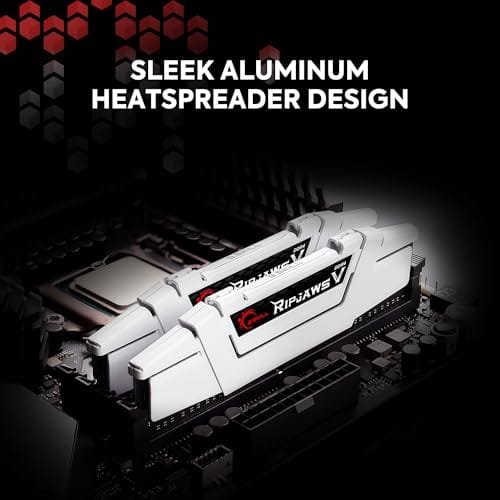
That platform split matters for the example kit here. The G.SKILL Ripjaws V 32GB (2x16GB) DDR4-3600 CL18 kit at $219.99 with a 4.1-star rating is a strong AM4 choice. Its 3600 MT/s speed and 1.35V rating hit the classic Ryzen AM4 tuning point where Infinity Fabric runs 1:1 with memory, which is exactly what an older Ryzen build wants. If you’re on AM5, this DDR4 kit won’t fit, so use it as a spec model and pick a DDR5 equivalent instead. We’re flagging that plainly so nobody orders the wrong memory.

Pros
- DDR4-3600 XMP at 1.35V is the Ryzen AM4 sweet spot, aligning FCLK 1:1 at 1800MHz for best latency.
- Matched 2x16GB kit is factory-tested as a pair, reducing dual-channel instability compared to mixing sticks.
- Compatible with both Intel XMP and AMD DOCP/A-XMP BIOS profiles without manual sub-timing adjustments.
- Ships with JEDEC SPD fallback so the system always boots safe at default clocks before XMP is enabled.
Cons
- CL18 primary latency is mid-range; DDR4-3600 CL16 kits exist for buyers prioritizing tighter timings.
- No ECC support, so workstation or Threadripper ECC builds need a different kit entirely.
The G.SKILL RipjawsV F4-3600C18D-32GVK is a mid-range DDR4 desktop kit targeting Intel and AMD mainstream platform builders who want 32GB capacity at DDR4-3600 without overpaying for CL14 or CL16 enthusiast kits. It ships as a matched 2x16GB dual-channel pair in the standard 288-pin U-DIMM form factor.
The defining spec here is the XMP profile: DDR4-3600 at CL18-22-22-42, 1.35V. On AMD AM4 Ryzen systems, 3600MHz is the well-documented sweet spot for achieving a 1:1 FCLK ratio at 1800MHz, which keeps infinity fabric latency in check and translates to measurable gains in lightly-threaded workloads and gaming frame times compared to DDR4-3200 or lower.
CL18 is a genuine trade-off at this speed. Competing DDR4-3600 kits with CL16 or CL14 exist and offer lower absolute latency, though they typically carry a price premium. Owners report stable XMP operation across a wide range of B450, X570, and Z490/Z590 boards, but reaching rated speed on some budget AM4 boards may require manual sub-timing adjustments or AGESA microcode updates.
Buy this if you are building or upgrading an AM4 Ryzen or Intel LGA1700 desktop and want reliable 32GB DDR4-3600 dual-channel performance without tuning. Skip this if you need CL16 or tighter for competitive latency, or if your board has a limited QVL and you have not verified compatibility via G.SKILL's configurator tool first.
Platform Support: This kit uses 288-pin DDR4 U-DIMM and is compatible with Intel LGA1700 (Z690/Z790) and AMD AM4 (B450/X470/B550/X570) platforms. AM5 uses DDR5 exclusively, so this kit is not compatible with Ryzen 7000/9000 series builds on AM5 boards.
XMP and DOCP Activation: Rated speed of DDR4-3600 CL18-22-22-42 at 1.35V requires enabling XMP (Intel) or DOCP/A-XMP (AMD) in BIOS. Default JEDEC SPD boots at DDR4-2133 or DDR4-2400. On AM4, DDR4-3600 aligns FCLK at 1800MHz for a 1:1 ratio, which is the recommended operating point for Ryzen 3000 and 5000 series CPUs.
Slot Population and Mixing: Install both sticks in the recommended dual-channel slots per your motherboard manual, typically A2 and B2 in a 4-slot board. G.SKILL explicitly warns against mixing this kit with other modules; doing so voids the matched-pair guarantee and risks instability at XMP speeds.
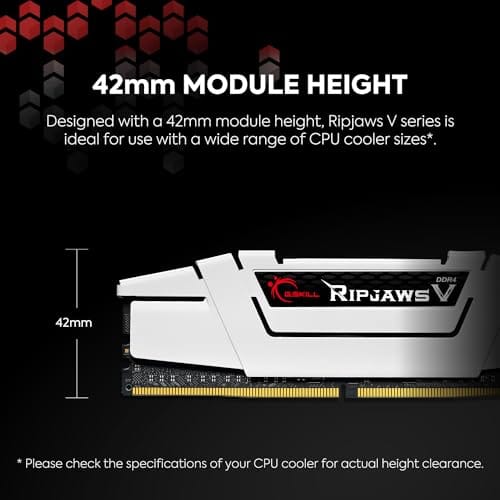
Cooler Clearance: Exact heatspreader height is not specified in the source data, but RipjawsV modules are noted for a lower profile than Trident Z or RGB variants, reducing conflicts with wide tower coolers. Verify clearance if using a low-clearance cooler on a tight ITX board.
Step 1: Confirm compatibility and buy the right kit
Check your motherboard’s QVL, the qualified vendor list, on the maker’s site, and note your socket. AM4 boards take DDR4, AM5 boards take DDR5. Decide on capacity: 16GB is a fine floor, 32GB is the comfortable target for gaming plus everything else, and 64GB is for heavy creative work. Two sticks in dual channel beat one big stick every time on Ryzen, since the memory controller loves matched pairs.
Also check your current configuration before buying. In Windows, Task Manager shows installed capacity and speed, while tools like CPU-Z show whether the board is running single or dual channel. If you already have 2x8GB installed, adding another random 2x8GB kit may work, but it’s less reliable than replacing it with a matched 2x16GB kit. For Ryzen, matched pairs are worth the small extra planning because the memory controller is picky about mixed ranks and timings.
Speed and timing matter on Ryzen more than on most platforms. For AM4, DDR4-3600 CL18 like that G.SKILL kit is the classic target because it keeps the Infinity Fabric in sync. For AM5, DDR5-6000 CL30 is the widely recommended point. If you want help choosing a modern kit, our guides to the best DDR5 RAM for Ryzen 9000 and the best budget RAM for Ryzen 9000 break down the current picks. Buy a matched two-stick kit, not two singles.
Step 2: Power down and open the case
Shut Windows down fully, then flip the power supply switch on the back to off and pull the wall plug. Press the case power button once to drain residual charge from the capacitors. Now remove the side panel, usually two thumbscrews at the rear. Lay the case on its side so the motherboard faces up, which makes the RAM slots easy to reach and keeps sticks from fighting gravity as you seat them.
Touch a bare metal part of the chassis to discharge static before you handle anything. If your case is a mess of cables over the memory area, tuck them aside. On some builds a large air cooler overhangs the first RAM slot, so you may need to note clearance. Low-profile kits help there, and if that’s your situation our best low-profile RAM for Ryzen 9000 picks are worth a glance before you buy.
Step 3: Remove old memory and seat the new kit
If you’re replacing existing RAM, push the retention clips at each end of the slot outward and the stick pops up. Lift it straight out. To install, check your manual for the correct dual-channel slots, almost always slots 2 and 4 (often labeled A2 and B2), the second and fourth from the CPU. Populating the wrong pair drops you to single channel and costs performance.
Line up the notch in the stick with the ridge in the slot; it only fits one way, so don’t force it. Open both clips, set the stick in evenly, and press down firmly on both ends until the clips snap up and lock on their own. It takes more pressure than beginners expect, and you’ll hear a distinct click. If a clip doesn’t close, the stick isn’t fully seated, so press again. Repeat for the second stick.
Step 4: Boot and enable the memory profile
Reconnect power and boot straight into the BIOS by tapping Delete or F2 during startup. Fresh RAM defaults to a safe JEDEC speed like 2133 or 4800 MT/s, well below what you paid for. Find the memory profile setting, called EXPO on AMD DDR5 boards or XMP on DDR4, and enable it. That single toggle loads the kit’s rated speed and timings, so your DDR4-3600 or DDR5-6000 kit actually runs at its advertised numbers.
Save and exit. The board may reboot a couple of times as it trains the memory, which is normal and can take 20 or 30 seconds the first time. If it boots to Windows, you’re nearly done. If it fails to post, don’t panic, the board will usually fall back to safe defaults so you can re-enter BIOS and try again. We cover that in the troubleshooting section below.
Step 5: Verify stability and speed in Windows
In Windows, open Task Manager’s Performance tab and confirm the reported speed matches your kit, and that the full capacity shows up. Then run a memory stability pass with a tool like MemTest86 from a USB stick, or Windows Memory Diagnostic for a lighter check. A clean pass or two means the profile is stable. Errors mean you should dial the speed back a notch or bump memory voltage slightly within spec.
Don’t confuse advertised speed with real clock. DDR stands for double data rate, so DDR4-3600 actually runs a 1800 MHz base clock while transferring data twice per cycle. That’s why tools may show 1800 MHz even though the kit is operating correctly at 3600 MT/s. Same idea for DDR5. If Task Manager and CPU-Z disagree, look for MT/s versus MHz labels before assuming something is wrong.
Save your known-good BIOS settings too. Many boards let you store a profile after the memory is stable, and that profile is handy if a future BIOS update clears everything. Write down the final speed, primary timings, and voltage in a note on your phone. It sounds fussy, but six months later you’ll be glad you did when a CMOS reset wipes the profile and you can’t remember the exact numbers.
For everyday confidence, just use the machine hard for a day, game and multitask, and watch for crashes or blue screens that mention memory. Stable RAM is invisible; you only notice unstable RAM. Once you’ve confirmed the speed, capacity, and stability, the upgrade is complete and you can close the case back up.
Troubleshooting common issues
PC won’t post after the swap
Reseat both sticks, pressing until the clips lock. A stick that’s a hair loose is the number one cause. If it still won’t post, boot with a single stick in the A2 slot to isolate a bad module or a bad slot. Most boards have a Q-LED or debug light for DRAM that confirms a memory fault.
RAM runs at the wrong speed
You forgot to enable EXPO or XMP, or the board reset it after a failed boot. Re-enter BIOS and turn the profile back on. If the rated speed won’t hold, your CPU’s memory controller may not reach it with four sticks or higher-density modules, so try the next profile down.
Only half the RAM shows up
One stick isn’t seated, or it’s in a slot the board isn’t reading. Recheck that both modules clicked in and that you used the manual’s recommended dual-channel pair. A quick reseat fixes this the vast majority of the time.
Before / after expected outcomes
Going from 8GB to 16GB, or 16GB to 32GB, you’ll feel snappier alt-tabbing, fewer stutters in asset-heavy games, and room to keep dozens of tabs open without the disk thrashing. Enabling EXPO or XMP on a Ryzen build in particular can lift average frame rates a meaningful amount over stock JEDEC speed, since Ryzen’s performance scales with memory bandwidth and latency more than most platforms.
Variations / advanced setups
Enthusiasts on AM4 can hand-tune subtimings past what XMP sets for a few extra percent, keeping Infinity Fabric at 1800 MHz for that 1:1 sync with DDR4-3600. AM5 owners chasing DDR5-6000 CL30 should confirm the FCLK and memory controller ratios in BIOS. If you run four sticks instead of two, expect to lower the rated speed slightly, since four modules load the controller harder than a matched pair.
RGB memory is mostly cosmetic, but height matters. Tall light bars can collide with dual-tower air coolers, especially in the first RAM slot. If you use a large cooler, check the cooler’s clearance number against the module height before buying. A low-profile, non-RGB kit may look plain, yet it’s often easier to install and easier to cool in a compact Ryzen build. Plain works, and clearance headaches disappear fast.
Common questions
Do I need to update my BIOS before adding RAM?
Not always, but it helps. A newer BIOS often improves memory compatibility and lets higher-speed kits post cleanly, especially on AM5 early boards. If your kit is on the QVL and posts fine, you’re set. If it won’t reach rated speed, a BIOS update is the first thing to try.
Can I mix my old RAM with the new kit?
You can try, but it’s not recommended. Mixing kits with different timings, speeds, or die types can cause instability or force everything down to the slower stick’s speed. For the most reliable result, run a single matched two-stick kit bought together rather than mismatched leftovers.
Will more RAM speed up my Ryzen CPU in games?
Faster, properly clocked RAM does help Ryzen in games, because the architecture is sensitive to memory bandwidth and latency. Enabling EXPO or XMP is the biggest single win. Adding capacity beyond what a game uses won’t raise frame rates, but it stops slowdowns from background apps eating your memory. Match the kit to your platform for the best gain.

































Write Your Review
No reviews yet. Be the first to share your experience!