

You bought a DDR4-3600 kit, dropped it in, and now you want to confirm it’s actually running at 3600 and not idling at some slower default. Good instinct. Memory almost never runs at its rated speed out of the box, because motherboards boot RAM at a conservative JEDEC baseline until you switch on the XMP profile. This walkthrough shows you how to check your RAM frequency the right way, read what the number means, and fix it if the speed is lower than the sticker promised. It takes five minutes and needs zero extra hardware. If you’re still shopping, our picks for the best DDR5 RAM for the 9800X3D and the best 32GB RAM kit are a good starting point.
What you’ll need
Nothing you don’t already have. This is a software job, so you’ll need your PC, a couple of free utilities, and about five minutes. The built-in Windows Task Manager gets you a quick answer, and a free tool called CPU-Z gives you the detailed breakdown including timings and whether XMP is active. If you want to change the speed, you’ll reboot into your motherboard’s BIOS, which needs no download at all. A reference kit like the G.SKILL Ripjaws V DDR4 32GB (2x16GB) 3600 CL18 kit at $219.99, rated 4.1, is a useful example to keep in mind while reading, since its rated 3600MT/s and CL18-22-22-42 timings are exactly the numbers you’ll be verifying.
Why bother checking at all? Because memory left at its default speed can quietly cost you performance, especially on an AMD Ryzen system where the infinity fabric scales with memory speed. A kit rated 3600 running at 2133 isn’t broken, it’s just idling, and you paid for the faster number. Verifying the frequency takes minutes and either confirms you’re getting what you bought or flags a two-minute fix. Either way you walk away knowing, instead of guessing.

Pros
- DDR4-3600 XMP at 1.35V is the Ryzen AM4 sweet spot, aligning FCLK 1:1 at 1800MHz for best latency.
- Matched 2x16GB kit is factory-tested as a pair, reducing dual-channel instability compared to mixing sticks.
- Compatible with both Intel XMP and AMD DOCP/A-XMP BIOS profiles without manual sub-timing adjustments.
- Ships with JEDEC SPD fallback so the system always boots safe at default clocks before XMP is enabled.
Cons
- CL18 primary latency is mid-range; DDR4-3600 CL16 kits exist for buyers prioritizing tighter timings.
- No ECC support, so workstation or Threadripper ECC builds need a different kit entirely.
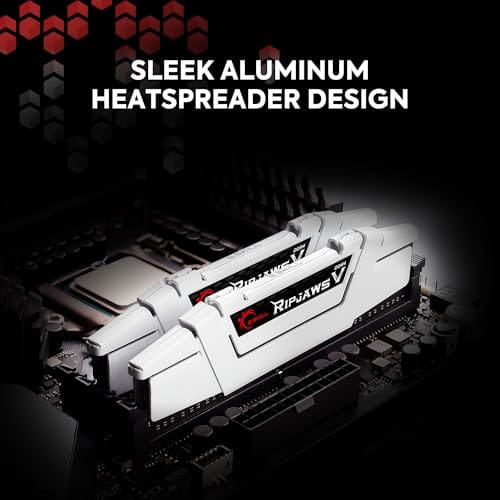
The G.SKILL RipjawsV F4-3600C18D-32GVK is a mid-range DDR4 desktop kit targeting Intel and AMD mainstream platform builders who want 32GB capacity at DDR4-3600 without overpaying for CL14 or CL16 enthusiast kits. It ships as a matched 2x16GB dual-channel pair in the standard 288-pin U-DIMM form factor.
The defining spec here is the XMP profile: DDR4-3600 at CL18-22-22-42, 1.35V. On AMD AM4 Ryzen systems, 3600MHz is the well-documented sweet spot for achieving a 1:1 FCLK ratio at 1800MHz, which keeps infinity fabric latency in check and translates to measurable gains in lightly-threaded workloads and gaming frame times compared to DDR4-3200 or lower.
CL18 is a genuine trade-off at this speed. Competing DDR4-3600 kits with CL16 or CL14 exist and offer lower absolute latency, though they typically carry a price premium. Owners report stable XMP operation across a wide range of B450, X570, and Z490/Z590 boards, but reaching rated speed on some budget AM4 boards may require manual sub-timing adjustments or AGESA microcode updates.
Buy this if you are building or upgrading an AM4 Ryzen or Intel LGA1700 desktop and want reliable 32GB DDR4-3600 dual-channel performance without tuning. Skip this if you need CL16 or tighter for competitive latency, or if your board has a limited QVL and you have not verified compatibility via G.SKILL's configurator tool first.
Platform Support: This kit uses 288-pin DDR4 U-DIMM and is compatible with Intel LGA1700 (Z690/Z790) and AMD AM4 (B450/X470/B550/X570) platforms. AM5 uses DDR5 exclusively, so this kit is not compatible with Ryzen 7000/9000 series builds on AM5 boards.
XMP and DOCP Activation: Rated speed of DDR4-3600 CL18-22-22-42 at 1.35V requires enabling XMP (Intel) or DOCP/A-XMP (AMD) in BIOS. Default JEDEC SPD boots at DDR4-2133 or DDR4-2400. On AM4, DDR4-3600 aligns FCLK at 1800MHz for a 1:1 ratio, which is the recommended operating point for Ryzen 3000 and 5000 series CPUs.
Slot Population and Mixing: Install both sticks in the recommended dual-channel slots per your motherboard manual, typically A2 and B2 in a 4-slot board. G.SKILL explicitly warns against mixing this kit with other modules; doing so voids the matched-pair guarantee and risks instability at XMP speeds.
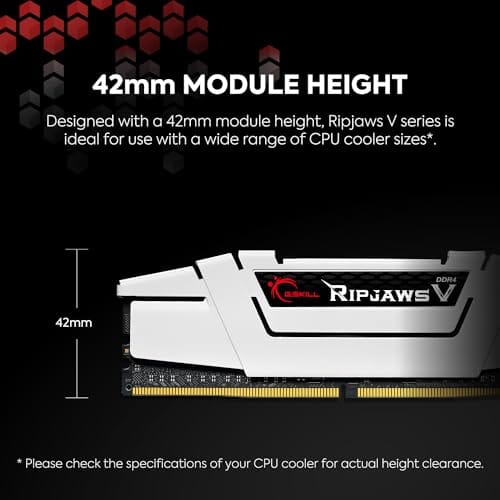
Cooler Clearance: Exact heatspreader height is not specified in the source data, but RipjawsV modules are noted for a lower profile than Trident Z or RGB variants, reducing conflicts with wide tower coolers. Verify clearance if using a low-clearance cooler on a tight ITX board.
Step 1: Open Task Manager for the quick read
Press Ctrl+Shift+Esc to open Task Manager, click the Performance tab, and select Memory in the left column. Look at the Speed field in the lower right. That number is your current memory frequency in MT/s. Here’s the catch that trips people up: DDR memory is double data rate, so a kit rated 3600MT/s often shows as 1800 MHz in some tools because that’s the true clock frequency, and 1800 doubled is your 3600 rating. Task Manager usually reports the MT/s figure directly.
If that G.SKILL 3600 kit shows 3600 here, you’re set. If it shows 2133 or 2400, the RAM is running at its JEDEC default and XMP is off. Don’t panic. That’s the single most common reason a new kit runs slow, and it’s a two-minute fix we’ll get to. Task Manager gives you the headline number; the next step confirms the details.
Step 2: Confirm with CPU-Z
Download CPU-Z from its official site, install it, and open the Memory tab. The DRAM Frequency reading is the real clock, so for a 3600 kit you want to see roughly 1800 MHz there, because CPU-Z reports the actual frequency, not the doubled marketing number. Multiply by two and you get your effective 3600 rating. The Memory tab also shows your CAS Latency and the other timings, so you can confirm the CL18-22-22-42 spec is loaded correctly.
Switch to the SPD tab and pick your populated slot to see what the module is rated for versus what’s active. This is where you catch a mismatch: if the SPD tab lists an XMP profile of 3600 CL18 but the Memory tab shows the kit running at 2400, XMP isn’t enabled. CPU-Z removes the guesswork. It tells you the rated speed, the running speed, and the timings all in one window.
While you’re in the SPD tab, glance at the manufacturer and part number fields too. On a two-stick kit like the G.SKILL Ripjaws V, both populated slots should report the same module details, because mixing mismatched sticks is a common cause of a kit refusing to run at rated speed. If one slot shows a different part or a blank entry, you’ve found a seating or compatibility issue worth sorting before you chase frequency settings. Matched sticks in the right dual-channel slots are the foundation everything else builds on.
Step 3: Check whether XMP is enabled
XMP (Extreme Memory Profile) is the stored setting that tells your motherboard to run the RAM at its advertised speed and timings instead of the safe default. On AMD boards the same feature often goes by EXPO or DOCP, but the idea’s identical. If your frequency reads low, XMP is almost certainly off, because motherboards ship with it disabled so any RAM boots reliably before you opt into the faster profile.
You confirm XMP status in the BIOS, which we’ll open in the next step, but CPU-Z hints at it too: if the running frequency matches the SPD tab’s JEDEC entries rather than the XMP entry, the profile isn’t active. The G.SKILL Ripjaws V kit stores its 3600 CL18-22-22-42 profile in XMP, so until you switch that on, the board runs it at a slower JEDEC speed like 2133 or 2400. That’s not a defect. It’s the default waiting for your go-ahead.
Step 4: Enable XMP in BIOS if the speed is low
Reboot and tap Delete or F2 during startup to enter the BIOS, then find the XMP, EXPO, or DOCP setting. On most boards it’s a dropdown on the main or overclocking page. Set it to Profile 1, which loads the rated speed and timings. For the G.SKILL 3600 kit that means the board applies 3600MT/s at CL18-22-22-42 and 1.35V automatically, so you don’t hand-enter a single timing. Save and exit, usually F10.
The system will reboot, and it may cold-boot twice while it applies the new profile, which is normal, don’t interrupt it. Once you’re back in Windows, reopen Task Manager or CPU-Z and confirm the frequency now reads your rated speed. If it boots and runs stable, you’re done. If it fails to POST, the board usually reverts automatically, and you can try Profile 2 or a slightly lower manual speed.
A quick note on the different names you’ll see. Intel calls this feature XMP, AMD’s newer boards call it EXPO, and some older AMD boards label it DOCP or AMP. They all do the same thing: load the memory’s rated profile automatically. So if you’re on a Ryzen system and don’t see XMP, don’t assume your board can’t do it, just look for EXPO or DOCP in the same overclocking menu. The G.SKILL Ripjaws V kit stores an XMP profile, and most modern AMD boards read that profile fine through their EXPO or DOCP option.
Step 5: Verify stability after the change
Enabling XMP is a mild overclock, so confirm the system’s rock-solid before you trust it. Reboot a couple of times to make sure it POSTs reliably from cold, then use the machine normally for a day. If you want a firmer check, run a memory diagnostic like the built-in Windows Memory Diagnostic or MemTest86 from a USB stick for a full pass. A clean pass means the frequency and timings are stable at your rated speed.
If you hit crashes, blue screens, or errors after enabling the profile, the kit may need a touch more voltage or a slightly looser primary timing, though a quality kit like the G.SKILL Ripjaws V at its rated 1.35V usually just works. Most people never see instability from a straight XMP enable on a supported board. Verify once, then forget it. Your RAM finally runs at the speed you paid for.
It’s worth knowing what the speed actually buys you, so you can judge whether the effort paid off. Faster memory helps most in CPU-bound games and in tasks that shuffle lots of data, and on Ryzen it also lifts the infinity fabric that ties the cores together. The jump from 2133 to 3600 is real and measurable in the right workloads, while the difference between 3600 and 3800 is small enough that most people won’t feel it. So getting from the default to your rated speed is the meaningful win. Squeezing out the last hundred megatransfers is a hobby, not a necessity.
Troubleshooting common issues
Task Manager and CPU-Z show different numbers
That’s the double-data-rate quirk. CPU-Z’s DRAM Frequency shows the true clock, so a 3600 kit reads around 1800 MHz there, while Task Manager reports the doubled effective 3600 figure. They agree, they’re just labeled differently. Double the CPU-Z number and you’ve got your rated speed. Nothing’s wrong.
XMP option is missing from my BIOS
Look for EXPO or DOCP instead, since AMD boards use those names for the same feature. If you see none of them, update your motherboard BIOS to the latest version, because older firmware sometimes hides memory profiles or lacks support for a newer kit. After the update, the profile option usually appears on the overclocking page.
System won’t POST after enabling XMP
Most boards auto-revert to default after a few failed boots, dropping you back to a working state. From there, try XMP Profile 2 if it exists, or manually set the frequency one step lower. On some kits a small bump to the DRAM voltage within spec helps the profile hold. If it still won’t run rated, the kit may not be on that board’s memory support list.
RAM runs slower than rated even with XMP on
Some CPUs and boards cap memory speed when all four slots are populated, so a 3600 kit might settle lower with four sticks than with two. Check your motherboard’s memory support list for the speed it guarantees at your configuration. Running two sticks in the correct dual-channel slots usually lets a kit hit its full rated frequency.
Wrapping up
Checking your RAM frequency is a five-minute job: Task Manager for the quick number, CPU-Z for the detail, then BIOS to enable XMP if the speed’s low. Remember the double-data-rate math so 1800 MHz in CPU-Z doesn’t spook you, and verify stability once after enabling a profile. Do that and you’ll know your memory runs exactly as fast as its rating claims, not the sluggish default it booted with. If your kit turns out slower than you’d like even at rated speed, our guide to the best RAM for gaming and video editing covers faster options worth the upgrade.
And keep the whole thing in perspective. Confirming your frequency is a one-time chore, not an ongoing worry, so once XMP is on and the system’s stable, you can stop thinking about it. The number’s locked in until you change hardware or reset the BIOS. Check it once after any new build, memory swap, or firmware update, and you’re covered. Simple as that, and your memory will always run at the speed you paid for.


































Write Your Review
No reviews yet. Be the first to share your experience!