

Choosing a prebuilt for 1440p gaming sounds simple until you open a retailer page and drown in specs. The goal is clear enough: a machine that holds 60 to 100-plus frames at 2560×1440 in the games you actually play, without paying for parts you’ll never use. The trick is knowing which components decide that outcome and which are marketing noise. This walkthrough takes you from figuring out your target frame rate to placing the order, step by step, so you buy the right box the first time.
We researched how prebuilt configs map to 1440p performance and boiled it down to a repeatable process. If you want curated shortlists alongside this method, our roundups of the best prebuilt gaming PC for 1440p and the best budget prebuilt for 1440p gaming pair nicely with the criteria below.
What you’ll need
No tools here, just information and a plan. Have three things ready before you shop: your budget ceiling, a list of the games you play most, and your monitor’s refresh rate. Those three decide everything downstream. You’ll also want a browser tab open to compare configs side by side, since the difference between two prebuilts at the same price is often one component that matters a lot for 1440p.
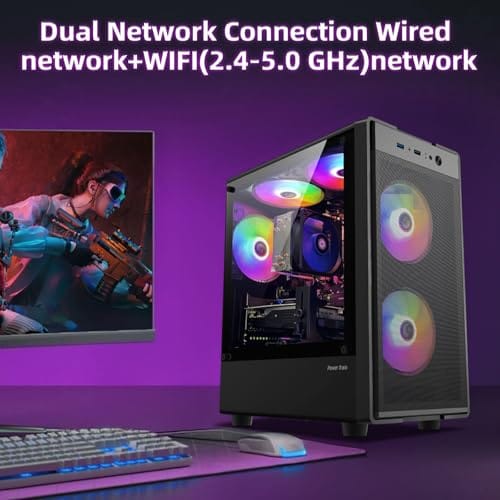
Set expectations on price early. Genuine 1440p gaming prebuilts with a current midrange GPU generally start higher than budget office towers. A machine like the abytespark Prebuilt Gaming PC Desktop at $499.99 with an Intel Core i7 and a 4.4-star rating shows where the entry floor sits, though at that price you’re closer to esports and lighter 1440p titles than maxed-out AAA. Knowing that keeps your expectations honest as you compare.
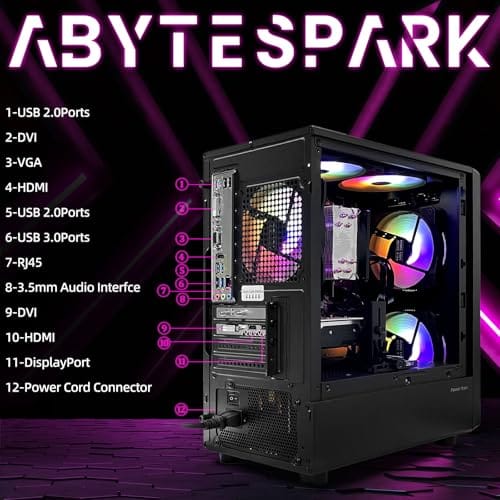
It also helps to know the vocabulary before you shop, because retailers lean on it. “Gaming” in a product name means nothing on its own. “VR-ready” is a loose marketing term. Even “1440p capable” can mean the machine outputs that resolution, not that it games well at it. The specs that matter are the exact GPU model, the exact CPU model, the amount and speed of RAM, and the storage type. Everything else is packaging. Keep a note open with those four fields for each machine you’re comparing, and the marketing noise falls away fast.
Pros
- 512GB SSD bot drive avoids the HDD bottleneck common in budget prebuilts
- RX 590 8GB VRAM buffer handles 1080p textures better than 4GB budget cards
- Complete bundle with RGB peripherals means no extra spend to start using
- Genuine Windows 11 Home 64-bit preinstalled, no activation hassle out of box
Cons
- Limited owner feedback at time of writing, verify seller reputation before purchase
- Core i7-4770 is Haswell era LGA150, no upgrade path and weak IPC versus modern CPUs
- Windows 11 on 4th-gen Intel is unsupported by Microsoft and may miss feature updates
- No CD/DVD-ROM support and RAM/GPU generation limits future workload headroom
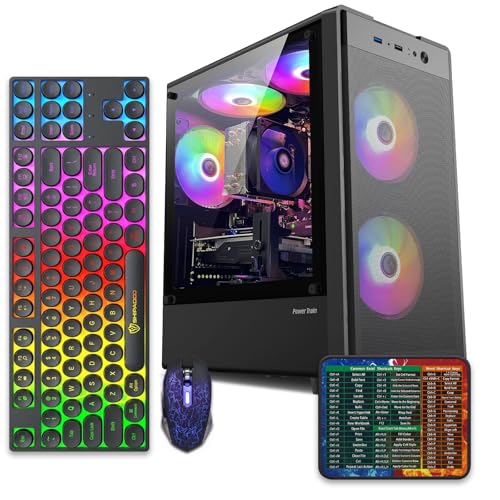
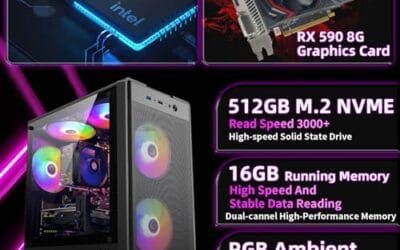
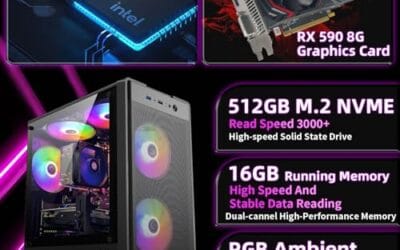
This is an entry-tier prebuilt tower built around an Intel Core i7-4770 Haswell CPU, 16GB RAM, a 512GB SSD, and an AMD Radeon RX 590 8GB GDDR5 GPU. It targets budget buyers who need a working office and light gaming PC with peripherals bundled, not enthusiasts chasing current-gen performance.
The defining feature is the RX 590 8GB paired with a 512GB SSD, an uncommon combo at this price band. Cards in this class typically handle 1080p esports titles at 60+ FPS on medium to high, matching the vendor claim for CS:GO, League of Legends, Apex, and Overwatch. Newer AA titles will need lowered settings.
Trade-offs are significant. The i7-4770 launched in 2013, so IPC, single-thread performance, and platform features like NVMe bot, PCIe Gen4, and modern USB are limited. Windows 11 runs here but sits outside Microsoft's official supported CPU list. There is no realistic CPU or socket upgrade path on LGA1150.
Buy this if you need a plug-and-play 1080p esports and office tower with keyboard, mouse, and RGB included at a low outlay. Skip this if you want current-gen platform support, sustained AA 1440p gaming, or a build with a meaningful upgrade runway.
GPU class: The AMD Radeon RX 590 8GB GDDR5 is a Polaris-refresh card roughly equivalent to a GTX 1060 6GB tier. Expect 1080p 60+ FPS in esports titles like CS:GO, Overwatch, Apex, League, and Fortnite on medium settings, matching the listing's claims.
AAA and modern titles: The vendor lists GTA V, Warzone, Hogwarts Legacy, and The Division 2. Realistically, these run at 1080p low to medium with FSR upscaling where suported.Ray tracing is unsupported on RX 590. No DLSS, no frame gen, no AV1 encode.
CPU bottleneck: The Core i7-4770 quad-core with 8threads at up to 3.9GHz will bottleneck the RX 590 in CPU-heavy titles like Warzone and Escape from Tarkov. Expect frame time inconsistency in large team fights even when average FPS looks aceptable.
Storage and RAM fit: 512GB SSD holds Windows plus 3 to 5 modern game installs before space pressure. 16GB DR3-era RAM is adequate for current esports but leaves no headroom for heavy streaming, browser tabs, and OBS NVENC alongside a game session.
Step 1: Set your 1440p frame-rate target
Decide what “good enough” means for you before looking at a single spec. If you play competitive shooters and own a 144Hz or 165Hz monitor, you want 120-plus frames, which pushes you toward a stronger GPU. If you play story-driven single-player games on a 60Hz or 75Hz panel, a steady 60 to 90 frames is plenty, and you can save money on the graphics card.
Write the number down. It’s the anchor for every later choice. A common mistake is buying far more GPU than your monitor can display, paying for 140 frames on a 60Hz screen that only shows 60. Match the target to your actual panel, and you’ll spend where it counts.
Be realistic about settings too. “1440p gaming” at ultra with ray tracing on is a very different demand than 1440p at high with upscaling like DLSS or FSR turned on. Most people can’t tell ultra from high in motion, and upscaling adds a big chunk of performance for a small visual cost. If you’re comfortable running high settings with upscaling, a more affordable machine clears your target, and that reshapes the whole budget. Decide now whether your goal is maximum eye candy or smooth, high-frame gameplay, because that single choice moves the GPU you need up or down a tier. And factor in that a machine landing a bit under your target today can often reach it with a settings tweak or a driver update later, so a hair of headroom in the GPU pays off across the machine’s whole life.
Step 2: Prioritize the GPU
At 1440p the graphics card is the single biggest factor, full stop. It carries the resolution’s pixel load, and it’s the part that most separates a smooth prebuilt from a stuttery one. Focus your budget here. For solid 1440p at high settings in modern games, aim for a current midrange card or better, and read the exact GPU model rather than trusting a vague “gaming graphics” label.
Watch for two tricks. Prebuilts sometimes pair a strong-sounding CPU with a weak GPU to hit a price, and older-generation cards get relabeled as current. Look up the specific card’s 1440p benchmarks before committing. If a config hides the exact GPU model, treat that as a warning sign and move on to one that’s transparent.
Pay attention to VRAM as well, since it’s become a real 1440p limiter. At this resolution, modern games with high-resolution textures can push past 8GB of video memory, and a card that runs out stutters no matter how fast its core is. Aim for a GPU with a healthy VRAM buffer for 1440p, because that’s the spec that ages fastest as games grow. A card with plenty of raw power but a thin memory buffer looks great on a spec sheet and disappoints two years later, so weigh the memory figure alongside the model name, not as an afterthought.
Step 3: Match the CPU and memory
Your CPU needs to be strong enough not to bottleneck the GPU at 1440p, but you don’t need the absolute top chip. A current midrange six or eight-core processor, an Intel Core i5/i7 or AMD Ryzen 5/7 class part, keeps a midrange GPU fed without waste. The abytespark tower’s Core i7, for instance, has the core count to avoid holding back a matched card in most 1440p titles.
Memory is straightforward. 16GB is the working minimum for 1440p gaming in 2026, and 32GB gives headroom for multitasking, streaming, or heavier games. Check that it’s dual-channel, meaning two sticks rather than one, since single-channel memory can cost real frames. DDR5 is preferable on newer platforms, but a well-configured DDR4 build still games fine at this resolution.
One detail that trips people up: a prebuilt advertising 16GB as a single stick is quietly worse than one with two 8GB sticks, because single-channel memory starves the GPU of bandwidth and can drop your frames by a noticeable margin in some titles. If the listing doesn’t say, ask, or count the sticks in the product photos. It’s a cheap thing for a builder to cut and an easy thing for you to miss, and fixing it later means buying a second stick and opening the machine.
Step 4: Check storage, power, and cooling
Storage should be an NVMe SSD as the boot and game drive, ideally 1TB, since games run 80GB to 150GB each and a 500GB drive fills fast. A prebuilt that still ships a mechanical hard drive as the primary disk is cutting a corner you’ll feel every load screen. Confirm the drive type before buying, not after.
A common budget trick is a small SSD paired with a large mechanical drive, advertised as a big total. That’s fine as long as the SSD holds Windows and your main games, but if it’s only 256GB, you’ll shuffle games between drives constantly. Look for at least a 1TB SSD as the primary. Secondary mechanical storage for media is a bonus, not a substitute for a roomy solid-state boot drive.
Power and cooling are the quiet dealbreakers. A skimpy power supply undermines an otherwise good build, so look for a reputable unit with enough wattage headroom for the GPU. Cooling matters too, because a strong card that thermal-throttles in a stuffy case loses frames. Photos showing decent case airflow and a proper CPU cooler are a good sign. A cramped box with one exhaust fan is not.
Step 5: Verify ports, upgrade room, and warranty
Confirm the machine has the outputs your 1440p monitor uses, a DisplayPort 1.4 or HDMI 2.1 connection on the GPU, not just the motherboard’s video port, which won’t drive a gaming display well. Check the front and rear USB layout too if you run a lot of peripherals. Small stuff, but annoying to discover after delivery.
Finally, weigh upgrade headroom and support. A spare RAM slot, an open M.2 for more storage, and a power supply with room to spare all extend the machine’s life. Read the warranty length and what it covers. A longer term and responsive support are worth a little extra, especially on a budget prebuilt where a single failed part shouldn’t end the whole machine.
Check the power supply’s wattage and brand specifically, since it’s the part budget prebuilts skimp on most. A no-name unit sized right at the GPU’s draw leaves no headroom and is the component most likely to fail early or block a future graphics upgrade. If the listing names a reputable supply with comfortable wattage, that’s a sign the builder didn’t cut the corner that matters most. If it just says “gaming power supply” with no wattage, be cautious, because that vagueness usually hides the cheapest unit that fit the budget.
Troubleshooting common issues
The config looks great but frames are low at 1440p
First suspect is memory running single-channel, so verify two sticks are installed. Next, confirm your monitor cable plugs into the GPU’s DisplayPort or HDMI, not the motherboard. Then check that the GPU driver is current. A capable card can post weak numbers purely from an old driver or a mismatched cable.
The price seems too good for 1440p
A suspiciously cheap “1440p gaming” prebuilt usually hides an older or weaker GPU, single-channel RAM, or a mechanical boot drive. Cross-check the exact GPU model against 1440p benchmarks. If the listing won’t name the card precisely, assume it’s the corner being cut and shop elsewhere.
It runs hot and loud under load
Thermal throttling from poor airflow is the usual cause. Make sure intake and exhaust vents aren’t blocked, and confirm the case has enough fans for the GPU inside it. If a machine consistently runs hot in reviews, that’s a build-quality flag worth avoiding before you buy, not a fix to attempt after.
Wrapping up
Buying a 1440p prebuilt comes down to a short chain of decisions: set your frame target, spend on the GPU, match a sane CPU and 16GB-plus of dual-channel memory, insist on an NVMe boot drive, and confirm cooling, ports, and warranty. Follow that order and you’ll skip the traps that leave people with a “gaming PC” that stutters at 1440p.
Don’t rush the GPU decision, since it’s the one part that most defines your experience at this resolution. Take the extra ten minutes to look up the exact card’s benchmarks. Do that, and whatever you order should hold the frames you’re paying for.
And remember that a prebuilt is a starting point, not a sealed box. The best budget play is often a solid, transparent config with one or two clear upgrade paths open, a spare RAM slot and an extra M.2, so you can add memory or storage down the line without replacing the machine. Buy the parts that are hard to swap, the CPU, the board, the power supply, and the GPU, right the first time, and leave the easy stuff for later. That’s how a modest 1440p prebuilt stretches into a few good years instead of one.



























Write Your Review
No reviews yet. Be the first to share your experience!