

Low-profile RAM solves a specific, annoying problem: a big air cooler that overhangs the first memory slot, or a small-form-factor case where a tall heat spreader simply won’t clear the fan. Choosing it isn’t hard once you know the four things that matter, height, capacity, speed, and compatibility, and in what order to check them. This walkthrough takes you from measuring your clearance to slotting the sticks in, so you buy once and boot on the first try.
What you’ll need
Not much. A ruler or calipers to measure cooler clearance, your motherboard’s manual or its QVL page open in a browser, and your CPU model so you can confirm supported memory speeds. If you’re pairing memory with a specific chip, our guides to the best low-profile RAM for 2026 and the best DDR5 for the Ryzen 9800X3D save you a lot of cross-referencing. Have a Phillips screwdriver ready for the case panel. That’s the whole kit.
Step 1: Measure your cooler and slot clearance
Everything starts with a number: how much vertical space sits above your DIMM slots. Large dual-tower air coolers often hang over the closest slot, and the fan sits lower than you’d guess. Measure from the top of the memory slot to the bottom edge of the cooler or fan. Write it down. That figure is your ceiling.
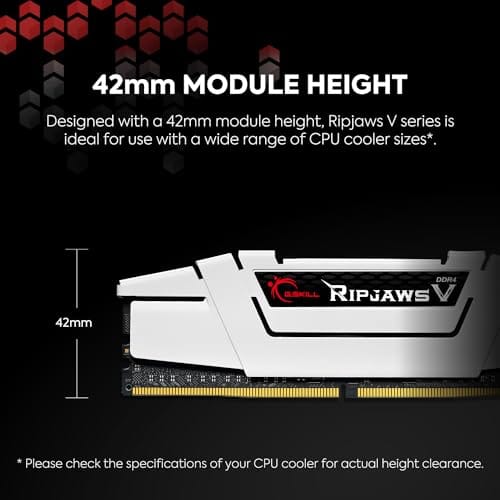
Standard RAM with a tall heat spreader runs roughly 40mm to 44mm high. Genuine low-profile kits sit around 31mm to 34mm, and bare-PCB modules can drop near 20mm. If your clearance is under 40mm, you need a low-profile kit, full stop. If it’s tight but not brutal, you’ve got options, so measure before you shop, not after the fan won’t seat.
Measure across all four slots if your board has them, not just the first one nearest the CPU. Big dual-tower coolers overhang the closest slot most, but a wide cooler or a thick front fan can crowd the second slot too. Note the number for each populated slot. And remember the fan position isn’t fixed, since most tower coolers let you slide the fan up its clips, which is the free fix if a kit clears the heatsink but not the fan. Get the real measurement first, then you’re shopping with facts instead of hoping a kit fits.
Step 2: Confirm DDR generation and capacity
Height doesn’t matter if the memory won’t fit the socket electrically. Check whether your platform takes DDR4 or DDR5, since they’re keyed differently and aren’t interchangeable. Your motherboard manual states this plainly, and it’s the one spec you can’t compromise on. A DDR5 board rejects a DDR4 stick and vice versa.
Then decide capacity. For gaming and general use, 32GB is the comfortable target in 2026, usually as a 2x16GB dual-channel kit so both memory channels are populated. Content creators and heavy multitaskers may want 64GB. Buy a matched kit rather than mixing single sticks, because a factory-matched pair is far likelier to run its rated speed without drama.

Pros
- DDR4-3600 XMP at 1.35V is the Ryzen AM4 sweet spot, aligning FCLK 1:1 at 1800MHz for best latency.
- Matched 2x16GB kit is factory-tested as a pair, reducing dual-channel instability compared to mixing sticks.
- Compatible with both Intel XMP and AMD DOCP/A-XMP BIOS profiles without manual sub-timing adjustments.
- Ships with JEDEC SPD fallback so the system always boots safe at default clocks before XMP is enabled.
Cons
- CL18 primary latency is mid-range; DDR4-3600 CL16 kits exist for buyers prioritizing tighter timings.
- No ECC support, so workstation or Threadripper ECC builds need a different kit entirely.
The G.SKILL RipjawsV F4-3600C18D-32GVK is a mid-range DDR4 desktop kit targeting Intel and AMD mainstream platform builders who want 32GB capacity at DDR4-3600 without overpaying for CL14 or CL16 enthusiast kits. It ships as a matched 2x16GB dual-channel pair in the standard 288-pin U-DIMM form factor.
The defining spec here is the XMP profile: DDR4-3600 at CL18-22-22-42, 1.35V. On AMD AM4 Ryzen systems, 3600MHz is the well-documented sweet spot for achieving a 1:1 FCLK ratio at 1800MHz, which keeps infinity fabric latency in check and translates to measurable gains in lightly-threaded workloads and gaming frame times compared to DDR4-3200 or lower.
CL18 is a genuine trade-off at this speed. Competing DDR4-3600 kits with CL16 or CL14 exist and offer lower absolute latency, though they typically carry a price premium. Owners report stable XMP operation across a wide range of B450, X570, and Z490/Z590 boards, but reaching rated speed on some budget AM4 boards may require manual sub-timing adjustments or AGESA microcode updates.
Buy this if you are building or upgrading an AM4 Ryzen or Intel LGA1700 desktop and want reliable 32GB DDR4-3600 dual-channel performance without tuning. Skip this if you need CL16 or tighter for competitive latency, or if your board has a limited QVL and you have not verified compatibility via G.SKILL's configurator tool first.
Platform Support: This kit uses 288-pin DDR4 U-DIMM and is compatible with Intel LGA1700 (Z690/Z790) and AMD AM4 (B450/X470/B550/X570) platforms. AM5 uses DDR5 exclusively, so this kit is not compatible with Ryzen 7000/9000 series builds on AM5 boards.
XMP and DOCP Activation: Rated speed of DDR4-3600 CL18-22-22-42 at 1.35V requires enabling XMP (Intel) or DOCP/A-XMP (AMD) in BIOS. Default JEDEC SPD boots at DDR4-2133 or DDR4-2400. On AM4, DDR4-3600 aligns FCLK at 1800MHz for a 1:1 ratio, which is the recommended operating point for Ryzen 3000 and 5000 series CPUs.
Slot Population and Mixing: Install both sticks in the recommended dual-channel slots per your motherboard manual, typically A2 and B2 in a 4-slot board. G.SKILL explicitly warns against mixing this kit with other modules; doing so voids the matched-pair guarantee and risks instability at XMP speeds.
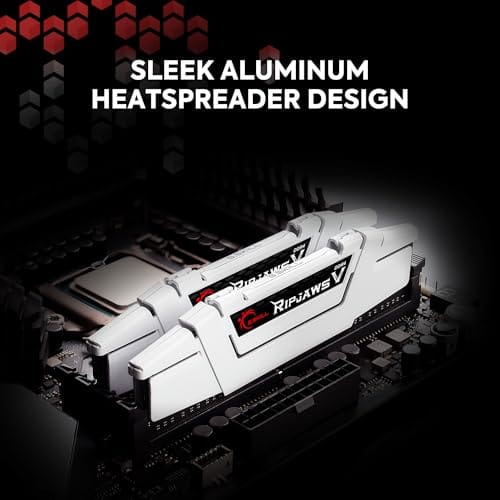
Cooler Clearance: Exact heatspreader height is not specified in the source data, but RipjawsV modules are noted for a lower profile than Trident Z or RGB variants, reducing conflicts with wide tower coolers. Verify clearance if using a low-clearance cooler on a tight ITX board.
A quick, transparent note on that card above: the G.SKILL Ripjaws V 32GB (2x16GB) DDR4-3600 CL18 kit at $219.99, 4.1 stars, is a solid dual-channel reference for what a 32GB matched set looks like, but Ripjaws V uses a standard-height heat spreader, not a true low-profile one. We’re showing it as a spec and pricing benchmark for the 32GB DDR4 tier, not as a short-clearance pick. If your cooler overhangs the slot, verify a shorter kit’s height before buying.
Step 3: Match speed and timings to your CPU
Now the performance part. Every CPU has a supported memory range, and pushing far past it via XMP or EXPO can mean instability. That Ripjaws V kit runs DDR4-3600 at CL18-22-22-42 on 1.35V, which is a sensible sweet target for many AM4 and older Intel builds. Lower CAS latency at the same speed is better, but don’t chase exotic numbers your board can’t hold.
On modern AMD chips, memory speed ties into the Infinity Fabric, so a balanced DDR5 kit often beats a wildly fast one that forces a slower fabric ratio. Read your CPU’s supported speeds first. For low-profile buyers specifically, remember that some of the fastest overclocking kits only come in tall heat-spreader form, so you may trade a little peak speed for the height you actually need.
Timings are the finer point most people can skip stressing over. CAS latency, the first number in a string like CL18, tells you how many cycles the memory waits before delivering data, and lower is better at a given speed. But the real-world gap between a good kit and a tuned one is small for gaming and everyday work, so don’t pay a premium chasing single-digit latency. Match a sensible speed your board supports to the height your cooler allows, confirm the voltage sits at a safe level like 1.35V on DDR4, and you’ve covered what actually matters.
Step 4: Check the QVL and physical fitment
Before you commit, open your motherboard’s QVL, the qualified vendor list, and confirm the kit or its family is validated for your board. QVL entries aren’t the only kits that work, but a listed kit is a near-guarantee it’ll post at rated speed. This five-minute check prevents the most common “won’t boot at XMP” headache.
Then double-check the physical fit against your Step 1 measurement. Compare the kit’s published height to your clearance number, and leave a couple of millimeters of margin so the fan seats without pressing on the modules. If you run four slots, confirm the cooler clears all populated slots, not just the outer one. Numbers on paper beat guesswork every time.
Step 5: Install and enable the profile
Power off, unplug, and touch the case metal to discharge static. Open the DIMM slot clips, line the module’s notch up with the slot key, and press straight down until both clips snap home. For a two-stick kit in a four-slot board, use the slots your manual specifies for dual channel, usually A2 and B2, the second and fourth from the CPU. Firm, even pressure does it.
Boot into the BIOS and enable XMP (Intel) or EXPO (AMD) so the memory runs its rated speed instead of a slow default like 2133 or 4800. Save, reboot, and confirm the speed and capacity in the BIOS or in Windows. If it won’t post at the rated profile, drop to the next speed tier or reseat the sticks. One profile toggle is the difference between memory that performs and memory that idles.
Once it’s stable, run a quick memory check to be sure the profile holds under load. Windows Memory Diagnostic or a free tool gives you confidence the kit isn’t throwing errors at its rated speed. If it passes, you’re finished. If it stumbles, back the speed down one tier and check again, since a small drop from an unstable profile to a solid one costs almost nothing in real performance and saves you from random crashes later. Stable memory at a slightly lower speed beats fast memory that blue-screens.
Troubleshooting common issues
The cooler fan still touches the RAM
If the fan grazes the modules, most tower coolers let you raise the fan a few millimeters on its clips. That buys clearance without new parts. If it still won’t clear, the kit’s too tall for your setup, and you need a lower-profile module or a bare-PCB kit. Re-measure and match to the real number.
System won’t boot after enabling XMP or EXPO
This usually means the profile pushes past what your CPU or board holds stably. Clear CMOS to recover, then try the next lower speed tier or bump the memory voltage slightly within safe limits. A kit that’s on your board’s QVL is far less likely to hit this, which is why Step 4 matters.
Only half my RAM shows up
Nine times out of ten a stick isn’t fully seated, so open the case and press each module until both clips lock. If it persists, swap the sticks to different slots to rule out a bad slot, and confirm you’re using the dual-channel slots your manual names. A reseat fixes most missing-capacity reports.
Before and after expected outcomes
Done right, your cooler fan seats cleanly with a millimeter or two to spare, all your capacity shows up, and the BIOS reports the rated speed after you enable the profile. Before, you had a fan fouling the first slot or a kit stuck at 2133MHz. After, you’ve got full clearance and full speed, and you never think about it again.
Variations and advanced setups
In a Mini-ITX build with only two slots, a low-profile kit and careful cable routing keep the whole thing tidy under a compact cooler. Overclockers who need both height clearance and tuned timings sometimes remove tall heat spreaders, but that’s risky and voids warranties, so it’s a niche move. For most people, a validated low-profile kit at a sane speed is the clean path.
Another advanced route is going with bare-PCB or “naked” modules, which drop the heat spreader entirely to reach the lowest possible height, near 20mm. They fit under almost any cooler, but you lose the thermal spreading a heatsink provides, so they suit modest speeds rather than aggressive overclocks. In a small-form build with limited airflow, a small fan blowing across the modules helps. It’s a specialist choice, and only worth it when clearance is truly desperate. For the vast majority of builds, a standard low-profile kit around 32mm clears the cooler and keeps proper heat spreading, which is the balance most people should aim for.
Common questions
How tall is low-profile RAM versus standard?
Standard RAM with a heat spreader runs about 40mm to 44mm tall. Low-profile kits sit near 31mm to 34mm, and bare-PCB modules can reach roughly 20mm. Measure the gap above your DIMM slots and pick a height with a couple of millimeters to spare so the cooler fan seats without pressing on the modules.
Does low-profile RAM perform worse?
Not inherently. The shorter heat spreader is mostly about clearance, not speed, and low-profile kits handle everyday gaming and productivity fine. The one caveat is that some of the fastest overclocking kits only ship in tall form, so at the extreme high end you might trade a little peak speed for the height you need.
Can I mix a low-profile stick with a taller one?
You can physically, but it’s a bad idea. Mismatched sticks may not run at the same rated speed and can cause boot issues. Buy a matched kit sized for your clearance instead, so both modules share timings and voltage and you avoid dual-channel headaches.
Do I still need to enable XMP or EXPO on low-profile RAM?
Yes. Height has nothing to do with the profile. Any kit boots at a slow default speed until you turn on XMP (Intel) or EXPO (AMD) in the BIOS. Enable it, save, and confirm the rated speed shows up, or you’ll leave real performance on the table.

































Write Your Review
No reviews yet. Be the first to share your experience!