

What is hyperthreading? In plain PC terms, it’s Intel’s way of letting one physical CPU core keep two instruction threads in flight at the same time. Your operating system sees those as extra logical processors, so an 8-core chip with Hyper-Threading can appear as 16 threads in Windows Task Manager. That doesn’t double performance, and it doesn’t create new cores. It helps the CPU waste less time when one thread is waiting on cache, memory, or another pipeline resource.
If you’re comparing processors for a gaming rig, streaming box, or workstation, thread count is one of the numbers that can make spec sheets confusing. Our best CPU for gaming and best CPU for streaming guides focus on complete buying context, but this explainer zooms in on the feature itself. Small detail. Big misunderstanding.
The short answer
Hyperthreading is simultaneous multithreading on Intel CPUs. One physical core presents itself as two logical processors, then the CPU scheduler can feed that core work from two software threads. The gain usually appears in heavily threaded work such as rendering, compiling, encoding, multitasking, and game streaming. In lightly threaded games, the benefit may be modest because the fastest cores, cache layout, clock speed, and game engine behavior often matter more.

Think of a CPU core as a workshop with several tools inside it. If one task pauses because it’s waiting for a part, hyperthreading lets another task use tools that would otherwise sit idle. It’s still one workshop. It just keeps the bench busier.
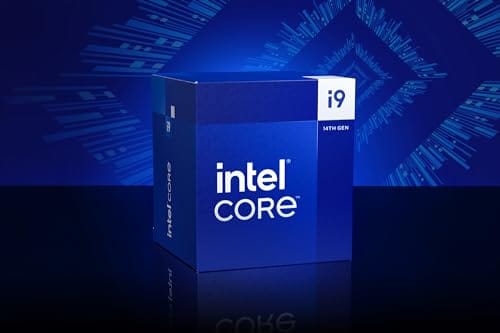

Pros
- Industry-leading 6.0GHz out-of-the-box boost clock for single-threaded applications.
- Massive 32-thread capacity excels in multi-threaded workloads like 4K video rendering and 3D modeling.
- Compatible with existing LGA 1700 motherboards via BIOS updates, extending the life of 600-series boards.
- Integrated Intel UHD Graphics 770 provides a fallback for troubleshooting and QuickSync hardware acceleration.
- Highly binned silicon offers significant tuning potential for users with high-end cooling solutions.
Cons
- High 253W maximum turbo power requires premium 360mm or 420mm AIO liquid cooling for sustained loads.
- Aggressive stock voltage curves can lead to thermal throttling on standard air coolers or entry-level AIOs.
- Final generation for the LGA 1700 socket, limiting future CPU upgrade paths without a motherboard change.
- Significant power draw necessitates a high-quality PSU with sufficient 12V EPS overhead.
The Intel Core i9-14900K represents the enthusiast-tier peak of the Raptor Lake Refresh lineup, targeting professional creators and gamers who require the highest possible clock speeds. With 24 cores and 32 threads, it is designed to handle simultaneous gaming, streaming, and recording without the performance degradation typically seen on lower-core-count processors.
Technical performance is defined by its 6.0GHz Thermal Velocity Boost, a milestone frequency that pushes the limits of the LGA 1700 platform. In real-world gaming, this translates to high frame ceilings in 1080p and 1440p scenarios, while the 16 Efficient-cores provide the necessary throughput for background tasks and heavy multi-threaded productivity suites like Adobe Premiere Pro and DaVinci Resolve.
Build quality and reliability are consistent with Intel's high-end silicon, though the chip is notoriously demanding regarding thermals. The integrated heat spreader (IHS) must dissipate significant heat during 250W+ bursts, making the choice of thermal interface material and mounting pressure critical for maintaining stability under full load.
The primary trade-off for this level of performance is power consumption and heat. Users should expect the processor to hit its thermal junction maximum (TjMax) quickly during synthetic stress tests if paired with inadequate cooling. It is a processor that requires manual tuning of power limits (PL1 and PL2) to balance efficiency and performance effectively.
Final verdict: Buy this processor if you are an enthusiast with a high-end Z790 motherboard and a 360mm+ liquid cooler who needs the absolute fastest gaming and multitasking performance currently available on the Intel platform. Skip this if you prefer a plug-and-play experience with low power draw or are building in a small form factor case with limited cooling clearance.
| Cores / Threads | 24 (8P + 16E) / 32 |
| Max Turbo Frequency | 6.0 GHz |
| Intel Smart Cache (L3) | 36 MB |
| Total L2 Cache | 32 MB |
| Processor Base Power | 125 W |
| Max Turbo Power | 253 W (Listed as 250W in specs) |
| Socket Support | LGA 1700 |
| Memory Support | DDR5 5600 / DDR4 3200 |
| PCIe Lanes | 20 Total (Up to Gen 5.0) |
| Integrated Graphics | Intel UHD Graphics 770 |
Motherboard and Chipset: The i9-14900K requires an LGA 1700 socket. While it is compatible with older Z600-series motherboards, a BIOS update is mandatory for the system to POST. For optimal power delivery and PCIe 5.0 support, a high-end Z790 motherboard with robust VRMs is strongly recommended to handle the 250W+ power excursions.
Cooling Requirements: Due to the 6.0GHz boost clock and high TDP, air cooling is generally not recommended for this tier unless using a flagship dual-tower cooler with a contact frame. A 360mm or 420mm All-In-One (AIO) liquid cooler is the standard recommendation to prevent thermal throttling during intensive rendering or compilation tasks.
Memory Selection: This CPU supports both DDR4 and DDR5, but the motherboard determines which one you must use. For maximum performance in modern titles and professional apps, pairing this with a DDR5-7200+ kit on a Z790 platform is the ideal configuration, though DDR4 remains a viable cost-saving path for those upgrading from 12th gen.
Power Supply Guidance: Given the potential for 300W+ spikes from the CPU alone, especially when overclocked, a high-quality 850W or 1000W 80 Plus Gold PSU is recommended. Ensure your PSU has at least two 8-pin EPS (CPU) connectors to provide stable voltage to the motherboard's power phases.
Operating System: To properly utilize the Intel Thread Director and the hybrid core architecture, Windows 11 is the recommended operating system. Windows 10 may not efficiently schedule tasks between the P-cores and E-cores, potentially leading to inconsistent performance in multitasking scenarios.
The longer explanation
A modern CPU core has more inside it than a simple calculator. It has front-end logic that fetches and decodes instructions, execution units that handle integer and floating-point work, branch prediction hardware, registers, cache access paths, and queues that keep operations moving. Real programs don’t use every part of that machinery every clock cycle. Sometimes a thread is waiting for data from memory. Sometimes a branch prediction misses. Sometimes one type of execution unit is busy while another isn’t.
Hyperthreading tries to fill those gaps. By tracking the state of two threads on one core, the processor can choose instructions from either thread and issue work to available resources. Windows then lists those logical processors next to physical cores. That’s why a CPU can show 8 cores and 16 logical processors, or 24 cores and 32 threads depending on its design.
The key is resource sharing. Two logical threads share the same physical core’s execution resources and cache access. If both threads need the exact same bottleneck at the same time, they compete. If one thread is stalled while the other can move forward, throughput improves. That’s why hyperthreading is a throughput feature, not a magic latency feature.
You’ll often see bigger gains in workloads that already split work across many threads. Video encoding, 3D rendering, code compilation, file compression, virtualization, and background-heavy creator workflows can all benefit. A game that mainly leans on a few fast threads won’t scale the same way. Not every workload is hungry in the same shape.
How it works
Intel introduced Hyper-Threading Technology to mainstream desktop users years before today’s hybrid-core designs arrived. The basic goal was simple: improve utilization without doubling the entire core. Duplicating some architectural state for a second thread takes far less silicon area than adding a full second physical core. The CPU can then present that duplicated state to the operating system as another processor target.
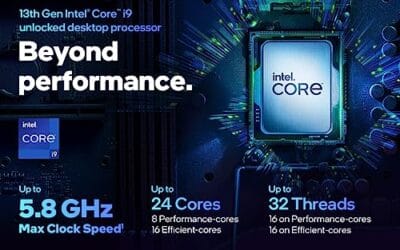
On older Intel desktop chips, the explanation was fairly clean. A quad-core i7 with Hyper-Threading appeared as 8 threads, while a quad-core i5 without it appeared as 4. Newer Intel Core processors complicate that because many models use Performance-cores and Efficient-cores. For example, the Intel Core i9-13900K title lists 24 cores, split into 8 P-cores and 16 E-cores, with 36MB cache and up to 5.8GHz. On that kind of chip, hyperthreading applies to the P-cores, while E-cores typically run one thread each.
That hybrid setup is why raw thread counts can look odd. A processor may have 24 physical cores but 32 logical threads, not 48. The operating system, Intel’s Thread Director, and the workload all influence where threads land. Foreground game threads may prefer fast P-cores. Background tasks may be steered toward E-cores. It’s more nuanced than the old core-count chart, but the same idea remains: keep silicon busy without pretending every thread has a whole core to itself.
Why it works this way
CPUs are limited by more than clock speed. Memory latency, cache misses, branch behavior, and instruction mix all affect how much work a core completes per cycle. A single software thread can leave unused execution capacity behind even while it feels busy to the operating system. Hyperthreading gives the core another ready thread to pull from when the first one can’t use everything.
That also explains why results vary. If two threads fit together nicely, performance can improve noticeably. If they fight over cache, memory bandwidth, or the same execution units, gains shrink and can occasionally turn negative in specialized cases. For typical desktop use, modern schedulers are good enough that you don’t need to micromanage it. You shouldn’t disable it for normal gaming, browsing, streaming, and creator work unless you’re chasing a very specific troubleshooting result.
Security mitigations have also shaped the conversation. Some side-channel attacks targeted shared CPU resources, and vendors responded with firmware, OS, and software changes. For a home gaming PC, the practical advice is boring but sound: keep BIOS updates, Windows updates, and browser updates current. Don’t make buying decisions from decade-old forum panic.
When you’d want this
You’d want hyperthreading when your PC often runs several demanding jobs at once. Streaming while gaming is the obvious example: the game, encoder, browser sources, chat tools, audio software, and background utilities can all ask for CPU time. It’s also useful for creators who render video, edit large photos, compile code, run virtual machines, or keep a pile of apps open. If that’s your daily pattern, more threads can make the machine feel less pinned at 100%.
For gaming alone, don’t buy only by thread count. A fast 6-core or 8-core CPU can still be excellent if its architecture, cache, and clocks fit the games you play. Our best gaming CPU coverage weighs those tradeoffs more directly. Hyperthreading is part of the picture, not the whole painting.
High-end Intel chips illustrate the point well. The Intel Core i9-13900K is listed at $587.77 with a 4.8 rating, 24 cores in an 8 P-core plus 16 E-core layout, 36MB cache, and up to 5.8GHz. That’s the kind of CPU where thread scheduling, core type, cache, and clocks all interact. More threads help, but they’re strongest when the software can use them.
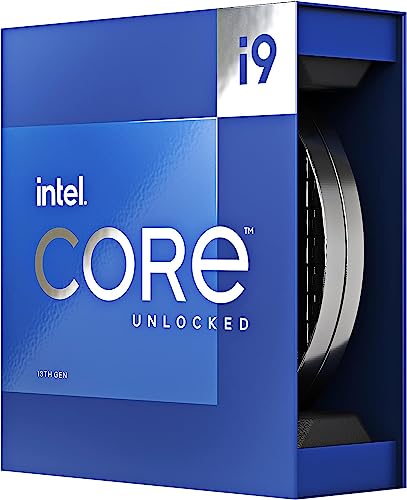
Pros
- Massive multi-threaded performance for 4K video editing, 3D rendering, and complex data science workloads.
- High 5.8 GHz peak frequency provides excellent single-core performance for gaming and CAD applications.
- Integrated UHD Graphics 770 serves as a reliable backup for troubleshooting or non-gaming productivity setups.
- Broad platform compatibility across two motherboard generations and two different memory standards.
Cons
- High 125W base power and significant peak wattage require a high-end 360mm AIO or custom loop cooling.
- Requires a BIOS update on many Intel 600 series motherboards before the system will POST.
- Platform longevity is limited as LGA1700 is an established socket nearing the end of its release cycle.
The Intel Core i9-13900K represents the pinnacle of the 13th Gen Raptor Lake lineup, positioned as a flagship solution for users who refuse to compromise. With a total of 24 cores and 32 threads, it is specifically engineered for enthusiast gamers, streamers, and heavy content creators who frequently run demanding applications like Adobe Premiere Pro, DaVinci Resolve, or Blender.
The standout technical achievement here is the refined hybrid architecture. By pairing 8 high-frequency Performance-cores with 16 Efficiency-cores, the 13900K manages heavy compute loads without sacrificing the responsiveness of background applications. In real-world gaming, this typically translates to higher 1% low frame rates and smoother overall performance, especially when multitasking with OBS or Discord in the background.
Thermal management is a critical consideration for this chip. While the 125W base power seems manageable, the processor is designed to scale its power consumption significantly to maintain the 5.8 GHz boost clock. Users should expect high operating temperatures under sustained all-core loads, necessitating a robust cooling solution and a high-airflow case to prevent thermal throttling.
An honest trade-off for this level of performance is the power draw and the resulting heat output. This is not a 'set and forget' chip for budget cooling or small form factor builds without careful undervolting or power limiting. Additionally, while the support for DDR4 is a welcome cost-saving measure, the highest performance tiers are only unlocked when paired with high-frequency DDR5 memory.
Buy this if you are building a top-tier workstation or gaming rig and already have a 360mm liquid cooler and a high-wattage power supply. Skip this if you are primarily gaming at 4K where the GPU is the bottleneck, or if you prefer a more power-efficient system with lower cooling requirements.
| Feature | Specification |
|---|---|
| Core Count | 24 (8 P-cores + 16 E-cores) |
| Thread Count | 32 |
| Max Turbo Frequency | 5.8 GHz |
| P-core Base Frequency | 3.0 GHz |
| E-core Base Frequency | 2.2 GHz |
| Intel Smart Cache (L3) | 36 MB |
| Total L2 Cache | 32 MB |
| Processor Base Power | 125 W |
| Memory Support | DDR5 5600 / DDR4 3200 |
| PCIe Revision | 5.0 and 4.0 |
| Total CPU PCIe Lanes | 20 |
| Socket Support | LGA1700 |
| Integrated Graphics | Intel UHD Graphics 770 |
Socket and Chipset: This processor uses the LGA1700 socket. It is natively compatible with Intel 700 series motherboards (Z790, H770, B760). While it works with 600 series boards (Z690, H670, B660, H610), a BIOS update is almost certainly required for the system to boot if the board was manufactured before the 13th Gen launch.
Cooling Requirements: Given the 5.8 GHz boost clock and high core count, a premium 360mm or 420mm All-In-One (AIO) liquid cooler is strongly recommended. High-end dual-tower air coolers may suffice for gaming but will likely lead to thermal throttling during intensive multi-threaded rendering or stress testing.
Memory Selection: The i9-13900K supports both DDR4 and DDR5, but this is determined by your motherboard choice. For a flagship build, pairing this CPU with DDR5 5600MT/s or higher is recommended to avoid bandwidth bottlenecks in memory-sensitive applications and modern games.
Power Supply Guidance: Due to the high transient power spikes typical of i9 processors, ensure your PSU has sufficient headroom. For a build featuring this CPU and a high-end GPU like an RTX 4080 or 4090, a minimum of an 850W or 1000W 80 Plus Gold power supply is advised.
Operating System: To properly utilize the Intel Thread Director for efficient task scheduling between P-cores and E-cores, Windows 11 is highly recommended. While Windows 10 is supported, it may not always assign tasks to the optimal core type, potentially impacting performance.
What to look for in a hyperthreading CPU
Start with physical core count, then read the thread count in context. A current Intel CPU with 8 P-cores, 16 E-cores, and hyperthreading on the P-cores behaves differently from an older 8-core, 16-thread non-hybrid design. For heavy work, cache size and sustained power limits matter too. A processor can advertise a high boost clock but still depend on motherboard power settings and cooling to hold strong all-core behavior.
Match the CPU to your real workload. Budget gaming rigs can spend more wisely by balancing CPU, GPU, memory, and storage, which is why a guide like best budget CPU for gaming can be more useful than staring at one spec. For Blender, Premiere, Unreal Engine builds, and code work, threads matter more. For esports at low settings, per-core speed and cache often show up first.
Also check platform cost. A CPU’s shelf price doesn’t include motherboard, DDR4 or DDR5 memory, cooler, and power supply needs. The Intel Core i9-14900K is listed at $469 with a 4.7 rating, but a high-end unlocked chip also deserves a board and cooler that won’t hold it back. Cheap support parts can erase the value of a strong processor.
Common misconceptions
The first misconception is that hyperthreading doubles your cores. It doesn’t. It doubles the number of logical threads available per supported physical core, while the actual execution hardware is still shared.
The second misconception is that games always hate it or always need it. Neither is true. Some games benefit from extra scheduling headroom, some barely move, and a few older titles behaved strangely on very high thread counts. Modern Windows builds and modern game engines are generally better about this than they used to be.
The third misconception is that disabling it makes a PC faster. Sometimes a benchmark run changes by a percent or two, but most users lose multitasking smoothness and heavy-work throughput. If you’re not diagnosing a specific app, leave it alone.
The last misconception is that thread count beats everything else. Cache, memory speed, motherboard behavior, cooling, GPU balance, and software scaling all matter. Specs are a map, not the trip.
Frequently asked
Is hyperthreading the same as cores?
No. Cores are physical execution units inside the CPU. Hyperthreading lets a supported physical core appear as two logical processors so it can juggle two software threads more efficiently. It’s useful, but it’s not the same as adding another full core.
Does hyperthreading improve FPS?
Sometimes, but it depends on the game and the rest of the PC. Games that spread work across many threads may see smoother frame pacing or better minimums. GPU-limited games may show almost no change.
Should I disable hyperthreading for gaming?
Most people shouldn’t. Modern CPUs, Windows scheduling, and game engines usually handle it well. Disable it only for a specific troubleshooting reason, then compare behavior carefully before leaving it off.
Why do some Intel CPUs have odd core and thread counts?
Hybrid Intel chips mix P-cores and E-cores. P-cores may support hyperthreading, while E-cores generally run one thread each. That can produce counts such as 24 cores and 32 threads instead of a simple doubled number.
Is hyperthreading useful for streaming?
Yes, it can be. Streaming stacks add encoder work, browser sources, chat apps, audio processing, and background tasks on top of the game. Extra logical threads can help the system stay responsive while those jobs compete for CPU time.































Write Your Review
No reviews yet. Be the first to share your experience!