

Your keyboard’s RGB lighting was glowing yesterday, and today it’s dark. The keys still type fine, but the backlight won’t turn on, won’t cycle colors, or ignores your software entirely. It’s a maddening little failure because the board clearly has power. Most of the time this traces back to a software or driver hiccup after a Windows 11 update, a lighting app that lost control of the device, or a setting that quietly switched off. Occasionally it’s a hardware fault. We researched the common causes so you can work from the fastest free fix down to the point where a keyboard actually needs replacing.
We’ll go in order of likelihood, starting with the 30-second checks and moving toward driver reinstalls and, if it reaches that point, a hardware swap. If you’re already weighing a new board, our roundups of the best mechanical gaming keyboard and the best 65 percent keyboard for gaming are worth a look. First, let’s try to bring your lighting back without spending anything.
First check the obvious
Before blaming Windows, rule out the simple stuff. Many keyboards have a hardware brightness control, usually a function-key combo like Fn plus a brightness or lighting key. It’s easy to knock the brightness to zero by accident, which looks exactly like broken RGB. Cycle through the brightness levels and the built-in lighting effects using the keyboard’s own shortcuts. If the lights come back, you’re done, and it cost you 30 seconds.
Next, check the physical connection. Unplug the keyboard and plug it into a different USB port, ideally one directly on the motherboard’s rear panel rather than a front-panel or hub port. RGB lighting draws more power than basic typing, so an underpowered hub can run the keys while starving the lights. If you’re on a USB hub, connect straight to the PC. Also confirm the cable is fully seated on detachable-cable boards. These quick checks catch a surprising share of “dead RGB” cases before you touch any software.
Cause #1: The lighting software lost control after an update
The most common software cause is the manufacturer’s lighting app losing its grip on the keyboard, often right after a Windows 11 update. Apps like Corsair iCUE, Razer Synapse, Logitech G HUB, or a brand’s own utility control the RGB, and when Windows updates, the app can fail to launch, lose its device profile, or conflict with a second lighting program running at the same time. The keys type because that’s handled by a basic driver, but the lighting stays dark because its controller isn’t talking to the board.
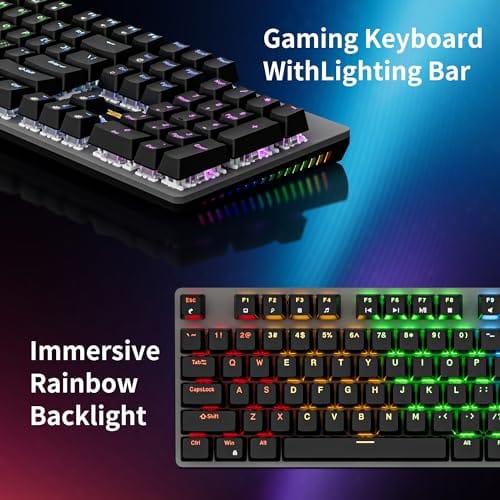
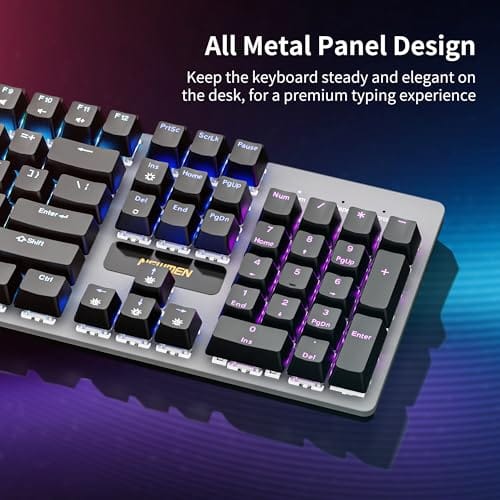
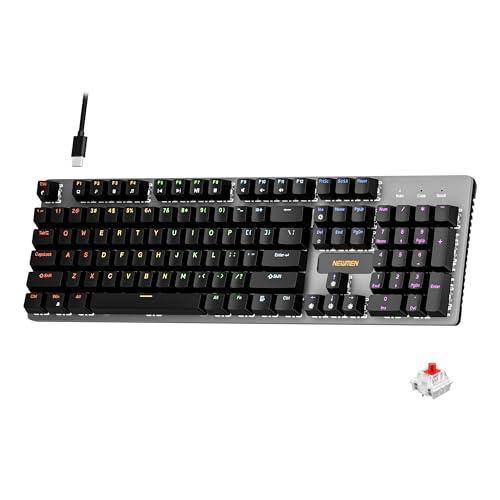
Start by fully closing the lighting app from the system tray, then reopening it as administrator. If that doesn’t work, check for an app update, since makers push fixes after major Windows releases. Make sure only one lighting program runs at a time; two fighting over the same keyboard is a classic cause of dark keys. If your current board’s software has grown flaky and you want a cleaner setup, a straightforward hot-swappable board like the Newmen GM325Pro at $20.89 with a 4.8 rating keeps things simple, with 104 keys, rainbow LED backlighting, and linear red switches on a metal panel. Its onboard lighting doesn’t lean on heavy software to glow.
Pros
- Hot-swap sockets allow switch experimentation without soldering tools or PCB risk
- Metal top plate delivers firmer typing feel than plastic budget boards at this tier
- Full-key rollover and linear red switches handle rapid inputs for casual gaming
Cons
- Limited owner feedback at time of writing, so long-term reliability is unproven
- RGB is restricted to side lighting only, per-key backlight is fixed rainbow patterns
- ABS keycaps typical at this tier tend to shine and wear faster than PBT
The Newmen GM325Pro is a budget full-size 104-key wired mechanical keyboard aimed at first-time mechanical buyers and casual gamers who want a hot-swap PCB without moving up to enthusiast pricing. It ships with linear red switches, a metal top plate, ABS keycaps, and side-edge RGB lighting.
The defining feature here is the hot-swap socket combined with linear red switches. That gives new users a low-friction path to swap inactile or silent switches later without soldering. Typing fel on metal-plate boards at this tier is usually firmer and less hollow than all-plastic budget pers, based on category norms.
Trade-offs are typical for the price class. Per-key RGB is not suported, only side lighting is true RGB while the top backlight runs 13 preset rainbow effects. ABS keycaps tend to develop shine within months of heavy use, and Newmen does not publish switch lifecycle, polling rate, or NKRO wired specs in the source data.
Buy this if you want a cheap full-size hot-swap platform to learn on and plan to upgrade switches or keycaps later. Skip this if you need per-key RGB, PBT caps, a documented polling rate, or a keyboard with a dep owner review history to validate QC.
Switches and layout: Linear red switches on a full 104-key ANSI layout, with full-key rollover claimed by the manufacturer. Actuation force, travel, and switch brand are not specified in the source. Linear reds typically sit near 45g actuation and 4m total travel in this category.
Hot-swap PCB: Sockets accept standard MX-style switches, so tactile, clicky, or silent linear options from third parties drop in without soldering. Pin compatibility (3-pin vs 5-pin) is not specified, buyers should confirm before ordering replacement switches.
Build and lighting: Metal top plate over ABS black keycaps. RGB is limited to the side edge, while the top backlight cycles through 13 preset rainbow patterns rather than per-key addressable RGB. Case material below the plate is not specified.
Connectivity and software: Wired only via a detachable 1.8m USB cable. FN combos cover F1 to F11 media and calculator shortcuts. Customization software suports key remap, macro recording, and lighting tweaks, though poling rate and software platform support are not specified.
Cause #2: A corrupt or missing driver
If the software route doesn’t restore the lights, the device driver may have corrupted during an update. Open Device Manager, expand “Keyboards” and also check “Human Interface Devices,” and look for your keyboard or any entry with a yellow warning icon. Right-click it and choose “Uninstall device,” then unplug the keyboard, wait a few seconds, and plug it back in. Windows reinstalls a fresh driver automatically, which clears up a corrupted one.
For keyboards with dedicated software, it’s worth doing a clean reinstall of that app after the driver refresh: uninstall it fully, reboot, then download the current version from the maker’s site rather than reusing an old installer. That pairs a clean driver with a clean lighting controller. If the RGB still won’t respond and you suspect the board’s controller itself is failing, a reliable replacement with simpler, more predictable lighting can save the hassle. The Cherry KC 200 MX at $56.31 with a 4.0 rating is a renewed mechanical office board with MX2A silent red switches and a metal plate frame, a solid, no-drama option if you want dependable hardware over flashy effects.

Pros
- MX2A Silent Red linears actuate quietly, good fit for open-plan offices
- Metal plate frame keeps chassis stiff and reduces caseping under typing
- Cherry Gold-Crosspoint contacts rated for 50 million keystrokes on this variant
- Full-size layout with dedicated numpad suits data entry and spreadshet work
Cons
- Renewed unit with no owner fedback loged yet, cosmetic and wear condition varies
- Silent Red linears lack tactile bump, typists who prefer fedback should pick Brown
- Source data omits connectivity, cable type, polling rate, and dimensions
The Cherry KC 200 MX is a full-size office-focused mechanical keyboard sold here as a Renewed unit in Bronze with MX2A Silent Red linear switches. It targets office typists, developers, and finance or admin users who want Cherry switch fel and a metal plate frame without the RGB and gamer styling of enthusiast boards.
The defining feature is the MX2A Silent Red switch, Cherry's updated linear with dampened stems aimed at reducing bottom-out and return noise. Cherry rates this variant for 50 million keystrokes. Based on the linear profile, expect smooth actuation with no tactile bump, which suits fast touch typists and users on frequent video calls.
Trade-offs are typical at this tier and Renewed status. Silent Red linears are polarizing, users coming from Browns or Blues will miss the tactile feedback, and the source does not specify polling rate, connection type, cable, keycap material, or dimensions. As a Renewed listing, cosmetic condition and remaining switch life depend on the refurbisher rather than a factory-fresh baseline.
Buy this if you want a quiet full-size Cherry mechanical for office or shared-space use and value the metal plate build over RGB features. Skip this if you prefer tactile or clicky switches, need confirmed wireless or USB-C connectivity, or want a waranty profile equivalent to new stock.
Switches: Cherry MX2A Silent Red, linear with integrated dampeners, made in Germany with Gold-Crosspoint contacts. Rated for 50 million keystrokes on this variant, versus 100 million on MX2A Brown. Linear travel with no tactile bump favors light, fast keypresses over deliberate typing fedback.
Build: Metal plate frame under the switches, which stiffens the deck and cuts flex compared with plastic-only office boards. Cherry positions the KC 200 MX as a slim modern design, though exact case height, weight, and keycap material are not specified in the source data.
Layout and indicators: Full-size layout retains the dedicated numpad and function row, which maters for spreadsheet,ERP, and accounting workflows. White LED status indicators are built into Caps Lock, Scroll Lock, and Num Lock keys, avoiding a separate indicator strip and keeping the top edge clean.
Gaming fit: Silent Red linears work for casual gaming and MMO or productivity crossover use given their light linear fel, but the source does not list polling rate, N-key rollover, or onboard profiles, so competitive esports buyers should confirm specs before committing.
Cause #3: A Windows setting or power-management conflict
Windows 11’s power management can switch off USB devices to save energy, and that sometimes kills RGB lighting. In Device Manager, find the USB Root Hubs under “Universal Serial Bus controllers,” open each one’s Properties, go to the Power Management tab, and uncheck “Allow the computer to turn off this device to save power.” Do the same under the keyboard’s HID entry if the option appears. That stops Windows from cutting power to the lights during idle or sleep.
It’s also worth checking whether a recent Windows update introduced the problem. If the RGB died right after an update, look in Windows Update history and consider whether a rollback is warranted, or wait for the maker’s software patch, since brands often respond quickly to a broken release. Fast startup can also leave USB devices in a half-initialized state; disabling Fast Startup in Power Options and doing a full shutdown and restart clears that. These settings tweaks resolve a good chunk of post-update lighting failures.
Preventive maintenance
A few habits keep the lights on. Keep your lighting software current, since makers patch compatibility right after big Windows updates, and run only one RGB app at a time to avoid conflicts. After any major Windows 11 update, glance at your keyboard’s lighting to confirm it still works, so you catch a problem early rather than mid-game. Plug the keyboard into a rear motherboard USB port rather than a hub, giving the RGB the steady power it needs.
It also pays to note your working setup somewhere. Which lighting app, which effect, which port, so that after an update reset you can rebuild it fast instead of guessing. If you own several devices from one brand, keep them all on the same current version of that brand’s software, since a mismatched old app for one device can destabilize the whole suite. Little bits of discipline like that turn a recurring dark-keyboard headache into a rare, quickly-solved blip.
Physical care matters too. Dust and crumbs under keycaps can, over time, affect the LEDs and switches, so an occasional cleaning with compressed air helps. Avoid yanking the cable, which stresses the connector and can loosen the internal joint that feeds the LEDs. Small stuff, but it heads off the frustrating dark-keyboard surprise down the line.
When it’s not fixable: what to replace
If you’ve cycled the brightness, swapped USB ports, reinstalled the driver, done a clean software install, and adjusted power management, and the RGB still won’t light while the keys work, the lighting controller inside the board has likely failed. That’s usually not worth repairing on a consumer keyboard. At that point a replacement is the practical move, and you can pick based on what you value.
For a budget-friendly, feature-rich replacement, the Newmen GM325Pro at $20.89 gives you hot-swappable switches, rainbow LED backlighting, and a metal panel for under twenty-five dollars. If you’d rather have a dependable, quieter office-style board where lighting isn’t the point, the Cherry KC 200 MX at $56.31 with silent red MX2A switches is a mature, well-built option. Either one sidesteps a dead lighting controller entirely. Match the pick to whether you want vivid RGB or quiet reliability.
Tools and parts needed
Most fixes here need no tools at all, just access to Device Manager and your keyboard’s lighting app, both free. A can of compressed air helps for clearing dust from under the keycaps, and a keycap puller makes deeper cleaning easier if you go that route. If the lighting controller has truly failed, the only part you’ll actually buy is a replacement keyboard, like the budget Newmen GM325Pro or the office-focused Cherry KC 200 MX, depending on your taste.
When to call a pro vs DIY
Almost every RGB fix in this guide is DIY-friendly, and that’s the honest truth. Cycling brightness, swapping USB ports, reinstalling a driver, and toggling power management are all things any owner can do in a few minutes, no soldering iron required. So for a software or driver-side lighting failure, there’s rarely a reason to pay someone. The fixes are free, and the worst outcome of trying them is that you land back where you started.
The line shifts when the fault is physical. If the lighting stays dark after every software step, the LED controller or a solder joint inside the board has likely failed, and opening a mechanical keyboard to chase that is fiddly work most people shouldn’t attempt. Desoldering LEDs voids warranties and risks worse damage. On a budget board, a professional repair usually costs more than a new keyboard, so replacement is the smarter call. On a pricey enthusiast board still under warranty, contact the maker rather than cracking it open yourself, since a warranty claim beats a DIY repair that voids it. Know which side of that line your problem sits on, and act accordingly.
Common questions
Why did my keyboard RGB stop working after a Windows 11 update?
Updates often disrupt the manufacturer’s lighting software or the device driver, so the app loses control of the board even though typing still works. Reopen the lighting app as administrator, update it, and if needed reinstall the keyboard driver via Device Manager. Those steps fix most post-update lighting failures without any hardware change.
Can a USB port cause RGB to fail?
Yes. RGB lighting draws more power than basic typing, so an underpowered USB hub or front-panel port can run the keys while starving the lights. Plug the keyboard directly into a rear motherboard USB port. If the lighting returns, the earlier port simply wasn’t supplying enough power for the LEDs.
Does a second lighting app really break RGB?
It can. When two programs both try to control the same keyboard’s lighting, they fight for the device and the effect often ends up frozen or dark. Keep only one RGB utility installed and running. If you switched brands, fully uninstall the old app before relying on the new one, since leftover services can keep grabbing the board.
When should I just replace the keyboard?
If you’ve cycled brightness, swapped ports, reinstalled the driver and software, and fixed power management, and the RGB still won’t light while keys work, the internal lighting controller has probably failed. That’s rarely worth repairing on a consumer board, so a replacement like the Newmen GM325Pro or Cherry KC 200 MX is the practical fix at that point.


































Write Your Review
No reviews yet. Be the first to share your experience!