

Your PC was flying through a game or a render, then the frame rate sagged and the whole thing felt like it dropped a gear. Chances are you just watched thermal throttling in action. It’s the safety mechanism that quietly slows your processor down when it gets too hot, trading raw speed for survival. Annoying in the moment, but it’s the reason your chip doesn’t cook itself into an early grave.
Thermal throttling gets blamed for a lot of mysterious slowdowns, and understanding it changes how you think about cooling, cases, and even which CPU for gaming you buy. It’s not a defect. It’s working as designed. Let’s unpack what’s really happening inside your machine, why it exists, and when it should shape your next upgrade, from a mainstream chip up to a high-end gaming CPU.
The short answer
Thermal throttling is when a processor automatically reduces its clock speed and voltage because it has reached a temperature limit, usually around 90 to 100 degrees Celsius on modern chips. The goal is self-protection. Silicon degrades or fails if it runs too hot for too long, so the chip watches its own temperature and backs off the throttle before damage occurs. Less speed, but a CPU that lives to boost another day.

This happens on CPUs and GPUs alike, and it’s fully automatic. You don’t trigger it or turn it off. The chip’s firmware handles everything in milliseconds. A high-clocking part like the Intel Core i9-14900K, which sells around $469 with a 4.7 rating, boosts hard and generates real heat under load, which makes it a textbook example of a processor that will throttle fast if its cooling can’t keep pace.


Pros
- Industry-leading 6.0GHz out-of-the-box boost clock for single-threaded applications.
- Massive 32-thread capacity excels in multi-threaded workloads like 4K video rendering and 3D modeling.
- Compatible with existing LGA 1700 motherboards via BIOS updates, extending the life of 600-series boards.
- Integrated Intel UHD Graphics 770 provides a fallback for troubleshooting and QuickSync hardware acceleration.
- Highly binned silicon offers significant tuning potential for users with high-end cooling solutions.
Cons
- High 253W maximum turbo power requires premium 360mm or 420mm AIO liquid cooling for sustained loads.
- Aggressive stock voltage curves can lead to thermal throttling on standard air coolers or entry-level AIOs.
- Final generation for the LGA 1700 socket, limiting future CPU upgrade paths without a motherboard change.
- Significant power draw necessitates a high-quality PSU with sufficient 12V EPS overhead.
The Intel Core i9-14900K represents the enthusiast-tier peak of the Raptor Lake Refresh lineup, targeting professional creators and gamers who require the highest possible clock speeds. With 24 cores and 32 threads, it is designed to handle simultaneous gaming, streaming, and recording without the performance degradation typically seen on lower-core-count processors.
Technical performance is defined by its 6.0GHz Thermal Velocity Boost, a milestone frequency that pushes the limits of the LGA 1700 platform. In real-world gaming, this translates to high frame ceilings in 1080p and 1440p scenarios, while the 16 Efficient-cores provide the necessary throughput for background tasks and heavy multi-threaded productivity suites like Adobe Premiere Pro and DaVinci Resolve.
Build quality and reliability are consistent with Intel's high-end silicon, though the chip is notoriously demanding regarding thermals. The integrated heat spreader (IHS) must dissipate significant heat during 250W+ bursts, making the choice of thermal interface material and mounting pressure critical for maintaining stability under full load.
The primary trade-off for this level of performance is power consumption and heat. Users should expect the processor to hit its thermal junction maximum (TjMax) quickly during synthetic stress tests if paired with inadequate cooling. It is a processor that requires manual tuning of power limits (PL1 and PL2) to balance efficiency and performance effectively.
Final verdict: Buy this processor if you are an enthusiast with a high-end Z790 motherboard and a 360mm+ liquid cooler who needs the absolute fastest gaming and multitasking performance currently available on the Intel platform. Skip this if you prefer a plug-and-play experience with low power draw or are building in a small form factor case with limited cooling clearance.
| Cores / Threads | 24 (8P + 16E) / 32 |
| Max Turbo Frequency | 6.0 GHz |
| Intel Smart Cache (L3) | 36 MB |
| Total L2 Cache | 32 MB |
| Processor Base Power | 125 W |
| Max Turbo Power | 253 W (Listed as 250W in specs) |
| Socket Support | LGA 1700 |
| Memory Support | DDR5 5600 / DDR4 3200 |
| PCIe Lanes | 20 Total (Up to Gen 5.0) |
| Integrated Graphics | Intel UHD Graphics 770 |
Motherboard and Chipset: The i9-14900K requires an LGA 1700 socket. While it is compatible with older Z600-series motherboards, a BIOS update is mandatory for the system to POST. For optimal power delivery and PCIe 5.0 support, a high-end Z790 motherboard with robust VRMs is strongly recommended to handle the 250W+ power excursions.
Cooling Requirements: Due to the 6.0GHz boost clock and high TDP, air cooling is generally not recommended for this tier unless using a flagship dual-tower cooler with a contact frame. A 360mm or 420mm All-In-One (AIO) liquid cooler is the standard recommendation to prevent thermal throttling during intensive rendering or compilation tasks.
Memory Selection: This CPU supports both DDR4 and DDR5, but the motherboard determines which one you must use. For maximum performance in modern titles and professional apps, pairing this with a DDR5-7200+ kit on a Z790 platform is the ideal configuration, though DDR4 remains a viable cost-saving path for those upgrading from 12th gen.
Power Supply Guidance: Given the potential for 300W+ spikes from the CPU alone, especially when overclocked, a high-quality 850W or 1000W 80 Plus Gold PSU is recommended. Ensure your PSU has at least two 8-pin EPS (CPU) connectors to provide stable voltage to the motherboard's power phases.
Operating System: To properly utilize the Intel Thread Director and the hybrid core architecture, Windows 11 is the recommended operating system. Windows 10 may not efficiently schedule tasks between the P-cores and E-cores, potentially leading to inconsistent performance in multitasking scenarios.
The longer explanation
Every modern processor has a target boost clock and a thermal ceiling, and it’s constantly balancing the two. Under light load it sips power and stays cool. Push it with a game, a video export, or a stress workload and it ramps voltage and frequency to hit those big advertised numbers. That performance produces heat, and heat has to go somewhere: through the cooler, into the case air, out the exhaust fans. When that heat leaves slower than the chip creates it, temperature climbs.
Once the sensor hits the limit, the chip starts pulling back. It drops clock speed in steps, shaves voltage, and keeps checking. If temps fall, it may climb again. If they don’t, it settles into a lower, sustainable state. That’s why a heavy render might start at 5.8GHz and drift down to something lower after ten minutes. The chip isn’t broken. It found the fastest speed its cooling could actually support, and it’s holding there.
How we got here
Old processors ran at fixed clock speeds and didn’t have this kind of intelligence. If they overheated, they could genuinely burn out, and early enthusiasts told horror stories about chips that let out a puff of smoke. Manufacturers responded by building thermal protection directly into the silicon, first as a crude emergency shutoff, later as the graduated throttling we have now.
The bigger shift came with automatic boost technology. Intel’s Turbo Boost and AMD’s Precision Boost flipped the old model on its head. Instead of a fixed clock with headroom, chips now run as fast as their temperature and power budget allow, all the time. That design makes thermal throttling a normal part of daily operation rather than a rare emergency. Your chip is essentially always feeling for its thermal edge and adjusting on the fly, dozens of times a second.
Why it works this way
The logic is simple risk management. Silicon transistors are tiny and packed incredibly close together, and sustained high heat causes electromigration, the slow physical breakdown of the chip’s internal pathways. Run a processor at 105 degrees for months and you shorten its lifespan. Throttling keeps the chip inside a safe thermal window so it can hit its warranty life and beyond.
There’s a performance reason too. Boosting to maximum clocks only makes sense when the chip can sustain it. Rather than crashing or corrupting data at unsafe temperatures, the processor gracefully steps down to a stable state. It’s a smarter tradeoff than the alternatives, a hard shutdown or permanent damage. The chip would rather give you 90 percent of the speed reliably than 100 percent for thirty seconds followed by a lockup.
When you’d want to think about throttling
You should think hard about throttling any time you’re buying a powerful, high-clocking chip or building in a small or warm case. The faster and hungrier the processor, the more heat it dumps, and the more your cooling decides how much of that advertised speed you actually keep. Someone gaming casually on a modest chip barely notices. Someone rendering video or streaming for hours on a flagship part lives and dies by their thermal setup.
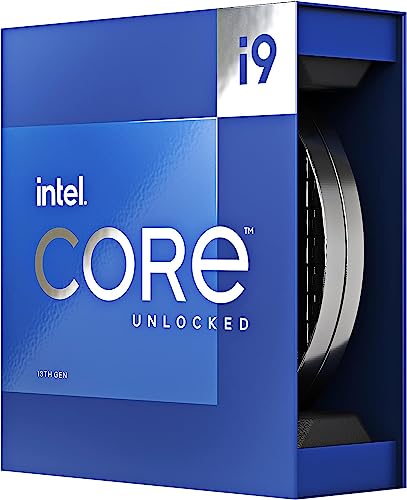
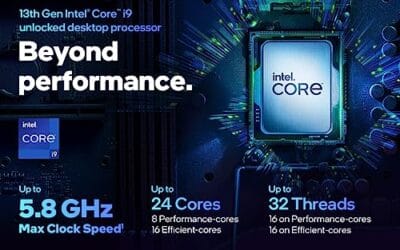
If your workload is sustained, like 3D work or long compiles, a chip’s throttling behavior matters more than its peak boost number. The Intel Core i9-13900K, around $587.77 with a 4.8 rating, packs 24 cores (8 P-cores plus 16 E-cores), 36M of cache, and boosts up to 5.8 GHz, all of which generate serious heat when every core is loaded. Pair a chip like that with weak cooling and you’ll leave real performance on the floor. If you’re comparing options for heavy multitasking, our take on the best CPU for streaming weighs sustained thermals as heavily as headline clocks.
Pros
- Massive multi-threaded performance for 4K video editing, 3D rendering, and complex data science workloads.
- High 5.8 GHz peak frequency provides excellent single-core performance for gaming and CAD applications.
- Integrated UHD Graphics 770 serves as a reliable backup for troubleshooting or non-gaming productivity setups.
- Broad platform compatibility across two motherboard generations and two different memory standards.
Cons
- High 125W base power and significant peak wattage require a high-end 360mm AIO or custom loop cooling.
- Requires a BIOS update on many Intel 600 series motherboards before the system will POST.
- Platform longevity is limited as LGA1700 is an established socket nearing the end of its release cycle.
The Intel Core i9-13900K represents the pinnacle of the 13th Gen Raptor Lake lineup, positioned as a flagship solution for users who refuse to compromise. With a total of 24 cores and 32 threads, it is specifically engineered for enthusiast gamers, streamers, and heavy content creators who frequently run demanding applications like Adobe Premiere Pro, DaVinci Resolve, or Blender.
The standout technical achievement here is the refined hybrid architecture. By pairing 8 high-frequency Performance-cores with 16 Efficiency-cores, the 13900K manages heavy compute loads without sacrificing the responsiveness of background applications. In real-world gaming, this typically translates to higher 1% low frame rates and smoother overall performance, especially when multitasking with OBS or Discord in the background.
Thermal management is a critical consideration for this chip. While the 125W base power seems manageable, the processor is designed to scale its power consumption significantly to maintain the 5.8 GHz boost clock. Users should expect high operating temperatures under sustained all-core loads, necessitating a robust cooling solution and a high-airflow case to prevent thermal throttling.
An honest trade-off for this level of performance is the power draw and the resulting heat output. This is not a 'set and forget' chip for budget cooling or small form factor builds without careful undervolting or power limiting. Additionally, while the support for DDR4 is a welcome cost-saving measure, the highest performance tiers are only unlocked when paired with high-frequency DDR5 memory.
Buy this if you are building a top-tier workstation or gaming rig and already have a 360mm liquid cooler and a high-wattage power supply. Skip this if you are primarily gaming at 4K where the GPU is the bottleneck, or if you prefer a more power-efficient system with lower cooling requirements.
| Feature | Specification |
|---|---|
| Core Count | 24 (8 P-cores + 16 E-cores) |
| Thread Count | 32 |
| Max Turbo Frequency | 5.8 GHz |
| P-core Base Frequency | 3.0 GHz |
| E-core Base Frequency | 2.2 GHz |
| Intel Smart Cache (L3) | 36 MB |
| Total L2 Cache | 32 MB |
| Processor Base Power | 125 W |
| Memory Support | DDR5 5600 / DDR4 3200 |
| PCIe Revision | 5.0 and 4.0 |
| Total CPU PCIe Lanes | 20 |
| Socket Support | LGA1700 |
| Integrated Graphics | Intel UHD Graphics 770 |
Socket and Chipset: This processor uses the LGA1700 socket. It is natively compatible with Intel 700 series motherboards (Z790, H770, B760). While it works with 600 series boards (Z690, H670, B660, H610), a BIOS update is almost certainly required for the system to boot if the board was manufactured before the 13th Gen launch.
Cooling Requirements: Given the 5.8 GHz boost clock and high core count, a premium 360mm or 420mm All-In-One (AIO) liquid cooler is strongly recommended. High-end dual-tower air coolers may suffice for gaming but will likely lead to thermal throttling during intensive multi-threaded rendering or stress testing.
Memory Selection: The i9-13900K supports both DDR4 and DDR5, but this is determined by your motherboard choice. For a flagship build, pairing this CPU with DDR5 5600MT/s or higher is recommended to avoid bandwidth bottlenecks in memory-sensitive applications and modern games.
Power Supply Guidance: Due to the high transient power spikes typical of i9 processors, ensure your PSU has sufficient headroom. For a build featuring this CPU and a high-end GPU like an RTX 4080 or 4090, a minimum of an 850W or 1000W 80 Plus Gold power supply is advised.
Operating System: To properly utilize the Intel Thread Director for efficient task scheduling between P-cores and E-cores, Windows 11 is highly recommended. While Windows 10 is supported, it may not always assign tasks to the optimal core type, potentially impacting performance.
What to look for to avoid throttling
Beating thermal throttling is mostly about cooling and airflow, not exotic tricks. Start with a cooler rated well above your chip’s power draw. A flagship CPU that can pull 250-plus watts under load needs a serious air tower or a 280mm-class liquid loop, not the tiny stock unit. Undersize the cooler and you’ll throttle no matter how good the chip is. It’s the single most common mistake in high-end builds.
Case airflow is the other half. Fresh intake air and clear exhaust paths keep the cooler fed with cool air instead of recycling hot air it just dumped. Fresh thermal paste matters too, since old dried paste insulates rather than conducts. And don’t ignore ambient room temperature: a PC in a hot closet throttles far sooner than the same build in a cool room. Small stuff adds up, and together it decides whether your chip holds its boost or gives it back.
Common misconceptions
The most persistent myth is that any throttling means your PC is broken or your cooling failed. Not true. Brief throttling under extreme load is normal, and many chips are designed to run right up against their thermal limit as a feature, not a fault. What you actually want to avoid is heavy, constant throttling that tanks your clocks far below spec. A few degrees of ceiling-kissing is fine.
Another myth: that hitting 90 or 100 degrees will instantly kill your CPU. Modern chips are rated to operate at those temperatures safely, which is exactly why the throttle point sits there. The danger is sustained heat over months, not a single spike during a benchmark. People also assume a bigger cooler always fixes throttling, but if your case airflow is choked, even a premium cooler just recycles hot air and keeps throttling anyway.
Frequently asked
Is thermal throttling bad for my CPU?
No, throttling itself is protective and prevents damage. It’s the chip doing its job. What’s not ideal is running so hot that you throttle constantly and lose noticeable performance. That points to inadequate cooling worth fixing. But the throttle mechanism kicking in occasionally under peak load is completely normal and nothing to worry about.
How do I know if my PC is throttling?
Watch your clock speeds and temperatures with a monitoring tool while under load. If temps hit the 90 to 100 degree range and clock speeds drop below the rated boost, you’re throttling. A sudden frame-rate dip or a render that slows down after a few minutes of full load is another telltale sign. Free monitoring apps make this easy to confirm.
Can better cooling stop thermal throttling?
Often, yes. A cooler rated above your chip’s power draw, good case airflow, and fresh thermal paste can keep temps below the throttle point during most workloads. On the hottest flagship chips under all-core loads, some throttling may still happen, and that’s expected. Better cooling mainly buys you higher sustained clocks and quieter operation for longer.
Does thermal throttling happen on laptops too?
Absolutely, and usually more aggressively than on desktops. Laptops cram powerful chips into thin chassis with limited cooling, so they throttle sooner to stay safe. That’s why a laptop CPU rarely holds its peak boost as long as the same-class desktop part. It’s a physics problem, not a defect, and it’s the tradeoff for portability.
Should I undervolt to reduce throttling?
Undervolting can help, since lowering voltage reduces heat while keeping clocks similar, which pushes the throttle point further away. It takes some careful tuning to stay stable, so it’s more of an enthusiast move than a beginner fix. For most people, a properly sized cooler and clean airflow solve throttling without touching voltage at all.































Write Your Review
No reviews yet. Be the first to share your experience!